Blog

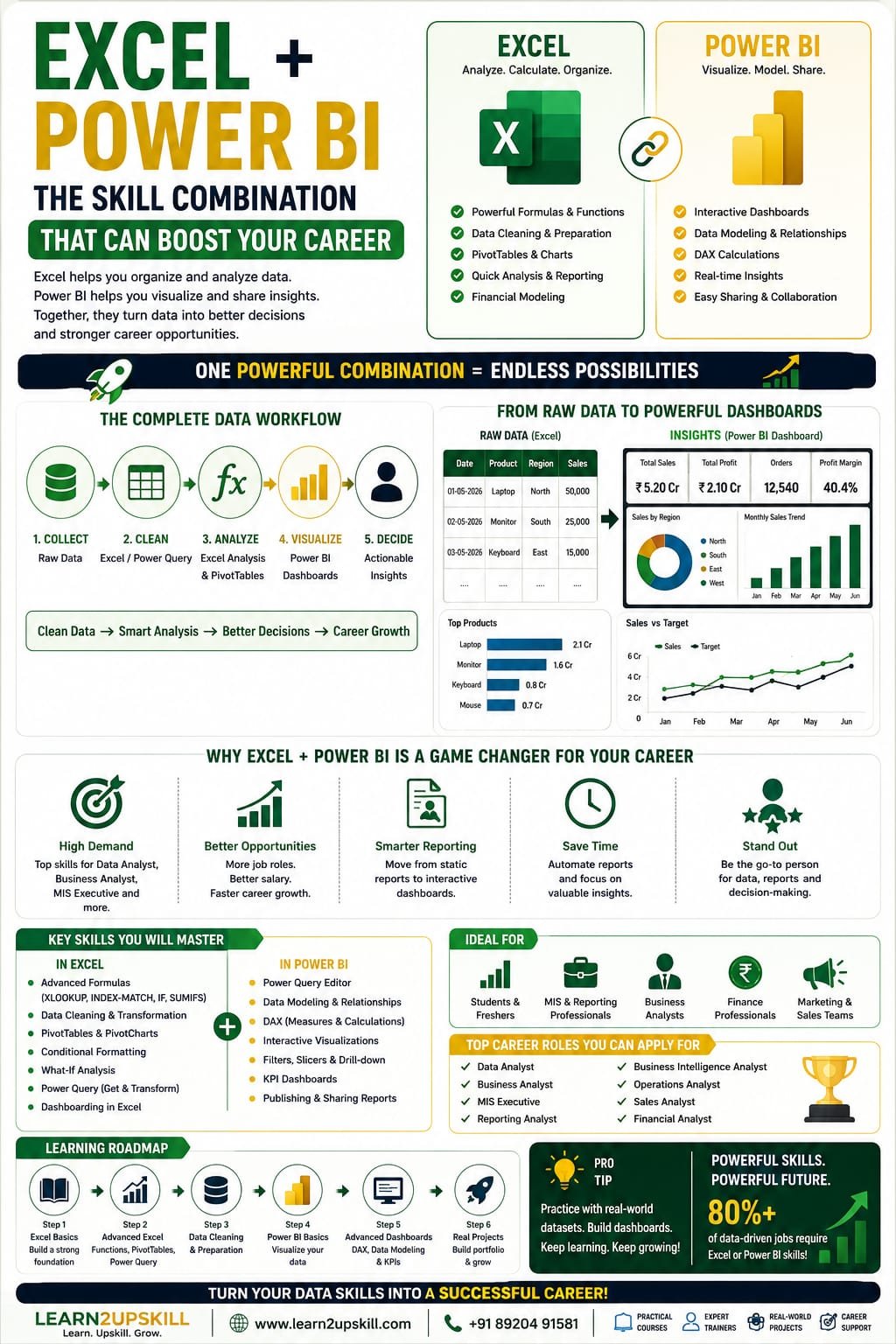
  • Excel + Power BI: The Skill Combination That Can Boost Your Career

    Excel + Power BI: The Skill Combination That Can Boost Your Career

    Excel + Power BI: The Skill Combination That Can Boost Your Career

    Learn why Excel and Power BI are powerful career skills. Discover how combining Excel + Power BI can improve data analysis, reporting, dashboards and job opportunities.

    Suggested URL Slug

    excel-power-bi-skill-combination-boost-career

    Introduction

    Data is everywhere.

    Businesses use data to understand customers, track sales, monitor expenses, measure employee performance, evaluate marketing campaigns and make important decisions.

    But having data is not enough.

    Organizations need professionals who can organize data, analyze it, identify trends and communicate insights clearly.

    This is where Excel and Power BI become extremely valuable.

    Excel has been one of the most widely used business tools for decades. It is used for calculations, data organization, reporting, budgeting, analysis and everyday business operations.

    Power BI takes data analysis and visualization to another level by helping professionals build interactive dashboards, connect multiple data sources and present business insights in an easy-to-understand format.

    Learning either tool can be useful.

    But learning Excel + Power BI together can create a particularly practical skill combination for professionals interested in data analysis, business intelligence, reporting and business analysis.

    In this guide, we’ll explore why these skills work so well together, what you can do with them and how to build your Excel + Power BI career roadmap.

    What Is Excel?

    Microsoft Excel is a spreadsheet application used for organizing, calculating, analyzing and presenting data.

    Professionals use Excel for:

    Data entry

    Calculations

    Financial analysis

    Budgeting

    Reporting

    Data cleaning

    Charts

    Dashboards

    Forecasting

    Business analysis

    Inventory management

    Sales tracking

    MIS reporting

    Excel also provides powerful functions and features such as:

    Formulas

    PivotTables

    Charts

    XLOOKUP

    Conditional Formatting

    Data Validation

    Power Query

    Power Pivot

    What-If Analysis

    For many professionals, Excel remains a fundamental workplace skill.

    What Is Power BI?

    Power BI is Microsoft’s business intelligence and data visualization platform.

    It allows users to connect to different data sources, transform data, create data models and build interactive reports and dashboards.

    Power BI can connect with sources such as:

    Excel

    CSV files

    Databases

    Cloud services

    Business applications

    Web sources

    Other data platforms

    Professionals can use Power BI to transform large amounts of information into interactive visual reports.

    For example, a company might use Power BI to create a dashboard showing:

    Total sales

    Monthly revenue

    Profit

    Sales by region

    Top products

    Customer trends

    Sales targets

    Year-over-year growth

    Why Learn Excel and Power BI Together?

    Here’s the interesting part.

    Excel and Power BI aren’t really competitors.

    They can work together.

    Think of Excel as a powerful spreadsheet and analysis tool, while Power BI is designed more specifically for business intelligence, visualization and interactive reporting.

    A professional who understands both can move comfortably from:

    Raw Data → Cleaning → Analysis → Dashboard → Business Insight

    That complete workflow is valuable.

    1. Excel Builds Your Data Fundamentals

    If you’re new to data analysis, Excel is often a comfortable place to start.

    You’ll learn concepts such as:

    Rows and columns

    Data types

    Formulas

    Functions

    Sorting

    Filtering

    Tables

    PivotTables

    Charts

    Data cleaning

    These concepts create a foundation for more advanced analytics.

    For example, learning Excel PivotTables can help you understand how data can be summarized by:

    Product

    Region

    Customer

    Month

    Department

    That way of thinking becomes useful when you start working with Power BI.

    1. Power BI Helps You Move Beyond Traditional Reporting

    Excel can create excellent reports.

    However, when your data becomes larger or your reporting requirements become more complex, Power BI can provide a more dedicated business-intelligence environment.

    Power BI allows you to create:

    Interactive dashboards

    Multiple report pages

    Drill-down experiences

    Interactive filters

    Data models

    Automated refreshes

    KPI reports

    Visual analytics

    Instead of sending a static spreadsheet, you can create a dashboard where users can explore the information themselves.

    1. Excel + Power BI Creates a Complete Data Workflow

    One of the biggest advantages of learning both tools is that they can fit into a single workflow.

    Step 1: Collect Data

    You may receive data in Excel files.

    Step 2: Clean the Data

    Use Excel or Power Query to clean:

    Duplicates

    Missing values

    Incorrect formats

    Inconsistent categories

    Extra spaces

    Step 3: Analyze the Data

    Use Excel for:

    Formulas

    PivotTables

    Quick calculations

    Exploratory analysis

    Step 4: Build a Data Model

    Move the prepared data into Power BI when appropriate.

    Step 5: Create Dashboards

    Build interactive Power BI reports.

    Step 6: Communicate Insights

    Explain:

    What happened?

    Why did it happen?

    What trends are visible?

    What should the business do next?

    That’s much more valuable than simply knowing how to create a spreadsheet.

    1. Excel + Power BI Is Useful for Data Analysts

    Data analysts need to work with data from different sources and communicate findings.

    Excel provides useful skills for:

    Data cleaning

    Calculations

    Quick analysis

    PivotTables

    Spreadsheet reporting

    Power BI provides skills for:

    Data modeling

    Interactive visualization

    Dashboard creation

    Business intelligence

    Report sharing

    Together, these skills can create a strong foundation for someone beginning a data analyst career.

    1. Excel + Power BI for Business Analysts

    Business analysts often work between business teams and data.

    They need to understand both:

    What does the data say?

    and

    What does the business need?

    Excel can help with:

    Data exploration

    Calculations

    Business models

    Scenario analysis

    Reporting

    Power BI can help with:

    KPI dashboards

    Business reporting

    Trend analysis

    Performance monitoring

    Interactive insights

    This combination can be particularly useful for professionals who want to move toward business intelligence or analytics roles.

    1. Excel + Power BI for MIS Professionals

    MIS and reporting roles frequently involve collecting information from different departments and preparing regular reports.

    Typical responsibilities may include:

    Daily reports

    Weekly reports

    Monthly reports

    Sales reports

    Employee reports

    Inventory reports

    Performance dashboards

    Excel is often heavily used in these workflows.

    Adding Power BI can help professionals move from manual reporting toward interactive business intelligence.

    For someone working in MIS, learning both can therefore be a practical career-development strategy.

    1. Excel + Power BI for Finance Professionals

    Finance teams frequently work with structured numerical data.

    Excel is already deeply embedded in many finance workflows.

    Professionals may use Excel for:

    Budgeting

    Financial models

    Variance analysis

    Forecasting

    Expense analysis

    Revenue analysis

    Power BI can then be used to create interactive financial dashboards.

    For example:

    Finance Dashboard

    Revenue

    ₹5.2 Crore

    Expenses

    ₹3.1 Crore

    Profit

    ₹2.1 Crore

    Profit Margin

    40.4%

    Revenue Growth

    +12%

    Instead of reviewing multiple spreadsheets, management can interact with a dashboard and explore the numbers.

    1. Excel + Power BI for Sales and Marketing

    Sales and marketing teams generate large amounts of information.

    Examples include:

    Leads

    Customers

    Revenue

    Campaigns

    Conversions

    Regions

    Products

    Sales representatives

    Excel can help clean and organize this information.

    Power BI can turn it into dashboards.

    For example:

    Sales Dashboard

    Total sales

    Sales by region

    Top-performing salesperson

    Monthly growth

    Product performance

    Conversion rate

    Target vs actual

    This combination helps teams move from data collection to actionable insights.

    1. Excel + Power BI Can Improve Your Resume

    Simply writing:

    “Microsoft Excel”

    on your resume may not communicate the depth of your skills.

    Instead, consider demonstrating specific capabilities.

    For example:

    Excel

    Advanced formulas

    XLOOKUP

    PivotTables

    Data cleaning

    Excel dashboards

    Power Query

    Power BI

    Data modeling

    DAX

    Power Query

    Interactive dashboards

    Data visualization

    KPI reporting

    Even better, add practical projects.

    For example:

    Sales Performance Dashboard — Excel + Power BI

    Cleaned sales data, created KPIs, analyzed regional performance and developed an interactive Power BI dashboard.

    A project demonstrates what you can actually do, rather than simply listing software names.

    1. Excel + Power BI Projects You Can Build

    If you’re learning these tools, don’t stop at tutorials.

    Build projects.

    Project 1: Sales Dashboard

    Analyze:

    Sales

    Profit

    Products

    Regions

    Customers

    Project 2: HR Analytics Dashboard

    Analyze:

    Employees

    Departments

    Attrition

    Attendance

    Salary

    Hiring

    Project 3: Financial Dashboard

    Analyze:

    Revenue

    Expenses

    Profit

    Budget vs actual

    Monthly trends

    Project 4: Marketing Dashboard

    Analyze:

    Leads

    Campaigns

    Conversion

    Cost

    ROI

    Project 5: E-Commerce Dashboard

    Analyze:

    Orders

    Products

    Customers

    Revenue

    Returns

    Profit

    These projects can become part of your data analytics portfolio.

    Excel vs Power BI: Which Should You Learn First?

    This is one of the most common questions beginners ask.

    The answer depends on your current skill level.

    Excel

    Power BI

    Spreadsheet-focused

    Business intelligence-focused

    Excellent for calculations

    Excellent for interactive dashboards

    Great for smaller/medium datasets

    Designed for scalable analytics workflows

    Widely used across business teams

    Strong for BI and reporting

    Excellent for quick analysis

    Excellent for interactive reporting

    Beginner-friendly starting point

    Easier after understanding data fundamentals

    If you’re a complete beginner

    Start with Excel fundamentals.

    Learn:

    Formulas

    Functions

    Tables

    PivotTables

    Charts

    Data cleaning

    Then move into:

    Power Query → Power BI → DAX → Data Modeling

    If you already know advanced Excel

    You can start Power BI sooner.

    Excel + Power BI Learning Roadmap

    Here’s a practical roadmap for beginners.

    Stage 1: Excel Fundamentals

    Learn:

    Basic formulas

    SUM

    AVERAGE

    IF

    COUNT

    XLOOKUP

    Text functions

    Date functions

    Stage 2: Advanced Excel

    Learn:

    PivotTables

    PivotCharts

    Advanced formulas

    Data cleaning

    Conditional Formatting

    Data Validation

    Excel dashboards

    Stage 3: Power Query

    Learn:

    Importing data

    Cleaning data

    Removing duplicates

    Changing data types

    Combining datasets

    Transforming data

    Stage 4: Power BI Fundamentals

    Learn:

    Power BI interface

    Data sources

    Power Query

    Visualizations

    Filters

    Slicers

    Report pages

    Stage 5: Data Modeling

    Learn:

    Relationships

    Fact tables

    Dimension tables

    Star schema

    Data modeling principles

    Stage 6: DAX

    Learn:

    Measures

    SUM

    CALCULATE

    FILTER

    SUMX

    DIVIDE

    IF

    Time intelligence

    Stage 7: Portfolio Projects

    Build at least:

    Sales dashboard

    HR dashboard

    Finance dashboard

    Now you’re not just someone who completed a course.

    You’re someone who can demonstrate practical analytics skills.

    What Jobs Can These Skills Support?

    Excel + Power BI skills can be useful for roles such as:

    Data Analyst

    Business Analyst

    MIS Executive

    Reporting Analyst

    Business Intelligence Analyst

    Operations Analyst

    Sales Analyst

    Marketing Analyst

    Finance Analyst

    Data Visualization Analyst

    The exact requirements vary by company and role, but these tools can form a useful foundation for many data-related positions.

    How to Make Excel + Power BI More Valuable

    Don’t stop at learning the software.

    Add complementary skills.

    Excel + Power BI + SQL

    A powerful combination for data analysis.

    Excel + Power BI + AI

    Useful for AI-assisted productivity and analytics.

    Excel + Power BI + Business Analysis

    Useful for professionals who want to connect data with business decisions.

    Excel + Power BI + Finance

    Useful for financial reporting and analysis.

    Excel + Power BI + Marketing

    Useful for campaign and customer analytics.

    Excel + Power BI + HR

    Useful for workforce analytics and reporting.

    This is where the real opportunity lies.

    Don’t just learn tools. Build a skill stack.

    Common Mistakes Beginners Make

    1. Learning Functions Without Understanding Data

    Knowing 50 Excel formulas doesn’t automatically make someone a data analyst.

    Understand the data first.

    1. Creating Beautiful Dashboards Without Useful Insights

    A dashboard should answer business questions.

    Not simply display colorful charts.

    1. Ignoring Data Cleaning

    Poor-quality data leads to poor-quality analysis.

    1. Avoiding DAX

    If you’re serious about Power BI, learn the fundamentals of DAX.

    1. Not Building Projects

    Projects help convert theoretical knowledge into practical skills.

    1. Learning Tools Separately

    Try to understand how Excel and Power BI can work together.

    The Future of Excel + Power BI Skills

    AI is changing data analysis, but that doesn’t make Excel and Power BI irrelevant.

    Instead, AI can increasingly help professionals work faster with these tools.

    Professionals may use AI to:

    Generate formulas

    Explain calculations

    Analyze datasets

    Create insights

    Suggest visualizations

    Speed up repetitive work

    But human professionals still need to understand:

    Data quality

    Business context

    Analytical logic

    Data interpretation

    Decision-making

    That’s why a combination of:

    Excel + Power BI + AI + Business Knowledge

    can be a strong future-oriented skill stack.

    Conclusion

    Excel and Power BI are more powerful together than they are in isolation.

    Excel helps professionals organize, clean, calculate and explore data.

    Power BI helps transform that data into interactive dashboards and business intelligence.

    Together, they can help professionals build a complete workflow:

    Clean → Analyze → Model → Visualize → Explain → Decide

    Whether you’re a student, fresher, working professional, MIS executive, finance professional, business analyst or aspiring data analyst, learning these skills can strengthen your professional toolkit.

    But remember:

    Learning Excel and Power BI isn’t the final goal. Using them to solve real business problems is.

    Build projects.

    Create dashboards.

    Analyze real-world datasets.

    Add your work to your portfolio.

    And keep developing complementary skills such as SQL, AI and business analysis.

    The future belongs to professionals who can turn data into decisions.

    Frequently Asked Questions

    1. Is Excel and Power BI a good combination?

    Yes. Excel is excellent for spreadsheet-based analysis, calculations and data preparation, while Power BI is designed for data modeling, visualization and interactive business intelligence.

    1. Should I learn Excel before Power BI?

    If you’re a complete beginner, learning Excel fundamentals first can make the transition to Power BI easier. If you already have strong Excel skills, you can start Power BI directly.

    1. Can Excel and Power BI help me get a data analyst job?

    They can provide an important foundation for data-related roles. However, job requirements vary, and learning SQL, data modeling, statistics, business analysis and practical projects can strengthen your profile.

    1. Is Power BI difficult for Excel users?

    Excel users often find some Power BI concepts familiar, but Power BI introduces additional concepts such as data modeling, relationships, Power Query and DAX.

    1. Do I need coding to learn Excel and Power BI?

    No. You can learn and use both tools without becoming a programmer. However, learning SQL and basic programming later can be useful for advanced data-analysis careers.

    1. What should I learn after Excel and Power BI?

    Consider learning SQL, DAX, Power Query, data modeling, business analysis and AI-assisted analytics.

    1. What Excel skills should I know before learning Power BI?

    Focus on formulas, tables, PivotTables, charts, data cleaning, lookup functions and basic data analysis.

    1. How can I demonstrate Excel and Power BI skills to employers?

    Build practical projects such as sales, finance, HR or marketing dashboards and include them in your portfolio or resume.

    Learn Excel + Power BI with Learn2Upskill

    Ready to build practical, job-focused data skills?

    Learn Excel, Power BI, Data Analytics, AI and other career-focused skills with Learn2Upskill.

    🌐 www.coral-kudu-326218.hostingersite.com⁠�

    📞 Contact Us: +91 89204 91581

    Learn. Upskill. Grow.
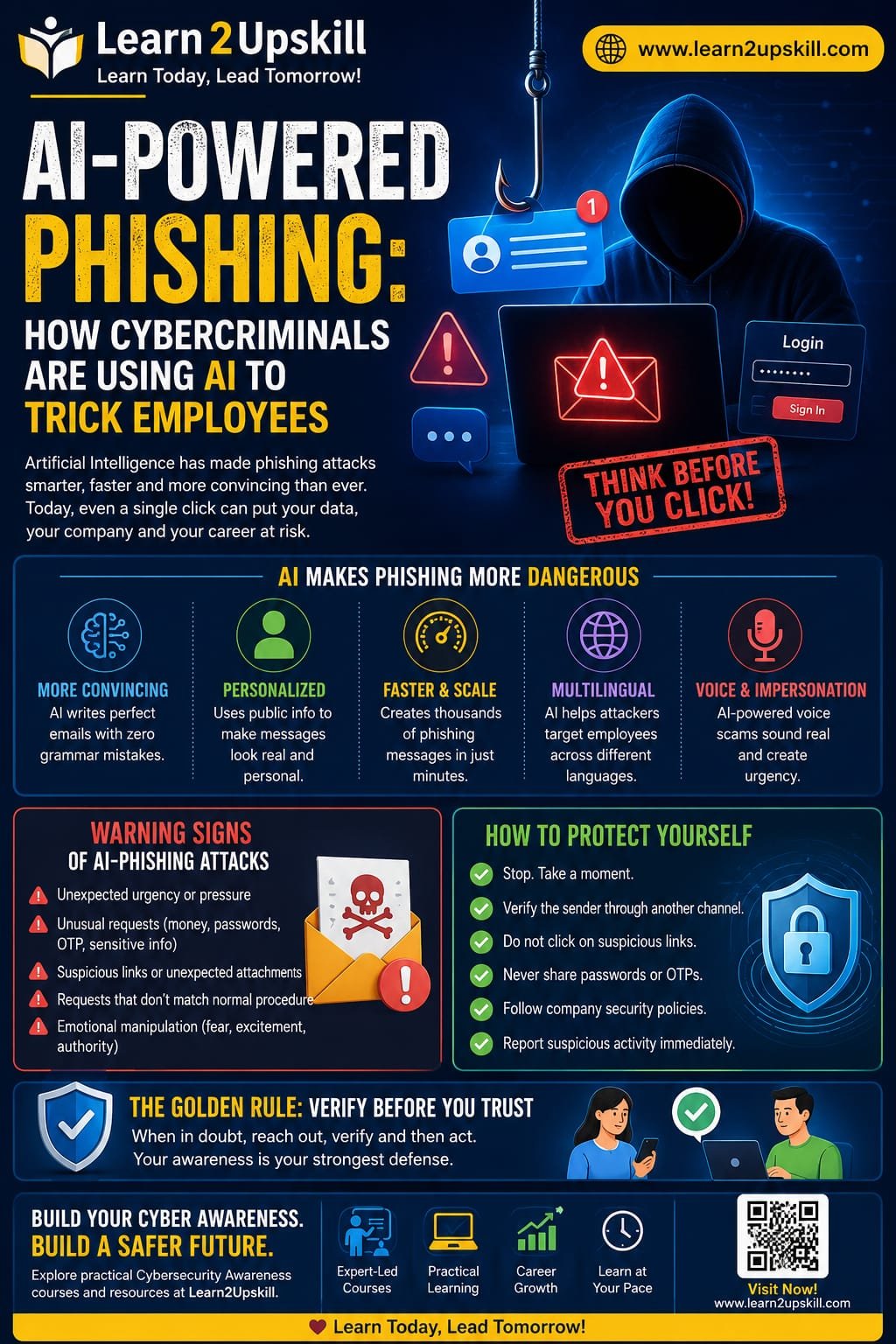
     

  • How Cybercriminals Are Using AI to Trick Employees

    How Cybercriminals Are Using AI to Trick Employees

    How Cybercriminals Are Using AI to Trick Employees

    Learn how cybercriminals are using AI to create convincing phishing emails, messages, voice scams, and fake websites—and how employees can protect themselves.

    Introduction

    Phishing has been a major cybersecurity threat for years. But artificial intelligence is making these scams more convincing, personalized, and difficult to identify.

    Traditionally, phishing emails were often easy to recognize because they contained spelling mistakes, strange formatting, suspicious links, or generic messages. Today, cybercriminals can use AI tools to create polished emails, personalize messages, imitate communication styles, generate fake websites, and even support voice-based scams.

    The result? Employees can no longer rely on poor grammar or obvious mistakes to identify a phishing attack.

    This is why AI-powered phishing awareness has become an important part of modern workplace cybersecurity.

    What Is AI-Powered Phishing?

    AI-powered phishing is the use of artificial intelligence and automation to make phishing attacks more convincing and effective.

    Instead of sending the same generic message to thousands of people, attackers can use AI to help create messages that appear relevant to a specific person, department, or organization.

    For example, an attacker might create a message that appears to come from:

    – A manager

    – The HR department

    – A bank

    – A company’s IT team

    – A supplier or business partner

    – A senior executive

    – A familiar online service

    The goal remains the same: trick the victim into revealing information, transferring money, opening a malicious attachment, or clicking a dangerous link.

    Why Is AI Making Phishing More Dangerous?

    AI can help cybercriminals overcome some of the weaknesses that made traditional phishing easier to identify.

    1. More Convincing Writing

    AI can generate professional-looking messages with correct grammar, natural language, and appropriate formatting.

    This makes the old rule—”look for spelling mistakes”—much less reliable.

    1. Personalized Messages

    Attackers may use publicly available information to make messages appear more relevant.

    For example, information about a person’s job role, company, projects, or professional activities can potentially be used to create a more believable message.

    1. Faster Scam Creation

    AI can help attackers produce large numbers of variations of phishing messages quickly.

    Instead of manually writing hundreds of emails, criminals can automate parts of the process.

    1. Multilingual Phishing

    AI can help generate messages in different languages and writing styles.

    This makes it easier for attackers to target employees across different countries and regions.

    1. Voice and Impersonation Scams

    AI-powered technologies can also contribute to increasingly convincing impersonation scams involving voice or other media.

    For example, an employee might receive a call that appears to come from someone they know and be pressured to make an urgent payment or share confidential information.

    Common Types of AI-Enhanced Phishing

    AI isn’t limited to traditional email phishing. Modern attacks can appear across multiple communication channels.

    AI-Generated Phishing Emails

    These messages may look like normal workplace communication.

    Examples include:

    – “Your password is about to expire.”

    – “Please review this invoice.”

    – “Your account requires verification.”

    – “Updated company policy—please read.”

    – “Urgent payment approval required.”

    The message may look professional and use language appropriate for the workplace.

    Spear Phishing

    Spear phishing targets a specific individual or organization.

    AI can help attackers create highly personalized messages rather than generic ones.

    For example, a finance employee may receive a message supposedly from a senior manager requesting an urgent payment.

    Business Email Compromise

    In business email compromise, criminals attempt to impersonate executives, employees, suppliers, or other trusted contacts.

    AI can make these communications appear more natural and convincing.

    AI-Assisted Smishing

    Smishing is phishing through SMS or messaging platforms.

    An attacker may send a message claiming that:

    – A package cannot be delivered.

    – A bank account needs verification.

    – A payment failed.

    – An account has been locked.

    – A special offer is expiring.

    Voice-Based Social Engineering

    Voice scams can use impersonation and increasingly sophisticated technologies to create convincing conversations.

    The attacker may create urgency and pressure the employee to act before they have time to verify the request.

    Why Employees Are Often the Target

    Cybersecurity isn’t only about technology.

    Attackers understand that employees make decisions every day. They receive emails, approve payments, access documents, reset passwords, communicate with suppliers, and handle sensitive information.

    Instead of trying to break through a company’s technical defenses, an attacker may attempt to persuade an employee to open the door for them.

    This is why employee awareness is an important layer of cybersecurity.

    Warning Signs of an AI-Powered Phishing Attack

    AI-generated messages can look legitimate, so employees should focus on behavior and context, not just grammar.

    Watch for these warning signs:

    🚩 Unexpected Urgency

    Be cautious when a message says:

    «”Do this immediately.”»

    «”You have 10 minutes.”»

    «”Don’t contact anyone about this.”»

    Urgency is commonly used to prevent people from thinking carefully.

    🚩 Unusual Requests

    Be especially careful with unexpected requests involving:

    – Money

    – Passwords

    – One-time passwords

    – Bank information

    – Confidential documents

    – Login credentials

    – Gift cards

    – Account verification

    🚩 Suspicious Links

    Don’t click a link simply because the email looks professional.

    Instead, verify where the link actually leads and consider navigating directly to the organization’s official website or application.

    🚩 Unexpected Attachments

    An unexpected document, ZIP file, spreadsheet, or other attachment deserves additional scrutiny.

    🚩 A Request That Doesn’t Match Normal Procedure

    If your manager suddenly asks you to transfer money to a new account, don’t assume the request is legitimate.

    Follow your organization’s verification procedure.

    🚩 Emotional Pressure

    Phishing attacks often use emotions such as:

    – Fear

    – Urgency

    – Curiosity

    – Excitement

    – Authority

    – Financial pressure

    If a message makes you feel that you must act immediately, pause before acting.

    The Golden Rule: Verify Before You Trust

    One of the most effective defenses against AI-powered phishing is simple:

    Stop. Verify. Then act.

    If you receive an unusual request from someone you know, verify it through a separate communication channel.

    For example:

    Email request: Call the person using a trusted phone number.

    Payment request: Follow your organization’s payment verification process.

    Password request: Contact your IT team through the official support channel.

    Unexpected document: Confirm with the sender before opening it.

    Do not use the contact information provided in a suspicious message for verification.

    How Companies Can Protect Employees

    Organizations should combine technology, policies, and employee education.

    1. Conduct Regular Security Awareness Training

    Employees should regularly learn about:

    – Phishing

    – Social engineering

    – Password security

    – Multi-factor authentication

    – Data protection

    – Safe browsing

    – Incident reporting

    1. Run Phishing Simulations

    Organizations can conduct controlled phishing simulations to help employees recognize suspicious messages in a safe environment.

    The purpose should be education—not embarrassing employees.

    1. Use Multi-Factor Authentication

    MFA can provide an additional security layer if an employee’s password is compromised.

    1. Establish Verification Procedures

    Organizations should have clear procedures for sensitive requests such as:

    – Financial transfers

    – Vendor bank-account changes

    – Password resets

    – Confidential data sharing

    – Executive requests

    1. Encourage Employees to Report Mistakes

    Employees should feel comfortable reporting suspicious activity—even if they already clicked a link or shared information.

    Fast reporting can help security teams respond quickly.

    What Should You Do If You Clicked a Phishing Link?

    Don’t panic.

    If you accidentally clicked a suspicious link:

    1. Stop interacting with the website.
    2. Don’t enter additional information.
    3. Inform your IT/security team immediately.
    4. Change your password if you entered credentials.
    5. Follow your organization’s incident-response instructions.
    6. Monitor relevant accounts for unusual activity.
    7. Report the phishing message according to company policy.

    Quick reporting is much more useful than hiding the mistake.

    AI Is a Tool—It Can Be Used for Defense Too

    AI isn't only useful to attackers.

    Organizations can also use AI and automation to help identify suspicious behavior, detect unusual communication patterns, analyze large volumes of security data, and support security teams.

    However, AI should complement—not replace—human judgment and established security processes.

    A Simple Employee Checklist

    Before responding to an unexpected message, ask:

    STOP

    – S — Source: Do I recognize the sender?

    – T — Timing: Was I expecting this message?

    – O — Offer/Request: Is the request unusual or sensitive?

    – P — Proceed Carefully: Can I verify it through another channel?


    If something doesn't feel right, pause and verify.

    Final Thoughts

    AI is changing phishing attacks. Messages can now be more polished, personalized, and convincing than many traditional scams.

    But the most important defense remains surprisingly simple: don't let urgency replace verification.

    Employees should think before clicking, verify unusual requests, protect credentials, and report suspicious activity quickly.

    For businesses, cybersecurity awareness should be an ongoing process—not a once-a-year training session.

    As AI continues to evolve, organizations that combine technology + security policies + well-trained employees will be better prepared to defend against modern phishing attacks.

    Learn More with Learn2Upskill

    Cybersecurity is no longer only an IT department's responsibility. Every employee who uses email, messaging platforms, cloud applications, or company systems plays a role in protecting the organization.

    Explore practical learning resources and courses on Learn2Upskill to build workplace-ready digital and cybersecurity skills.

    Website: Learn2Upskill — blog-cms.learn2upskill.com/

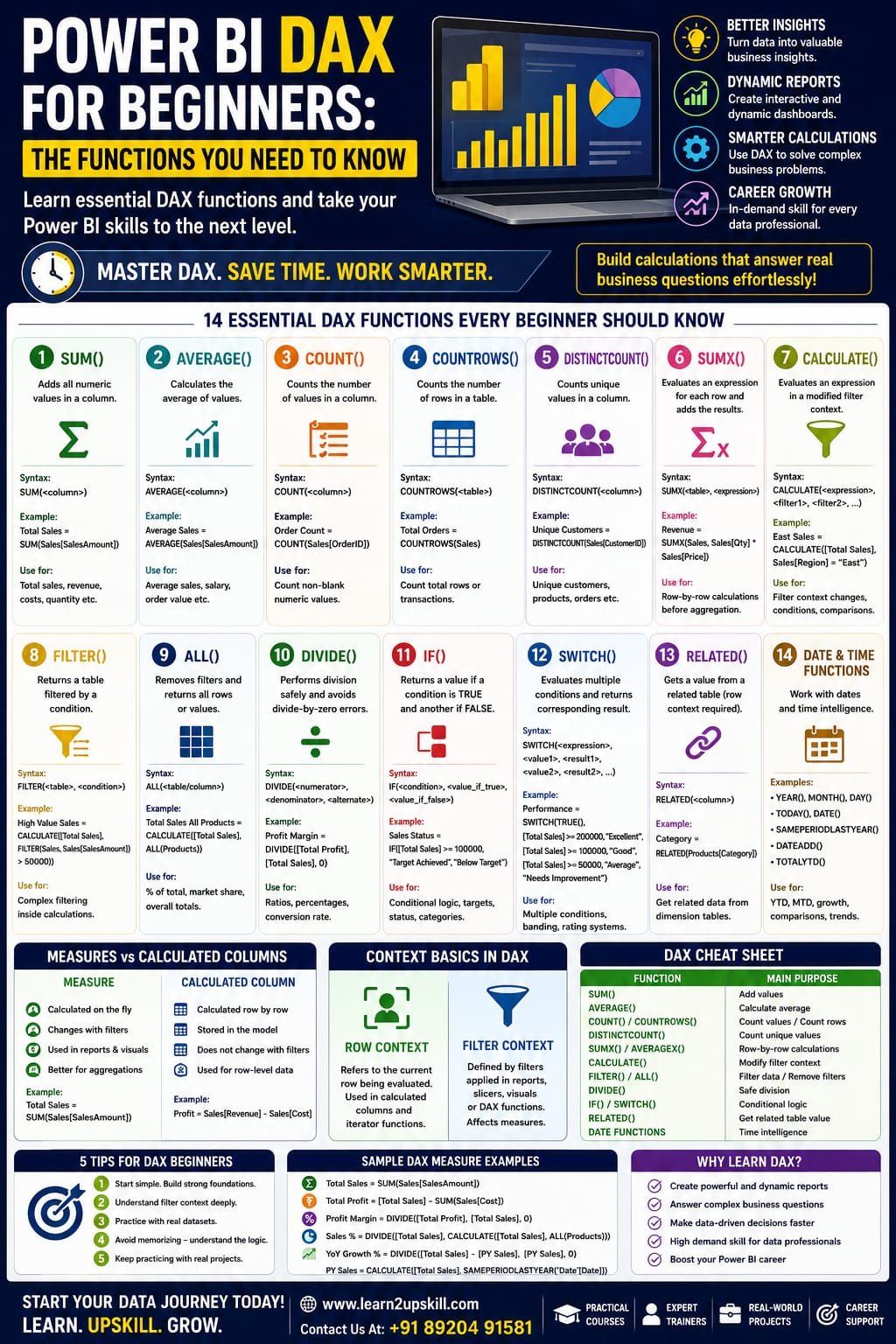
  • Power BI DAX for Beginners: The Functions You Need to Know

    Power BI DAX for Beginners: The Functions You Need to Know

    Power BI DAX for Beginners: The Functions You Need to Know

    Power BI DAX for Beginners: Essential DAX Functions to Learn

    Learn Power BI DAX for beginners with essential DAX functions such as SUM, CALCULATE, FILTER, SUMX, IF, DIVIDE, RELATED and time-intelligence functions.

    Suggested URL Slug:

    “power-bi-dax-for-beginners-essential-functions”

    —

    Introduction

    If you are learning Microsoft Power BI and want to move beyond basic charts and dashboards, one skill you should understand is DAX.

    DAX stands for Data Analysis Expressions. It is the formula language used in Power BI, Analysis Services and Power Pivot in Excel to create calculations and derive new information from data models. Microsoft’s DAX reference currently documents more than 250 functions, so beginners can easily feel overwhelmed by the number of available options.

    The good news is that you don’t need to memorize hundreds of DAX functions.

    A small group of commonly used functions can help you perform many practical Power BI calculations.

    In this Power BI DAX for beginners guide, we’ll explore the essential functions you should learn first, including:

    – SUM

    – AVERAGE

    – COUNT

    – DISTINCTCOUNT

    – SUMX

    – CALCULATE

    – FILTER

    – ALL

    – IF

    – SWITCH

    – DIVIDE

    – RELATED

    – Date and time functions

    We’ll also explain the difference between measures and calculated columns, introduce filter context and row context, and provide practical examples.

    —

    What Is DAX in Power BI?

    DAX is a formula language designed for working with data models.

    You can use DAX to create:

    – Measures

    – Calculated columns

    – Calculated tables

    – Business calculations

    – KPIs

    – Ratios

    – Percentages

    – Time-based calculations

    – Dynamic metrics

    For example, suppose you have a “Sales” table containing:

    Product| Quantity| Sales

    Laptop| 5| ₹250,000

    Monitor| 10| ₹150,000

    Keyboard| 20| ₹40,000


    You could create a simple DAX measure:

    Total Sales = SUM(Sales[Sales])

    This measure calculates the total sales from the “Sales” column.

    Microsoft describes DAX as a collection of functions, operators and constants that can be combined to create expressions that calculate and return values from a data model.

    —

    Why Is DAX Important in Power BI?

    Power BI can create many basic visualizations without DAX.

    But DAX becomes important when you want to answer business questions such as:

    – What are total sales?

    – What is the average order value?

    – What percentage of sales came from each region?

    – What were sales last year?

    – What is year-over-year growth?

    – What is the company’s profit margin?

    – Which products generated the most revenue?

    – What is the running total?

    – How much did sales increase compared with the previous month?

    DAX allows you to create dynamic calculations that respond to filters, slicers and the context of your report.

    —

    Measures vs Calculated Columns

    Before learning DAX functions, beginners should understand an important distinction.

    Calculated Column

    A calculated column creates a value for each row in a table.

    For example:

    Profit = Sales[Revenue] – Sales[Cost]

    The calculation is performed for each row.

    Calculated columns can be useful when you need a value stored at the row level.

    Measure

    A measure calculates a result when it is used in a report.

    For example:

    Total Revenue = SUM(Sales[Revenue])

    Measures are generally the preferred approach for aggregations and dynamic report calculations.

    Simple way to remember

    Calculated Column → Row-level calculation

    Measure → Report-level/dynamic calculation

    —

    1. SUM()

    Let’s begin with one of the simplest and most commonly used DAX functions.

    SUM() adds all numeric values in a column.

    Syntax

    SUM(<column>)

    Example

    Total Sales = SUM(Sales[SalesAmount])

    This calculates the total value in the “SalesAmount” column.

    When to use SUM()

    Use it for:

    – Total sales

    – Total revenue

    – Total costs

    – Total quantity

    – Total profit

    Example

    Total Quantity = SUM(Sales[Quantity])

    —

    1. AVERAGE()

    The AVERAGE() function calculates the arithmetic mean of values in a column.

    Example

    Average Sales = AVERAGE(Sales[SalesAmount])

    You can use this for:

    – Average sales

    – Average salary

    – Average order value

    – Average customer rating

    – Average product price

    For example:

    Average Order Value = AVERAGE(Sales[OrderValue])

    —

    1. COUNT()

    The COUNT() function counts values in a column according to the data type supported by the function.

    For example:

    Order Count = COUNT(Sales[OrderID])

    COUNT is useful when you need to calculate the number of non-blank numeric values.

    For more general counting requirements, beginners should also learn COUNTA() and COUNTROWS().

    —

    1. COUNTROWS()

    COUNTROWS counts the number of rows in a table.

    Example

    Total Orders = COUNTROWS(Sales)

    This can be particularly useful when each row represents one transaction.

    For example:

    Total Transactions = COUNTROWS(Sales)

    COUNT vs COUNTROWS

    Think of them this way:

    COUNT → Count values in a column

    COUNTROWS → Count rows in a table

    —

    1. DISTINCTCOUNT()

    Sometimes you don’t want to count every transaction.

    You want to know how many unique customers made purchases.

    That’s where DISTINCTCOUNT() becomes useful.

    Example

    Unique Customers = DISTINCTCOUNT(Sales[CustomerID])

    If the same customer appears multiple times, they are counted once.

    This is useful for:

    – Unique customers

    – Unique products

    – Unique employees

    – Unique orders

    – Unique accounts

    —

    1. SUMX()

    SUMX is an important step beyond basic aggregation.

    It is an iterator function that evaluates an expression for each row of a table and then adds the results.

    Syntax

    SUMX(<table>, <expression>)

    Suppose your table contains:

    Product| Quantity| Price

    Laptop| 2| ₹50,000

    Monitor| 3| ₹20,000

    You can calculate revenue using:

    Revenue = SUMX(Sales, Sales[Quantity] * Sales[Price])

    Here DAX evaluates:

    Quantity × Price

    for each row and then adds the results.

    SUM vs SUMX

    SUM:

    SUM(Sales[Revenue])

    Adds values already stored in a column.

    SUMX:

    SUMX(Sales, Sales[Quantity] * Sales[Price])

    Calculates an expression row by row and then aggregates it.

    Microsoft specifically describes SUMX as an iterator that evaluates an expression for each row of a table.

    —

    1. CALCULATE()

    If there is one DAX function that beginners should spend extra time understanding, it is CALCULATE().

    CALCULATE evaluates an expression in a modified filter context.

    Basic syntax

    CALCULATE(<expression>, <filter1>, <filter2>, …)

    Example

    Total Sales = SUM(Sales[SalesAmount])

    Now suppose you want sales only for the East region:

    East Sales =

    CALCULATE(

    [Total Sales],

    Sales[Region] = “East”

    CALCULATE changes the filter context so that the calculation is evaluated for the specified region.

    Why CALCULATE matters

    It is commonly used for:

    – Conditional calculations

    – Time intelligence

    – Percentage calculations

    – Comparisons

    – Removing filters

    – Applying filters

    – Advanced measures

    Learning CALCULATE is one of the biggest milestones for a beginner moving toward intermediate DAX.

    —

    1. FILTER()

    FILTER() returns a table that has been filtered according to a specified condition. Microsoft notes that FILTER is typically used as part of another function that requires a table expression rather than as a standalone calculation.

    Example

    High Value Sales =

    CALCULATE(

    [Total Sales],

    FILTER(

    Sales,

    Sales[SalesAmount] > 50000

    This allows you to work with rows meeting a specific condition.

    When to use FILTER()

    FILTER can be useful when you need more complex filtering logic.

    However, beginners should first understand simple filter arguments in CALCULATE before using FILTER extensively.

    —

    1. ALL()

    ALL() is an important filter-related function.

    It can return all rows in a table or all values in a column while ignoring filters applied to that table or column.

    For example:

    Total Sales All Products =

    CALCULATE(

    [Total Sales],

    ALL(Products)

    This can be useful when calculating:

    – Percentage of total

    – Market share

    – Overall totals

    – Comparisons against the entire dataset

    Example: Percentage of Total Sales

    Sales % =

    DIVIDE(

    [Total Sales],

    CALCULATE(

    [Total Sales],

    ALL(Products)

    This compares the current sales value with the total across products.

    —

    1. DIVIDE()

    DIVIDE() is useful when calculating ratios or percentages.

    Syntax

    DIVIDE(<numerator>, <denominator>, <alternate_result>)

    For example:

    Profit Margin =

    DIVIDE(

    [Total Profit],

    [Total Sales],

    0

    )

    This is generally safer for division calculations because you can specify an alternate result when the denominator is zero.

    Common uses

    – Profit margin

    – Conversion rate

    – Growth rate

    – Percentage of total

    – Average ratios

    —

    1. IF()

    IF() allows you to create conditional logic.

    Example

    Sales Status =

    IF(

    [Total Sales] >= 100000,

    “Target Achieved”,

    “Below Target”

    )

    This produces one result when the condition is true and another when it is false.

    IF can be useful for:

    – Targets

    – Performance categories

    – Status indicators

    – Business rules

    – Conditional labels

    —

    1. SWITCH()

    When you have multiple conditions, SWITCH can make your logic easier to read.

    For example:

    Performance =

    SWITCH(

    TRUE(),

    [Total Sales] >= 200000, “Excellent”,

    [Total Sales] >= 100000, “Good”,

    [Total Sales] >= 50000, “Average”,

    “Needs Improvement”

    )

    This creates several performance categories.

    SWITCH can be especially useful for:

    – Performance bands

    – Customer categories

    – Rating systems

    – KPI status

    – Business classifications

    —

    1. RELATED()

    RELATED() allows you to retrieve a value from a related table when the model relationship and row context support the lookup. Microsoft notes that RELATED requires row context, such as in a calculated column or within an appropriate table-scanning expression.

    Suppose you have:

    Sales Table

    ProductID| Quantity

    P101| 10

    P102| 20

    and:

    Products Table

    ProductID| Category

    P101| Laptop

    P102| Monitor

    You could use:

    Category = RELATED(Products[Category])

    This retrieves the category from the related Products table.

    Important

    RELATED depends on the appropriate relationship between the tables.

    So before troubleshooting a RELATED formula, check your data model relationships.

    —

    1. Date and Time Functions

    Time-based analysis is one of the biggest reasons professionals use Power BI.

    DAX includes many date and time functions that support calculations across periods.

    Common functions and patterns include:

    – YEAR()

    – MONTH()

    – DAY()

    – DATE()

    – TODAY()

    – SAMEPERIODLASTYEAR()

    – DATEADD()

    – TOTALYTD()

    For example, you might create:

    Current Year Sales =

    TOTALYTD(

    [Total Sales],

    ‘Date'[Date]

    )

    Or compare the current period with the previous year:

    Previous Year Sales =

    CALCULATE(

    [Total Sales],

    SAMEPERIODLASTYEAR(‘Date'[Date])

    )

    Time intelligence requires a properly designed date table and appropriate model relationships, so beginners should learn the data-model side along with the formulas.

    —

    1. Understanding Filter Context

    One of the most important concepts in DAX is filter context.

    Imagine a Power BI report showing sales by:

    – Year

    – Region

    – Product

    When a user selects:

    2026 + North Region

    the calculation is evaluated under that set of filters.

    DAX measures respond to this context.

    This is one reason the same measure can show different values in different parts of a Power BI report.

    Microsoft’s DAX documentation explains that filter context represents the set of values allowed by filters from reports, visuals and DAX expressions.

    —

    1. Understanding Row Context

    Row context refers to the current row being evaluated.

    It is especially important when working with calculated columns and iterator functions.

    For example:

    Profit = Sales[Revenue] – Sales[Cost]

    For each row, Power BI evaluates the Revenue and Cost values for that row.

    Iterator functions such as SUMX can also create row context while evaluating their expression across a table.

    Understanding row context + filter context is essential for progressing beyond beginner DAX.

    —

    Beginner DAX Cheat Sheet

    Function| Main Purpose| Example

    SUM| Add values| “SUM(Sales[Amount])”

    AVERAGE| Calculate average| “AVERAGE(Sales[Amount])”

    COUNT| Count values| “COUNT(Sales[OrderID])”

    COUNTROWS| Count rows| “COUNTROWS(Sales)”

    DISTINCTCOUNT| Count unique values| “DISTINCTCOUNT(Sales[CustomerID])”

    SUMX| Iterate and calculate| “SUMX(Sales, Sales[Qty]*Sales[Price])”

    CALCULATE| Modify filter context| “CALCULATE([Sales], Region=”East”)”

    FILTER| Filter a table| “FILTER(Sales, Sales[Amount]>50000)”

    ALL| Remove filters| “ALL(Products)”

    DIVIDE| Safe division| “DIVIDE([Profit],[Sales],0)”

    IF| Conditional logic| “IF([Sales]>100000,”Yes”,”No”)”

    SWITCH| Multiple conditions| “SWITCH(TRUE(),…)”

    RELATED| Retrieve related value| “RELATED(Products[Category])”

    TOTALYTD| Year-to-date calculation| “TOTALYTD([Sales],Date[Date])”

    —

    Common DAX Mistakes Beginners Make

    1. Trying to Memorize Everything

    You don’t need to memorize hundreds of functions.

    Focus on the functions you use regularly.

    1. Confusing Measures and Columns

    Understand when a calculation should be a measure and when it belongs at row level.

    1. Ignoring Relationships

    DAX works closely with your data model.

    Poor relationships can produce unexpected results.

    1. Not Understanding Filter Context

    Many confusing DAX results become easier to understand once you learn how filter context works.

    1. Using Complex Formulas Too Early

    Start with:

    SUM → CALCULATE → FILTER → SUMX → DIVIDE

    Then gradually move into advanced calculations.

    1. Treating DAX Like Excel

    DAX and Excel formulas may look similar, but DAX operates within a data-model and evaluation-context framework.

    Microsoft specifically notes that DAX functions may look familiar to Excel users while behaving differently because DAX works with tables, columns, relationships and context.

    —

    How to Learn DAX Faster

    If you’re a beginner, don’t try to learn DAX by memorizing formulas.

    Instead, use a practical approach.

    Step 1: Learn Basic Aggregations

    Start with:

    – SUM

    – AVERAGE

    – COUNT

    – COUNTROWS

    – DISTINCTCOUNT

    Step 2: Learn Iterators

    Move to:

    – SUMX

    – AVERAGEX

    – COUNTX

    Step 3: Master CALCULATE

    Spend time understanding filter context.

    Step 4: Learn Filtering

    Practice:

    – FILTER

    – ALL

    – REMOVEFILTERS

    – ALLSELECTED

    Step 5: Learn Business Logic

    Practice:

    – IF

    – SWITCH

    – DIVIDE

    Step 6: Learn Relationships

    Understand:

    – RELATED

    – RELATEDTABLE

    – Data-model relationships

    Step 7: Learn Time Intelligence

    Practice:

    – YTD

    – MTD

    – Previous Year

    – Year-over-Year Growth

    – DATEADD

    —

    Practical DAX Project for Beginners

    The best way to learn DAX is by building something.

    Create a simple Sales Performance Dashboard.

    Your dataset could include:

    – Date

    – Product

    – Category

    – Region

    – Customer

    – Quantity

    – Revenue

    – Cost

    Then create measures such as:

    Total Sales = SUM(Sales[Revenue])

    Total Cost = SUM(Sales[Cost])

    Total Profit = [Total Sales] – [Total Cost]

    Profit Margin =

    DIVIDE(

    [Total Profit],

    [Total Sales],

    0

    )

    Unique Customers =

    DISTINCTCOUNT(Sales[CustomerID])

    Average Sales =

    AVERAGE(Sales[Revenue])

    Once these work, add:

    – Sales by region

    – Sales by product

    – Monthly sales

    – Year-over-year growth

    – Top products

    – Profit margin

    – Sales targets

    This turns DAX from a theoretical topic into a practical business-analysis skill.

    —

    Why DAX Is an Important Skill for Data Analysts

    Power BI is widely used for business intelligence and reporting.

    DAX allows analysts to move beyond simply displaying data.

    Instead, analysts can create calculations that answer business questions.

    For example:

    “How much did sales grow?”

    “What percentage of total revenue came from this region?”

    “Which product has the highest margin?”

    “How are sales performing compared with last year?”

    These are the types of questions that make Power BI valuable to organizations.

    Learning DAX therefore complements other data skills such as:

    – Excel

    – Power Query

    – SQL

    – Power BI

    – Data visualization

    – Data modeling

    – Business analysis

    —

    Conclusion

    Learning Power BI DAX for beginners doesn’t mean memorizing every function in the DAX library.

    Start with the fundamentals:

    SUM → AVERAGE → COUNT → DISTINCTCOUNT → SUMX → CALCULATE → FILTER → ALL → DIVIDE → IF → SWITCH → RELATED → Time Intelligence

    Then practice these functions using real business datasets.

    Most importantly, learn why a formula works, not just how to copy it.

    Once you understand measures, calculated columns, row context, filter context and relationships, DAX becomes much easier to work with.

    The goal isn’t to become someone who knows hundreds of formulas.

    The goal is to become a professional who can use DAX to turn business data into useful insights and better decisions.

    —

    —

    Learn Power BI and Data Analytics with Learn2Upskill

    Want to move beyond basic Power BI dashboards?

    Build practical skills in Power BI, Excel, data analytics, business intelligence and other job-focused technologies with Learn2Upskill.

    🌐 www.coral-kudu-326218.hostingersite.com

    Learn. Upskill. Grow.

    —


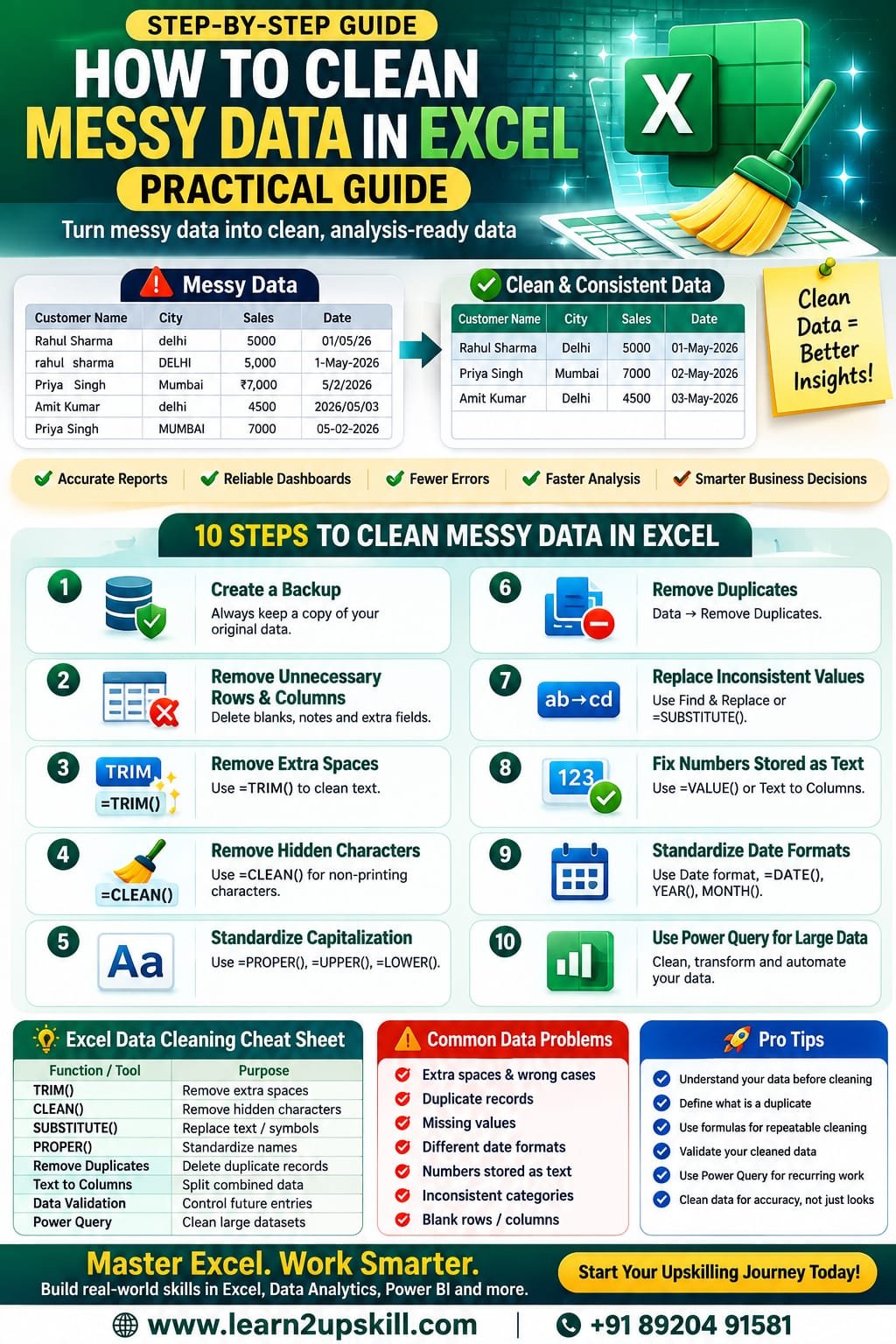
  • How to Clean Messy Data in Excel: Practical Guide

    How to Clean Messy Data in Excel: Practical Guide

    How to Clean Messy Data in Excel: Practical Guide

    Learn how to clean messy data in Excel using TRIM, CLEAN, SUBSTITUTE, Remove Duplicates, Text to Columns, data validation and Power Query.

    Suggested URL Slug:

    “how-to-clean-messy-data-in-excel”

    —

    Introduction

    Messy data is one of the most common problems faced by anyone working with Excel.

    You may receive a spreadsheet containing:

    – Extra spaces

    – Duplicate records

    – Missing values

    – Inconsistent names

    – Different date formats

    – Numbers stored as text

    – Incorrect capitalization

    – Blank rows

    – Unnecessary columns

    – Spelling variations

    – Inconsistent categories

    – Hidden or unwanted characters

    For example, the same customer might appear as:

    Rahul Sharma

    ** rahul sharma**

    RAHUL SHARMA

    Rahul  Sharma

    To a human, these may look like the same person. To Excel, they can be different text values depending on the situation.

    Before creating a report, dashboard or analysis, you need to make your dataset clean, consistent and reliable.

    This process is known as data cleaning or data cleansing.

    In this practical guide, you’ll learn how to clean messy data in Excel using formulas, built-in tools and Power Query.

    —

    What Is Data Cleaning in Excel?

    Data cleaning is the process of identifying and correcting inaccurate, incomplete, inconsistent, duplicate or incorrectly formatted data.

    The goal is simple:

    «Turn messy raw data into clean, consistent and analysis-ready data.»

    For example, imagine you have this dataset:

    Customer Name| City| Sales| Date

    Rahul Sharma| Delhi| 5000| 01/05/26

    rahul sharma| Delhi| 5000| 01-May-2026

    Priya  Singh| Mumbai| ₹7,000| 5/2/2026

    Amit Kumar| delhi| 4500| 2026/05/03

    There are several potential problems:

    – Inconsistent capitalization

    – Extra spaces

    – Duplicate records

    – Different date formats

    – Currency symbols mixed with numbers

    – Inconsistent city names

    Cleaning this data before analysis is essential.

    —

    Why Is Clean Data Important?

    Poor-quality data can lead to poor-quality decisions.

    For example, suppose you’re preparing a sales report.

    If the same customer appears under three different names, your customer count could be incorrect.

    If some sales values are stored as text, your formulas may not calculate correctly.

    If dates are inconsistent, your monthly or yearly analysis may produce unexpected results.

    Clean data helps you:

    – Improve reporting accuracy

    – Create reliable dashboards

    – Reduce calculation errors

    – Identify genuine trends

    – Prepare data for Power BI

    – Improve data analysis

    – Save time during reporting

    – Make better business decisions

    Good analysis starts with good data.

    —

    Step 1: Create a Backup Before Cleaning

    Before making major changes to your dataset, create a copy.

    This is especially important when:

    – Removing duplicates

    – Replacing values

    – Deleting columns

    – Changing data types

    – Transforming large datasets

    Excel’s Remove Duplicates feature permanently removes duplicate values from the selected range, so Microsoft recommends keeping a copy of the original data before deleting duplicates.

    A simple approach is:

    Original Data → Backup → Cleaned Data

    This gives you a safe version to return to if something goes wrong.

    —

    Step 2: Remove Unnecessary Rows and Columns

    Start by looking at the overall structure of your spreadsheet.

    Ask:

    – Are there completely blank rows?

    – Are there unnecessary columns?

    – Are there notes mixed into the dataset?

    – Are there totals or subtotals inside the raw data?

    – Is there more than one header row?


    A clean dataset generally works best when:

    – Each row represents one record

    – Each column represents one field

    – There is one clear header row

    – There are no unnecessary blank rows inside the data

    For example:

    Good structure:

    Customer| City| Product| Sales

    Rahul| Delhi| Laptop| 50000

    Priya| Mumbai| Monitor| 25000

    Avoid inserting manually formatted subtotals or explanatory notes into the middle of raw data.

    If you’re using Power Query, unnecessary columns can also be removed through the Power Query Editor.

    —

    Step 3: Remove Extra Spaces with TRIM()

    Extra spaces are one of the most common Excel data-cleaning problems.

    For example:

    ” Rahul Sharma ”

    may contain unnecessary spaces before or after the name.

    Use the TRIM() function:

    =TRIM(A2)

    TRIM removes extra spaces from text while preserving single spaces between words. Microsoft notes that TRIM is designed for the standard ASCII space character.

    Example

    If A2 contains:

    Rahul   Sharma

    then:

    =TRIM(A2)

    returns:

    Rahul Sharma

    Important

    TRIM may not remove certain non-breaking spaces commonly found in copied web data. In those cases, you may need to combine TRIM with other text-cleaning techniques.

    —

    Step 4: Remove Hidden or Non-Printing Characters with CLEAN()

    Sometimes data copied from websites, PDFs or other systems contains hidden characters.

    These can cause unexpected problems.

    The CLEAN() function can help remove many non-printing characters.

    Example:

    =CLEAN(A2)

    For stronger cleaning, combine CLEAN and TRIM:

    =TRIM(CLEAN(A2))

    This is particularly useful when you’re working with text imported from external sources.

    Microsoft also documents the combination of TRIM and CLEAN for cleaning text.

    —

    Step 5: Standardize Capitalization

    Inconsistent capitalization can make datasets difficult to analyze.

    For example:

    – Delhi

    – DELHI

    – delhi

    – DeLhI

    You can standardize text using:

    UPPER()

    =UPPER(A2)

    Result:

    DELHI

    LOWER()

    =LOWER(A2)

    Result:

    delhi

    PROPER()

    =PROPER(A2)

    Result:

    Delhi

    For names, PROPER can often be useful:

    =PROPER(TRIM(A2))

    This can simultaneously remove unnecessary spaces and standardize capitalization.

    Always review the result, though, because proper capitalization rules aren’t universal for names, abbreviations or organization names.

    —

    Step 6: Find and Remove Duplicate Data

    Duplicate records can distort:

    – Sales totals

    – Customer counts

    – Inventory reports

    – Employee lists

    – Survey results

    Excel provides a built-in Remove Duplicates feature.

    How to remove duplicates

    1. Select your dataset.
    2. Go to Data.
    3. Select Remove Duplicates.
    4. Choose the columns that define a duplicate.
    5. Click OK.

    Microsoft notes that Excel can also highlight duplicates using:

    Home → Conditional Formatting → Highlight Cells Rules → Duplicate Values.

    Important warning

    Don’t automatically delete duplicates.

    First ask:

    Is this actually a duplicate record?

    For example, a customer can legitimately have multiple orders.

    If you remove every repeated customer name, you could accidentally delete valid transactions.

    Always define what a “duplicate” means for your particular dataset.

    —

    Step 7: Replace Inconsistent Values

    Sometimes the same category appears under different names.

    For example:

    – Male

    – M

    – male

    – MALE

    Or:

    – Delhi

    – New Delhi

    – delhi

    You may need to standardize these values.

    Excel’s Find & Replace feature can help.

    Press:

    Ctrl + H

    Then enter:

    Find: “male”

    Replace with: “Male”

    For larger repeatable workflows, Power Query also provides a Replace Values transformation. Microsoft notes that replacing values in Power Query changes the query result rather than directly editing the external source.

    —

    Step 8: Clean Text with SUBSTITUTE()

    SUBSTITUTE() replaces specific text within a cell.

    Example

    Suppose your data contains:

    Delhi – India

    and you want to remove:

    – India

    Use:

    =SUBSTITUTE(A2,” – India”,””)

    Result:

    Delhi

    SUBSTITUTE can be useful for:

    – Removing unwanted characters

    – Standardizing text

    – Replacing abbreviations

    – Cleaning imported data

    – Removing symbols

    You can combine it with TRIM:

    =TRIM(SUBSTITUTE(A2,”-“,””))

    —

    Step 9: Fix Numbers Stored as Text

    One common Excel problem is numbers stored as text.

    For example:

    5000

    ₹5000

    “5000”

    may not behave as expected in calculations.

    You can often identify numbers stored as text because they may be aligned differently or show warning indicators.

    Possible approaches include:

    VALUE()

    =VALUE(A2)

    Multiply by 1

    =A2*1

    Text to Columns

    Select the affected column and use:

    Data → Text to Columns

    Then follow the steps to convert the values.

    Before converting, check whether the column contains mixed values such as text labels and numbers.

    —

    Step 10: Standardize Date Formats

    Dates are extremely important for reporting.

    You might receive:

    – 01/05/2026

    – 1-May-2026

    – May 1, 2026

    – 2026-05-01

    These may represent the same date, but imported data can sometimes contain actual dates mixed with text values.

    After confirming that Excel recognizes the values as dates, standardize their display using:

    Home → Number Format → Date

    You can also use functions such as:

    =DATE(year,month,day)

    and:

    =YEAR(A2)

    =MONTH(A2)

    =DAY(A2)

    Correct date data is essential for:

    – Monthly reports

    – Quarterly analysis

    – Year-over-year comparisons

    – Power BI dashboards

    – Time-based charts

    —

    Step 11: Split Combined Data

    Sometimes one column contains multiple pieces of information.

    For example:

    Rahul Sharma – Delhi

    You may want:

    Name| City

    Rahul Sharma| Delhi

    You can use Text to Columns.

    Basic process

    1. Select the column.
    2. Go to Data.
    3. Select Text to Columns.
    4. Choose Delimited.
    5. Select the appropriate delimiter.
    6. Preview the result.
    7. Finish.

    Common delimiters include:

    – Comma

    – Space

    – Tab

    – Semicolon

    – Hyphen

    Always preview the output before completing the operation.

    —

    Step 12: Handle Missing Values

    Missing data is another common problem.

    You might find:

    Customer| City| Sales

    Rahul| Delhi| 5000

    Priya| | 7000

    Amit| Mumbai|

    Don’t automatically replace every blank cell with zero.

    A blank could mean:

    – Unknown

    – Not applicable

    – Not provided

    – Data missing

    – Zero

    These meanings are different.

    Before filling blanks, understand what the field represents.

    Possible strategies include:

    – Leave blank

    – Enter “Unknown”

    – Enter “Not Applicable”

    – Use zero when zero is genuinely correct

    – Investigate the source data

    —

    Step 13: Check Data Types

    Every column should have an appropriate data type.

    For example:

    Column| Expected Type

    Customer Name| Text

    City| Text

    Quantity| Number

    Sales| Number/Currency

    Order Date| Date

    Customer ID| Text or identifier

    Percentage| Percentage

    A common mistake is assuming that something that looks like a number is actually stored as a number.

    Always verify.

    —

    Step 14: Use Data Validation

    If you’re creating a spreadsheet that people will continue entering data into, Data Validation can prevent many future data-quality problems.

    For example, instead of allowing users to type any region, create a dropdown:

    North

    South

    East

    West

    This reduces inconsistent entries such as:

    – North

    – north

    – NORTH

    – Nort

    – N.

    Data validation is therefore not only a cleaning tool.

    It is a data-quality prevention tool.

    —

    Step 15: Use Conditional Formatting to Find Problems

    Conditional Formatting can help you identify:

    – Duplicate values

    – Unusually high numbers

    – Unusually low numbers

    – Blank cells

    – Error values

    – Outliers

    For example, to identify duplicates:

    Home → Conditional Formatting → Highlight Cells Rules → Duplicate Values

    Microsoft recommends this approach as a way to review duplicates before deciding whether to remove them.

    This is particularly useful when you want to inspect the data before making destructive changes.

    —

    Step 16: Clean Data Using Power Query

    If you regularly receive large or messy datasets, Power Query can be one of the most useful Excel tools to learn.

    Power Query allows you to create repeatable data-transformation steps.

    You can use it to:

    – Remove duplicates

    – Remove unnecessary columns

    – Replace values

    – Change data types

    – Split columns

    – Merge columns

    – Filter rows

    – Remove errors

    – Transform text

    – Combine datasets

    For example, in Power Query you can remove duplicate rows by selecting the relevant columns and choosing:

    Home → Remove Rows → Remove Duplicates.

    Power Query can also keep duplicate rows when you need to investigate them rather than delete them.

    Why Power Query is powerful

    Suppose you receive the same type of sales report every Monday.

    Instead of cleaning it manually every week, you can create a Power Query workflow once and refresh it when new data arrives.

    That’s a major productivity advantage.

    —

    Step 17: Check for Errors

    After cleaning, look for:

    – #N/A

    – #VALUE!

    – #REF!

    – #DIV/0!

    – #NAME?

    – #NUM!

    In Power Query, you can also remove or keep rows containing errors. Microsoft recommends considering whether errors should be retained for auditing rather than simply deleting them automatically.

    The key question is:

    «Why did the error occur?»

    Fixing the underlying problem is usually better than simply hiding the error.

    —

    Step 18: Validate Your Cleaned Dataset

    Cleaning isn’t complete until you check the results.

    Use a final checklist:

    Data Quality Checklist

    – Are column names clear?

    – Are there blank rows?

    – Are duplicate records handled correctly?

    – Are unnecessary columns removed?

    – Are spaces cleaned?

    – Is capitalization consistent?

    – Are dates valid?

    – Are numbers stored as numbers?

    – Are categories standardized?

    – Are missing values understood?

    – Are formulas working?

    – Are errors resolved?

    – Does the row count make sense?

    – Do totals match the original source?

    This final validation step can prevent serious reporting mistakes.

    —

    Practical Example: Cleaning a Sales Dataset

    Suppose you receive this:

    Customer| City| Product| Sales

    Rahul Sharma| Delhi| Laptop| 50000

    Rahul Sharma| DELHI| Laptop| 50000

    Priya Singh| Mumbai| Monitor| ₹25000

    Amit Kumar| delhi| Keyboard| 5000

    Priya  Singh| Mumbai| Monitor| ₹25000

    A cleaning workflow could be:

    Step 1

    Use:

    =TRIM(A2)

    to remove unnecessary spaces.

    Step 2

    Standardize city names:

    =PROPER(B2)

    Step 3

    Clean the sales column so values are consistently numeric.

    Step 4

    Identify duplicate transactions.

    Step 5

    Check whether repeated transactions are genuine duplicates.

    Step 6

    Standardize dates and other fields.

    Step 7

    Validate totals against the original source.

    Step 8

    Load the cleaned dataset into a report or Power BI.

    Now your data is much more suitable for analysis.

    —

    Excel Data Cleaning Formula Cheat Sheet

    Problem| Useful Excel Function/Tool

    Extra spaces| “TRIM()”

    Hidden characters| “CLEAN()”

    Change capitalization| “UPPER()”, “LOWER()”, “PROPER()”

    Replace text| “SUBSTITUTE()”

    Convert text to number| “VALUE()”

    Split data| Text to Columns

    Find duplicates| Conditional Formatting

    Remove duplicates| Remove Duplicates

    Standardize values| Find & Replace

    Control future entries| Data Validation

    Handle large datasets| Power Query

    Identify errors| Conditional Formatting / Power Query

    Date extraction| “YEAR()”, “MONTH()”, “DAY()”

    —

    10 Best Practices for Excel Data Cleaning

    1. Always keep the original data

    Never perform major cleaning operations without a backup.

    1. Don’t delete duplicates blindly

    A repeated value doesn’t always mean a duplicate record.

    1. Understand missing values

    Blank does not always mean zero.

    1. Standardize categories

    Use consistent names, abbreviations and formats.

    1. Check data types

    Numbers, dates and text should be stored appropriately.

    1. Use formulas for repeatable cleaning

    Functions such as TRIM, CLEAN and SUBSTITUTE can save time.

    1. Use Power Query for recurring work

    Automate repetitive transformations whenever possible.

    1. Validate before reporting

    Always check totals, row counts and key fields.

    1. Document your cleaning process

    Especially when working with business or shared datasets.

    1. Don’t clean only for appearance

    Clean data should be accurate and logically consistent, not merely visually neat.

    —

    Excel Data Cleaning vs Power Query

    Feature| Excel Formulas/Tools| Power Query

    Small datasets| Excellent| Good

    Quick fixes| Excellent| Good

    Repeated cleaning| Moderate| Excellent

    Large datasets| Moderate| Excellent

    Remove duplicates| Yes| Yes

    Replace values| Yes| Yes

    Change data types| Yes| Yes

    Split columns| Yes| Yes

    Automation| Limited| Strong

    Refreshable workflow| Limited| Excellent

    For occasional small datasets, traditional Excel tools may be enough.

    For large or recurring datasets, Power Query is often the better long-term approach.

    —

    Why Excel Data Cleaning Is an Important Career Skill

    Data cleaning isn’t just an Excel trick.

    It is an important part of data analysis.

    Data analysts, MIS executives, business analysts, finance professionals, marketing analysts and operations teams often spend significant time preparing data before analyzing it.

    Learning Excel data-cleaning techniques can therefore help you build skills in:

    – Data analysis

    – Reporting

    – Business intelligence

    – Dashboard creation

    – Power BI

    – Data quality

    – Automation

    A professional who can take a messy spreadsheet and turn it into clean, analysis-ready data can provide significant value to an organization.

    —

    Conclusion

    Learning how to clean messy data in Excel is one of the most practical skills you can develop if you work with spreadsheets.

    Start with the basics:

    TRIM → CLEAN → SUBSTITUTE → Standardize → Remove Duplicates → Fix Data Types → Handle Missing Values → Validate

    Then move into Power Query when your datasets become larger or the cleaning process needs to be repeated.

    Remember:

    «Clean data is the foundation of reliable analysis.»

    Before building an Excel dashboard, Power BI report or business analysis, take the time to clean and validate your data.

    Your formulas may be perfect, your charts may look beautiful and your dashboard may be impressive—but if the underlying data is messy, the final conclusions can still be wrong.

    Clean the data first. Analyze it second. Make decisions third.

    —

    Learn Excel & Data Analytics with Learn2Upskill

    Want to go beyond basic Excel formulas?

    Learn practical skills in Excel, Power BI, data analytics, AI productivity and other career-focused technologies with Learn2Upskill.

    🌐 www.coral-kudu-326218.hostingersite.com

    Learn. Upskill. Grow.

    —


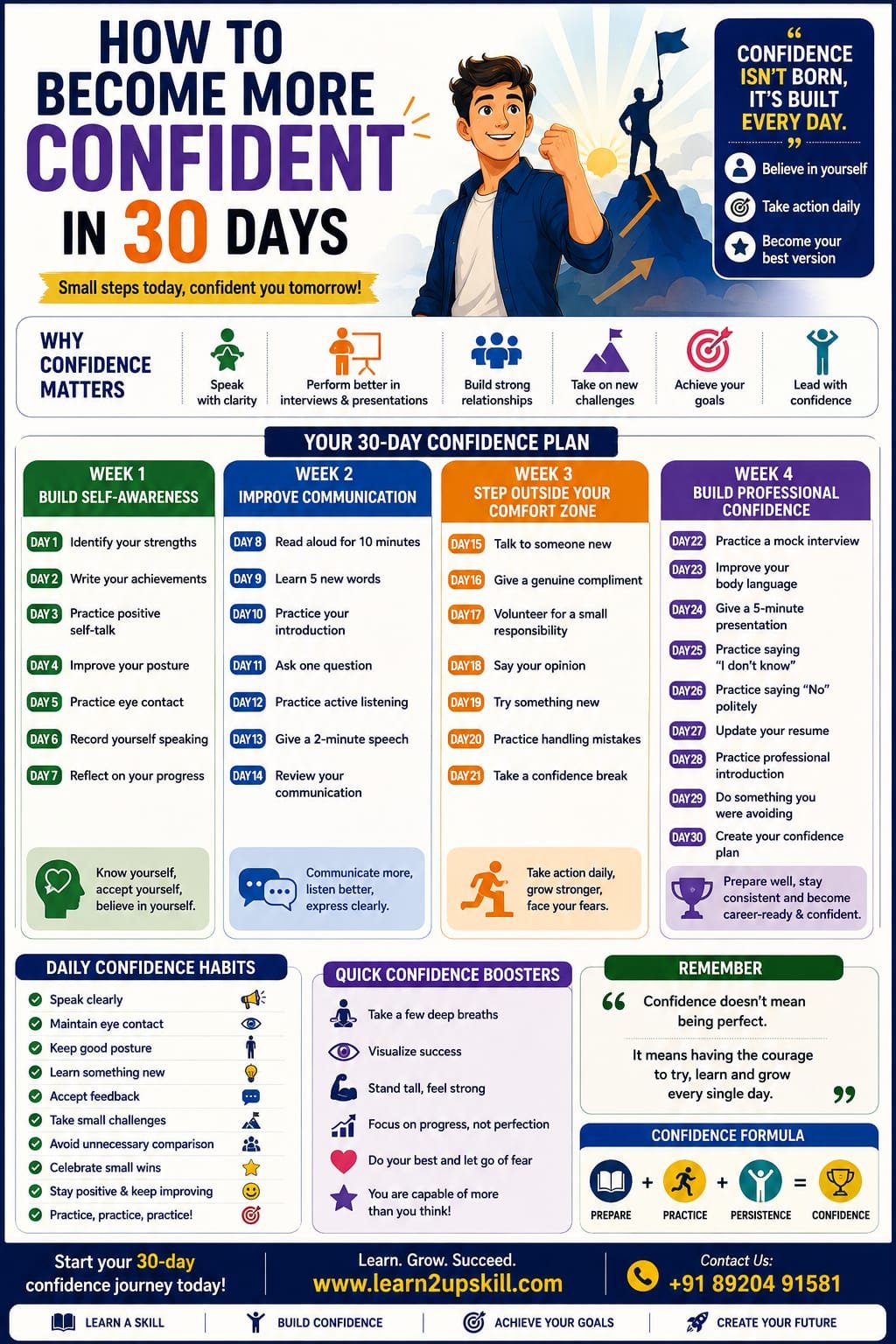
  • How to Become More Confident in 30 Days

    How to Become More Confident in 30 Days

    How to Become More Confident in 30 Days

    Introduction

    Confidence is one of the most valuable qualities a student can develop. It can help you speak clearly, participate in discussions, give presentations, attend interviews, meet new people, and handle challenges with a positive mindset.

    But confidence is not something that only a few people are naturally born with. It is a skill that can be developed through practice, preparation, experience, and self-awareness.

    If you currently feel shy, nervous while speaking, uncomfortable in social situations, or afraid of making mistakes, don’t worry. You can start improving gradually.

    This 30-day confidence-building challenge is designed to help students and freshers develop confidence through small, practical daily activities.

    At Learn2Upskill, we believe confidence grows when you take action, learn from experience, and become comfortable stepping outside your comfort zone.

    What Is Confidence?

    Confidence is the belief that you can handle a situation, learn something new, or take action even when you don’t know exactly what will happen.

    Confidence does not mean:

    Knowing everything.

    Never making mistakes.

    Being the loudest person in the room.

    Always feeling comfortable.

    Thinking you are better than everyone else.

    Real confidence means being able to say:

    “I may not be perfect, but I am willing to try, learn, and improve.”

    Why Is Confidence Important for Students?

    Confidence can help students:

    Participate in class.

    Speak in front of others.

    Give presentations.

    Attend interviews.

    Make new connections.

    Ask questions.

    Express opinions.

    Take leadership responsibilities.

    Handle criticism.

    Try new opportunities.

    Confidence can also influence how you communicate your skills and abilities during job interviews and professional situations.

    Confidence vs. Overconfidence

    It is important to understand the difference.

    Confidence

    “I have prepared well, and I will give my best.”

    Overconfidence

    “I don’t need to prepare because I already know everything.”

    Confidence combines self-belief with preparation and humility.

    The 30-Day Confidence Challenge

    The following plan is divided into four stages:

    Week 1 – Build Self-Awareness

    Week 2 – Improve Communication

    Week 3 – Step Outside Your Comfort Zone

    Week 4 – Build Professional Confidence

    Let’s begin.

    WEEK 1: Build Self-Awareness

    Day 1 – Identify Your Strengths

    Write down at least five things you are good at.

    They could include:

    Communication

    Creativity

    Mathematics

    Sports

    Organization

    Helping others

    Technology

    Leadership

    Writing

    Don’t focus only on academic skills.

    Your personal qualities also matter.

    Today’s Goal

    Write:

    “My five strengths are…”

    Day 2 – Identify Your Achievements

    Think about things you have accomplished.

    They don’t have to be huge achievements.

    Examples:

    Completing a difficult project.

    Improving your grades.

    Winning a competition.

    Learning a new skill.

    Helping someone.

    Organizing an event.

    Write down at least five achievements.

    This exercise reminds you that you have already overcome challenges.

    Day 3 – Practice Positive Self-Talk

    Pay attention to how you speak to yourself.

    Replace:

    “I can’t do this.”

    with:

    “I can learn how to do this.”

    Replace:

    “Everyone will judge me.”

    with:

    “I will focus on doing my best.”

    Replace:

    “I’m not good enough.”

    with:

    “I am improving every day.”

    Positive self-talk doesn’t mean ignoring your weaknesses. It means approaching them constructively.

    Day 4 – Improve Your Posture

    Your physical presence can influence how you feel and communicate.

    Practice:

    Standing upright.

    Relaxing your shoulders.

    Keeping your head naturally raised.

    Walking at a comfortable pace.

    Maintaining a relaxed facial expression.

    Spend five minutes practicing good posture.

    Day 5 – Practice Eye Contact

    Eye contact can help communicate attentiveness and confidence.

    Practice making natural eye contact while speaking with:

    Parents

    Friends

    Teachers

    Classmates

    Don’t stare continuously.

    The goal is comfortable, natural eye contact.

    Day 6 – Record Yourself Speaking

    Choose a simple topic such as:

    “My favourite hobby.”

    Speak for two minutes and record yourself.

    Then watch the recording.

    Notice:

    Your posture.

    Voice.

    Eye contact.

    Facial expressions.

    Speaking speed.

    Repeated words.

    Don’t criticize yourself.

    Use the recording to identify areas for improvement.

    Day 7 – Reflect on Week 1

    Write answers to these questions:

    What did I learn about myself?

    What am I already good at?

    What makes me nervous?

    Which confidence habit improved?

    What do I want to improve next?

    Celebrate your progress.

    Confidence grows through noticing improvement—not demanding perfection.

    WEEK 2: Improve Communication

    Day 8 – Read Aloud

    Read a page from a book, article, or educational material aloud for 10 minutes.

    Focus on:

    Clear pronunciation.

    Natural pauses.

    Appropriate speed.

    Expression.

    This simple exercise can improve speaking confidence.

    Day 9 – Learn Five New Words

    Choose five useful English words.

    Learn:

    Meaning

    Pronunciation

    Example sentence

    Then try using them in conversation or writing.

    Don’t focus on using complicated vocabulary. Focus on communicating clearly.

    Day 10 – Practice Your Introduction

    Prepare a 30–60 second introduction.

    Include:

    Your name.

    Your education.

    Your interests.

    Your strengths.

    Your career goal.

    Practice until you can say it naturally rather than memorizing every word.

    Day 11 – Ask One Question

    Today, ask a thoughtful question during a class, workshop, meeting, or conversation.

    If you usually remain silent because you are worried about what others may think, this is your opportunity to take a small step.

    Remember:

    Asking a question is a sign of curiosity, not weakness.

    Day 12 – Practice Active Listening

    Have a conversation with someone and focus entirely on listening.

    Don’t interrupt unnecessarily.

    Ask follow-up questions.

    Try to understand what the other person is saying rather than preparing your next response.

    Good listening is an important part of confident communication.

    Day 13 – Give a Two-Minute Speech

    Choose a simple topic:

    My favourite subject

    A book I enjoyed

    A career I am interested in

    The importance of education

    A skill I want to learn

    Speak for two minutes.

    Record yourself if possible.

    Day 14 – Review Your Communication

    Compare today’s speaking with your Day 6 recording.

    Ask:

    Am I clearer?

    Am I speaking more naturally?

    Is my posture better?

    Have I reduced unnecessary movements?

    Am I more comfortable hearing myself speak?

    Recognizing progress can strengthen confidence.

    WEEK 3: Step Outside Your Comfort Zone

    This week is about action.

    Confidence grows when you gradually do things that make you uncomfortable.

    Day 15 – Talk to Someone New

    Start a short conversation with someone you don’t usually speak to.

    It could be:

    A classmate

    A colleague

    A student from another class

    Someone at a workshop

    Keep it simple.

    A simple “Hi, how are you?” is enough to begin.

    Day 16 – Give Someone a Genuine Compliment

    Give someone a sincere and specific compliment.

    For example:

    “Your presentation was very well organized.”

    or

    “I liked the way you explained that topic.”

    Positive interactions can help you become more comfortable socially.

    Day 17 – Volunteer for a Small Responsibility

    Take responsibility for something.

    For example:

    Helping organize an activity.

    Leading part of a group project.

    Managing registrations.

    Giving instructions.

    Presenting one section of a project.

    Small responsibilities can gradually build leadership confidence.

    Day 18 – Say Your Opinion

    During a discussion, respectfully express your viewpoint.

    You don’t have to convince everyone.

    The goal is to become comfortable saying:

    “I think…”

    and explaining why.

    Day 19 – Try Something New

    Do something outside your normal routine.

    Examples:

    Attend a workshop.

    Try a new activity.

    Join a club.

    Learn a new skill.

    Participate in a competition.

    New experiences expand your comfort zone.

    Day 20 – Practice Handling Mistakes

    Think about a mistake you made recently.

    Write:

    What happened?

    What did I learn?

    What will I do differently next time?

    Don’t define yourself by your mistakes.

    Use them as feedback.

    Day 21 – Take a Confidence Break

    Spend some time reflecting on your progress.

    Write down:

    Three things I am more confident about now.

    You may be surprised by how much can change in three weeks.

    WEEK 4: Build Professional Confidence

    The final week focuses on situations students commonly face in academic and professional life.

    Day 22 – Practice a Mock Interview

    Ask a friend, teacher, parent, or mentor to ask you common interview questions.

    Examples:

    Tell me about yourself.

    What are your strengths?

    What are your weaknesses?

    Why should we select you?

    What are your career goals?

    Practice answering calmly.

    Day 23 – Improve Your Body Language

    Practice:

    Upright posture.

    Natural eye contact.

    Relaxed hands.

    Appropriate facial expressions.

    Controlled movements.

    Body language should support your words.

    Day 24 – Give a Five-Minute Presentation

    Prepare a short presentation.

    Choose any topic you know well.

    Focus on:

    Strong opening.

    Clear structure.

    Eye contact.

    Natural gestures.

    Good voice projection.

    Clear conclusion.

    Day 25 – Practice Saying “I Don’t Know”

    Confident people don’t pretend to know everything.

    Practice responding professionally:

    “I’m not sure about that, but I’d be happy to learn more.”

    This demonstrates honesty and a willingness to learn.

    Day 26 – Practice Saying “No” Politely

    Confidence also means understanding your limits.

    Instead of:

    “I can’t do it.”

    try:

    “I appreciate you asking, but I won’t be able to take this on right now.”

    Learning to set respectful boundaries is an important life and workplace skill.

    Day 27 – Update Your Resume

    Review your resume.

    Highlight:

    Skills

    Projects

    Certifications

    Achievements

    Internships

    Extracurricular activities

    A well-prepared resume can increase your confidence when applying for opportunities.

    Day 28 – Practice Your Professional Introduction

    Imagine you are meeting a recruiter or professional for the first time.

    Introduce yourself confidently.

    Keep it:

    Short

    Clear

    Professional

    Relevant

    Practice until it feels natural.

    Day 29 – Do Something You Were Avoiding

    Think about one small activity you have been avoiding because of nervousness.

    Examples:

    Asking a question.

    Giving a presentation.

    Speaking to someone new.

    Joining a group activity.

    Applying for an opportunity.

    Take action.

    This may be one of the most important days of the challenge.

    Day 30 – Create Your Confidence Plan

    Congratulations—you’ve completed the 30-day challenge.

    Now create a long-term plan.

    Write:

    Three strengths I discovered

    Three areas I want to improve

    Three confidence habits I will continue

    Your goal is not to become confident for only 30 days.

    Your goal is to build habits that continue beyond the challenge.

    10 Daily Habits That Can Build Confidence

    Even after completing the 30-day challenge, continue these habits:

    Speak clearly.

    Maintain natural eye contact.

    Keep good posture.

    Learn something new.

    Practice self-reflection.

    Accept constructive feedback.

    Take small challenges.

    Celebrate progress.

    Avoid unnecessary comparison.

    Keep practicing.

    Small actions repeated consistently can create significant improvement.

    Common Reasons Students Lack Confidence

    Fear of Failure

    You may avoid opportunities because you’re afraid of making mistakes.

    Remember:

    Failure can provide feedback.

    Comparing Yourself With Others

    Someone else’s journey is not a measurement of your worth.

    Compare yourself with your previous self.

    Lack of Preparation

    Sometimes what feels like a confidence problem is actually a preparation problem.

    Practice can make unfamiliar situations feel easier.

    Negative Self-Talk

    Constantly telling yourself that you are not capable can affect your behavior.

    Replace harsh self-criticism with realistic, constructive thinking.

    Fear of Judgment

    You cannot control what everyone thinks about you.

    Focus on your actions, preparation, and growth.

    Confidence-Building Tips for Interviews

    Before an interview:

    Research the company.

    Prepare common questions.

    Practice your introduction.

    Review your resume.

    Dress appropriately.

    Arrive on time.

    Take a few slow breaths.

    During the interview:

    Listen carefully.

    Maintain natural eye contact.

    Sit comfortably.

    Speak clearly.

    Give specific examples.

    Don’t rush your answers.

    Remember:

    Confidence comes from preparation + practice + self-belief.

    Confidence-Building Tips for Presentations

    Before presenting:

    Know your topic.

    Organize your points.

    Practice your opening.

    Practice your conclusion.

    Prepare for questions.

    During the presentation:

    Look at your audience.

    Speak at a comfortable pace.

    Use natural gestures.

    Avoid reading every word from slides.

    Pause after important points.

    Don’t panic if you make a small mistake.

    Your audience usually cares more about your message than minor mistakes.

    What If You Still Feel Nervous?

    Feeling nervous does not mean you lack confidence.

    Even experienced speakers can feel nervous before an important presentation or interview.

    The goal is not to eliminate nervousness completely.

    Instead, learn to manage it.

    Try:

    Slow breathing.

    Preparation.

    Positive self-talk.

    Practice.

    Arriving early.

    Focusing on the task rather than your fear.

    You can feel nervous and still perform well.

    Final Thoughts

    Confidence is not built in one day, and it does not require you to become a completely different person.

    It develops through small actions:

    Try → Practice → Learn → Improve → Repeat

    Over the next 30 days, focus on taking one small step every day. Speak a little more, try something new, improve your posture, practice communication, accept feedback, and challenge yourself gradually.

    Most importantly, remember that confidence does not mean being perfect.

    It means trusting yourself enough to try, learn, recover from mistakes, and keep moving forward.

    At Learn2Upskill, we help students and freshers build confidence, communication skills, personality, professional grooming, interview readiness, and career-ready skills.

    Start your 30-day confidence journey today.

    Contact Learn2Upskill

    Website: www.coral-kudu-326218.hostingersite.com

    Contact Us: +91-89204 91581

    Learn2Upskill – Learn. Grow. Succeed.

  • Passive Income Skills You Can Learn Online

    Passive Income Skills You Can Learn Online

    Passive Income Skills You Can Learn Online

    Introduction

    The internet has created many opportunities to earn money by using skills you can learn from home. From creating digital products to teaching online, people can build income streams around their knowledge, creativity, and expertise.

    One term you will often hear is passive income.

    Passive income generally refers to income that can continue to be generated after the initial work has been completed. However, it is important to understand that passive income is rarely completely passive. Most income streams require initial effort, skill development, marketing, regular updates, and sometimes ongoing customer support.

    For students and beginners, the best approach is not to search for “quick money.” Instead, focus on learning a valuable skill, creating something useful, and gradually building an income-generating asset.

    At Learn2Upskill, we believe that learning practical skills can open doors to new career and income opportunities.

    What Is Passive Income?

    Passive income is money generated from an asset, product, or system that does not require you to exchange your time directly for every unit of income.

    For example, instead of being paid only when you work for one hour, you could create a digital course that can be purchased by multiple students.

    However, passive income still requires work.

    You may need to:

    Learn the skill.

    Create the product.

    Build an audience.

    Market your work.

    Maintain the product.

    Respond to customers.

    Update outdated information.

    Think of passive income as building an asset, not getting money without effort.

    Active Income vs. Passive Income

    Active Income

    You generally earn money directly for the work or time you provide.

    Examples:

    Freelancing

    Teaching live classes

    Consulting

    Part-time work

    Coaching

    Passive or Semi-Passive Income

    You create an asset that can potentially generate income repeatedly.

    Examples:

    Online courses

    E-books

    Templates

    Stock content

    Recorded workshops

    Digital resources

    Monetized content

    Many online income models actually fall somewhere between active and passive income.

    Why Should You Learn Passive Income Skills?

    Learning these skills can help you:

    Develop digital expertise.

    Create additional income opportunities.

    Build a portfolio.

    Develop entrepreneurial thinking.

    Monetize knowledge.

    Create digital products.

    Build an online audience.

    Gain experience that can strengthen your career.

    For students, these skills can also become valuable additions to a resume.

    1. Online Course Creation

    If you have expertise in a particular subject, course creation can be an interesting option.

    You could create courses about:

    Excel

    Communication skills

    Digital marketing

    Graphic design

    Coding

    Spoken English

    Career preparation

    Interview skills

    Academic subjects

    Skills You Need

    Learn:

    Course planning

    Presentation

    Video recording

    Basic editing

    Instructional design

    Digital marketing

    Once created, a recorded course can potentially be sold repeatedly with periodic updates and support.

    1. E-Book Writing

    If you enjoy writing, creating an e-book can be another digital income opportunity.

    Possible topics include:

    Study guides

    Career guides

    Skill-development books

    Interview preparation

    Productivity

    Personal development

    Beginner tutorials

    Important Tip

    Don’t write an e-book simply because you want to sell something.

    First identify a problem your target audience wants solved.

    Then create a practical resource that addresses that problem.

    1. Digital Template Creation

    Templates can save people time, making them useful digital products.

    You can learn to create:

    Resume templates

    Budget planners

    Study planners

    Presentation templates

    Social media templates

    Business spreadsheets

    Project trackers

    Content calendars

    For example, someone who understands Excel could create useful budgeting or business-reporting templates.

    The key is to create templates that solve a specific problem.

    1. Blogging and Content Creation

    Blogging can become an income-generating skill when combined with useful content and a well-defined audience.

    You can write about:

    Education

    Career development

    Technology

    Personal finance

    Productivity

    Skill development

    Hobbies

    Industry-specific topics

    Potential income sources may include:

    Advertising

    Affiliate marketing

    Digital products

    Courses

    Sponsorships

    Consulting opportunities

    Remember

    Successful blogging generally takes time.

    You need to consistently create useful content and build an audience before expecting meaningful income.

    1. Affiliate Marketing

    Affiliate marketing involves promoting products or services through special tracking links. When someone makes a qualifying purchase through your link, you may receive a commission.

    To succeed, you need more than simply posting links.

    Useful skills include:

    Content writing

    SEO

    Audience research

    Product research

    Social media marketing

    Analytics

    Example

    Suppose you create a blog about productivity tools.

    You could write helpful reviews and tutorials and, where appropriate, recommend relevant products through affiliate programs.

    Your priority should be helping the reader, not simply adding links.

    1. YouTube and Video Content

    Video content can become a long-term digital asset.

    You can create educational or informational videos about:

    Tutorials

    Study tips

    Career guidance

    Technology

    Software

    Communication skills

    Hobbies

    Product education

    Potential monetization may include advertising, sponsorships, affiliate marketing, courses, and digital products.

    Skills to Learn

    Video recording

    Video editing

    Scriptwriting

    Thumbnail design

    SEO

    Audience research

    Presentation skills

    A library of useful videos can continue attracting viewers long after publication.

    1. Graphic Design

    Graphic design is both a freelancing skill and a potential digital-product skill.

    You can learn to create:

    Social media designs

    Presentation templates

    Posters

    Infographics

    Worksheets

    Digital planners

    Marketing materials

    Instead of only selling your time, you can create reusable digital assets.

    1. Stock Photography and Video

    If you enjoy photography or videography, you can learn how to create high-quality visual content for licensing platforms.

    Potential content includes:

    Nature

    Business scenes

    Technology

    Education

    Lifestyle

    Food

    Travel

    Background footage

    The same piece of content may potentially be licensed multiple times.

    However, building a useful portfolio requires time and consistent quality.

    1. Print-on-Demand Design

    Print-on-demand allows creators to design products such as:

    T-shirts

    Mugs

    Posters

    Notebooks

    Phone cases

    Other merchandise

    The platform or supplier generally handles production and fulfillment.

    Your role may involve:

    Creating designs.

    Researching audiences.

    Building product listings.

    Marketing products.

    Improving designs based on performance.

    This can be a useful way to learn both design and digital marketing.

    1. Website Creation

    Website-building is an excellent digital skill with multiple potential income applications.

    You can learn:

    WordPress

    HTML

    CSS

    Basic JavaScript

    Website design

    SEO

    Website maintenance

    You could use these skills to:

    Build websites for clients.

    Create niche websites.

    Sell website templates.

    Create educational resources.

    Build your own digital business.

    Website development can therefore create both active and semi-passive income opportunities.

    1. SEO Skills

    Search Engine Optimization, or SEO, involves improving online content so that it can be discovered through search engines.

    SEO can be used for:

    Blogs

    Websites

    YouTube

    Online stores

    Affiliate websites

    Digital products

    Important SEO skills include:

    Keyword research

    Search intent

    On-page SEO

    Content optimization

    Technical SEO

    Internal linking

    Analytics

    SEO is particularly valuable because it can help other online income models attract organic traffic.

    1. Email Marketing

    Email marketing is another valuable digital skill.

    You can learn how to:

    Build an email list.

    Create newsletters.

    Write effective emails.

    Segment audiences.

    Automate campaigns.

    Promote digital products.

    A well-built email system can help businesses communicate with customers without relying entirely on social media algorithms.

    1. Social Media Content Creation

    Social media skills can be monetized in several ways.

    Learn:

    Content planning

    Copywriting

    Short-form video

    Graphic design

    Audience research

    Social media analytics

    You can use these skills to build your own audience or create digital products and services.

    1. AI-Assisted Content Skills

    Artificial intelligence tools are changing how people create content and complete digital tasks.

    Students can learn how to use AI responsibly for:

    Brainstorming

    Research assistance

    Content planning

    Presentation preparation

    Data organization

    Productivity

    Basic automation

    The important skill is not simply knowing how to use an AI tool.

    You should also learn:

    How to write effective prompts.

    How to verify information.

    How to edit AI-generated content.

    How to protect sensitive information.

    How to add your own expertise and judgment.

    AI should be treated as a productivity tool rather than a replacement for learning.

    1. Spreadsheet and Data Skills

    Excel and spreadsheet skills can be valuable for both employment and digital products.

    You can learn:

    Formulas

    XLOOKUP

    Pivot Tables

    Charts

    Dashboards

    Data cleaning

    Basic automation

    Once you become proficient, you can create useful spreadsheet templates, tutorials, courses, and educational resources.

    1. Online Teaching

    If you are strong in a particular subject, online teaching can become an income opportunity.

    You could teach:

    School subjects

    Languages

    Software

    Communication

    Career skills

    Creative skills

    Live teaching is usually active income, while recorded courses, worksheets, and educational resources can make the model more scalable.

    1. Digital Product Creation

    Digital products are among the most flexible online assets you can create.

    Examples include:

    E-books

    Checklists

    Templates

    Workbooks

    Planners

    Study materials

    Recorded workshops

    Online courses

    Digital guides

    The biggest advantage is that digital products can often be delivered electronically without physical inventory.

    How to Choose the Right Skill

    Don’t try to learn everything at once.

    Ask yourself four questions:

    1. What am I interested in?

    Choose something you are willing to spend time learning.

    1. What am I already good at?

    Your existing knowledge can give you a starting advantage.

    1. What problem can I solve?

    People are more likely to pay for solutions to meaningful problems.

    1. What audience can I help?

    Define who your content or product is designed for.

    A Simple Skill-to-Income Roadmap

    Follow this process:

    Learn → Practice → Build → Share → Improve → Monetize

    Step 1: Learn

    Choose one skill and study the fundamentals.

    Step 2: Practice

    Use the skill through small projects.

    Step 3: Build

    Create something useful.

    Step 4: Share

    Publish your work or make it available to your target audience.

    Step 5: Improve

    Collect feedback and improve your product or content.

    Step 6: Monetize

    Explore appropriate income models once you have something valuable to offer.

    Mistakes to Avoid

    Chasing “Easy Money”

    Be cautious of anyone promising guaranteed passive income with little effort.

    Building a sustainable income stream takes time.

    Learning Too Many Skills at Once

    Trying to learn ten skills simultaneously can prevent you from becoming good at any of them.

    Start with one.

    Creating Without Knowing Your Audience

    A product is much more useful when it solves a clearly defined problem.

    Ignoring Marketing

    Creating a great product isn’t enough. People need to discover it.

    Giving Up Too Early

    Many digital income models take months or longer to develop.

    Consistency matters.

    A 90-Day Plan to Start Building an Online Income Skill

    Month 1: Learn

    Choose one skill.

    Spend time learning the fundamentals and practicing regularly.

    Month 2: Build

    Create your first useful project.

    Examples:

    A small e-book

    A template

    A mini-course

    A blog

    A YouTube tutorial

    A digital workbook

    Month 3: Publish and Improve

    Share your work with your target audience.

    Collect feedback.

    Improve the product.

    Learn basic marketing.

    Then begin exploring suitable ways to monetize it.

    Best Skills for Students to Start With

    Students can consider learning:

    Content Writing

    Graphic Design

    Video Editing

    SEO

    Digital Marketing

    Excel

    Website Development

    Online Teaching

    E-book Creation

    Course Creation

    Social Media Content Creation

    AI Productivity Skills

    The best choice depends on your interests, existing abilities, available time, and career goals.

    Final Thoughts

    Passive income is not a shortcut to instant wealth. It is better understood as the process of building valuable assets that can potentially generate income repeatedly.

    For students and beginners, the strongest starting point is a skill.

    Learn something useful. Practice it. Create something valuable. Build an audience. Improve continuously. Then explore ways to monetize your knowledge or digital products.

    Even if your first project doesn’t generate significant income, the skills you develop—such as communication, marketing, writing, design, technology, and entrepreneurship—can benefit your long-term career.

    The goal should not be:

    “How can I make money without working?”

    Instead, ask:

    “What valuable skill can I learn today that can create opportunities tomorrow?”

    That mindset can lead to much more sustainable growth.

    At Learn2Upskill, we help students, freshers, and professionals develop practical skills for career growth, digital opportunities, communication, and lifelong learning.

    Contact Learn2Upskill

    Website: www.coral-kudu-326218.hostingersite.com

    Contact Us: +91-89204 91581

    Learn2Upskill – Learn. Grow. Succeed.

  • Top Soft Skills Employers Look For in 2026

    Top Soft Skills Employers Look For in 2026

    Top Soft Skills Employers Look For in 2026

    Introduction

    Getting a job is no longer only about having good academic qualifications or technical knowledge. Employers increasingly look for candidates who can communicate effectively, work with others, solve problems, adapt to change, and handle professional situations confidently.

    These qualities are known as soft skills.

    Soft skills are especially important for students and freshers because they help bridge the gap between academic learning and the workplace. A candidate may have excellent technical knowledge, but the ability to communicate ideas, collaborate with colleagues, manage time, and respond positively to challenges can make a significant difference in career growth.

    The good news is that soft skills can be developed through practice and real-life experience.

    At Learn2Upskill, we help students and job seekers develop communication, personality, professional grooming, interview skills, and other workplace-ready abilities.

    What Are Soft Skills?

    Soft skills are personal, interpersonal, and professional abilities that influence how you interact with people and handle different situations.

    Unlike technical skills, which are usually related to a particular job or profession, soft skills are useful across almost every career.

    Examples include:

    Communication

    Teamwork

    Leadership

    Problem-solving

    Adaptability

    Time management

    Critical thinking

    Emotional intelligence

    Creativity

    Professionalism

    A successful professional usually needs a combination of technical skills and soft skills.

    Why Are Soft Skills Important?

    Employers want people who can not only perform their job responsibilities but also work effectively with others.

    Strong soft skills can help you:

    Perform better in interviews.

    Build professional relationships.

    Work effectively in teams.

    Handle workplace challenges.

    Communicate with clients and colleagues.

    Manage deadlines.

    Adapt to changing situations.

    Take responsibility.

    Grow into leadership roles.

    For students, developing these skills early can provide a significant advantage when entering the workplace.

    1. Communication Skills

    Communication is one of the most important soft skills employers look for.

    It includes:

    Speaking clearly

    Writing professionally

    Listening actively

    Explaining ideas

    Asking appropriate questions

    Communicating respectfully

    Good communication does not mean speaking continuously. It means expressing your thoughts clearly while also understanding what others are saying.

    How Students Can Improve

    Read regularly.

    Practice speaking.

    Participate in Group Discussions.

    Give presentations.

    Improve vocabulary.

    Practice professional writing.

    Listen carefully during conversations.

    1. Teamwork and Collaboration

    Most jobs require employees to work with other people.

    Employers value candidates who can:

    Share responsibilities.

    Respect different opinions.

    Help teammates.

    Communicate effectively.

    Handle disagreements professionally.

    Work toward a common goal.

    How to Develop Teamwork

    Participate in:

    Group projects

    College clubs

    Sports

    Volunteer activities

    Student events

    Team competitions

    These experiences can teach you how to cooperate with different personalities.

    1. Problem-Solving Skills

    Workplaces frequently involve unexpected problems.

    Employers appreciate candidates who don’t immediately give up when something goes wrong.

    Strong problem-solvers can:

    Understand the problem.

    Identify possible causes.

    Think of different solutions.

    Evaluate the options.

    Choose an appropriate solution.

    Learn from the outcome.

    How to Improve

    Practice puzzles, case studies, real-world scenarios, coding challenges, business problems, and analytical exercises.

    1. Critical Thinking

    Critical thinking means analyzing information carefully instead of accepting everything immediately.

    It involves:

    Asking questions.

    Checking facts.

    Comparing options.

    Identifying assumptions.

    Understanding different perspectives.

    Making logical conclusions.

    Critical thinking is useful in almost every profession.

    How Students Can Practice

    When reading an article or watching a discussion, ask:

    What is the main argument?

    What evidence supports it?

    Are there other possible viewpoints?

    This simple habit can strengthen analytical thinking.

    1. Adaptability

    The workplace is constantly changing.

    New technologies, tools, processes, and responsibilities can appear quickly. Employers therefore value people who can adapt.

    An adaptable employee is willing to:

    Learn new skills.

    Accept new responsibilities.

    Adjust to changing priorities.

    Learn from mistakes.

    Work with different people.

    Try new approaches.

    How to Develop Adaptability

    Don’t avoid unfamiliar situations. Treat them as opportunities to learn.

    Take new courses, try different projects, learn new software, and step outside your comfort zone.

    1. Time Management

    Employees often have multiple tasks and deadlines.

    Time management helps you:

    Prioritize important tasks.

    Meet deadlines.

    Avoid last-minute stress.

    Organize your workload.

    Maintain productivity.

    Simple Time Management Techniques

    Try:

    Daily to-do lists

    Weekly planning

    Calendar reminders

    Task prioritization

    Time blocking

    Breaking large tasks into smaller steps

    Good time management is a habit, not a one-time technique.

    1. Emotional Intelligence

    Emotional intelligence is the ability to understand and manage your own emotions while recognizing and responding appropriately to the emotions of others.

    It includes:

    Self-awareness

    Self-control

    Empathy

    Social awareness

    Relationship management

    Emotional intelligence can help you handle disagreements, feedback, stressful situations, and teamwork more effectively.

    1. Leadership Skills

    Leadership is not limited to managers.

    Even students and freshers can demonstrate leadership by:

    Taking initiative.

    Accepting responsibility.

    Helping teammates.

    Organizing activities.

    Making decisions.

    Supporting others.

    Taking ownership of tasks.

    You don’t need a job title to demonstrate leadership.

    1. Creativity

    Creativity is the ability to think of new ideas and different approaches to problems.

    It is valuable not only in design or media but also in:

    Marketing

    Business

    Technology

    Education

    Management

    Product development

    Problem-solving

    How to Develop Creativity

    Try:

    Brainstorming.

    Creative writing.

    Designing projects.

    Exploring new hobbies.

    Finding multiple solutions to one problem.

    Don’t always look for the first answer. Ask yourself:

    “Is there another way to do this?”

    1. Professionalism

    Professionalism is reflected in how you behave and take responsibility at work.

    It includes:

    Punctuality

    Respect

    Reliability

    Appropriate communication

    Professional appearance

    Accountability

    Positive attitude

    A professional employee understands that small behaviors can affect the entire team.

    1. Confidence

    Confidence helps you communicate your abilities effectively.

    Employers often look for candidates who can:

    Express their ideas.

    Ask questions.

    Participate in discussions.

    Present information.

    Handle interviews.

    Accept responsibility.

    However, confidence is different from overconfidence.

    Confidence says: “I can learn and contribute.”

    Overconfidence says: “I already know everything.”

    Stay confident while remaining open to learning.

    1. Active Listening

    Listening is often overlooked when people discuss communication.

    Active listening means paying attention to what someone is saying instead of simply waiting for your turn to speak.

    It involves:

    Maintaining attention.

    Avoiding unnecessary interruptions.

    Asking relevant questions.

    Clarifying doubts.

    Remembering important information.

    Good listeners often become better communicators and team members.

    1. Decision-Making

    Employees regularly need to make decisions.

    Good decision-making involves:

    Understanding the situation.

    Gathering relevant information.

    Considering alternatives.

    Evaluating risks.

    Making a decision.

    Taking responsibility for the outcome.

    Students can develop decision-making through projects, leadership activities, competitions, and real-life responsibilities.

    1. Networking and Relationship-Building

    Career opportunities often come through professional relationships.

    Networking means building genuine connections with:

    Teachers

    Mentors

    Classmates

    Alumni

    Industry professionals

    Colleagues

    Students can begin networking by attending workshops, career events, seminars, internships, and professional events.

    Remember: networking is not simply asking people for jobs. It is about building meaningful professional relationships.

    1. Conflict Resolution

    Differences of opinion are normal in workplaces.

    Employers value people who can handle disagreements professionally.

    Good conflict-resolution skills involve:

    Listening to both sides.

    Remaining calm.

    Avoiding personal attacks.

    Understanding the actual issue.

    Finding common ground.

    Looking for practical solutions.

    The goal should be to solve the problem, not to “win” the argument.

    1. Willingness to Learn

    One of the most valuable qualities for students and freshers is a willingness to learn.

    No graduate knows everything when they enter their first job.

    Employers appreciate candidates who:

    Ask questions.

    Accept feedback.

    Learn from mistakes.

    Take training seriously.

    Stay curious.

    Keep developing their skills.

    A learning mindset can help you grow throughout your career.

    1. Accountability

    Accountability means taking responsibility for your actions and results.

    An accountable person:

    Completes assigned tasks.

    Accepts mistakes.

    Doesn’t constantly blame others.

    Communicates problems early.

    Takes corrective action.

    Learns from experience.

    Employers value people they can trust with responsibility.

    1. Positive Attitude

    A positive attitude does not mean pretending that every situation is perfect.

    It means approaching challenges constructively.

    For example, instead of saying:

    “I can’t do this.”

    Try:

    “I haven’t done this before, but I’ll learn how to do it.”

    A positive and realistic mindset can help you handle workplace challenges more effectively.

    Soft Skills vs. Technical Skills

    Both are important.

    Technical Skills

    Soft Skills

    Excel

    Communication

    Coding

    Teamwork

    Data Analytics

    Problem-solving

    SEO

    Adaptability

    Programming

    Leadership

    Accounting

    Time Management

    Graphic Design

    Emotional Intelligence

    Technical skills may help you qualify for a job, while soft skills can influence how effectively you perform, collaborate, and grow in that role.

    How Students Can Build Soft Skills

    You don’t need to wait until you get a job.

    Start developing soft skills during school or college.

    Participate in Group Projects

    Learn teamwork and communication.

    Give Presentations

    Build confidence and public-speaking skills.

    Join Clubs

    Develop leadership and collaboration.

    Volunteer

    Build responsibility and interpersonal skills.

    Take Online Courses

    Learn structured approaches to communication, productivity, and professional development.

    Participate in Competitions

    Develop problem-solving and decision-making abilities.

    Take Internships

    Gain practical workplace experience.

    How to Demonstrate Soft Skills in an Interview

    Don’t simply tell recruiters:

    “I have excellent leadership skills.”

    Give an example.

    Instead, say:

    “During my college event, I coordinated a team of five students, divided responsibilities, and helped ensure that the event was completed on schedule.”

    Examples provide evidence of your skills.

    A useful approach is:

    Situation → Action → Result

    Explain:

    What was the situation?

    What did you do?

    What happened as a result?

    Soft Skills Employers Look for During Interviews

    Recruiters may evaluate your soft skills through:

    Your communication.

    Body language.

    Answers to behavioral questions.

    Group Discussions.

    Case studies.

    Situational questions.

    Questions about teamwork.

    Questions about challenges and failures.

    Your behavior throughout the selection process can demonstrate your soft skills.

    A 30-Day Soft Skills Development Plan

    Week 1: Communication

    Read for 20 minutes daily.

    Practice speaking for 10 minutes.

    Learn new professional vocabulary.

    Record yourself answering interview questions.

    Week 2: Confidence and Teamwork

    Participate in a Group Discussion.

    Give a short presentation.

    Join a team activity.

    Practice active listening.

    Week 3: Problem-Solving and Leadership

    Solve practical problems.

    Take responsibility for a small project.

    Organize an activity.

    Practice making decisions.

    Week 4: Professional Skills

    Practice mock interviews.

    Improve your resume.

    Work on professional etiquette.

    Ask someone for feedback.

    Review your progress.

    Small improvements every day can create significant changes over time.

    Soft Skills Checklist for Students

    Before entering the workplace, ask yourself:

    ✔ Can I communicate my ideas clearly?

    ✔ Can I listen without interrupting?

    ✔ Can I work effectively in a team?

    ✔ Can I manage deadlines?

    ✔ Can I solve problems independently?

    ✔ Can I accept constructive feedback?

    ✔ Can I adapt to change?

    ✔ Can I handle disagreements professionally?

    ✔ Can I take responsibility for mistakes?

    ✔ Am I willing to keep learning?

    If some answers are “no,” don’t worry. These are skills you can develop.

    Conclusion

    The modern workplace requires more than academic qualifications. Employers look for people who can communicate, collaborate, solve problems, adapt, learn, and take responsibility.

    Soft skills are not something you either have or don’t have. They can be developed through practice, experience, feedback, and continuous learning.

    For students and freshers, the best time to start developing these skills is now. Participate in activities, take on responsibilities, practice communication, learn from mistakes, and actively seek opportunities to grow.

    Your technical knowledge may help you get noticed, but strong soft skills can help you work effectively, build relationships, and grow throughout your career.

    At Learn2Upskill, we help students and job seekers become career-ready through communication skills, personality development, interview preparation, professional grooming, career counselling, and practical skill-development programs.

    Contact Learn2Upskill

    Website: www.coral-kudu-326218.hostingersite.com

    Contact Us: +91-89204 91581

    Learn2Upskill – Learn. Grow. Succeed.

  • Body Language Tips for Interviews and Presentations

    Body Language Tips for Interviews and Presentations

    Body Language Tips for Interviews and Presentations

    Introduction

    When you attend an interview or give a presentation, your words are only part of the message you communicate. Your posture, facial expressions, eye contact, hand gestures, movement, and overall presence can strongly influence how others perceive your confidence and professionalism.

    Body language is especially important for students and freshers because it can help communicate confidence even when you are nervous. You don’t need to use dramatic gestures or try to appear overly confident. The goal is to look comfortable, attentive, professional, and genuine.

    Whether you are preparing for a job interview, campus placement, college presentation, Group Discussion, seminar, or public speaking activity, improving your body language can make a significant difference.

    At Learn2Upskill, we help students develop communication skills, confidence, personality, interview readiness, and professional presentation skills for academic and career success.

    What Is Body Language?

    Body language is the way we communicate through physical behavior rather than words.

    It includes:

    Facial expressions

    Eye contact

    Posture

    Hand gestures

    Head movements

    Sitting and standing style

    Walking

    Personal space

    Voice-related physical cues

    Overall appearance and presence

    Body language can support your spoken communication and help your audience understand your attitude and confidence.

    Why Is Body Language Important?

    Positive body language can help you:

    Create a strong first impression.

    Appear confident and prepared.

    Build trust with interviewers.

    Keep your audience engaged.

    Communicate enthusiasm.

    Demonstrate professionalism.

    Reduce the appearance of nervousness.

    Make presentations more effective.

    However, body language should complement your words rather than replace them.

    Body Language Tips for Interviews

    1. Enter the Room Confidently

    Your interview can begin before you answer your first question.

    When entering:

    Walk at a natural pace.

    Keep your shoulders relaxed.

    Maintain an upright posture.

    Greet the interviewer politely.

    Use a natural smile.

    Avoid looking at the floor or rushing into the room.

    A calm entrance creates a positive first impression.

    1. Master Your Handshake

    If a handshake is culturally and contextually appropriate, keep it professional.

    A good handshake should be:

    Brief

    Comfortable

    Confident

    Accompanied by eye contact

    Avoid an excessively strong or extremely weak handshake.

    For situations where a handshake isn’t appropriate, a polite verbal greeting is perfectly professional.

    1. Maintain Natural Eye Contact

    Eye contact communicates confidence and attentiveness.

    During an interview:

    Look at the interviewer while listening.

    Maintain eye contact while answering.

    Look away naturally from time to time.

    If multiple interviewers are present, include each person appropriately.

    Avoid staring continuously, as this can feel uncomfortable.

    The goal is natural eye contact, not constant eye contact.

    1. Sit With Good Posture

    Once you sit down:

    Keep your back reasonably straight.

    Keep your shoulders relaxed.

    Place your feet comfortably on the floor.

    Keep your hands relaxed.

    Avoid:

    Slouching

    Constantly changing positions

    Leaning too far back

    Resting your head on your hand

    Good posture communicates alertness and professionalism.

    1. Keep Your Hands Relaxed

    Nervous candidates often don’t know what to do with their hands.

    You can:

    Keep them comfortably on your lap.

    Rest them naturally on the table when appropriate.

    Use small gestures while explaining something.

    Avoid constantly:

    Tapping your fingers

    Playing with a pen

    Touching your hair

    Adjusting your clothes

    Checking your phone

    Relaxed hands make you appear more comfortable.

    1. Use Natural Facial Expressions

    Your face should reflect the conversation.

    For example:

    Smile when appropriate.

    Show interest while listening.

    Maintain a calm expression during serious questions.

    Avoid looking constantly worried.

    You don’t need to force a smile throughout the interview.

    Authentic expressions are more effective than exaggerated ones.

    1. Show That You Are Listening

    Listening is an important part of communication.

    Show attentiveness through:

    Eye contact

    Small natural nods

    Appropriate facial expressions

    Facing the interviewer

    Waiting until they finish speaking

    Avoid looking distracted or impatient.

    1. Avoid Closed Body Language

    Closed body language can sometimes make you appear uncomfortable or defensive.

    Avoid:

    Crossing your arms tightly.

    Turning your body away.

    Looking down constantly.

    Hiding your hands.

    Sitting with your shoulders closed.

    Instead, maintain an open and relaxed posture.

    1. Control Nervous Movements

    Interview nervousness is completely normal.

    However, try to avoid repetitive movements such as:

    Shaking your leg

    Tapping your foot

    Clicking a pen

    Playing with your fingers

    Repeatedly adjusting your hair or clothing

    Before the interview, take a few slow breaths and consciously relax your shoulders.

    1. Match Your Body Language With Your Words

    Your verbal and non-verbal communication should support each other.

    For example, if you say:

    “I’m very excited about this opportunity.”

    but appear uninterested, avoid eye contact, and speak without energy, your body language may contradict your words.

    Try to communicate enthusiasm through both your voice and your expressions.

    Body Language Tips for Presentations

    Interviews are usually one-to-one or small-group conversations. Presentations are different because you need to connect with an entire audience.

    Your body language therefore becomes even more visible.

    1. Start With a Strong Opening

    Walk to the front confidently.

    Stand comfortably, take a breath, look at your audience, and begin.

    Avoid immediately looking at your slides or reading from your notes.

    Your audience should feel that you are speaking to them, not simply reading information.

    1. Stand Upright

    Good presentation posture includes:

    Standing tall.

    Keeping shoulders relaxed.

    Keeping your head naturally raised.

    Distributing your weight comfortably.

    Avoid leaning against a desk or wall unless the presentation style specifically calls for it.

    1. Make Eye Contact With the Audience

    Instead of looking at only one person, gradually make eye contact across different sections of the room.

    Try this simple approach:

    Left → Centre → Right → Centre

    This makes the entire audience feel included.

    For larger audiences, look at different sections rather than trying to focus on individual faces.

    1. Use Purposeful Hand Gestures

    Hand gestures can make presentations more engaging.

    Use gestures when:

    Highlighting an important point.

    Comparing two ideas.

    Explaining a process.

    Showing size or direction.

    Emphasizing a key message.

    Avoid excessive movement.

    Your hands should support your message—not become the main attraction.

    1. Move With a Purpose

    Movement can add energy to a presentation, but constant walking can become distracting.

    Move when:

    Changing sections.

    Approaching a different part of the audience.

    Emphasizing a transition.

    Engaging with a visual or demonstration.

    Then stop and speak.

    Purposeful movement looks more confident than continuous pacing.

    1. Don’t Turn Your Back to the Audience

    When using a presentation screen, avoid speaking toward the screen for long periods.

    Instead:

    Look at the slide.

    Understand the information.

    Turn back toward the audience.

    Explain the point.

    The audience came to hear you, not the screen.

    1. Avoid Reading Every Word From Slides

    Reading every line from a presentation can make your body language appear less confident.

    Use slides as visual support.

    Your presentation should add explanation, examples, stories, or insights rather than simply repeating the text on the screen.

    1. Use Facial Expressions

    Your facial expressions can help communicate enthusiasm and emotion.

    For example:

    Show curiosity when asking a question.

    Smile when sharing something positive.

    Use appropriate seriousness when discussing an important issue.

    A presentation becomes more engaging when your expressions match your message.

    1. Use Pauses

    A pause can be a powerful communication tool.

    After an important statement, pause briefly.

    This gives the audience time to:

    Understand your point.

    Think about the information.

    Focus their attention.

    You don’t have to fill every second with words.

    Silence can sometimes communicate confidence.

    1. Avoid Hiding Behind a Podium or Desk

    If the setting allows, maintain an open connection with your audience.

    Standing naturally where people can see you helps your facial expressions and gestures become more visible.

    If you are using a podium, avoid gripping it tightly throughout the presentation.

    Common Body Language Mistakes

    Students often make these mistakes without realizing it.

    Looking at the Floor

    This can make you appear nervous or disengaged.

    Crossing Arms

    It may create a closed impression.

    Excessive Gestures

    Too much movement can distract your audience.

    Pacing Continuously

    Constant movement can make you appear nervous.

    Looking at Your Phone

    This is particularly distracting during interviews and presentations.

    Fidgeting

    Repeated small movements can attract unnecessary attention.

    Reading Slides

    It reduces interaction with your audience.

    Slouching

    Poor posture can affect your professional presence.

    Body Language for Online Interviews and Presentations

    Virtual communication has its own challenges.

    Position Your Camera Correctly

    Ideally, keep your camera around eye level.

    Avoid placing the camera too low, as it can create an awkward angle.

    Look Into the Camera

    When speaking, occasionally look toward the camera to create a sense of eye contact.

    When listening, looking at the screen is natural.

    Maintain Good Lighting

    Your face should be clearly visible.

    Avoid sitting with a bright window directly behind you.

    Keep Your Background Professional

    Choose a clean and distraction-free background.

    Sit at an Appropriate Distance

    Your face and upper body should be comfortably visible.

    This allows your expressions and some gestures to be seen.

    How to Practice Your Body Language

    Improving body language requires practice.

    Try these exercises.

    Mirror Practice

    Stand in front of a mirror and practice answering interview questions.

    Observe:

    Your posture

    Facial expressions

    Hand movements

    Eye contact

    Record Yourself

    Record a short presentation using your phone.

    Watch it afterward and ask:

    Am I speaking too quickly?

    Am I making enough eye contact?

    Are my gestures natural?

    Do I look confident?

    Am I moving unnecessarily?

    Recording yourself can reveal habits you may not notice otherwise.

    Practice With Friends

    Ask friends or classmates to conduct a mock interview or watch your presentation.

    Ask them for honest feedback.

    Practice One Change at a Time

    Don’t try to fix everything immediately.

    For example:

    Week 1: Focus on posture.

    Week 2: Work on eye contact.

    Week 3: Improve hand gestures.

    Week 4: Work on facial expressions and movement.

    Small improvements become easier to maintain.

    The 5-Second Confidence Check

    Before an interview or presentation begins, quickly check:

    Posture: Am I standing or sitting upright?

    Face: Is my expression relaxed?

    Eyes: Am I looking at the audience/interviewer?

    Hands: Are they relaxed?

    Breathing: Am I breathing normally?

    This simple check can help you reset before you begin.

    Body Language Checklist

    Before an Interview

    ✔ Dress professionally.

    ✔ Practice your posture.

    ✔ Relax your shoulders.

    ✔ Take a few slow breaths.

    ✔ Prepare your documents.

    ✔ Practice eye contact.

    During an Interview

    ✔ Sit upright.

    ✔ Maintain natural eye contact.

    ✔ Listen carefully.

    ✔ Smile appropriately.

    ✔ Keep your hands relaxed.

    ✔ Avoid fidgeting.

    Before a Presentation

    ✔ Check your posture.

    ✔ Take a breath.

    ✔ Know your opening.

    ✔ Keep your hands relaxed.

    ✔ Look at the audience.

    During a Presentation

    ✔ Make eye contact.

    ✔ Use purposeful gestures.

    ✔ Move naturally.

    ✔ Use facial expressions.

    ✔ Pause after important points.

    ✔ Avoid reading every word from the slides.

    The Most Important Rule: Be Natural

    The purpose of improving body language is not to turn yourself into someone else.

    You don’t need to copy a celebrity, speaker, teacher, or influencer.

    Your goal is to become a more confident version of yourself.

    Natural, relaxed body language is usually more effective than exaggerated movements.

    Conclusion

    Body language can significantly influence how you communicate during interviews and presentations. A confident posture, natural eye contact, appropriate gestures, attentive listening, and calm facial expressions can help you create a professional and positive impression.

    The best body language is not about perfection. It is about being comfortable, attentive, confident, and authentic.

    Start practicing one small change at a time. Record yourself, ask for feedback, and keep improving. With regular practice, confident body language can become a natural part of your communication style.

    At Learn2Upskill, we help students and job seekers develop communication skills, personality, professional grooming, interview preparation, presentation skills, and career readiness.

    Contact Learn2Upskill

    Website: www.coral-kudu-326218.hostingersite.com

    Contact Us: +91-89204 91581

    Learn2Upskill – Learn. Grow. Succeed.

  • Resume Writing Guide for Freshers

    Resume Writing Guide for Freshers

    Resume Writing Guide for Freshers: How to Create a Job-Winning Resume

    Introduction

    For a fresher, creating a resume can feel challenging. You may think, “I don’t have work experience, so what should I put on my resume?” The good news is that a strong fresher resume does not depend entirely on professional experience.

    Your resume should communicate your education, skills, projects, internships, certifications, achievements, and potential in a clear and professional way.

    A well-written resume can help you make a strong first impression and increase your chances of getting shortlisted for internships, campus placements, and entry-level jobs.

    At Learn2Upskill, we believe that every student has valuable skills and experiences. The key is knowing how to present them effectively.

    What Is a Resume?

    A resume is a professional document that summarizes your qualifications, skills, education, achievements, projects, and relevant experience.

    Recruiters often use resumes to quickly determine whether a candidate matches the requirements of a job.

    For freshers, the resume should focus on potential, skills, education, projects, and willingness to learn.

    Why Is a Good Resume Important for Freshers?

    A good resume can help you:

    Create a strong first impression.

    Showcase your skills.

    Highlight academic achievements.

    Present projects and internships.

    Demonstrate your career interests.

    Pass initial resume screening.

    Increase your chances of getting an interview.

    Remember, your resume may be the first interaction a recruiter has with you.

    Ideal Resume Structure for Freshers

    A simple fresher resume can include the following sections:

    Contact Information

    Career Objective or Professional Summary

    Education

    Skills

    Projects

    Internships or Training

    Certifications

    Achievements

    Extracurricular Activities

    Languages

    Relevant Links

    You do not necessarily need every section. Include information that is relevant to the job.

    1. Add Clear Contact Information

    At the top of your resume, include:

    Full name

    Phone number

    Professional email address

    City and state

    LinkedIn profile, if available

    Portfolio or GitHub link, if relevant

    Example

    Rahul Sharma

    Delhi, India

    Phone: +91 XXXXX XXXXX

    Email: rahul.sharma@email.com

    LinkedIn: linkedin.com/in/rahulsharma

    Avoid

    Funny email addresses

    Unnecessary personal information

    Multiple phone numbers

    Incorrect contact details

    Make it easy for recruiters to contact you.

    1. Write a Strong Career Objective

    A career objective should be short and focused on what you can contribute and what you want to learn.

    Weak Example

    “I am looking for a challenging job in a good company where I can use my skills.”

    This is too generic.

    Better Example

    “Motivated commerce graduate with strong communication and analytical skills, seeking an entry-level opportunity where I can apply my knowledge, develop professional expertise, and contribute to organizational goals.”

    Keep your objective relevant to the position.

    1. Highlight Your Education

    For freshers, education is an important part of the resume.

    Include:

    Degree or course

    College or institution

    University or board

    Graduation year

    Percentage or CGPA, where appropriate

    Example

    Bachelor of Commerce (B.Com.)

    XYZ University | 2026

    CGPA: 8.2/10

    Class XII

    ABC School | 2023

    Percentage: 86%

    You generally do not need to list every school qualification if you already have a college degree, unless it adds relevant value.

    1. Showcase Your Skills

    Create a skills section that matches the job description.

    Technical Skills

    Depending on your field, these could include:

    Microsoft Excel

    PowerPoint

    Python

    SQL

    Power BI

    Digital Marketing

    SEO

    Canva

    HTML/CSS

    Soft Skills

    Examples include:

    Communication

    Teamwork

    Problem-solving

    Time management

    Adaptability

    Leadership

    Critical thinking

    Important Tip

    Do not list skills simply because they sound impressive. Be prepared to demonstrate or discuss anything you include.

    1. Include Academic or Personal Projects

    Projects are extremely valuable for freshers because they demonstrate practical application of knowledge.

    For each project, mention:

    Project title

    Your role

    Tools or technologies used

    What you accomplished

    Example

    Student Performance Dashboard

    Created an interactive dashboard using Microsoft Excel.

    Used Pivot Tables and charts to analyze student performance.

    Presented findings to faculty members.

    Improved understanding of data visualization and reporting.

    Focus on what you actually did, not just the project title.

    1. Add Internships and Training

    Even a short internship can strengthen a fresher resume.

    Mention:

    Organization

    Position

    Duration

    Responsibilities

    Key achievements or learning

    Example

    Digital Marketing Intern – ABC Company

    Assisted with keyword research and content planning.

    Supported social media campaigns.

    Analyzed basic website traffic data.

    Prepared weekly performance reports.

    If you have completed relevant training or practical programs, you can include them when they support the job you’re applying for.

    1. Add Relevant Certifications

    Certifications can demonstrate your interest in continuous learning.

    Examples:

    Microsoft Excel certification

    Google certifications

    Digital Marketing certification

    Python certification

    Data Analytics certification

    Communication skills certification

    Project management certification

    Always mention the certification provider and completion year where relevant.

    1. Mention Achievements

    Do not assume that achievements must be related to employment.

    You can include:

    Academic awards

    Competition wins

    Sports achievements

    Debate competitions

    Hackathons

    Leadership positions

    Volunteer activities

    College event participation

    Choose achievements that demonstrate useful qualities such as discipline, teamwork, leadership, creativity, or dedication.

    1. Add Extracurricular Activities

    Extracurricular activities can help recruiters understand your personality.

    For example:

    College clubs

    Student organizations

    Sports

    Cultural activities

    Volunteering

    Event organization

    Instead of simply writing “Member of college club,” explain your contribution when possible.

    Example

    Event Volunteer – College Cultural Festival

    Helped coordinate registration for 200+ participants.

    Worked with a student team to manage event schedules.

    Assisted visitors and participants during the event.

    1. Include LinkedIn and Portfolio Links

    For many modern careers, an online professional presence can strengthen your application.

    Consider adding:

    LinkedIn

    GitHub

    Portfolio website

    Design portfolio

    Writing samples

    Make sure your online profiles are professional and consistent with your resume.

    What Is an ATS-Friendly Resume?

    Many organizations use Applicant Tracking Systems (ATS) to help screen resumes.

    An ATS may analyze your resume for relevant information and keywords before a recruiter reviews it.

    To make your resume more ATS-friendly:

    Use simple formatting.

    Use standard section headings.

    Include relevant keywords from the job description.

    Avoid excessive graphics.

    Avoid complicated tables when possible.

    Use readable fonts.

    Keep information clearly organized.

    An attractive resume is useful, but clarity and relevance should come first.

    How to Customize Your Resume for Each Job

    One of the biggest mistakes freshers make is sending exactly the same resume for every job.

    Instead:

    Step 1

    Read the job description carefully.

    Step 2

    Identify important skills and qualifications.

    Step 3

    Highlight your relevant skills and projects.

    Step 4

    Use accurate keywords naturally.

    Step 5

    Remove irrelevant information.

    For example, if you are applying for a digital marketing position, emphasize SEO, content creation, analytics, social media, and relevant projects rather than unrelated skills.

    Resume Length for Freshers

    For most freshers, one page is usually sufficient if you can present your qualifications clearly.

    Do not add unnecessary information simply to make the resume longer.

    A concise resume that communicates your value is better than a two- or three-page resume filled with irrelevant details.

    Resume Formatting Tips

    Use a clean and professional layout.

    Recommended:

    Clear headings

    Consistent spacing

    Easy-to-read font

    Bullet points

    Consistent date formatting

    Simple design

    Adequate white space

    Avoid:

    Too many colors

    Excessive graphics

    Decorative fonts

    Large paragraphs

    Spelling mistakes

    Unnecessary icons

    Overcrowded layouts

    Your resume should be easy to scan in a few seconds.

    Common Resume Mistakes Freshers Should Avoid

    1. Spelling and Grammar Errors

    Even small mistakes can make your resume appear careless.

    Always proofread before submitting.

    1. Using a Generic Resume

    Customize your resume according to the job.

    1. Adding False Information

    Never exaggerate your skills, marks, projects, or experience.

    Anything on your resume may be discussed during an interview.

    1. Listing Too Many Skills

    Only include skills you genuinely understand.

    1. Using an Unprofessional Email Address

    Create a simple professional email using your name where possible.

    1. Including Irrelevant Personal Information

    Avoid unnecessary details that do not support your application.

    1. Poor Formatting

    A recruiter should be able to find important information quickly.

    1. Not Mentioning Projects

    Projects can provide valuable evidence of your practical skills.

    How to Write Strong Resume Bullet Points

    Instead of simply describing responsibilities, focus on action + task + result when possible.

    Weak

    “Worked on social media.”

    Better

    “Created and scheduled social media content for a student campaign and monitored basic engagement metrics.”

    Weak

    “Made an Excel project.”

    Better

    “Built an Excel dashboard using Pivot Tables and charts to analyze monthly sales data.”

    Specific statements make your resume more convincing.

    Resume Checklist for Freshers

    Before submitting your resume, check:

    ✔ Name and contact details are correct.

    ✔ Email address is professional.

    ✔ Career objective is relevant.

    ✔ Education details are accurate.

    ✔ Skills match the job.

    ✔ Projects are clearly explained.

    ✔ Certifications are genuine.

    ✔ Resume has been proofread.

    ✔ Formatting is consistent.

    ✔ Job-specific keywords are included naturally.

    ✔ LinkedIn profile is updated.

    ✔ File name is professional.

    For example:

    Rahul_Sharma_Resume.pdf

    is better than:

    Resume_Final_New_Updated2.pdf

    What Should Freshers Do If They Have No Experience?

    Don’t worry if you have no formal work experience.

    You can highlight:

    Academic projects

    Personal projects

    Internships

    Volunteer work

    Certifications

    College activities

    Competitions

    Freelance work

    Relevant coursework

    Technical and soft skills

    Your resume should demonstrate your potential and readiness to learn, not pretend that you have experience you don’t have.

    Final Thoughts

    A good fresher resume is not about filling the page with information. It is about presenting your most relevant qualifications clearly, honestly, and professionally.

    Focus on your strengths, demonstrate your skills through projects and achievements, customize your resume for each opportunity, and keep improving it as you gain experience.

    Your resume may open the door to an interview—but your preparation, communication, and confidence will help you walk through it.

    At Learn2Upskill, we are committed to helping students and freshers become career-ready through resume writing, interview preparation, communication skills, personality development, career counselling, and professional grooming.

    Contact Learn2Upskill

    Website: www.coral-kudu-326218.hostingersite.com

    Contact Us: +91-89204 91581

    Learn2Upskill – Learn. Grow. Succeed.

    This article targets useful search terms such as resume writing guide for freshers, fresher resume format, how to make a resume for freshers, resume tips for students, ATS-friendly resume, and job-winning resume for freshers.

  • Best Side Hustle Skills for Students: Learn Skills, Earn Experience & Build Your Future

    Best Side Hustle Skills for Students: Learn Skills, Earn Experience & Build Your Future

    Best Side Hustle Skills for Students: Learn Skills, Earn Experience & Build Your Future

    Introduction

    Being a student is the perfect time to explore new skills, gain practical experience, and discover your interests. Along with academics, students can use their free time to learn skills that may eventually help them earn money, build a portfolio, or create future career opportunities.

    A side hustle is an activity you do alongside your primary responsibilities, such as school, college, or a regular job. For students, the best side hustles are those that provide valuable experience without negatively affecting education.

    The goal should not be to make quick money. Instead, focus on learning a useful skill, solving real problems, building experience, and gradually finding opportunities to monetize that skill.

    In this guide, we’ll explore some of the best side hustle skills students can learn online and how to get started.

    At Learn2Upskill, we believe that practical skills can help students become more confident, career-ready, and prepared for the future.

    Why Should Students Learn Side Hustle Skills?

    Learning a side hustle skill can provide benefits beyond income.

    It can help you:

    Gain practical experience.

    Build a portfolio.

    Develop confidence.

    Discover your interests.

    Improve communication.

    Learn time management.

    Understand how businesses work.

    Build professional connections.

    Become financially aware.

    Strengthen your resume.

    Even if your first attempt doesn’t generate much income, the experience you gain can be valuable for your future career.

    1. Content Writing

    Content writing is one of the easiest digital skills for students to begin exploring.

    You can write:

    Blog articles

    Website content

    Product descriptions

    Social media captions

    Educational content

    Newsletters

    Scripts

    Skills to Learn

    Grammar

    Research

    Storytelling

    SEO basics

    Editing

    Audience research

    How to Get Started

    Create 3–5 sample articles on topics you understand.

    Build a small portfolio and gradually look for suitable freelance or content opportunities.

    1. Graphic Design

    If you enjoy creativity and visual communication, graphic design can become a useful side hustle skill.

    You can create:

    Posters

    Social media graphics

    Presentations

    Infographics

    Invitations

    Thumbnails

    Marketing materials

    Begin with beginner-friendly design tools and gradually learn professional design principles.

    Build Your Portfolio

    Create sample designs for imaginary brands, student clubs, events, or small businesses.

    A portfolio is often more useful than simply saying:

    “I know graphic design.”

    1. Video Editing

    Video has become an important part of digital communication.

    Students can learn video editing for:

    YouTube videos

    Short-form videos

    Educational videos

    Social media content

    Promotional videos

    Presentations

    Skills to Develop

    Cutting and arranging clips

    Transitions

    Captions

    Audio editing

    Basic color correction

    Storytelling

    Thumbnail creation

    Start with short projects before taking on complicated assignments.

    1. Social Media Management

    Many businesses and creators need help managing their social media presence.

    Students can learn:

    Content planning

    Caption writing

    Basic graphic design

    Scheduling

    Audience engagement

    Social media analytics

    You could practice by managing a small personal project, college club, or family business account with appropriate permission.

    1. Digital Marketing

    Digital marketing is a broad and valuable skill area.

    Students can learn:

    SEO

    Social media marketing

    Email marketing

    Content marketing

    Basic advertising

    Analytics

    Digital marketing can be useful for both freelancing and future full-time careers.

    Start Small

    Instead of trying to learn everything, choose one area first.

    1. Website Development

    Website development can be a valuable long-term skill.

    Beginners can start with:

    HTML

    CSS

    Basic JavaScript

    WordPress

    Website design

    Basic SEO

    You can create:

    Personal websites

    Portfolio websites

    Small business websites

    Student project websites

    The skill can eventually support freelance work, internships, or entrepreneurial projects.

    1. Excel and Spreadsheet Skills

    Excel is useful across many industries.

    Students can learn:

    Basic formulas

    XLOOKUP

    IF functions

    Pivot Tables

    Charts

    Data cleaning

    Dashboards

    You can also create useful spreadsheet templates for:

    Budgeting

    Study planning

    Project tracking

    Inventory

    Small-business management

    1. Online Tutoring

    If you are strong in a particular subject, tutoring can be an excellent way to gain teaching and communication experience.

    Possible areas include:

    Mathematics

    Science

    English

    Languages

    Computer skills

    School subjects

    You can start with younger students or classmates who need academic support.

    Skills You Develop

    Tutoring can improve:

    Communication

    Patience

    Presentation

    Leadership

    Time management

    1. Presentation Design

    Many students underestimate the value of presentation skills.

    You can learn to create professional:

    PowerPoint presentations

    Pitch decks

    Educational presentations

    Business presentations

    Infographics

    Good presentation design combines:

    Visual communication + storytelling + organization

    This skill can also benefit you in college and future employment.

    1. Photography and Photo Editing

    If you enjoy photography, you can develop skills in:

    Portrait photography

    Product photography

    Event photography

    Mobile photography

    Photo editing

    Start by building a portfolio using projects you can create yourself.

    Focus on improving composition, lighting, editing, and storytelling.

    1. Translation and Language Skills

    Students who are comfortable with more than one language can explore language-related opportunities.

    Possible areas include:

    Translation

    Proofreading

    Subtitling

    Transcription

    Language tutoring

    Localization

    Strong language skills can also benefit many traditional career paths.

    1. Voice-Over and Audio Skills

    If you have a clear and expressive voice, you can learn:

    Voice-over recording

    Basic audio editing

    Narration

    Podcast production

    Educational audio content

    A quiet environment and good recording technique are important.

    You don’t necessarily need expensive equipment when starting. Focus first on improving your delivery and audio quality.

    1. Blogging

    Blogging can help students develop multiple skills simultaneously.

    You can learn:

    Writing

    Research

    SEO

    Website management

    Content planning

    Digital marketing

    Possible blog topics include:

    Education

    Technology

    Student life

    Career development

    Hobbies

    Personal interests

    Blogging usually takes time to build an audience, so think of it as a long-term project rather than a quick income source.

    1. YouTube Content Creation

    YouTube can help students develop communication, research, presentation, editing, and marketing skills.

    You could create videos about:

    Tutorials

    Study techniques

    Technology

    Career guidance

    Hobbies

    Educational topics

    Reviews and demonstrations

    The first goal should be learning how to create useful content consistently.

    1. AI Productivity Skills

    Artificial intelligence is becoming increasingly useful across education and professional work.

    Students can learn to use AI tools for:

    Brainstorming

    Research assistance

    Content planning

    Summarizing information

    Organizing ideas

    Creating study plans

    Productivity

    Basic automation

    However, students should learn to verify AI-generated information and use AI as an assistant rather than relying on it blindly.

    Understanding how to ask good questions, evaluate outputs, and edit results is becoming an important digital skill.

    1. Resume and Career Support Skills

    Students who become good at resume formatting, professional writing, and career preparation can develop useful skills in:

    Resume creation

    Cover-letter writing

    LinkedIn profile optimization

    Interview preparation

    Professional communication

    These skills are valuable not only for helping others but also for your own career.

    1. Digital Product Creation

    Students can create useful digital resources based on their knowledge.

    Examples include:

    Study planners

    Revision checklists

    Templates

    E-books

    Worksheets

    Presentation templates

    Resume templates

    Productivity planners

    Digital products can be created once and distributed electronically, although they still require marketing, updates, and customer support.

    1. Online Course Creation

    If you have strong knowledge of a particular topic, you could eventually create a recorded course.

    Possible subjects include:

    Excel

    Communication

    Digital marketing

    Coding

    Design

    Languages

    Academic subjects

    Career skills

    Before creating a full course, test your idea with a small tutorial or workshop.

    1. SEO Skills

    Search Engine Optimization can be valuable for websites, blogs, online businesses, and content creators.

    Students can learn:

    Keyword research

    Search intent

    On-page SEO

    Internal linking

    Content optimization

    Basic technical SEO

    Analytics

    SEO is especially useful when combined with writing, blogging, website development, or digital marketing.

    1. Virtual Assistance

    Virtual assistants help businesses and professionals with online administrative tasks.

    Possible tasks include:

    Data entry

    Research

    Calendar management

    Email organization

    Document formatting

    Spreadsheet management

    Basic social media tasks

    This can be a good way to gain exposure to professional workflows.

    How to Choose the Right Side Hustle Skill

    Don’t choose a skill simply because you heard that someone else is earning from it.

    Ask yourself:

    What do I enjoy?

    Interest can make learning easier.

    What am I already good at?

    Your existing strengths can provide a starting point.

    What does the market need?

    Look for skills that solve real problems.

    How much time can I realistically give?

    Your education should remain your priority.

    Can I build a portfolio?

    Choose something where you can demonstrate your abilities through projects.

    The Best Side Hustle Formula for Students

    A simple approach is:

    Interest + Skill + Practice + Portfolio + Opportunity

    Interest

    Choose an area you genuinely want to explore.

    Skill

    Learn the fundamentals.

    Practice

    Work on small projects.

    Portfolio

    Show what you can do.

    Opportunity

    Look for suitable internships, freelance projects, clients, or digital-product opportunities.

    How to Build Your First Portfolio

    You don’t need paid clients to create a portfolio.

    Try:

    Set a Weekly Limit

    Choose specific hours for your side project.

    Plan Your Schedule

    Keep academic deadlines first.

    Avoid Taking Too Many Projects

    Start with one or two manageable tasks.

    Protect Your Sleep

    Working late every night is not a sustainable strategy.

    Take Breaks

    Productivity requires rest as well as effort.

    Common Side Hustle Mistakes Students Should Avoid

    Chasing Quick Money

    There is no guaranteed shortcut to online income.

    Buying Expensive Courses Immediately

    Research free or affordable learning resources before spending significant money.

    Copying Other People’s Work

    Build your own portfolio and respect copyright.

    Ignoring Quality

    Don’t focus only on completing tasks quickly. Learn to produce useful, professional work.

    Taking Too Many Projects

    Overcommitting can affect your studies and reputation.

    Believing Income Guarantees

    Be cautious about anyone promising guaranteed earnings from a side hustle.

    A 90-Day Side Hustle Skill Plan

    Month 1: Learn

    Choose one skill.

    Spend 30–60 minutes regularly learning the fundamentals.

    Month 2: Practice

    Create small projects.

    Ask friends, teachers, mentors, or peers for feedback.

    Month 3: Build and Explore Opportunities

    Create your portfolio.

    Start exploring:

    Internships

    Freelance opportunities

    Student projects

    Competitions

    Small business collaborations

    Digital products

    Focus on gaining experience rather than chasing immediate income.

    Best Side Hustle Skills Based on Interest

    If You Enjoy…

    Consider Learning…

    Writing

    Content Writing, Blogging

    Designing

    Graphic Design

    Technology

    Web Development

    Numbers

    Excel, Data Skills

    Teaching

    Online Tutoring

    Speaking

    Voice-Over, Presentation

    Videos

    Video Editing

    Marketing

    SEO, Digital Marketing

    Social Media

    Content Creation, Social Media Management

    Organization

    Virtual Assistance

    Languages

    Translation, Tutoring

    AI & Technology

    AI Productivity Skills

    Side Hustle Skills That Can Help Your Career Too

    One of the biggest advantages of learning a side hustle skill is that it can strengthen your career.

    For example:

    Content Writing → Communication + Research

    Graphic Design → Creativity + Visual Communication

    Web Development → Technical Skills + Problem-Solving

    Tutoring → Communication + Leadership

    Digital Marketing → Marketing + Analytics

    Video Editing → Creativity + Technology

    This means your side hustle doesn’t necessarily have to remain a side hustle. It could eventually influence your career direction.

    Final Thoughts

    A side hustle can be much more than a way to earn extra money. For students, it can be an opportunity to discover interests, develop practical skills, build a portfolio, gain confidence, and understand the professional world.

    The smartest approach is to start small.

    Choose one skill. Learn it. Practice it. Create something. Get feedback. Build your portfolio. Then look for opportunities to use or monetize that skill.

    Don’t worry if you don’t earn money immediately.

    The skills and experience you build today can create opportunities tomorrow.

    Remember:

    Learn a skill → Solve a problem → Build experience → Create value → Explore opportunities

    Your education builds your foundation. Your practical skills help you turn that foundation into real-world opportunities.

    At Learn2Upskill, we help students and freshers develop practical skills, communication abilities, confidence, professional grooming, interview readiness, and career-ready knowledge.

    Contact Learn2Upskill

    Website: www.coral-kudu-326218.hostingersite.com

    Contact Us: +91-89204 91581

    Learn2Upskill – Learn. Grow. Succeed.