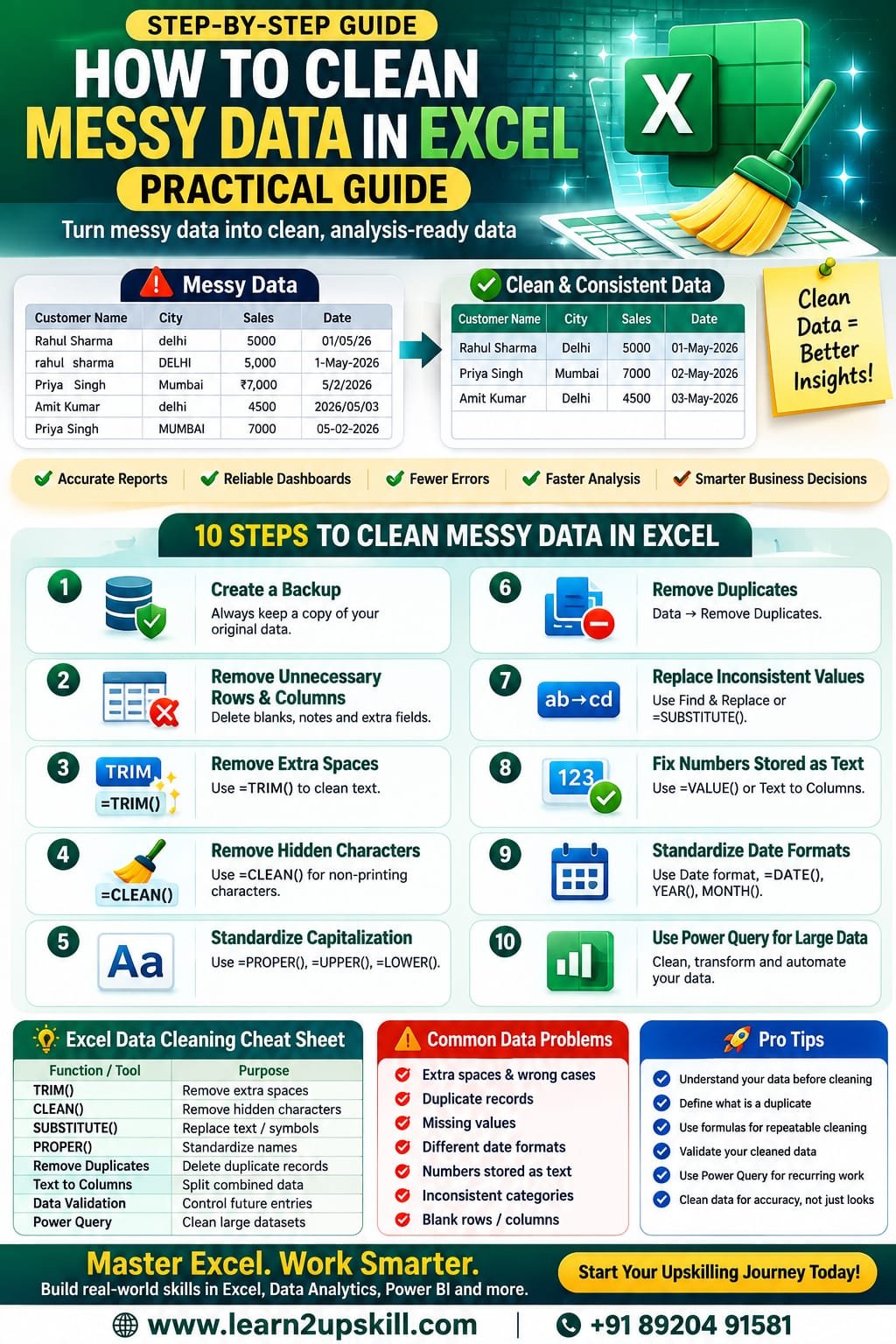
How to Clean Messy Data in Excel: Practical Guide
Learn how to clean messy data in Excel using TRIM, CLEAN, SUBSTITUTE, Remove Duplicates, Text to Columns, data validation and Power Query.
Suggested URL Slug:
“how-to-clean-messy-data-in-excel”
—
Introduction
Messy data is one of the most common problems faced by anyone working with Excel.
You may receive a spreadsheet containing:
– Extra spaces
– Duplicate records
– Missing values
– Inconsistent names
– Different date formats
– Numbers stored as text
– Incorrect capitalization
– Blank rows
– Unnecessary columns
– Spelling variations
– Inconsistent categories
– Hidden or unwanted characters
For example, the same customer might appear as:
Rahul Sharma
** rahul sharma**
RAHUL SHARMA
Rahul Sharma
To a human, these may look like the same person. To Excel, they can be different text values depending on the situation.
Before creating a report, dashboard or analysis, you need to make your dataset clean, consistent and reliable.
This process is known as data cleaning or data cleansing.
In this practical guide, you’ll learn how to clean messy data in Excel using formulas, built-in tools and Power Query.
—
What Is Data Cleaning in Excel?
Data cleaning is the process of identifying and correcting inaccurate, incomplete, inconsistent, duplicate or incorrectly formatted data.
The goal is simple:
«Turn messy raw data into clean, consistent and analysis-ready data.»
For example, imagine you have this dataset:
Customer Name| City| Sales| Date
Rahul Sharma| Delhi| 5000| 01/05/26
rahul sharma| Delhi| 5000| 01-May-2026
Priya Singh| Mumbai| ₹7,000| 5/2/2026
Amit Kumar| delhi| 4500| 2026/05/03
There are several potential problems:
– Inconsistent capitalization
– Extra spaces
– Duplicate records
– Different date formats
– Currency symbols mixed with numbers
– Inconsistent city names
Cleaning this data before analysis is essential.
—
Why Is Clean Data Important?
Poor-quality data can lead to poor-quality decisions.
For example, suppose you’re preparing a sales report.
If the same customer appears under three different names, your customer count could be incorrect.
If some sales values are stored as text, your formulas may not calculate correctly.
If dates are inconsistent, your monthly or yearly analysis may produce unexpected results.
Clean data helps you:
– Improve reporting accuracy
– Create reliable dashboards
– Reduce calculation errors
– Identify genuine trends
– Prepare data for Power BI
– Improve data analysis
– Save time during reporting
– Make better business decisions
Good analysis starts with good data.
—
Step 1: Create a Backup Before Cleaning
Before making major changes to your dataset, create a copy.
This is especially important when:
– Removing duplicates
– Replacing values
– Deleting columns
– Changing data types
– Transforming large datasets
Excel’s Remove Duplicates feature permanently removes duplicate values from the selected range, so Microsoft recommends keeping a copy of the original data before deleting duplicates.
A simple approach is:
Original Data → Backup → Cleaned Data
This gives you a safe version to return to if something goes wrong.
—
Step 2: Remove Unnecessary Rows and Columns
Start by looking at the overall structure of your spreadsheet.
Ask:
– Are there completely blank rows?
– Are there unnecessary columns?
– Are there notes mixed into the dataset?
– Are there totals or subtotals inside the raw data?
– Is there more than one header row?
A clean dataset generally works best when:
– Each row represents one record
– Each column represents one field
– There is one clear header row
– There are no unnecessary blank rows inside the data
For example:
Good structure:
Customer| City| Product| Sales
Rahul| Delhi| Laptop| 50000
Priya| Mumbai| Monitor| 25000
Avoid inserting manually formatted subtotals or explanatory notes into the middle of raw data.
If you’re using Power Query, unnecessary columns can also be removed through the Power Query Editor.
—
Step 3: Remove Extra Spaces with TRIM()
Extra spaces are one of the most common Excel data-cleaning problems.
For example:
” Rahul Sharma ”
may contain unnecessary spaces before or after the name.
Use the TRIM() function:
=TRIM(A2)
TRIM removes extra spaces from text while preserving single spaces between words. Microsoft notes that TRIM is designed for the standard ASCII space character.
Example
If A2 contains:
Rahul Sharma
then:
=TRIM(A2)
returns:
Rahul Sharma
Important
TRIM may not remove certain non-breaking spaces commonly found in copied web data. In those cases, you may need to combine TRIM with other text-cleaning techniques.
—
Step 4: Remove Hidden or Non-Printing Characters with CLEAN()
Sometimes data copied from websites, PDFs or other systems contains hidden characters.
These can cause unexpected problems.
The CLEAN() function can help remove many non-printing characters.
Example:
=CLEAN(A2)
For stronger cleaning, combine CLEAN and TRIM:
=TRIM(CLEAN(A2))
This is particularly useful when you’re working with text imported from external sources.
Microsoft also documents the combination of TRIM and CLEAN for cleaning text.
—
Step 5: Standardize Capitalization
Inconsistent capitalization can make datasets difficult to analyze.
For example:
– Delhi
– DELHI
– delhi
– DeLhI
You can standardize text using:
UPPER()
=UPPER(A2)
Result:
DELHI
LOWER()
=LOWER(A2)
Result:
delhi
PROPER()
=PROPER(A2)
Result:
Delhi
For names, PROPER can often be useful:
=PROPER(TRIM(A2))
This can simultaneously remove unnecessary spaces and standardize capitalization.
Always review the result, though, because proper capitalization rules aren’t universal for names, abbreviations or organization names.
—
Step 6: Find and Remove Duplicate Data
Duplicate records can distort:
– Sales totals
– Customer counts
– Inventory reports
– Employee lists
– Survey results
Excel provides a built-in Remove Duplicates feature.
How to remove duplicates
- Select your dataset.
- Go to Data.
- Select Remove Duplicates.
- Choose the columns that define a duplicate.
- Click OK.
Microsoft notes that Excel can also highlight duplicates using:
Home → Conditional Formatting → Highlight Cells Rules → Duplicate Values.
Important warning
Don’t automatically delete duplicates.
First ask:
Is this actually a duplicate record?
For example, a customer can legitimately have multiple orders.
If you remove every repeated customer name, you could accidentally delete valid transactions.
Always define what a “duplicate” means for your particular dataset.
—
Step 7: Replace Inconsistent Values
Sometimes the same category appears under different names.
For example:
– Male
– M
– male
– MALE
Or:
– Delhi
– New Delhi
– delhi
You may need to standardize these values.
Excel’s Find & Replace feature can help.
Press:
Ctrl + H
Then enter:
Find: “male”
Replace with: “Male”
For larger repeatable workflows, Power Query also provides a Replace Values transformation. Microsoft notes that replacing values in Power Query changes the query result rather than directly editing the external source.
—
Step 8: Clean Text with SUBSTITUTE()
SUBSTITUTE() replaces specific text within a cell.
Example
Suppose your data contains:
Delhi – India
and you want to remove:
– India
Use:
=SUBSTITUTE(A2,” – India”,””)
Result:
Delhi
SUBSTITUTE can be useful for:
– Removing unwanted characters
– Standardizing text
– Replacing abbreviations
– Cleaning imported data
– Removing symbols
You can combine it with TRIM:
=TRIM(SUBSTITUTE(A2,”-“,””))
—
Step 9: Fix Numbers Stored as Text
One common Excel problem is numbers stored as text.
For example:
5000
₹5000
“5000”
may not behave as expected in calculations.
You can often identify numbers stored as text because they may be aligned differently or show warning indicators.
Possible approaches include:
VALUE()
=VALUE(A2)
Multiply by 1
=A2*1
Text to Columns
Select the affected column and use:
Data → Text to Columns
Then follow the steps to convert the values.
Before converting, check whether the column contains mixed values such as text labels and numbers.
—
Step 10: Standardize Date Formats
Dates are extremely important for reporting.
You might receive:
– 01/05/2026
– 1-May-2026
– May 1, 2026
– 2026-05-01
These may represent the same date, but imported data can sometimes contain actual dates mixed with text values.
After confirming that Excel recognizes the values as dates, standardize their display using:
Home → Number Format → Date
You can also use functions such as:
=DATE(year,month,day)
and:
=YEAR(A2)
=MONTH(A2)
=DAY(A2)
Correct date data is essential for:
– Monthly reports
– Quarterly analysis
– Year-over-year comparisons
– Power BI dashboards
– Time-based charts
—
Step 11: Split Combined Data
Sometimes one column contains multiple pieces of information.
For example:
Rahul Sharma – Delhi
You may want:
Name| City
Rahul Sharma| Delhi
You can use Text to Columns.
Basic process
- Select the column.
- Go to Data.
- Select Text to Columns.
- Choose Delimited.
- Select the appropriate delimiter.
- Preview the result.
- Finish.
Common delimiters include:
– Comma
– Space
– Tab
– Semicolon
– Hyphen
Always preview the output before completing the operation.
—
Step 12: Handle Missing Values
Missing data is another common problem.
You might find:
Customer| City| Sales
Rahul| Delhi| 5000
Priya| | 7000
Amit| Mumbai|
Don’t automatically replace every blank cell with zero.
A blank could mean:
– Unknown
– Not applicable
– Not provided
– Data missing
– Zero
These meanings are different.
Before filling blanks, understand what the field represents.
Possible strategies include:
– Leave blank
– Enter “Unknown”
– Enter “Not Applicable”
– Use zero when zero is genuinely correct
– Investigate the source data
—
Step 13: Check Data Types
Every column should have an appropriate data type.
For example:
Column| Expected Type
Customer Name| Text
City| Text
Quantity| Number
Sales| Number/Currency
Order Date| Date
Customer ID| Text or identifier
Percentage| Percentage
A common mistake is assuming that something that looks like a number is actually stored as a number.
Always verify.
—
Step 14: Use Data Validation
If you’re creating a spreadsheet that people will continue entering data into, Data Validation can prevent many future data-quality problems.
For example, instead of allowing users to type any region, create a dropdown:
North
South
East
West
This reduces inconsistent entries such as:
– North
– north
– NORTH
– Nort
– N.
Data validation is therefore not only a cleaning tool.
It is a data-quality prevention tool.
—
Step 15: Use Conditional Formatting to Find Problems
Conditional Formatting can help you identify:
– Duplicate values
– Unusually high numbers
– Unusually low numbers
– Blank cells
– Error values
– Outliers
For example, to identify duplicates:
Home → Conditional Formatting → Highlight Cells Rules → Duplicate Values
Microsoft recommends this approach as a way to review duplicates before deciding whether to remove them.
This is particularly useful when you want to inspect the data before making destructive changes.
—
Step 16: Clean Data Using Power Query
If you regularly receive large or messy datasets, Power Query can be one of the most useful Excel tools to learn.
Power Query allows you to create repeatable data-transformation steps.
You can use it to:
– Remove duplicates
– Remove unnecessary columns
– Replace values
– Change data types
– Split columns
– Merge columns
– Filter rows
– Remove errors
– Transform text
– Combine datasets
For example, in Power Query you can remove duplicate rows by selecting the relevant columns and choosing:
Home → Remove Rows → Remove Duplicates.
Power Query can also keep duplicate rows when you need to investigate them rather than delete them.
Why Power Query is powerful
Suppose you receive the same type of sales report every Monday.
Instead of cleaning it manually every week, you can create a Power Query workflow once and refresh it when new data arrives.
That’s a major productivity advantage.
—
Step 17: Check for Errors
After cleaning, look for:
– #N/A
– #VALUE!
– #REF!
– #DIV/0!
– #NAME?
– #NUM!
In Power Query, you can also remove or keep rows containing errors. Microsoft recommends considering whether errors should be retained for auditing rather than simply deleting them automatically.
The key question is:
«Why did the error occur?»
Fixing the underlying problem is usually better than simply hiding the error.
—
Step 18: Validate Your Cleaned Dataset
Cleaning isn’t complete until you check the results.
Use a final checklist:
Data Quality Checklist
– Are column names clear?
– Are there blank rows?
– Are duplicate records handled correctly?
– Are unnecessary columns removed?
– Are spaces cleaned?
– Is capitalization consistent?
– Are dates valid?
– Are numbers stored as numbers?
– Are categories standardized?
– Are missing values understood?
– Are formulas working?
– Are errors resolved?
– Does the row count make sense?
– Do totals match the original source?
This final validation step can prevent serious reporting mistakes.
—
Practical Example: Cleaning a Sales Dataset
Suppose you receive this:
Customer| City| Product| Sales
Rahul Sharma| Delhi| Laptop| 50000
Rahul Sharma| DELHI| Laptop| 50000
Priya Singh| Mumbai| Monitor| ₹25000
Amit Kumar| delhi| Keyboard| 5000
Priya Singh| Mumbai| Monitor| ₹25000
A cleaning workflow could be:
Step 1
Use:
=TRIM(A2)
to remove unnecessary spaces.
Step 2
Standardize city names:
=PROPER(B2)
Step 3
Clean the sales column so values are consistently numeric.
Step 4
Identify duplicate transactions.
Step 5
Check whether repeated transactions are genuine duplicates.
Step 6
Standardize dates and other fields.
Step 7
Validate totals against the original source.
Step 8
Load the cleaned dataset into a report or Power BI.
Now your data is much more suitable for analysis.
—
Excel Data Cleaning Formula Cheat Sheet
Problem| Useful Excel Function/Tool
Extra spaces| “TRIM()”
Hidden characters| “CLEAN()”
Change capitalization| “UPPER()”, “LOWER()”, “PROPER()”
Replace text| “SUBSTITUTE()”
Convert text to number| “VALUE()”
Split data| Text to Columns
Find duplicates| Conditional Formatting
Remove duplicates| Remove Duplicates
Standardize values| Find & Replace
Control future entries| Data Validation
Handle large datasets| Power Query
Identify errors| Conditional Formatting / Power Query
Date extraction| “YEAR()”, “MONTH()”, “DAY()”
—
10 Best Practices for Excel Data Cleaning
- Always keep the original data
Never perform major cleaning operations without a backup.
- Don’t delete duplicates blindly
A repeated value doesn’t always mean a duplicate record.
- Understand missing values
Blank does not always mean zero.
- Standardize categories
Use consistent names, abbreviations and formats.
- Check data types
Numbers, dates and text should be stored appropriately.
- Use formulas for repeatable cleaning
Functions such as TRIM, CLEAN and SUBSTITUTE can save time.
- Use Power Query for recurring work
Automate repetitive transformations whenever possible.
- Validate before reporting
Always check totals, row counts and key fields.
- Document your cleaning process
Especially when working with business or shared datasets.
- Don’t clean only for appearance
Clean data should be accurate and logically consistent, not merely visually neat.
—
Excel Data Cleaning vs Power Query
Feature| Excel Formulas/Tools| Power Query
Small datasets| Excellent| Good
Quick fixes| Excellent| Good
Repeated cleaning| Moderate| Excellent
Large datasets| Moderate| Excellent
Remove duplicates| Yes| Yes
Replace values| Yes| Yes
Change data types| Yes| Yes
Split columns| Yes| Yes
Automation| Limited| Strong
Refreshable workflow| Limited| Excellent
For occasional small datasets, traditional Excel tools may be enough.
For large or recurring datasets, Power Query is often the better long-term approach.
—
Why Excel Data Cleaning Is an Important Career Skill
Data cleaning isn’t just an Excel trick.
It is an important part of data analysis.
Data analysts, MIS executives, business analysts, finance professionals, marketing analysts and operations teams often spend significant time preparing data before analyzing it.
Learning Excel data-cleaning techniques can therefore help you build skills in:
– Data analysis
– Reporting
– Business intelligence
– Dashboard creation
– Power BI
– Data quality
– Automation
A professional who can take a messy spreadsheet and turn it into clean, analysis-ready data can provide significant value to an organization.
—
Conclusion
Learning how to clean messy data in Excel is one of the most practical skills you can develop if you work with spreadsheets.
Start with the basics:
TRIM → CLEAN → SUBSTITUTE → Standardize → Remove Duplicates → Fix Data Types → Handle Missing Values → Validate
Then move into Power Query when your datasets become larger or the cleaning process needs to be repeated.
Remember:
«Clean data is the foundation of reliable analysis.»
Before building an Excel dashboard, Power BI report or business analysis, take the time to clean and validate your data.
Your formulas may be perfect, your charts may look beautiful and your dashboard may be impressive—but if the underlying data is messy, the final conclusions can still be wrong.
Clean the data first. Analyze it second. Make decisions third.
—
Learn Excel & Data Analytics with Learn2Upskill
Want to go beyond basic Excel formulas?
Learn practical skills in Excel, Power BI, data analytics, AI productivity and other career-focused technologies with Learn2Upskill.
🌐 www.coral-kudu-326218.hostingersite.com
Learn. Upskill. Grow.
—
Leave a Reply