Category: Microsoft Excel

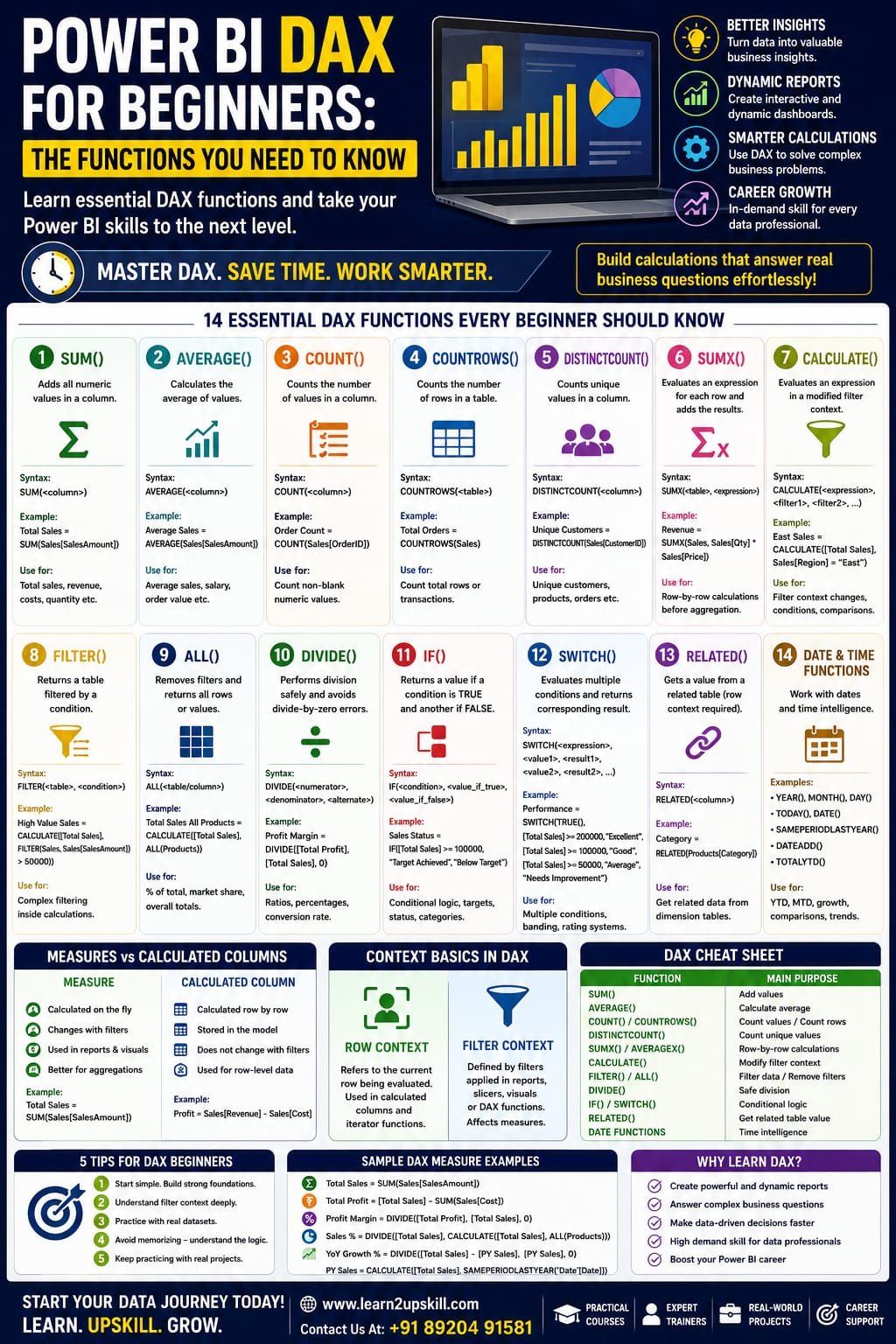
  • Power BI DAX for Beginners: The Functions You Need to Know

    Power BI DAX for Beginners: The Functions You Need to Know

    Power BI DAX for Beginners: The Functions You Need to Know

    Power BI DAX for Beginners: Essential DAX Functions to Learn

    Learn Power BI DAX for beginners with essential DAX functions such as SUM, CALCULATE, FILTER, SUMX, IF, DIVIDE, RELATED and time-intelligence functions.

    Suggested URL Slug:

    “power-bi-dax-for-beginners-essential-functions”

    —

    Introduction

    If you are learning Microsoft Power BI and want to move beyond basic charts and dashboards, one skill you should understand is DAX.

    DAX stands for Data Analysis Expressions. It is the formula language used in Power BI, Analysis Services and Power Pivot in Excel to create calculations and derive new information from data models. Microsoft’s DAX reference currently documents more than 250 functions, so beginners can easily feel overwhelmed by the number of available options.

    The good news is that you don’t need to memorize hundreds of DAX functions.

    A small group of commonly used functions can help you perform many practical Power BI calculations.

    In this Power BI DAX for beginners guide, we’ll explore the essential functions you should learn first, including:

    – SUM

    – AVERAGE

    – COUNT

    – DISTINCTCOUNT

    – SUMX

    – CALCULATE

    – FILTER

    – ALL

    – IF

    – SWITCH

    – DIVIDE

    – RELATED

    – Date and time functions

    We’ll also explain the difference between measures and calculated columns, introduce filter context and row context, and provide practical examples.

    —

    What Is DAX in Power BI?

    DAX is a formula language designed for working with data models.

    You can use DAX to create:

    – Measures

    – Calculated columns

    – Calculated tables

    – Business calculations

    – KPIs

    – Ratios

    – Percentages

    – Time-based calculations

    – Dynamic metrics

    For example, suppose you have a “Sales” table containing:

    Product| Quantity| Sales

    Laptop| 5| ₹250,000

    Monitor| 10| ₹150,000

    Keyboard| 20| ₹40,000


    You could create a simple DAX measure:

    Total Sales = SUM(Sales[Sales])

    This measure calculates the total sales from the “Sales” column.

    Microsoft describes DAX as a collection of functions, operators and constants that can be combined to create expressions that calculate and return values from a data model.

    —

    Why Is DAX Important in Power BI?

    Power BI can create many basic visualizations without DAX.

    But DAX becomes important when you want to answer business questions such as:

    – What are total sales?

    – What is the average order value?

    – What percentage of sales came from each region?

    – What were sales last year?

    – What is year-over-year growth?

    – What is the company’s profit margin?

    – Which products generated the most revenue?

    – What is the running total?

    – How much did sales increase compared with the previous month?

    DAX allows you to create dynamic calculations that respond to filters, slicers and the context of your report.

    —

    Measures vs Calculated Columns

    Before learning DAX functions, beginners should understand an important distinction.

    Calculated Column

    A calculated column creates a value for each row in a table.

    For example:

    Profit = Sales[Revenue] – Sales[Cost]

    The calculation is performed for each row.

    Calculated columns can be useful when you need a value stored at the row level.

    Measure

    A measure calculates a result when it is used in a report.

    For example:

    Total Revenue = SUM(Sales[Revenue])

    Measures are generally the preferred approach for aggregations and dynamic report calculations.

    Simple way to remember

    Calculated Column → Row-level calculation

    Measure → Report-level/dynamic calculation

    —

    1. SUM()

    Let’s begin with one of the simplest and most commonly used DAX functions.

    SUM() adds all numeric values in a column.

    Syntax

    SUM(<column>)

    Example

    Total Sales = SUM(Sales[SalesAmount])

    This calculates the total value in the “SalesAmount” column.

    When to use SUM()

    Use it for:

    – Total sales

    – Total revenue

    – Total costs

    – Total quantity

    – Total profit

    Example

    Total Quantity = SUM(Sales[Quantity])

    —

    1. AVERAGE()

    The AVERAGE() function calculates the arithmetic mean of values in a column.

    Example

    Average Sales = AVERAGE(Sales[SalesAmount])

    You can use this for:

    – Average sales

    – Average salary

    – Average order value

    – Average customer rating

    – Average product price

    For example:

    Average Order Value = AVERAGE(Sales[OrderValue])

    —

    1. COUNT()

    The COUNT() function counts values in a column according to the data type supported by the function.

    For example:

    Order Count = COUNT(Sales[OrderID])

    COUNT is useful when you need to calculate the number of non-blank numeric values.

    For more general counting requirements, beginners should also learn COUNTA() and COUNTROWS().

    —

    1. COUNTROWS()

    COUNTROWS counts the number of rows in a table.

    Example

    Total Orders = COUNTROWS(Sales)

    This can be particularly useful when each row represents one transaction.

    For example:

    Total Transactions = COUNTROWS(Sales)

    COUNT vs COUNTROWS

    Think of them this way:

    COUNT → Count values in a column

    COUNTROWS → Count rows in a table

    —

    1. DISTINCTCOUNT()

    Sometimes you don’t want to count every transaction.

    You want to know how many unique customers made purchases.

    That’s where DISTINCTCOUNT() becomes useful.

    Example

    Unique Customers = DISTINCTCOUNT(Sales[CustomerID])

    If the same customer appears multiple times, they are counted once.

    This is useful for:

    – Unique customers

    – Unique products

    – Unique employees

    – Unique orders

    – Unique accounts

    —

    1. SUMX()

    SUMX is an important step beyond basic aggregation.

    It is an iterator function that evaluates an expression for each row of a table and then adds the results.

    Syntax

    SUMX(<table>, <expression>)

    Suppose your table contains:

    Product| Quantity| Price

    Laptop| 2| ₹50,000

    Monitor| 3| ₹20,000

    You can calculate revenue using:

    Revenue = SUMX(Sales, Sales[Quantity] * Sales[Price])

    Here DAX evaluates:

    Quantity × Price

    for each row and then adds the results.

    SUM vs SUMX

    SUM:

    SUM(Sales[Revenue])

    Adds values already stored in a column.

    SUMX:

    SUMX(Sales, Sales[Quantity] * Sales[Price])

    Calculates an expression row by row and then aggregates it.

    Microsoft specifically describes SUMX as an iterator that evaluates an expression for each row of a table.

    —

    1. CALCULATE()

    If there is one DAX function that beginners should spend extra time understanding, it is CALCULATE().

    CALCULATE evaluates an expression in a modified filter context.

    Basic syntax

    CALCULATE(<expression>, <filter1>, <filter2>, …)

    Example

    Total Sales = SUM(Sales[SalesAmount])

    Now suppose you want sales only for the East region:

    East Sales =

    CALCULATE(

    [Total Sales],

    Sales[Region] = “East”

    CALCULATE changes the filter context so that the calculation is evaluated for the specified region.

    Why CALCULATE matters

    It is commonly used for:

    – Conditional calculations

    – Time intelligence

    – Percentage calculations

    – Comparisons

    – Removing filters

    – Applying filters

    – Advanced measures

    Learning CALCULATE is one of the biggest milestones for a beginner moving toward intermediate DAX.

    —

    1. FILTER()

    FILTER() returns a table that has been filtered according to a specified condition. Microsoft notes that FILTER is typically used as part of another function that requires a table expression rather than as a standalone calculation.

    Example

    High Value Sales =

    CALCULATE(

    [Total Sales],

    FILTER(

    Sales,

    Sales[SalesAmount] > 50000

    This allows you to work with rows meeting a specific condition.

    When to use FILTER()

    FILTER can be useful when you need more complex filtering logic.

    However, beginners should first understand simple filter arguments in CALCULATE before using FILTER extensively.

    —

    1. ALL()

    ALL() is an important filter-related function.

    It can return all rows in a table or all values in a column while ignoring filters applied to that table or column.

    For example:

    Total Sales All Products =

    CALCULATE(

    [Total Sales],

    ALL(Products)

    This can be useful when calculating:

    – Percentage of total

    – Market share

    – Overall totals

    – Comparisons against the entire dataset

    Example: Percentage of Total Sales

    Sales % =

    DIVIDE(

    [Total Sales],

    CALCULATE(

    [Total Sales],

    ALL(Products)

    This compares the current sales value with the total across products.

    —

    1. DIVIDE()

    DIVIDE() is useful when calculating ratios or percentages.

    Syntax

    DIVIDE(<numerator>, <denominator>, <alternate_result>)

    For example:

    Profit Margin =

    DIVIDE(

    [Total Profit],

    [Total Sales],

    0

    )

    This is generally safer for division calculations because you can specify an alternate result when the denominator is zero.

    Common uses

    – Profit margin

    – Conversion rate

    – Growth rate

    – Percentage of total

    – Average ratios

    —

    1. IF()

    IF() allows you to create conditional logic.

    Example

    Sales Status =

    IF(

    [Total Sales] >= 100000,

    “Target Achieved”,

    “Below Target”

    )

    This produces one result when the condition is true and another when it is false.

    IF can be useful for:

    – Targets

    – Performance categories

    – Status indicators

    – Business rules

    – Conditional labels

    —

    1. SWITCH()

    When you have multiple conditions, SWITCH can make your logic easier to read.

    For example:

    Performance =

    SWITCH(

    TRUE(),

    [Total Sales] >= 200000, “Excellent”,

    [Total Sales] >= 100000, “Good”,

    [Total Sales] >= 50000, “Average”,

    “Needs Improvement”

    )

    This creates several performance categories.

    SWITCH can be especially useful for:

    – Performance bands

    – Customer categories

    – Rating systems

    – KPI status

    – Business classifications

    —

    1. RELATED()

    RELATED() allows you to retrieve a value from a related table when the model relationship and row context support the lookup. Microsoft notes that RELATED requires row context, such as in a calculated column or within an appropriate table-scanning expression.

    Suppose you have:

    Sales Table

    ProductID| Quantity

    P101| 10

    P102| 20

    and:

    Products Table

    ProductID| Category

    P101| Laptop

    P102| Monitor

    You could use:

    Category = RELATED(Products[Category])

    This retrieves the category from the related Products table.

    Important

    RELATED depends on the appropriate relationship between the tables.

    So before troubleshooting a RELATED formula, check your data model relationships.

    —

    1. Date and Time Functions

    Time-based analysis is one of the biggest reasons professionals use Power BI.

    DAX includes many date and time functions that support calculations across periods.

    Common functions and patterns include:

    – YEAR()

    – MONTH()

    – DAY()

    – DATE()

    – TODAY()

    – SAMEPERIODLASTYEAR()

    – DATEADD()

    – TOTALYTD()

    For example, you might create:

    Current Year Sales =

    TOTALYTD(

    [Total Sales],

    ‘Date'[Date]

    )

    Or compare the current period with the previous year:

    Previous Year Sales =

    CALCULATE(

    [Total Sales],

    SAMEPERIODLASTYEAR(‘Date'[Date])

    )

    Time intelligence requires a properly designed date table and appropriate model relationships, so beginners should learn the data-model side along with the formulas.

    —

    1. Understanding Filter Context

    One of the most important concepts in DAX is filter context.

    Imagine a Power BI report showing sales by:

    – Year

    – Region

    – Product

    When a user selects:

    2026 + North Region

    the calculation is evaluated under that set of filters.

    DAX measures respond to this context.

    This is one reason the same measure can show different values in different parts of a Power BI report.

    Microsoft’s DAX documentation explains that filter context represents the set of values allowed by filters from reports, visuals and DAX expressions.

    —

    1. Understanding Row Context

    Row context refers to the current row being evaluated.

    It is especially important when working with calculated columns and iterator functions.

    For example:

    Profit = Sales[Revenue] – Sales[Cost]

    For each row, Power BI evaluates the Revenue and Cost values for that row.

    Iterator functions such as SUMX can also create row context while evaluating their expression across a table.

    Understanding row context + filter context is essential for progressing beyond beginner DAX.

    —

    Beginner DAX Cheat Sheet

    Function| Main Purpose| Example

    SUM| Add values| “SUM(Sales[Amount])”

    AVERAGE| Calculate average| “AVERAGE(Sales[Amount])”

    COUNT| Count values| “COUNT(Sales[OrderID])”

    COUNTROWS| Count rows| “COUNTROWS(Sales)”

    DISTINCTCOUNT| Count unique values| “DISTINCTCOUNT(Sales[CustomerID])”

    SUMX| Iterate and calculate| “SUMX(Sales, Sales[Qty]*Sales[Price])”

    CALCULATE| Modify filter context| “CALCULATE([Sales], Region=”East”)”

    FILTER| Filter a table| “FILTER(Sales, Sales[Amount]>50000)”

    ALL| Remove filters| “ALL(Products)”

    DIVIDE| Safe division| “DIVIDE([Profit],[Sales],0)”

    IF| Conditional logic| “IF([Sales]>100000,”Yes”,”No”)”

    SWITCH| Multiple conditions| “SWITCH(TRUE(),…)”

    RELATED| Retrieve related value| “RELATED(Products[Category])”

    TOTALYTD| Year-to-date calculation| “TOTALYTD([Sales],Date[Date])”

    —

    Common DAX Mistakes Beginners Make

    1. Trying to Memorize Everything

    You don’t need to memorize hundreds of functions.

    Focus on the functions you use regularly.

    1. Confusing Measures and Columns

    Understand when a calculation should be a measure and when it belongs at row level.

    1. Ignoring Relationships

    DAX works closely with your data model.

    Poor relationships can produce unexpected results.

    1. Not Understanding Filter Context

    Many confusing DAX results become easier to understand once you learn how filter context works.

    1. Using Complex Formulas Too Early

    Start with:

    SUM → CALCULATE → FILTER → SUMX → DIVIDE

    Then gradually move into advanced calculations.

    1. Treating DAX Like Excel

    DAX and Excel formulas may look similar, but DAX operates within a data-model and evaluation-context framework.

    Microsoft specifically notes that DAX functions may look familiar to Excel users while behaving differently because DAX works with tables, columns, relationships and context.

    —

    How to Learn DAX Faster

    If you’re a beginner, don’t try to learn DAX by memorizing formulas.

    Instead, use a practical approach.

    Step 1: Learn Basic Aggregations

    Start with:

    – SUM

    – AVERAGE

    – COUNT

    – COUNTROWS

    – DISTINCTCOUNT

    Step 2: Learn Iterators

    Move to:

    – SUMX

    – AVERAGEX

    – COUNTX

    Step 3: Master CALCULATE

    Spend time understanding filter context.

    Step 4: Learn Filtering

    Practice:

    – FILTER

    – ALL

    – REMOVEFILTERS

    – ALLSELECTED

    Step 5: Learn Business Logic

    Practice:

    – IF

    – SWITCH

    – DIVIDE

    Step 6: Learn Relationships

    Understand:

    – RELATED

    – RELATEDTABLE

    – Data-model relationships

    Step 7: Learn Time Intelligence

    Practice:

    – YTD

    – MTD

    – Previous Year

    – Year-over-Year Growth

    – DATEADD

    —

    Practical DAX Project for Beginners

    The best way to learn DAX is by building something.

    Create a simple Sales Performance Dashboard.

    Your dataset could include:

    – Date

    – Product

    – Category

    – Region

    – Customer

    – Quantity

    – Revenue

    – Cost

    Then create measures such as:

    Total Sales = SUM(Sales[Revenue])

    Total Cost = SUM(Sales[Cost])

    Total Profit = [Total Sales] – [Total Cost]

    Profit Margin =

    DIVIDE(

    [Total Profit],

    [Total Sales],

    0

    )

    Unique Customers =

    DISTINCTCOUNT(Sales[CustomerID])

    Average Sales =

    AVERAGE(Sales[Revenue])

    Once these work, add:

    – Sales by region

    – Sales by product

    – Monthly sales

    – Year-over-year growth

    – Top products

    – Profit margin

    – Sales targets

    This turns DAX from a theoretical topic into a practical business-analysis skill.

    —

    Why DAX Is an Important Skill for Data Analysts

    Power BI is widely used for business intelligence and reporting.

    DAX allows analysts to move beyond simply displaying data.

    Instead, analysts can create calculations that answer business questions.

    For example:

    “How much did sales grow?”

    “What percentage of total revenue came from this region?”

    “Which product has the highest margin?”

    “How are sales performing compared with last year?”

    These are the types of questions that make Power BI valuable to organizations.

    Learning DAX therefore complements other data skills such as:

    – Excel

    – Power Query

    – SQL

    – Power BI

    – Data visualization

    – Data modeling

    – Business analysis

    —

    Conclusion

    Learning Power BI DAX for beginners doesn’t mean memorizing every function in the DAX library.

    Start with the fundamentals:

    SUM → AVERAGE → COUNT → DISTINCTCOUNT → SUMX → CALCULATE → FILTER → ALL → DIVIDE → IF → SWITCH → RELATED → Time Intelligence

    Then practice these functions using real business datasets.

    Most importantly, learn why a formula works, not just how to copy it.

    Once you understand measures, calculated columns, row context, filter context and relationships, DAX becomes much easier to work with.

    The goal isn’t to become someone who knows hundreds of formulas.

    The goal is to become a professional who can use DAX to turn business data into useful insights and better decisions.

    —

    —

    Learn Power BI and Data Analytics with Learn2Upskill

    Want to move beyond basic Power BI dashboards?

    Build practical skills in Power BI, Excel, data analytics, business intelligence and other job-focused technologies with Learn2Upskill.

    🌐 www.coral-kudu-326218.hostingersite.com

    Learn. Upskill. Grow.

    —
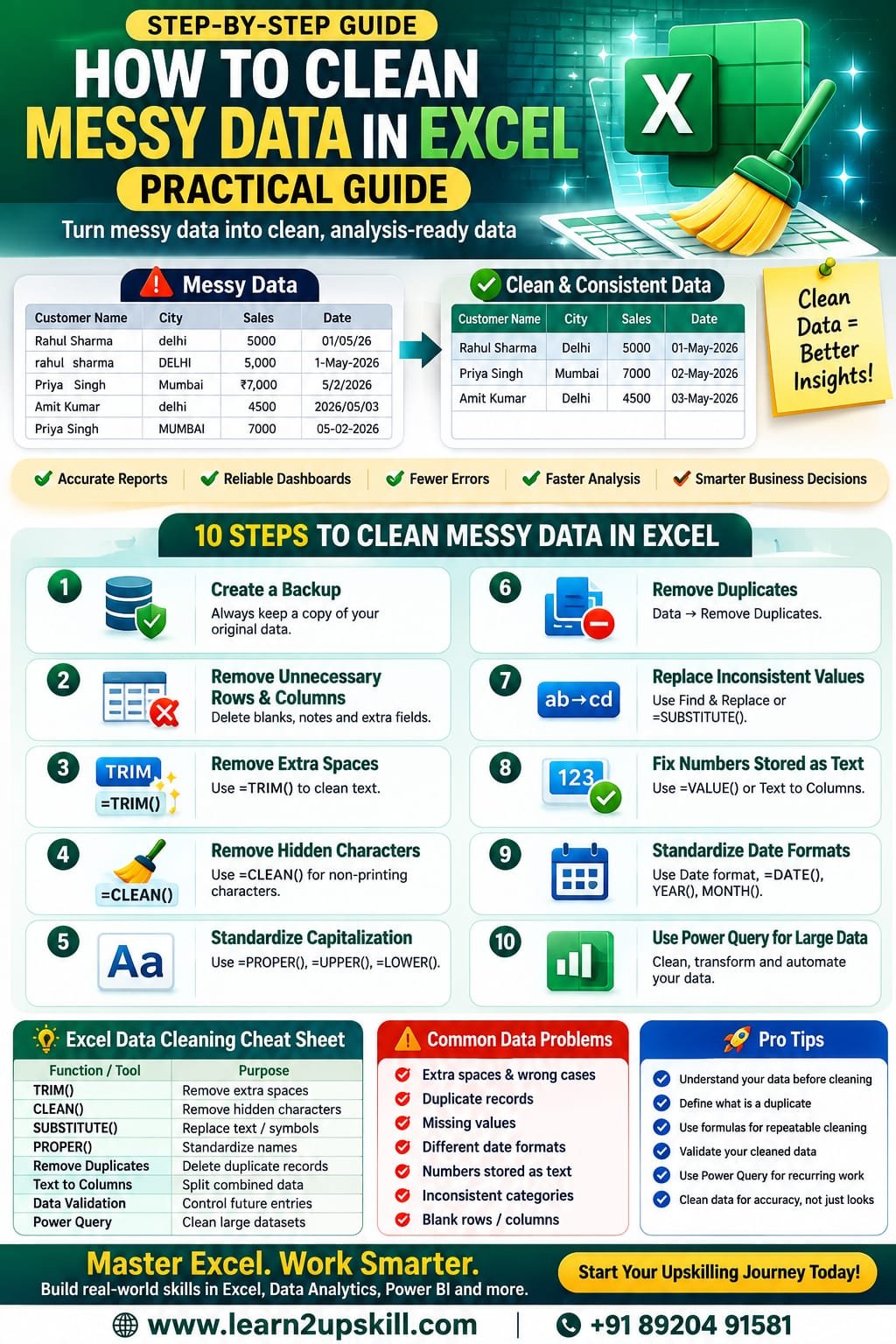


  • How to Clean Messy Data in Excel: Practical Guide

    How to Clean Messy Data in Excel: Practical Guide

    How to Clean Messy Data in Excel: Practical Guide

    Learn how to clean messy data in Excel using TRIM, CLEAN, SUBSTITUTE, Remove Duplicates, Text to Columns, data validation and Power Query.

    Suggested URL Slug:

    “how-to-clean-messy-data-in-excel”

    —

    Introduction

    Messy data is one of the most common problems faced by anyone working with Excel.

    You may receive a spreadsheet containing:

    – Extra spaces

    – Duplicate records

    – Missing values

    – Inconsistent names

    – Different date formats

    – Numbers stored as text

    – Incorrect capitalization

    – Blank rows

    – Unnecessary columns

    – Spelling variations

    – Inconsistent categories

    – Hidden or unwanted characters

    For example, the same customer might appear as:

    Rahul Sharma

    ** rahul sharma**

    RAHUL SHARMA

    Rahul  Sharma

    To a human, these may look like the same person. To Excel, they can be different text values depending on the situation.

    Before creating a report, dashboard or analysis, you need to make your dataset clean, consistent and reliable.

    This process is known as data cleaning or data cleansing.

    In this practical guide, you’ll learn how to clean messy data in Excel using formulas, built-in tools and Power Query.

    —

    What Is Data Cleaning in Excel?

    Data cleaning is the process of identifying and correcting inaccurate, incomplete, inconsistent, duplicate or incorrectly formatted data.

    The goal is simple:

    «Turn messy raw data into clean, consistent and analysis-ready data.»

    For example, imagine you have this dataset:

    Customer Name| City| Sales| Date

    Rahul Sharma| Delhi| 5000| 01/05/26

    rahul sharma| Delhi| 5000| 01-May-2026

    Priya  Singh| Mumbai| ₹7,000| 5/2/2026

    Amit Kumar| delhi| 4500| 2026/05/03

    There are several potential problems:

    – Inconsistent capitalization

    – Extra spaces

    – Duplicate records

    – Different date formats

    – Currency symbols mixed with numbers

    – Inconsistent city names

    Cleaning this data before analysis is essential.

    —

    Why Is Clean Data Important?

    Poor-quality data can lead to poor-quality decisions.

    For example, suppose you’re preparing a sales report.

    If the same customer appears under three different names, your customer count could be incorrect.

    If some sales values are stored as text, your formulas may not calculate correctly.

    If dates are inconsistent, your monthly or yearly analysis may produce unexpected results.

    Clean data helps you:

    – Improve reporting accuracy

    – Create reliable dashboards

    – Reduce calculation errors

    – Identify genuine trends

    – Prepare data for Power BI

    – Improve data analysis

    – Save time during reporting

    – Make better business decisions

    Good analysis starts with good data.

    —

    Step 1: Create a Backup Before Cleaning

    Before making major changes to your dataset, create a copy.

    This is especially important when:

    – Removing duplicates

    – Replacing values

    – Deleting columns

    – Changing data types

    – Transforming large datasets

    Excel’s Remove Duplicates feature permanently removes duplicate values from the selected range, so Microsoft recommends keeping a copy of the original data before deleting duplicates.

    A simple approach is:

    Original Data → Backup → Cleaned Data

    This gives you a safe version to return to if something goes wrong.

    —

    Step 2: Remove Unnecessary Rows and Columns

    Start by looking at the overall structure of your spreadsheet.

    Ask:

    – Are there completely blank rows?

    – Are there unnecessary columns?

    – Are there notes mixed into the dataset?

    – Are there totals or subtotals inside the raw data?

    – Is there more than one header row?


    A clean dataset generally works best when:

    – Each row represents one record

    – Each column represents one field

    – There is one clear header row

    – There are no unnecessary blank rows inside the data

    For example:

    Good structure:

    Customer| City| Product| Sales

    Rahul| Delhi| Laptop| 50000

    Priya| Mumbai| Monitor| 25000

    Avoid inserting manually formatted subtotals or explanatory notes into the middle of raw data.

    If you’re using Power Query, unnecessary columns can also be removed through the Power Query Editor.

    —

    Step 3: Remove Extra Spaces with TRIM()

    Extra spaces are one of the most common Excel data-cleaning problems.

    For example:

    ” Rahul Sharma ”

    may contain unnecessary spaces before or after the name.

    Use the TRIM() function:

    =TRIM(A2)

    TRIM removes extra spaces from text while preserving single spaces between words. Microsoft notes that TRIM is designed for the standard ASCII space character.

    Example

    If A2 contains:

    Rahul   Sharma

    then:

    =TRIM(A2)

    returns:

    Rahul Sharma

    Important

    TRIM may not remove certain non-breaking spaces commonly found in copied web data. In those cases, you may need to combine TRIM with other text-cleaning techniques.

    —

    Step 4: Remove Hidden or Non-Printing Characters with CLEAN()

    Sometimes data copied from websites, PDFs or other systems contains hidden characters.

    These can cause unexpected problems.

    The CLEAN() function can help remove many non-printing characters.

    Example:

    =CLEAN(A2)

    For stronger cleaning, combine CLEAN and TRIM:

    =TRIM(CLEAN(A2))

    This is particularly useful when you’re working with text imported from external sources.

    Microsoft also documents the combination of TRIM and CLEAN for cleaning text.

    —

    Step 5: Standardize Capitalization

    Inconsistent capitalization can make datasets difficult to analyze.

    For example:

    – Delhi

    – DELHI

    – delhi

    – DeLhI

    You can standardize text using:

    UPPER()

    =UPPER(A2)

    Result:

    DELHI

    LOWER()

    =LOWER(A2)

    Result:

    delhi

    PROPER()

    =PROPER(A2)

    Result:

    Delhi

    For names, PROPER can often be useful:

    =PROPER(TRIM(A2))

    This can simultaneously remove unnecessary spaces and standardize capitalization.

    Always review the result, though, because proper capitalization rules aren’t universal for names, abbreviations or organization names.

    —

    Step 6: Find and Remove Duplicate Data

    Duplicate records can distort:

    – Sales totals

    – Customer counts

    – Inventory reports

    – Employee lists

    – Survey results

    Excel provides a built-in Remove Duplicates feature.

    How to remove duplicates

    1. Select your dataset.
    2. Go to Data.
    3. Select Remove Duplicates.
    4. Choose the columns that define a duplicate.
    5. Click OK.

    Microsoft notes that Excel can also highlight duplicates using:

    Home → Conditional Formatting → Highlight Cells Rules → Duplicate Values.

    Important warning

    Don’t automatically delete duplicates.

    First ask:

    Is this actually a duplicate record?

    For example, a customer can legitimately have multiple orders.

    If you remove every repeated customer name, you could accidentally delete valid transactions.

    Always define what a “duplicate” means for your particular dataset.

    —

    Step 7: Replace Inconsistent Values

    Sometimes the same category appears under different names.

    For example:

    – Male

    – M

    – male

    – MALE

    Or:

    – Delhi

    – New Delhi

    – delhi

    You may need to standardize these values.

    Excel’s Find & Replace feature can help.

    Press:

    Ctrl + H

    Then enter:

    Find: “male”

    Replace with: “Male”

    For larger repeatable workflows, Power Query also provides a Replace Values transformation. Microsoft notes that replacing values in Power Query changes the query result rather than directly editing the external source.

    —

    Step 8: Clean Text with SUBSTITUTE()

    SUBSTITUTE() replaces specific text within a cell.

    Example

    Suppose your data contains:

    Delhi – India

    and you want to remove:

    – India

    Use:

    =SUBSTITUTE(A2,” – India”,””)

    Result:

    Delhi

    SUBSTITUTE can be useful for:

    – Removing unwanted characters

    – Standardizing text

    – Replacing abbreviations

    – Cleaning imported data

    – Removing symbols

    You can combine it with TRIM:

    =TRIM(SUBSTITUTE(A2,”-“,””))

    —

    Step 9: Fix Numbers Stored as Text

    One common Excel problem is numbers stored as text.

    For example:

    5000

    ₹5000

    “5000”

    may not behave as expected in calculations.

    You can often identify numbers stored as text because they may be aligned differently or show warning indicators.

    Possible approaches include:

    VALUE()

    =VALUE(A2)

    Multiply by 1

    =A2*1

    Text to Columns

    Select the affected column and use:

    Data → Text to Columns

    Then follow the steps to convert the values.

    Before converting, check whether the column contains mixed values such as text labels and numbers.

    —

    Step 10: Standardize Date Formats

    Dates are extremely important for reporting.

    You might receive:

    – 01/05/2026

    – 1-May-2026

    – May 1, 2026

    – 2026-05-01

    These may represent the same date, but imported data can sometimes contain actual dates mixed with text values.

    After confirming that Excel recognizes the values as dates, standardize their display using:

    Home → Number Format → Date

    You can also use functions such as:

    =DATE(year,month,day)

    and:

    =YEAR(A2)

    =MONTH(A2)

    =DAY(A2)

    Correct date data is essential for:

    – Monthly reports

    – Quarterly analysis

    – Year-over-year comparisons

    – Power BI dashboards

    – Time-based charts

    —

    Step 11: Split Combined Data

    Sometimes one column contains multiple pieces of information.

    For example:

    Rahul Sharma – Delhi

    You may want:

    Name| City

    Rahul Sharma| Delhi

    You can use Text to Columns.

    Basic process

    1. Select the column.
    2. Go to Data.
    3. Select Text to Columns.
    4. Choose Delimited.
    5. Select the appropriate delimiter.
    6. Preview the result.
    7. Finish.

    Common delimiters include:

    – Comma

    – Space

    – Tab

    – Semicolon

    – Hyphen

    Always preview the output before completing the operation.

    —

    Step 12: Handle Missing Values

    Missing data is another common problem.

    You might find:

    Customer| City| Sales

    Rahul| Delhi| 5000

    Priya| | 7000

    Amit| Mumbai|

    Don’t automatically replace every blank cell with zero.

    A blank could mean:

    – Unknown

    – Not applicable

    – Not provided

    – Data missing

    – Zero

    These meanings are different.

    Before filling blanks, understand what the field represents.

    Possible strategies include:

    – Leave blank

    – Enter “Unknown”

    – Enter “Not Applicable”

    – Use zero when zero is genuinely correct

    – Investigate the source data

    —

    Step 13: Check Data Types

    Every column should have an appropriate data type.

    For example:

    Column| Expected Type

    Customer Name| Text

    City| Text

    Quantity| Number

    Sales| Number/Currency

    Order Date| Date

    Customer ID| Text or identifier

    Percentage| Percentage

    A common mistake is assuming that something that looks like a number is actually stored as a number.

    Always verify.

    —

    Step 14: Use Data Validation

    If you’re creating a spreadsheet that people will continue entering data into, Data Validation can prevent many future data-quality problems.

    For example, instead of allowing users to type any region, create a dropdown:

    North

    South

    East

    West

    This reduces inconsistent entries such as:

    – North

    – north

    – NORTH

    – Nort

    – N.

    Data validation is therefore not only a cleaning tool.

    It is a data-quality prevention tool.

    —

    Step 15: Use Conditional Formatting to Find Problems

    Conditional Formatting can help you identify:

    – Duplicate values

    – Unusually high numbers

    – Unusually low numbers

    – Blank cells

    – Error values

    – Outliers

    For example, to identify duplicates:

    Home → Conditional Formatting → Highlight Cells Rules → Duplicate Values

    Microsoft recommends this approach as a way to review duplicates before deciding whether to remove them.

    This is particularly useful when you want to inspect the data before making destructive changes.

    —

    Step 16: Clean Data Using Power Query

    If you regularly receive large or messy datasets, Power Query can be one of the most useful Excel tools to learn.

    Power Query allows you to create repeatable data-transformation steps.

    You can use it to:

    – Remove duplicates

    – Remove unnecessary columns

    – Replace values

    – Change data types

    – Split columns

    – Merge columns

    – Filter rows

    – Remove errors

    – Transform text

    – Combine datasets

    For example, in Power Query you can remove duplicate rows by selecting the relevant columns and choosing:

    Home → Remove Rows → Remove Duplicates.

    Power Query can also keep duplicate rows when you need to investigate them rather than delete them.

    Why Power Query is powerful

    Suppose you receive the same type of sales report every Monday.

    Instead of cleaning it manually every week, you can create a Power Query workflow once and refresh it when new data arrives.

    That’s a major productivity advantage.

    —

    Step 17: Check for Errors

    After cleaning, look for:

    – #N/A

    – #VALUE!

    – #REF!

    – #DIV/0!

    – #NAME?

    – #NUM!

    In Power Query, you can also remove or keep rows containing errors. Microsoft recommends considering whether errors should be retained for auditing rather than simply deleting them automatically.

    The key question is:

    «Why did the error occur?»

    Fixing the underlying problem is usually better than simply hiding the error.

    —

    Step 18: Validate Your Cleaned Dataset

    Cleaning isn’t complete until you check the results.

    Use a final checklist:

    Data Quality Checklist

    – Are column names clear?

    – Are there blank rows?

    – Are duplicate records handled correctly?

    – Are unnecessary columns removed?

    – Are spaces cleaned?

    – Is capitalization consistent?

    – Are dates valid?

    – Are numbers stored as numbers?

    – Are categories standardized?

    – Are missing values understood?

    – Are formulas working?

    – Are errors resolved?

    – Does the row count make sense?

    – Do totals match the original source?

    This final validation step can prevent serious reporting mistakes.

    —

    Practical Example: Cleaning a Sales Dataset

    Suppose you receive this:

    Customer| City| Product| Sales

    Rahul Sharma| Delhi| Laptop| 50000

    Rahul Sharma| DELHI| Laptop| 50000

    Priya Singh| Mumbai| Monitor| ₹25000

    Amit Kumar| delhi| Keyboard| 5000

    Priya  Singh| Mumbai| Monitor| ₹25000

    A cleaning workflow could be:

    Step 1

    Use:

    =TRIM(A2)

    to remove unnecessary spaces.

    Step 2

    Standardize city names:

    =PROPER(B2)

    Step 3

    Clean the sales column so values are consistently numeric.

    Step 4

    Identify duplicate transactions.

    Step 5

    Check whether repeated transactions are genuine duplicates.

    Step 6

    Standardize dates and other fields.

    Step 7

    Validate totals against the original source.

    Step 8

    Load the cleaned dataset into a report or Power BI.

    Now your data is much more suitable for analysis.

    —

    Excel Data Cleaning Formula Cheat Sheet

    Problem| Useful Excel Function/Tool

    Extra spaces| “TRIM()”

    Hidden characters| “CLEAN()”

    Change capitalization| “UPPER()”, “LOWER()”, “PROPER()”

    Replace text| “SUBSTITUTE()”

    Convert text to number| “VALUE()”

    Split data| Text to Columns

    Find duplicates| Conditional Formatting

    Remove duplicates| Remove Duplicates

    Standardize values| Find & Replace

    Control future entries| Data Validation

    Handle large datasets| Power Query

    Identify errors| Conditional Formatting / Power Query

    Date extraction| “YEAR()”, “MONTH()”, “DAY()”

    —

    10 Best Practices for Excel Data Cleaning

    1. Always keep the original data

    Never perform major cleaning operations without a backup.

    1. Don’t delete duplicates blindly

    A repeated value doesn’t always mean a duplicate record.

    1. Understand missing values

    Blank does not always mean zero.

    1. Standardize categories

    Use consistent names, abbreviations and formats.

    1. Check data types

    Numbers, dates and text should be stored appropriately.

    1. Use formulas for repeatable cleaning

    Functions such as TRIM, CLEAN and SUBSTITUTE can save time.

    1. Use Power Query for recurring work

    Automate repetitive transformations whenever possible.

    1. Validate before reporting

    Always check totals, row counts and key fields.

    1. Document your cleaning process

    Especially when working with business or shared datasets.

    1. Don’t clean only for appearance

    Clean data should be accurate and logically consistent, not merely visually neat.

    —

    Excel Data Cleaning vs Power Query

    Feature| Excel Formulas/Tools| Power Query

    Small datasets| Excellent| Good

    Quick fixes| Excellent| Good

    Repeated cleaning| Moderate| Excellent

    Large datasets| Moderate| Excellent

    Remove duplicates| Yes| Yes

    Replace values| Yes| Yes

    Change data types| Yes| Yes

    Split columns| Yes| Yes

    Automation| Limited| Strong

    Refreshable workflow| Limited| Excellent

    For occasional small datasets, traditional Excel tools may be enough.

    For large or recurring datasets, Power Query is often the better long-term approach.

    —

    Why Excel Data Cleaning Is an Important Career Skill

    Data cleaning isn’t just an Excel trick.

    It is an important part of data analysis.

    Data analysts, MIS executives, business analysts, finance professionals, marketing analysts and operations teams often spend significant time preparing data before analyzing it.

    Learning Excel data-cleaning techniques can therefore help you build skills in:

    – Data analysis

    – Reporting

    – Business intelligence

    – Dashboard creation

    – Power BI

    – Data quality

    – Automation

    A professional who can take a messy spreadsheet and turn it into clean, analysis-ready data can provide significant value to an organization.

    —

    Conclusion

    Learning how to clean messy data in Excel is one of the most practical skills you can develop if you work with spreadsheets.

    Start with the basics:

    TRIM → CLEAN → SUBSTITUTE → Standardize → Remove Duplicates → Fix Data Types → Handle Missing Values → Validate

    Then move into Power Query when your datasets become larger or the cleaning process needs to be repeated.

    Remember:

    «Clean data is the foundation of reliable analysis.»

    Before building an Excel dashboard, Power BI report or business analysis, take the time to clean and validate your data.

    Your formulas may be perfect, your charts may look beautiful and your dashboard may be impressive—but if the underlying data is messy, the final conclusions can still be wrong.

    Clean the data first. Analyze it second. Make decisions third.

    —

    Learn Excel & Data Analytics with Learn2Upskill

    Want to go beyond basic Excel formulas?

    Learn practical skills in Excel, Power BI, data analytics, AI productivity and other career-focused technologies with Learn2Upskill.

    🌐 www.coral-kudu-326218.hostingersite.com

    Learn. Upskill. Grow.

    —
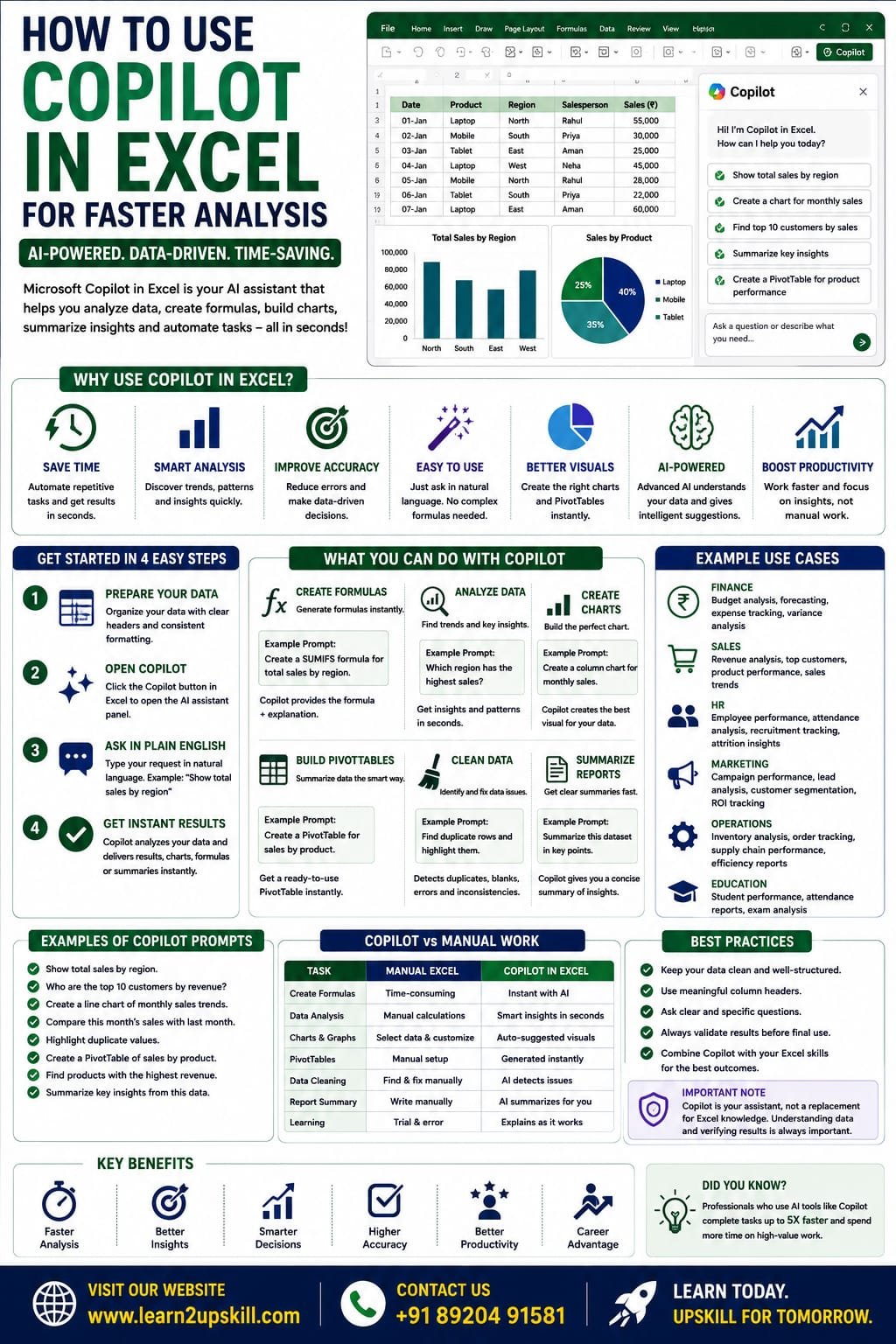
     

  • How to Use Copilot in Excel for Faster Analysis

    How to Use Copilot in Excel for Faster Analysis

    How to Use Copilot in Excel for Faster Analysis

    Learn how to use Microsoft Copilot in Excel to analyze data faster, generate formulas, create charts, summarize reports, clean data, and boost productivity with AI.

    How to Use Copilot in Excel for Faster Analysis

    Artificial Intelligence (AI) is changing the way professionals work with spreadsheets, and Microsoft Copilot in Excel is one of the biggest innovations in recent years. Instead of manually creating formulas, Pivot Tables, or charts, you can simply describe what you need in plain English, and Copilot helps you perform complex tasks in seconds.

    Whether you’re working in finance, HR, sales, marketing, operations, or education, Copilot can help you analyze data faster, automate repetitive tasks, and make better decisions.

    In this guide, you’ll learn how to use Copilot in Excel, its key features, real-world examples, best practices, and limitations.

    What is Microsoft Copilot in Excel?

    Microsoft Copilot is an AI-powered assistant integrated into supported versions of Microsoft Excel. It uses advanced AI to understand your requests written in natural language and assists with tasks such as:

    – Creating formulas

    – Summarizing data

    – Building PivotTables

    – Generating charts

    – Identifying trends

    – Cleaning data

    – Creating reports

    – Explaining formulas

    Instead of memorizing complicated Excel functions, you can simply ask Copilot what you want to achieve.

    Why Use Copilot in Excel?

    Copilot helps users:

    – Save time

    – Reduce manual work

    – Improve accuracy

    – Analyze data quickly

    – Build reports faster

    – Learn Excel more efficiently


    It is useful for both beginners and experienced Excel professionals.

    Requirements Before Using Copilot

    To use Copilot in Excel, you generally need:

    – A supported Microsoft 365 subscription with Copilot access

    – A compatible version of Microsoft Excel

    – An internet connection for AI-powered features

    – Well-structured data with clear column headers

    Availability may vary based on your Microsoft 365 plan and region.

    Step 1: Organize Your Data

    Before asking Copilot for help:

    Ensure your data:

    – Has column headers

    – Contains no blank header rows

    – Uses consistent formatting

    – Is stored as an Excel Table whenever possible

    Example:

    Date| Product| Region| Salesperson| Sales (₹)

    01-Jan| Laptop| North| Rahul| 55,000

    02-Jan| Mobile| South| Priya| 30,000

    03-Jan| Tablet| East| Aman| 25,000

    Clean data leads to better AI suggestions.

    Step 2: Open Copilot

    In supported versions of Excel:

    1. Open your workbook.
    2. Select your dataset.
    3. Click the Copilot button from the Excel ribbon or side panel (location may vary by version).
    4. Type your request in natural language.

    Step 3: Ask Questions in Plain English

    Instead of writing formulas, ask questions like:


    – Show total sales by region.

    – Find the top 10 customers.

    – Calculate average monthly sales.

    – Highlight duplicate values.

    – Show products with the highest revenue.

    – Summarize this dataset.

    Copilot interprets your request and suggests results.

    Create Excel Formulas with Copilot

    You don’t need to remember complex functions.

    Example prompts:

    – Create a SUMIFS formula.

    – Find the employee with the highest salary.

    – Calculate yearly growth.

    – Create an XLOOKUP formula.

    – Generate an IF formula for bonus eligibility.

    Copilot generates the appropriate formula and explains it if needed.

    Analyze Large Datasets

    Imagine you have 50,000 sales records.

    Ask Copilot:

    – Which region has the highest sales?

    – Which products are declining?

    – Compare this month with last month.

    – Show monthly growth trends.

    – Find unusual sales patterns.

    Copilot quickly identifies insights that would otherwise take much longer to uncover.

    Create Charts Automatically

    Instead of manually selecting chart types, ask:

    – Create a column chart for monthly sales.

    – Show sales trends using a line chart.

    – Compare regional performance with a bar chart.

    – Create a pie chart showing product contribution.


    Copilot recommends suitable visualizations based on your data.

    Build PivotTables

    Creating PivotTables becomes easier with AI.

    Example prompts:

    – Create a PivotTable showing sales by region.

    – Summarize revenue by product.

    – Show average sales by salesperson.

    – Count orders by month.

    Copilot generates a PivotTable that you can further customize.

    Clean Data Faster

    Copilot can help identify:

    – Duplicate records

    – Blank cells

    – Inconsistent formatting

    – Missing values

    – Unexpected patterns

    While you should review the suggestions, AI can significantly speed up the cleanup process.

    Summarize Reports

    If you’re working with large datasets, ask Copilot:

    – Summarize key insights.

    – Identify top-performing products.

    – Explain sales trends.

    – Highlight important changes.

    This is especially useful before meetings or presentations.

    Explain Existing Formulas

    Inherited a workbook with complicated formulas?

    Ask Copilot:

    – Explain this formula.

    – Why is this formula returning an error?

    – Simplify this formula.


    Copilot can help you understand and troubleshoot existing spreadsheets.

    Real-World Examples

    Finance

    – Budget analysis

    – Profit tracking

    – Expense summaries

    – Financial forecasting

    Sales

    – Revenue analysis

    – Top customer reports

    – Product performance

    – Regional comparisons

    HR

    – Attendance analysis

    – Employee performance

    – Recruitment tracking

    Marketing

    – Campaign performance

    – Lead analysis

    – Customer segmentation

    Education

    – Student grades

    – Attendance reports

    – Performance summaries

    Best Practices

    – Keep your data clean and organized.

    – Use Excel Tables for structured datasets.

    – Write clear, specific prompts.

    – Verify AI-generated results before making business decisions.

    – Continue learning Excel fundamentals alongside AI tools.


    Common Mistakes to Avoid

    – Asking vague questions.

    – Using poorly structured data.

    – Assuming AI results are always correct.

    – Ignoring data validation.

    – Depending entirely on AI without understanding the analysis.

    Advantages of Copilot in Excel

    – Faster reporting

    – Easier formula creation

    – Simplified data analysis

    – Better charts and summaries

    – Reduced manual work

    – Improved productivity

    – Helpful for learning Excel features

    Limitations

    – Requires eligible Microsoft 365 access.

    – Needs internet connectivity for AI features.

    – Works best with clean, structured data.

    – Complex business scenarios may still require manual review and advanced Excel skills.


    Final Thoughts

    Microsoft Copilot is making Excel faster, smarter, and more accessible by allowing users to interact with spreadsheets using natural language. From generating formulas and PivotTables to creating charts and summarizing reports, Copilot can dramatically reduce the time spent on repetitive tasks.

    However, the best results come from combining AI with strong Excel fundamentals. By understanding formulas, PivotTables, dashboards, and data cleaning—and then using Copilot to accelerate your workflow—you’ll be better equipped for today’s data-driven workplace.

    At Learn2Upskill, we help students and professionals master Excel, AI tools, and data analytics through practical, career-focused learning.

    Visit: www.coral-kudu-326218.hostingersite.com

    Contact Us: +91 89204 91581

    Learn Faster. Analyze Smarter. Upskill with AI.

  • Python in Excel

    Python in Excel

    Python in Excel

    Learn how to use Python in Microsoft Excel with this beginner-friendly guide. Discover setup, syntax, examples, benefits, limitations, and real-world use cases for data analysis.

    Python in Excel: Beginner’s Guide

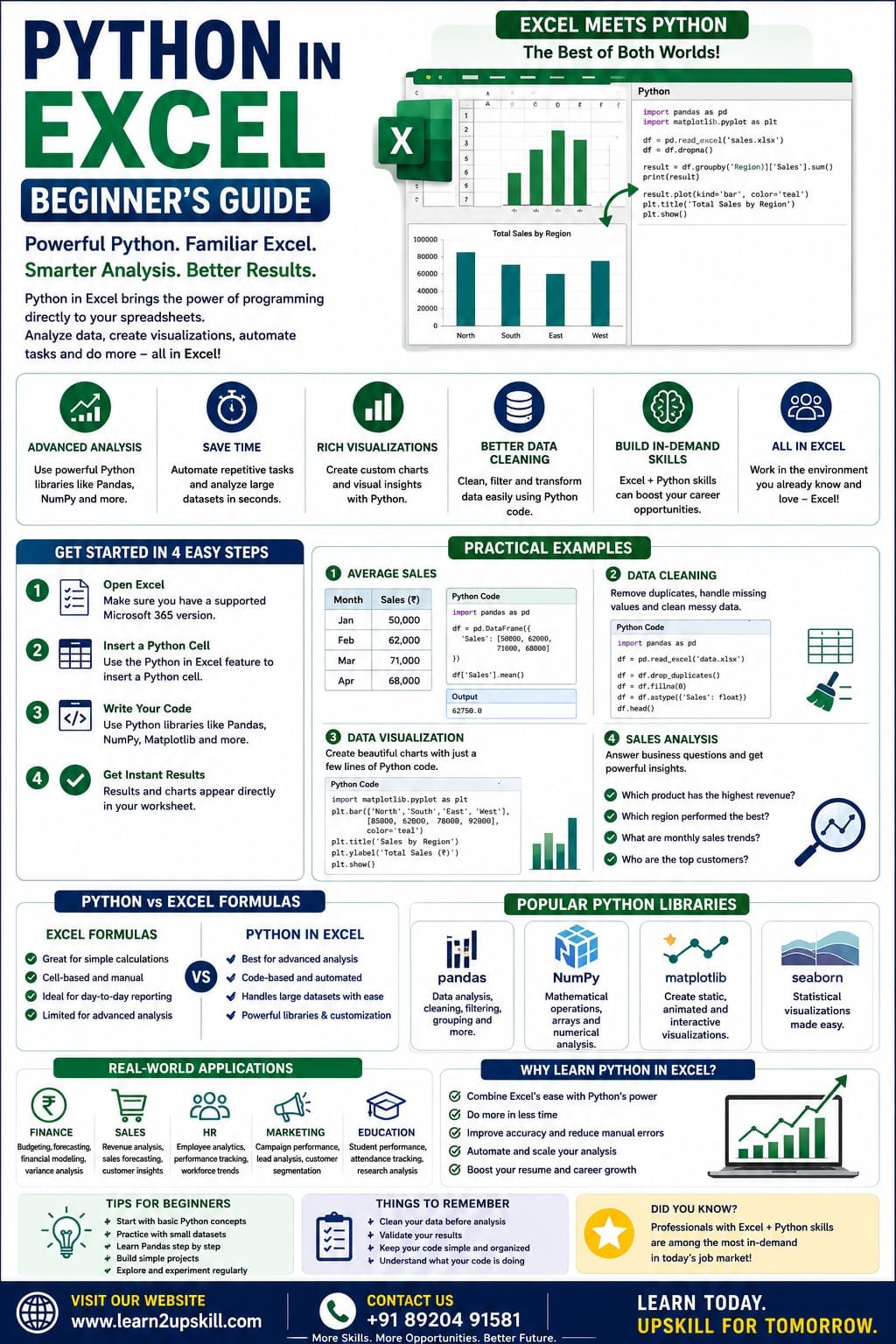
    Microsoft Excel has long been the go-to tool for data analysis, reporting, and business intelligence. Now, with Python integrated into Excel, users can perform advanced data analysis, create powerful visualizations, automate repetitive tasks, and work with large datasets—all without leaving Excel.

    For beginners, this combination opens the door to learning programming while continuing to work in the familiar Excel environment.

    In this guide, you’ll learn what Python in Excel is, how it works, its benefits, practical examples, and how to start using it.

    What Is Python in Excel?

    Python in Excel is a feature that allows you to write and execute Python code directly inside Excel worksheets.

    Instead of switching between Excel and a separate Python environment, you can combine Excel’s spreadsheet capabilities with Python’s powerful data analysis libraries.

    This enables you to:

    – Analyze large datasets

    – Perform statistical calculations

    – Create advanced charts

    – Clean and transform data

    – Automate repetitive analysis

    – Use machine learning workflows (where supported)

    Why Learn Python in Excel?

    Learning Python in Excel offers the best of both worlds.

    You continue using Excel while gaining access to Python’s advanced capabilities.

    Benefits include:

    – Faster data analysis

    – Advanced calculations

    – Powerful visualizations

    – Better automation

    – Improved productivity

    – Valuable career skills


    Who Should Learn Python in Excel?

    Python in Excel is useful for:

    – Students

    – Data Analysts

    – Financial Analysts

    – Accountants

    – Business Analysts

    – HR Professionals

    – Marketing Analysts

    – Researchers

    – Engineers

    – Excel Power Users

    Prerequisites

    Before learning Python in Excel, it’s helpful to know:

    – Basic Excel formulas

    – Tables and charts

    – Pivot Tables

    – Basic data cleaning

    No prior Python experience is required to get started.

    How Does Python Work in Excel?

    Instead of using traditional Excel formulas, you can insert Python code into dedicated Python cells.

    Excel executes the code and returns the results directly in your workbook.

    This makes it possible to combine spreadsheet calculations with Python-based analysis in a single file.

    Common Python Libraries Available

    Python in Excel supports several popular libraries, including:

    Pandas

    Used for:

    – Data cleaning

    – Data analysis

    – Filtering

    – Grouping

    – Merging datasets

    —

    NumPy

    Useful for:

    – Mathematical calculations

    – Arrays

    – Statistical operations

    – Numerical analysis

    —

    Matplotlib

    Creates charts such as:

    – Line charts

    – Bar charts

    – Scatter plots

    – Histograms

    —

    Seaborn

    Helps create advanced statistical visualizations with minimal code.

    —

    Getting Started

    Step 1

    Open Microsoft Excel (supported Microsoft 365 version with Python in Excel).

    —

    Step 2

    Create or open a workbook.

    —

    Step 3

    Insert a Python cell using the Python feature available in supported versions.


    —

    Step 4

    Write your Python code.

    Example:

    numbers = [10, 20, 30, 40]

    sum(numbers)

    Output:

    100

    —

    Example 1: Average Sales

    Dataset

    Month| Sales

    Jan| 50000

    Feb| 62000

    Mar| 71000

    Apr| 68000

    Python can calculate averages, trends, and additional statistics with concise code.

    —

    Example 2: Data Cleaning

    Suppose your dataset contains:

    – Blank cells

    – Duplicate entries

    – Extra spaces

    Using Python with libraries such as Pandas, you can efficiently:

    – Remove duplicates

    – Fill missing values

    – Standardize text

    – Convert data types

    This is especially useful for large datasets.

    —

    Example 3: Data Visualization

    Instead of relying only on Excel charts, Python can generate customized visualizations for deeper analysis.

    Common chart types include:

    – Bar Charts

    – Line Charts

    – Scatter Plots

    – Histograms

    – Box Plots

    —

    Example 4: Sales Analysis

    Imagine you have 50,000 sales records.

    Python can quickly answer questions like:

    – Which product generated the highest revenue?

    – Which region had the best performance?

    – What were the monthly sales trends?

    – Who were the top customers?

    —

    Python vs Excel Formulas

    Excel Formula| Python

    Easy for simple calculations| Better for advanced analysis

    Cell-based formulas| Code-based workflows

    Great for everyday reporting| Excellent for automation and large datasets

    Limited programming features| Extensive programming capabilities

    —

    Advantages of Python in Excel

    1. Handles Large Datasets

    Python is well-suited for analyzing datasets that would be cumbersome to process manually.

    —

    1. Better Automation

    Reduce repetitive work by automating common analysis tasks.

    —

    1. Advanced Analytics

    Perform statistical analysis and complex data transformations.

    —

    1. Rich Visualizations

    Create detailed charts beyond Excel’s standard options.

    —

    1. Career Growth

    Python and Excel are both highly valued skills in data-related careers.

    —

    Limitations

    – Available only in supported Microsoft 365 environments.

    – Requires some learning of Python syntax.

    – Not every Python package is available in Excel.

    – Some advanced workflows may still require external development environments.

    —

    Real-World Applications

    Finance

    – Budget analysis

    – Forecasting

    – Financial modeling

    —

    Sales

    – Revenue analysis

    – Customer segmentation

    – Sales forecasting

    —

    HR

    – Employee analytics

    – Attendance reports

    – Workforce trends

    —

    Marketing

    – Campaign performance

    – Customer insights

    – Lead analysis

    —

    Education

    – Student performance analysis

    – Attendance tracking

    – Research data analysis

    —

    Tips for Beginners

    – Learn Excel fundamentals first.

    – Start with basic Python concepts such as variables and lists.

    – Practice using small datasets.

    – Explore Pandas for data analysis.

    – Build simple projects before moving to advanced topics.

    —

    Common Mistakes to Avoid

    – Ignoring data quality before analysis.

    – Writing overly complex code for simple tasks.

    – Forgetting to validate results.

    – Relying on automation without understanding the underlying data.

    Python in Excel represents a significant step forward for spreadsheet users. It combines Excel’s familiar interface with Python’s powerful programming capabilities, making advanced data analysis more accessible than ever.

    Whether you’re a student beginning your data journey or a professional looking to automate reports and analyze larger datasets, learning Python in Excel can improve your productivity and expand your career opportunities.

    At Learn2Upskill, we help students and professionals master Excel, Python, AI tools, and data analytics through practical, career-focused learning.

    Visit: www.coral-kudu-326218.hostingersite.com

    Contact Us: +91 89204 91581

    Learn Excel. Learn Python. Build the Skills Employers Want.

  • Conditional Formatting Tricks You Must Know)

    Conditional Formatting Tricks You Must Know)

    Conditional Formatting Tricks You Must Know)

    Learn the best Conditional Formatting tricks in Excel with practical examples. Highlight duplicates, overdue dates, top values, data bars, color scales, custom formulas, and more.

    Focus Keyword: Conditional Formatting Tricks in Excel

    Conditional Formatting Tricks You Must Know

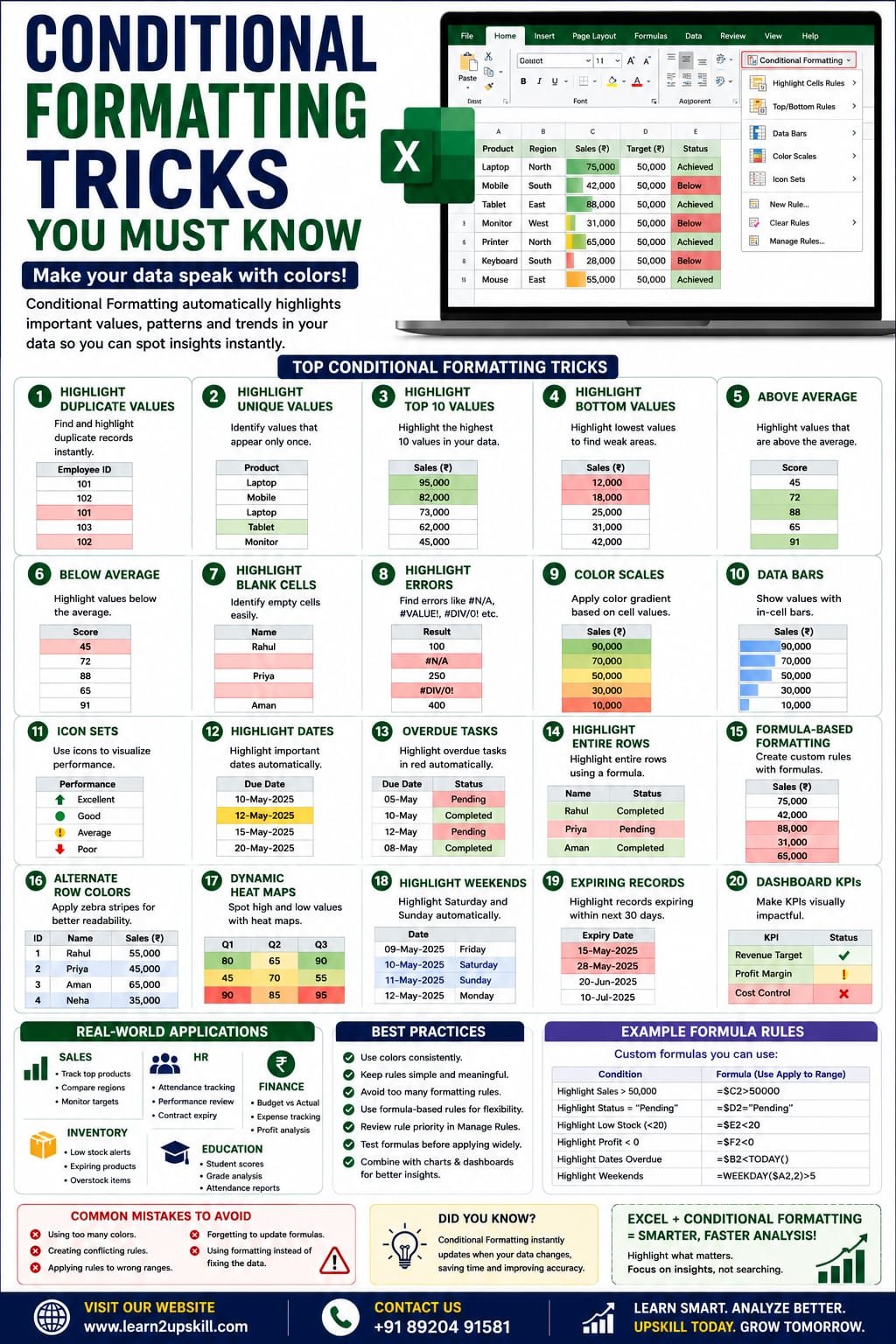
    When working with large datasets in Microsoft Excel, finding important information quickly can be challenging. That’s where Conditional Formatting becomes one of Excel’s most powerful features.

    Instead of manually searching through hundreds or thousands of rows, Conditional Formatting automatically highlights important data based on rules you define.

    Whether you’re tracking sales, managing inventory, analyzing employee performance, or building dashboards, mastering Conditional Formatting can make your spreadsheets more professional, interactive, and easier to understand.

    In this guide, you’ll learn the best Conditional Formatting tricks every Excel user should know.

    What is Conditional Formatting?

    Conditional Formatting is an Excel feature that automatically changes the appearance of cells based on specified conditions.

    For example, you can:

    – Highlight high sales

    – Mark overdue tasks

    – Find duplicate records

    – Display color scales

    – Add data bars

    – Show icons based on performance

    This helps users identify trends and exceptions instantly.

    Why Use Conditional Formatting?

    Benefits include:

    – Makes reports easier to read

    – Highlights important values

    – Detects errors quickly

    – Improves dashboards

    – Saves time

    – Enhances decision-making

    – Reduces manual checking

    How to Apply Conditional Formatting

    1. Select your data range.
    2. Go to the Home tab.
    3. Click Conditional Formatting.
    4. Choose a rule type.
    5. Select formatting options.
    6. Click OK.

    Your formatting updates automatically when the data changes.

    Trick 1: Highlight Duplicate Values

    Duplicate records can affect reports and analysis.

    Example

    Employee ID

    101

    102

    101

    Use:

    Home → Conditional Formatting → Highlight Cells Rules → Duplicate Values

    Duplicates will be highlighted automatically.

    Trick 2: Highlight Unique Values

    You can also identify values that appear only once.

    This is useful for:

    – Customer IDs

    – Invoice numbers

    – Product codes

    Trick 3: Highlight Top 10 Values

    Quickly identify:

    – Top-performing employees

    – Highest sales

    – Best products

    Go to:

    Top/Bottom Rules → Top 10 Items


    You can change the number from 10 to any value.

    Trick 4: Highlight Bottom Values

    Find:

    – Lowest sales

    – Weak-performing products

    – Low inventory

    Use:

    Top/Bottom Rules → Bottom 10 Items

    Trick 5: Highlight Above Average

    Excel can automatically highlight values above the average.

    Useful for:

    – High-performing salespeople

    – Better-performing branches

    – Outstanding student scores

    Trick 6: Highlight Below Average

    Similarly, identify values below average to spot areas that need improvement.

    Trick 7: Highlight Blank Cells

    Blank cells often indicate missing data.

    Create a rule to highlight blanks so they can be filled before analysis.

    Trick 8: Highlight Errors

    Errors such as:

    – #N/A

    – #VALUE!

    – #DIV/0!

    can make reports unreliable.

    Conditional Formatting helps identify these instantly.

    Trick 9: Color Scales

    Color scales assign different colors based on cell values.

    Example:


    – Green = High

    – Yellow = Medium

    – Red = Low

    Perfect for sales reports and performance dashboards.

    Trick 10: Data Bars

    Data Bars display a horizontal bar inside each cell based on its value.

    Benefits:

    – Easy comparison

    – Better visualization

    – Quick performance review

    Trick 11: Icon Sets

    Excel includes built-in icons such as:

    – Green arrows

    – Yellow circles

    – Red arrows

    – Traffic lights

    – Stars

    – Flags

    Ideal for KPI dashboards and performance tracking.

    Trick 12: Highlight Dates

    Automatically highlight:

    – Today’s tasks

    – Tomorrow’s deadlines

    – Next week’s meetings

    – Previous month’s records

    Useful for project management and scheduling.

    Trick 13: Highlight Overdue Tasks

    Example

    Task| Due Date| Status

    Report| 12-Jan| Pending

    If today’s date is later than the due date, Conditional Formatting can highlight the row in red.

    Great for project tracking and task management.

    Trick 14: Highlight Entire Rows

    Instead of formatting a single cell, you can highlight the entire row using a custom formula.

    Example:

    Highlight all rows where:

    Status = “Completed”

    This makes reports much easier to scan.

    Trick 15: Use Formula-Based Formatting

    One of the most powerful features is creating your own rules.

    Example Formula

    =$C2=”Pending”

    This can highlight all rows where the Status column contains “Pending”.

    Other examples:

    – Sales greater than ₹50,000

    – Attendance below 75%

    – Inventory less than 20

    – Profit less than zero

    Trick 16: Alternate Row Colors

    Use Conditional Formatting to create zebra stripes for improved readability in large tables.

    Trick 17: Dynamic Heat Maps

    Combine Color Scales with your data to create heat maps that quickly reveal high and low values across a range.

    Useful for:

    – Sales analysis

    – Exam scores

    – Financial reports

    – Performance metrics

    Trick 18: Highlight Weekend Dates

    Using a formula, you can highlight Saturdays and Sundays in project plans or attendance sheets.

    This improves scheduling and planning.


    Trick 19: Highlight Expiring Records

    Monitor:

    – License expiry

    – Insurance renewal

    – Employee contracts

    – Membership validity

    Highlight records expiring within the next 30 days.

    Trick 20: Dashboard KPIs

    Conditional Formatting can make dashboards more interactive.

    Examples:

    – Green = Target Achieved

    – Yellow = Needs Attention

    – Red = Below Target

    This provides instant visual feedback.

    Real-World Applications

    Sales

    – Highlight top-performing products

    – Identify low-performing regions

    – Show sales targets

    HR

    – Attendance tracking

    – Performance reviews

    – Contract expiry alerts

    Finance

    – Budget monitoring

    – Expense tracking

    – Profit analysis

    Education

    – Student performance

    – Attendance reports

    – Grade analysis

    Inventory

    – Low stock alerts

    – Expiring products

    – Overstock identification

    Best Practices

    – Use colors consistently.

    – Avoid applying too many rules to the same range.

    – Keep formatting simple and meaningful.

    – Test custom formulas before applying them widely.

    – Review rule priority using the Conditional Formatting Rules Manager.

    Final Thoughts

    Conditional Formatting is one of the most effective ways to make Excel reports easier to understand and more visually appealing. From highlighting duplicates and overdue tasks to building KPI dashboards and heat maps, it helps you spot important information instantly.


    By mastering these tricks, you’ll create cleaner reports, improve decision-making, and work more efficiently—whether you’re a student, analyst, manager, or business professional.

    At Learn2Upskill, we help students and professionals master Excel through practical tutorials, real-world projects, and career-focused training.

    Visit: www.coral-kudu-326218.hostingersite.com

    Contact Us: +91 89204 91581


    Turn Data into Insights with Smart Excel Skills.

  • Excel vs Google Sheets: Which Is Better?

    Excel vs Google Sheets: Which Is Better?

    Excel vs Google Sheets: Which Is Better?

    Compare Microsoft Excel and Google Sheets in terms of features, performance, collaboration, AI tools, pricing, formulas, dashboards, and business use cases. Find out which spreadsheet tool is best for your needs.

    Focus Keyword: Excel vs Google Sheets

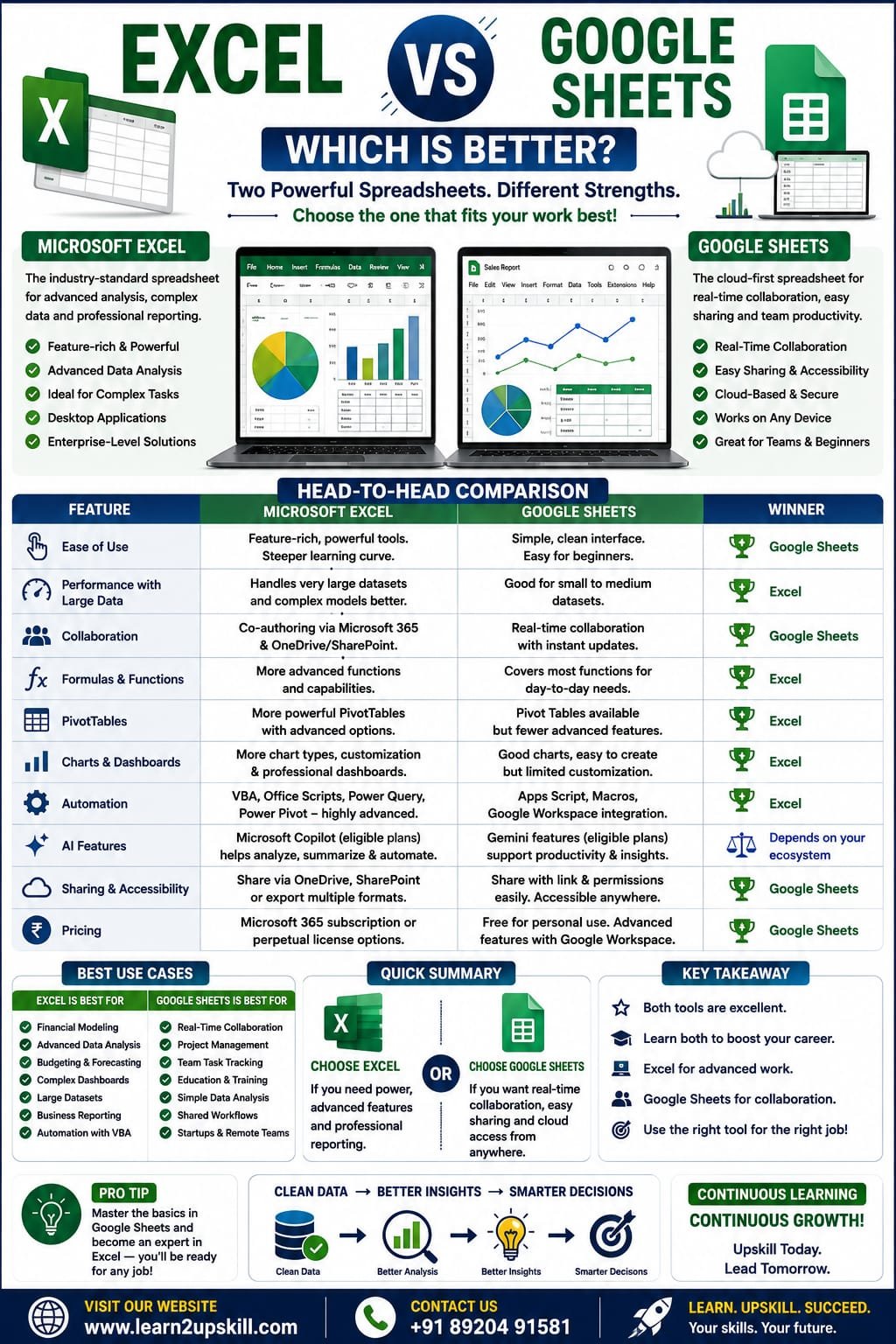
    Spreadsheets are an essential part of modern work. Whether you’re managing budgets, analyzing sales, tracking inventory, creating reports, or building dashboards, chances are you’ll use either Microsoft Excel or Google Sheets.

    Both are powerful spreadsheet applications, but they are designed with different strengths. Excel is known for its advanced analytics, powerful formulas, and enterprise-level capabilities, while Google Sheets is popular for real-time collaboration and cloud-based accessibility.

    So, which one should you choose?

    In this comprehensive guide, we’ll compare Excel and Google Sheets across features, performance, collaboration, AI capabilities, pricing, and real-world use cases to help you decide.

    —

    What Is Microsoft Excel?

    Microsoft Excel is a spreadsheet application included with Microsoft 365 and available as a desktop application, web app, and mobile app.

    Excel is widely used for:

    – Financial modeling

    – Data analysis

    – Dashboards

    – PivotTables

    – Advanced formulas

    – Business reporting

    – Large datasets

    – Automation with VBA and Office Scripts

    It is the preferred choice for many finance, accounting, operations, and analytics professionals.

    —

    What Is Google Sheets?

    Google Sheets is Google’s cloud-based spreadsheet application, available through Google Workspace and free Google accounts.

    Google Sheets focuses on:


    – Real-time collaboration

    – Cloud storage

    – Easy sharing

    – Team productivity

    – Lightweight data analysis

    – Integration with Google Workspace apps

    It is especially popular among teams, educators, startups, and remote workers.

    —

    Excel vs Google Sheets: Quick Comparison

    Feature| Microsoft Excel| Google Sheets

    Best For| Advanced analysis| Team collaboration

    Platform| Desktop, Web, Mobile| Web, Mobile

    Offline Support| Excellent| Available with setup

    Large Datasets| Excellent| Good for smaller to medium datasets

    Collaboration| Very good| Excellent

    PivotTables| Advanced| Good

    Charts| Extensive options| Good selection

    Dashboards| Advanced| Basic to intermediate

    Automation| VBA, Office Scripts| Apps Script

    AI Features| Microsoft Copilot (eligible plans)| Gemini features (eligible plans)

    Cost| Microsoft 365 subscription or perpetual license options| Free version available; advanced features via Google Workspace

    —

    1. Ease of Use

    Excel

    – Feature-rich interface

    – Powerful tools for advanced users

    – Steeper learning curve for beginners

    Google Sheets

    – Simple, clean interface

    – Easy for beginners

    – Quick to start without installing software


    Winner: Google Sheets for beginners.

    —

    1. Performance with Large Data

    Excel

    Excel handles large datasets, complex formulas, and advanced models more efficiently on capable hardware.

    Google Sheets

    Works well for many everyday tasks but may become slower with very large datasets or highly complex workbooks.

    Winner: Excel.

    —

    1. Collaboration

    Excel

    Supports co-authoring through Microsoft 365 and OneDrive/SharePoint.

    Google Sheets

    Built for real-time collaboration with instant updates, comments, and sharing.

    Winner: Google Sheets.

    —

    1. Formulas and Functions

    Both applications support many common formulas such as:

    – SUM

    – IF

    – XLOOKUP (Excel)

    – FILTER

    – INDEX

    – MATCH

    – COUNTIF

    – VLOOKUP


    Excel generally offers a broader set of advanced features and functions, while Google Sheets includes functions tailored to its ecosystem.

    Winner: Excel for advanced functionality.

    —

    1. PivotTables

    Excel provides more advanced PivotTable capabilities, formatting options, and integration with larger reporting workflows.

    Google Sheets includes Pivot Tables that work well for many business scenarios but offer fewer advanced options.

    Winner: Excel.

    —

    1. Charts and Dashboards

    Excel

    – More chart types

    – Advanced customization

    – Professional dashboards

    – Rich formatting options

    Google Sheets

    – Easy chart creation

    – Suitable for collaborative dashboards

    – Fewer customization options

    Winner: Excel.

    —

    1. Automation

    Excel

    Supports:

    – VBA (Visual Basic for Applications)

    – Office Scripts

    – Power Query

    – Power Pivot

    Google Sheets

    Supports:

    – Google Apps Script

    – Macros

    – Integration with Google Workspace

    Winner: Excel for advanced automation.

    1. AI Features

    Excel

    Microsoft Copilot can help generate formulas, analyze data, create charts, summarize information, and assist with spreadsheet tasks for eligible Microsoft 365 users.

    Google Sheets

    Google’s AI features (such as Gemini capabilities in supported plans) can help with content generation, summaries, and productivity tasks within Google Workspace.

    Winner: Depends on your ecosystem and subscription.

    —

    1. Sharing and Accessibility

    Excel

    Files can be shared through OneDrive, SharePoint, or exported in multiple formats.

    Google Sheets

    Sharing is straightforward with links and permissions, making it easy for teams to collaborate from any location.

    Winner: Google Sheets.

    —

    1. Pricing

    Excel

    Available through Microsoft 365 subscriptions, with some standalone desktop versions also available.

    Google Sheets

    Free for personal use with a Google account. Additional business features are available through Google Workspace plans.

    Winner: Google Sheets for users looking for a free option.

    —

    Real-World Use Cases

    Finance

    Best Choice: Excel

    Ideal for budgeting, financial models, forecasting, and reporting.

    —

    Education

    Best Choice: Google Sheets

    Easy sharing makes it convenient for students and teachers working together.

    —

    Data Analysis

    Best Choice: Excel

    Advanced formulas, PivotTables, Power Query, and charting tools make Excel a strong choice for analytical work.

    —

    Small Business

    Either tool can work well.

    Choose:

    – Excel for complex reporting.

    – Google Sheets for collaborative workflows.

    —

    Project Management

    Google Sheets is excellent for collaborative project tracking, while Excel offers more advanced reporting and customization.

    —

    Pros and Cons

    Microsoft Excel

    Pros

    – Powerful data analysis

    – Advanced formulas

    – Excellent dashboards

    – Handles large datasets

    – Strong automation capabilities

    Cons

    – More features to learn

    – Some advanced capabilities require Microsoft 365 or newer versions

    —

    Google Sheets

    Pros

    – Free for many users

    – Excellent collaboration

    – Accessible from almost anywhere

    – Easy sharing

    Cons

    – Fewer advanced analytics features

    – Can slow down with very large or complex spreadsheets

    —

    Which One Should You Learn?

    If you’re just starting:

    Learn Google Sheets to understand spreadsheet basics and collaborative workflows.

    If you want to build a career in:

    – Data Analysis

    – Finance

    – Accounting

    – Business Intelligence

    – MIS

    – Operations

    – Corporate Reporting

    You should also master Microsoft Excel, as it remains one of the most in-demand workplace skills.

    Ideally, learn both. Many employers use a mix of Microsoft 365 and Google Workspace, and being comfortable with each platform increases your versatility.


    Both Microsoft Excel and Google Sheets are outstanding spreadsheet tools, but they serve different strengths.

    Choose Excel if you need advanced formulas, powerful dashboards, automation, and large-scale data analysis.


    Choose Google Sheets if your priority is real-time collaboration, cloud accessibility, and simple sharing.

    The best investment for your career is to learn both platforms. By understanding their strengths and limitations, you’ll be ready to work effectively in almost any modern workplace.

    At Learn2Upskill, we provide practical tutorials, real-world examples, and career-focused learning to help you master Excel, Google Sheets, AI tools, and other in-demand digital skills.

    Visit: www.coral-kudu-326218.hostingersite.com

    Contact Us: +91 89204 91581

    Learn Today. Upskill for Tomorrow.

  • XLOOKUP vs VLOOKUP: Which One Should You Use?

    XLOOKUP vs VLOOKUP: Which One Should You Use?

    XLOOKUP vs VLOOKUP: Which One Should You Use?

    Learn the difference between XLOOKUP and VLOOKUP in Excel with practical examples, syntax, advantages, disadvantages, and expert tips. Find out which lookup function is best for your work.

    XLOOKUP vs VLOOKUP: Which One Should You Use?

    If you’ve worked with Microsoft Excel, you’ve probably used VLOOKUP to retrieve data from tables. For years, it has been one of Excel’s most popular functions.

    However, Microsoft introduced XLOOKUP, a more powerful and flexible lookup function that solves many of VLOOKUP’s limitations. Today, many Excel professionals prefer XLOOKUP because it’s easier to use, more reliable, and works with modern Excel versions.

    In this guide, you’ll learn:

    – What is VLOOKUP?

    – What is XLOOKUP?

    – Key differences between XLOOKUP and VLOOKUP

    – Practical examples

    – Pros and cons

    – Which one should you learn first?

    Let’s get started.

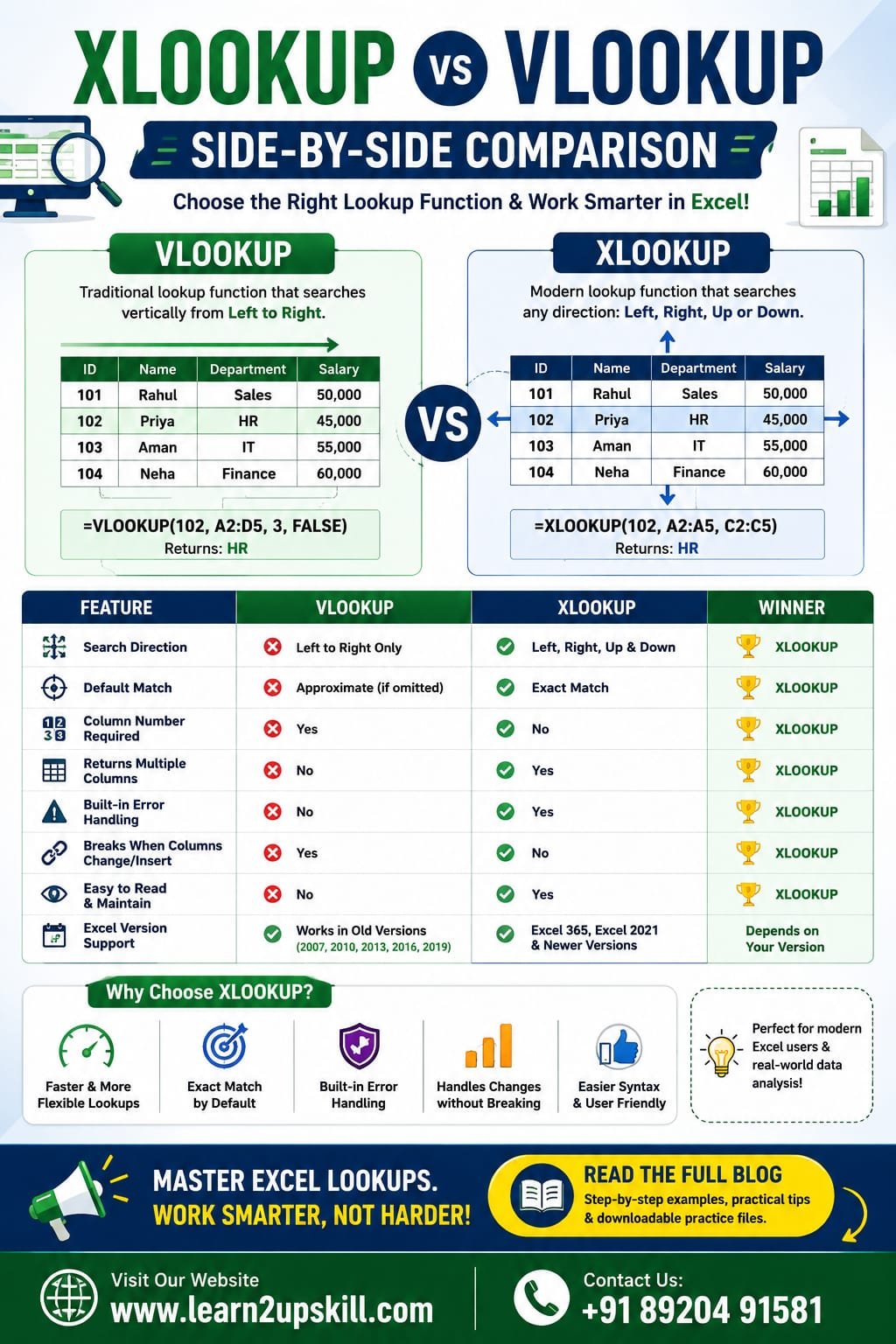
    What is VLOOKUP?

    VLOOKUP stands for Vertical Lookup.

    It searches for a value in the first column of a table and returns information from another column in the same row.

    Syntax

    =VLOOKUP(lookup_value, table_array, col_index_num, FALSE)

    Example

    Suppose you have this table:

    Employee ID| Name| Department

    E101| Rahul| Sales

    E102| Priya| HR

    E103| Aman| IT


    Formula:

    =VLOOKUP(“E102”,A2:C4,2,FALSE)


    Result:

    Priya

    What is XLOOKUP?

    XLOOKUP is Microsoft’s modern lookup function that replaces both VLOOKUP and HLOOKUP in many scenarios.

    Unlike VLOOKUP, it allows you to search in any direction and doesn’t rely on column numbers, making formulas easier to maintain.

    Syntax

    =XLOOKUP(lookup_value, lookup_array, return_array)

    Example

    =XLOOKUP(“E102”,A2:A4,B2:B4)

    Result:

    Priya

    XLOOKUP vs VLOOKUP: Side-by-Side Comparison

    Feature| VLOOKUP| XLOOKUP

    Search Direction| Left to Right Only| Left, Right, Up & Down

    Default Match| Approximate (if omitted)| Exact Match

    Column Number Required| Yes| No

    Returns Multiple Columns| No| Yes

    Built-in Error Handling| No| Yes

    Breaks When Columns Change| Yes| No

    Easier to Read| No| Yes

    Excel Version| Older Versions| Excel 365, Excel 2021 & newer

    1. Search Direction

    VLOOKUP

    Can only search from left to right.

    Example:

    Employee ID → Name

    Works perfectly.

    But if Name comes before Employee ID, VLOOKUP cannot retrieve it directly.

    XLOOKUP

    Can search in any direction.

    It works even if the return column is on the left.

    This is one of the biggest reasons professionals prefer XLOOKUP.

    1. Exact Match by Default

    One of the most common VLOOKUP mistakes is forgetting to use FALSE.

    Example:

    =VLOOKUP(A2,D:G,3)

    This may return an incorrect approximate match.

    With XLOOKUP:

    =XLOOKUP(A2,D:D,F:F)

    Exact match is the default, reducing the chance of accidental errors.

    1. No More Counting Columns

    In VLOOKUP:

    =VLOOKUP(A2,D:H,4,FALSE)

    The number 4 means “return the fourth column.”

    If someone inserts a new column, the formula can return incorrect data.

    With XLOOKUP:

    =XLOOKUP(A2,D:D,G:G)

    You directly specify the return column, so inserting or deleting columns won’t break the formula.

    1. Built-in Error Handling

    VLOOKUP usually requires:

    =IFERROR(VLOOKUP(A2,D:H,4,FALSE),”Not Found”)

    With XLOOKUP:

    =XLOOKUP(A2,D:D,G:G,”Not Found”)

    The error message is built into the function, making formulas cleaner.

    1. Return Multiple Columns

    Suppose you want:

    – Name

    – Department

    – Salary

    VLOOKUP needs separate formulas.

    XLOOKUP can return multiple adjacent columns in one formula in supported versions of Excel.

    Advantages of VLOOKUP

    – Easy for beginners

    – Works in older Excel versions

    – Widely used in legacy workbooks

    – Common in interview questions

    Advantages of XLOOKUP

    – Searches left and right

    – Exact match by default

    – Built-in error handling

    – Easier syntax

    – Doesn’t break when columns change

    – More flexible and easier to maintain

    When Should You Use VLOOKUP?

    Use VLOOKUP if:

    – You’re working with Excel 2016 or older.

    – Your organization uses legacy spreadsheets.

    – You need compatibility with older workbook

    When Should You Use XLOOKUP?

    Use XLOOKUP if:

    – You’re using Microsoft 365 or Excel 2021 and later.

    – You’re creating new spreadsheets.

    – You want cleaner, more reliable formulas.

    – You need flexible lookups in any direction.

    For most new Excel projects, XLOOKUP is generally the recommended choice because it addresses many of VLOOKUP’s long-standing limitations

    Real-World Example

    Imagine an HR database with:

    – Employee ID

    – Name

    – Department

    – Salary


    Need: Find an employee’s salary using Employee ID.

    VLOOKUP

    =VLOOKUP(A2,D:G,4,FALSE)

    XLOOKUP

    =XLOOKUP(A2,D:D,G:G)

    The XLOOKUP version is shorter, easier to understand, and remains correct even if columns are rearranged.

    Common Mistakes

    VLOOKUP Mistakes

    – Forgetting FALSE

    – Wrong column number

    – Inserting new columns

    – Lookup column not on the left

    XLOOKUP Mistakes

    – Using it in unsupported Excel versions

    – Choosing the wrong lookup or return range

    Frequently Asked Questions (FAQs)

    Is XLOOKUP better than VLOOKUP?

    Yes. XLOOKUP is generally more flexible, supports searches in any direction, defaults to exact matches, and is easier to maintain.

    Does XLOOKUP replace VLOOKUP?

    For modern versions of Excel, yes. However, VLOOKUP is still useful when you need compatibility with older Excel versions.

    Which one should beginners learn first?

    Learn both. Start with VLOOKUP to understand traditional lookup concepts, then move to XLOOKUP because it’s the preferred function for modern Excel users.

    Is XLOOKUP available in all Excel versions?

    No. XLOOKUP is available in Microsoft 365 and newer supported Excel releases. It isn’t available in Excel 2016 or Excel 2019.

    Final Thoughts

    Both VLOOKUP and XLOOKUP are valuable Excel functions, but they serve different needs.

    If you’re maintaining older spreadsheets or working in an environment with legacy Excel versions, VLOOKUP is still important. However, if you’re learning Excel today or building new workbooks, XLOOKUP should be your first choice because it’s more powerful, easier to read, and less prone to errors.

    At Learn2Upskill, we recommend mastering both functions so you’re prepared for interviews, real-world business tasks, and modern data analysis projects.

    Ready to become an Excel expert? Explore more Excel tutorials, practical guides, and career-focused learning resources at www.coral-kudu-326218.hostingersite.com.

    Contact Us: +91 89204 91581

  • Top 25 Excel Formulas

    Top 25 Excel Formulas

    Top 25 Excel Formulas

    Introduction

    Microsoft Excel remains one of the most valuable workplace skills across industries. Whether you’re a student, accountant, data analyst, HR professional, marketer, or business owner, knowing the right Excel formulas can save hours of manual work and improve your productivity.

    In this comprehensive guide, you’ll learn the top 25 Excel formulas every professional should know, along with practical examples and real-world use cases.


    1. SUM

    Purpose: Adds numbers together.

    Syntax:

    =SUM(A1:A10)

    Example:

    If cells A1 to A10 contain sales figures, this formula calculates the total sales.

    Use Cases:

    – Sales reports

    – Expense tracking

    – Budget management

    1. AVERAGE

    Purpose: Calculates the average value.

    Syntax:

    =AVERAGE(B2:B20)

    Example:

    Find the average marks of students.

    1. COUNT

    Purpose: Counts cells containing numbers.

    Syntax:

    =COUNT(A1:A100)

    Useful for counting sales records, invoices, or employee IDs.

    1. COUNTA

    Purpose: Counts all non-empty cells.

    Syntax

    =COUNTA(A1:A100)

    Ideal for checking how many records have been entered.

    1. IF

    Purpose: Performs logical tests.

    Syntax

    =IF(A2>=50,”Pass”,”Fail”)

    Perfect for grading systems and decision-making.

    1. IFERROR

    Purpose: Replaces errors with custom values.

    Syntax

    =IFERROR(A2/B2,”Error”)

    Useful when dividing numbers or using lookup functions.

    1. SUMIF

    Purpose: Adds values based on one condition.

    Syntax

    =SUMIF(A:A,”Laptop”,B:B)

    Example:

    Calculate total sales of laptops only.

    1. SUMIFS

    Purpose: Adds values using multiple conditions.

    Syntax

    =SUMIFS(C:C,A:A,”North”,B:B,”Laptop”)

    Excellent for sales reporting.

    1. COUNTIF

    Counts records matching one condition.

    =COUNTIF(A:A,”Completed”)

    1. COUNTIFS

    Counts records matching multiple conditions.

    =COUNTIFS(A:A,”North”,B:B,”Completed”)

    1. XLOOKUP

    The modern replacement for VLOOKUP.

    =XLOOKUP(A2,D:D,E:E)

    Advantages:

    – Searches left and right

    – More accurate

    – Easier to use

    1. VLOOKUP

    Still widely used.

    =VLOOKUP(A2,D:F,2,FALSE)

    Useful for employee databases and product lists.

    1. HLOOKUP

    Searches horizontally.

    =HLOOKUP(“Jan”,A1:M5,2,FALSE)

    1. INDEX

    Returns values from a specific position.

    =INDEX(A1:C10,3,2)

    1. MATCH

    Finds the position of a value.

    =MATCH(“Laptop”,A:A,0)

    Often combined with INDEX.

    1. CONCAT

    Combines text.

    =CONCAT(A2,” “,B2)

    Example:

    Join first and last names.

    1. TEXT

    Formats numbers as text.

    =TEXT(A2,”dd-mm-yyyy”)

    Useful for dates and reports.

    1. LEFT

    Returns characters from the left.

    =LEFT(A2,5)


    1. RIGHT

    Returns characters from the right.

    =RIGHT(A2,4)

    1. MID

    Extracts text from the middle.

    =MID(A2,4,6)

    Useful for invoice numbers and IDs.

    1. LEN

    Counts the number of characters.

    =LEN(A2)

    Great for data validation.

    1. TRIM

    Removes extra spaces.

    =TRIM(A2)

    Perfect for cleaning imported data.

    1. ROUND

    Rounds numbers.

    =ROUND(A2,2)

    Ideal for financial reports.

    1. TODAY

    Returns today’s date.

    =TODAY()

    Useful in attendance sheets and project tracking.

    1. NOW

    Returns the current date and time.

    =NOW()

    Useful for timestamps and live reports.

    Bonus Excel Formulas

    If you’re aiming for advanced Excel skills, also learn:


    – FILTER()

    – SORT()

    – UNIQUE()

    – LET()

    – LAMBDA()

    – TEXTSPLIT()

    – TEXTJOIN()

    – SEQUENCE()

    – RANDARRAY()


    These modern functions make Excel faster and more powerful.

    Tips to Master Excel Faster

    – Practice formulas daily.

    – Learn keyboard shortcuts.

    – Build real-world dashboards.

    – Analyze sample datasets.

    – Solve business problems using Excel.

    Frequently Asked Questions (FAQs)

    Which Excel formula is most useful?

    The IF, XLOOKUP, SUMIFS, INDEX, MATCH, and Pivot Tables are among the most commonly used tools in professional environments.


    Is XLOOKUP better than VLOOKUP?

    Yes. XLOOKUP is faster, more flexible, and can search in any direction, making it the preferred choice in newer versions of Excel.


    Can beginners learn these formulas?

    Absolutely. Start with SUM, AVERAGE, IF, COUNT, and VLOOKUP before moving on to advanced formulas like XLOOKUP, INDEX, and MATCH.


    Which Excel formulas are important for data analysts?

    Data analysts frequently use XLOOKUP, SUMIFS, COUNTIFS, INDEX, MATCH, FILTER, SORT, UNIQUE, IFERROR, and TEXT functions for cleaning, analyzing, and reporting data.

    Final Thoughts

    Mastering Excel formulas is one of the smartest investments you can make in your career. These 25 formulas cover everything from basic calculations to advanced data analysis and reporting. Whether you’re preparing for a job interview, managing business data, or improving your productivity, consistent practice with these formulas will help you work faster and make better decisions.


    Start by learning a few formulas each week, apply them to real datasets, and gradually build your confidence. As you become more comfortable, you’ll be ready to explore advanced Excel features like dashboards, Pivot Tables, Power Query, and AI-powered tools, taking your spreadsheet skills to the next level.


    Learn. Practice. Upskill.

  • Excel Skills That Can Help You Get a Job

    Excel Skills That Can Help You Get a Job

    Excel Skills That Can Help You Get a Job

    Discover the most in-demand Excel skills that can help you get hired. Learn formulas, Pivot Tables, dashboards, charts, automation, AI features, and more with this complete career guide.

    Focus Keyword: Excel Skills That Can Help You Get a Job

    Excel Skills That Can Help You Get a Job

    In today’s competitive job market, Microsoft Excel remains one of the most valuable workplace skills. From multinational companies to startups, organizations rely on Excel to organize data, analyze business performance, create reports, and support decision-making.

    Whether you’re a student, fresher, working professional, or job seeker, strong Excel skills can improve your employability and open doors to careers in finance, accounting, HR, marketing, operations, administration, data analysis, and many other fields.

    In this guide, we’ll explore the top Excel skills employers look for, why they matter, and how you can build them to strengthen your career.

    Why Excel Skills Matter

    Excel is used across nearly every industry because it helps professionals:

    – Organize large amounts of data

    – Perform calculations quickly

    – Analyze trends

    – Build reports

    – Create dashboards

    – Visualize information

    – Improve business decisions

    Employers often list Excel as a required or preferred skill in job descriptions, especially for office-based roles.

    Top Excel Skills Employers Want

    1. Basic Excel Skills

    Every professional should know how to:

    – Create and save workbooks

    – Format cells

    – Enter and edit data

    – Sort and filter information

    – Freeze panes

    – Print worksheets

    – Use AutoFill

    These are the building blocks of Excel proficiency.

    1. Excel Formulas and Functions

    Formulas are one of Excel’s greatest strengths.

    Essential functions include:

    Mathematical

    – SUM

    – AVERAGE

    – MAX

    – MIN

    – ROUND

    Logical

    – IF

    – IFS

    – AND

    – OR

    Lookup

    – XLOOKUP

    – VLOOKUP

    – INDEX

    – MATCH

    Text

    – TRIM

    – LEFT

    – RIGHT

    – MID

    – CONCAT

    – TEXT

    Date & Time

    – TODAY

    – NOW

    – YEAR

    – MONTH

    – DATEDIF

    Employers value candidates who can use formulas to automate calculations and reduce manual work.

    1. Pivot Tables

    Pivot Tables allow users to summarize thousands of rows of data in seconds.

    With Pivot Tables, you can:

    – Analyze sales

    – Compare regions

    – Summarize expenses

    – Track employee performance

    – Build reports

    This is one of the most requested Excel skills in business roles.

    1. Charts and Data Visualization

    Knowing how to present data visually is just as important as analyzing it.

    Useful chart types include:

    – Column Chart

    – Bar Chart

    – Line Chart

    – Pie Chart

    – Doughnut Chart

    – Scatter Plot

    – Combo Chart

    Well-designed charts make reports easier to understand and more impactful.

    1. Excel Dashboards

    Dashboards combine charts, Pivot Tables, slicers, and KPIs into interactive reports.

    Professionals use dashboards to monitor:

    – Sales performance

    – Business growth

    – Inventory

    – Financial results

    – HR metrics

    Dashboard skills are especially valuable in analyst and management roles.

    1. Data Cleaning

    Employers expect candidates to work with clean, reliable data.

    Important techniques include:

    – Remove Duplicates

    – TRIM

    – CLEAN

    – Flash Fill

    – Text to Columns

    – Find & Replace

    – Data Validation

    – Power Query basics

    Clean data leads to accurate analysis.

    1. Conditional Formatting

    Conditional Formatting helps highlight important information automatically.

    Examples:

    – Top-performing salespeople

    – Overdue tasks

    – Low inventory

    – Duplicate values

    – High expenses

    It improves readability and helps users focus on key insights.

    1. Keyboard Shortcuts

    Using shortcuts increases productivity.

    Some popular shortcuts include:

    – Ctrl + C (Copy)

    – Ctrl + V (Paste)

    – Ctrl + Z (Undo)

    – Ctrl + Shift + L (Filter)

    – Ctrl + T (Create Table)

    – F4 (Repeat last action or toggle references in formulas)

    – Alt + = (AutoSum)

    Employers appreciate candidates who can work efficiently.

    1. Data Analysis

    Excel supports a wide range of analytical tasks.

    Examples include:

    – Sales analysis

    – Trend analysis

    – Budget comparisons

    – Forecasting

    – KPI tracking

    – Customer insights

    Analytical thinking combined with Excel skills is highly valued.

    1. Power Query

    Power Query allows users to:

    – Import data

    – Clean data

    – Merge files

    – Transform datasets

    – Automate repetitive preparation tasks

    It is increasingly used in reporting and business intelligence workflows.

    1. Automation

    Automation helps reduce repetitive work.

    Common automation tools include:

    – Macros

    – VBA (Visual Basic for Applications)

    – Office Scripts (supported Microsoft 365 environments)

    Automation skills are especially valuable for repetitive reporting tasks.

    1. AI Features in Excel

    Modern Excel includes AI-assisted capabilities in supported Microsoft 365 plans, such as Microsoft Copilot.

    These features can help users:

    – Generate formulas

    – Summarize data

    – Create charts

    – Build PivotTables

    – Explain formulas

    – Analyze trends

    Understanding how to use AI responsibly alongside core Excel skills can improve productivity.

    Which Jobs Require Excel?

    Excel is commonly used in roles such as:

    Finance

    – Financial Analyst

    – Accountant

    – Auditor

    Data

    – Data Analyst

    – MIS Executive

    – Business Analyst

    Human Resources

    – HR Executive

    – Payroll Executive

    – Recruiter

    Sales & Marketing

    – Sales Analyst

    – Marketing Analyst

    – CRM Executive

    Operations

    – Operations Executive

    – Supply Chain Coordinator

    – Inventory Analyst

    Administration

    – Office Executive

    – Administrative Assistant

    – Project Coordinator

    Tips to Improve Your Excel Skills

    – Practice daily with sample datasets.

    – Learn keyboard shortcuts.

    – Build small projects such as expense trackers or sales reports.

    – Create dashboards.

    – Solve real-world business problems.

    – Keep learning new Excel features as they become available.

    Common Mistakes to Avoid

    – Memorizing formulas without understanding them.

    – Ignoring data cleaning.

    – Using the wrong chart type.

    – Forgetting to validate results.

    – Relying solely on AI without reviewing outputs.

    Final Thoughts

    Excel is much more than a spreadsheet program—it’s a powerful business tool that supports data analysis, reporting, planning, and decision-making across countless industries.

    By mastering formulas, Pivot Tables, charts, dashboards, data cleaning, automation, and AI-assisted features, you’ll build skills that employers actively seek and improve your chances of landing better job opportunities.

    The key is consistent practice. Work on real-world datasets, build projects, and keep expanding your knowledge as Excel continues to evolve.

    At Learn2Upskill, we help students and professionals develop practical Excel, AI, and data analysis skills through hands-on, career-focused training.

    Visit: www.coral-kudu-326218.hostingersite.com

    Contact Us: +91 89204 91581

    Master Excel. Build Confidence. Get Job-Ready.

  • Excel Interview Mastery: From Blank Sheet to Hire

    Excel Interview Mastery: From Blank Sheet to Hire

    Landing a job today often depends on one crucial skill—Microsoft Excel. Whether you’re applying for roles in data analysis, finance, marketing, or operations, Excel is a must-have skill that employers actively test during interviews.

    If you’ve ever felt nervous opening a blank Excel sheet during an interview, you’re not alone. The good news? With the right preparation, you can confidently turn that blank sheet into a powerful opportunity.

    Why Excel Skills Matter in Interviews

    Excel is one of the most widely used tools across industries. Recruiters use Excel-based tests to evaluate:

    • Problem-solving ability
    • Data handling skills
    • Logical thinking
    • Attention to detail

    Strong Excel skills can instantly set you apart from other candidates.

    Common Excel Interview Questions

    1. Basic Functions

    • SUM, AVERAGE, COUNT
    • IF statements

    2. Lookup Functions

    • VLOOKUP
    • HLOOKUP
    • XLOOKUP

    3. Data Analysis Tools

    • Pivot Tables
    • Sorting & Filtering
    • Conditional Formatting

    4. Advanced Topics

    • Data Validation
    • Charts & Dashboards
    • Basic Macros

    Step-by-Step Strategy to Crack Excel Interviews

    1. Start with Basics

    Master core functions like SUM, IF, and basic formulas before moving to advanced topics.

    2. Practice Real Scenarios

    Work on real datasets instead of just theory. This improves your problem-solving skills.

    3. Learn Shortcuts

    Using keyboard shortcuts shows efficiency and impresses interviewers.

    4. Focus on Pivot Tables

    Pivot tables are one of the most commonly tested skills in interviews.

    5. Build Small Projects

    Create dashboards or reports to showcase your practical knowledge.

    Top Skills That Get You Hired

    • Data analysis and interpretation
    • Creating reports and dashboards
    • Using formulas efficiently
    • Handling large datasets
    • Visualizing data with charts

    Mistakes to Avoid in Excel Interviews

    • Memorizing without practice
    • Ignoring shortcuts
    • Not understanding formulas
    • Overcomplicating simple tasks

    How to Practice for Excel Interviews

    • Use sample datasets
    • Solve real-world problems
    • Take mock tests
    • Practice time-based exercises

    Benefits of Learning Excel for Your Career

    • Opens doors to multiple job roles
    • Increases salary potential
    • Enhances productivity at work
    • Makes you job-ready

    Start Your Learning Journey Today

    Excel is more than just a tool—it’s a career accelerator. By mastering Excel interview skills, you can confidently face interviews and improve your chances of getting hired.

    Explore Excel Course

    FAQs

    What Excel skills are required for interviews?

    Basic formulas, pivot tables, lookup functions, and data analysis skills are commonly required.

    Is Excel important for freshers?

    Yes, Excel is one of the most important skills for freshers across multiple job roles.

    How can I practice Excel for interviews?

    You can practice using real datasets, mock tests, and online training programs.