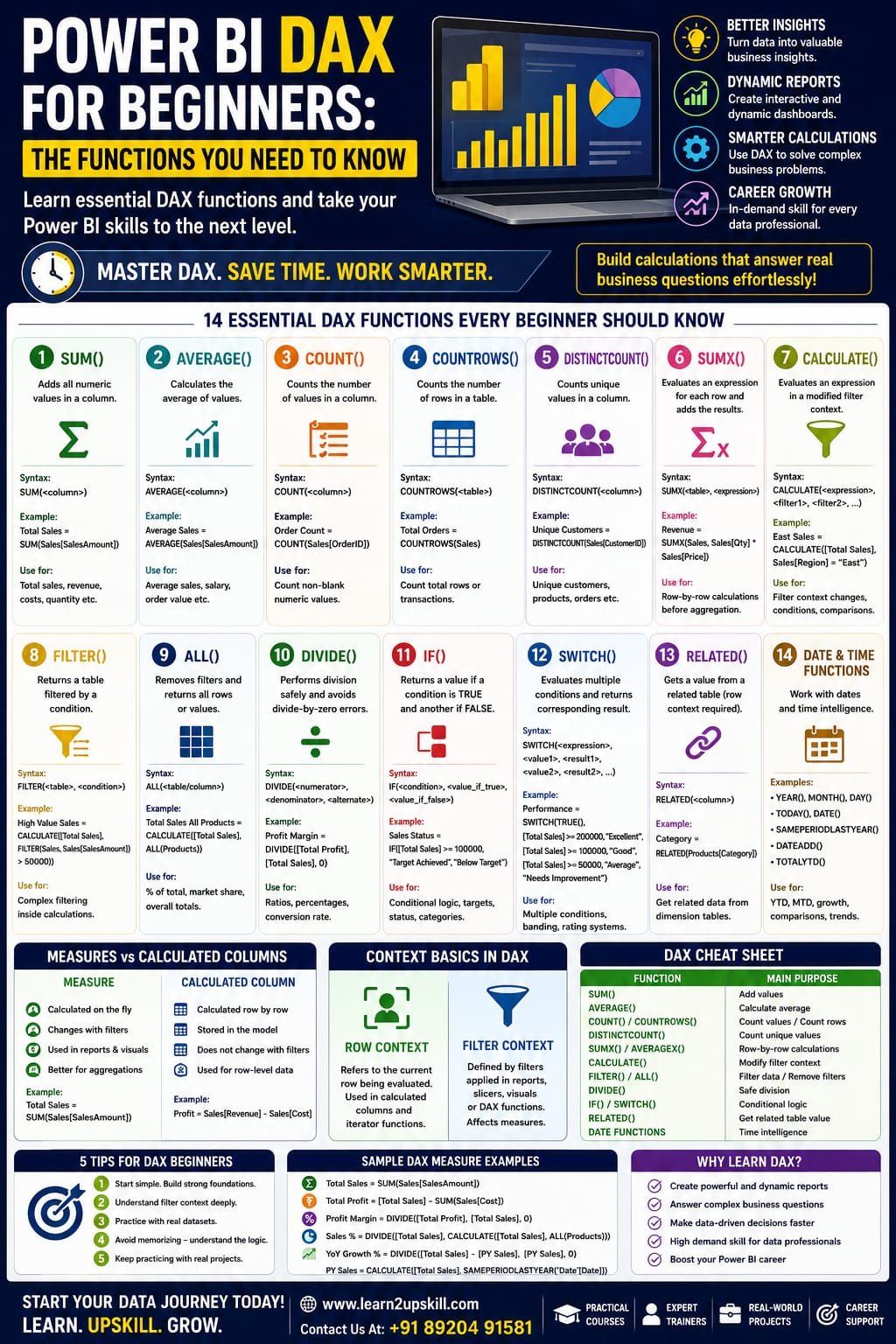
Power BI DAX for Beginners: The Functions You Need to Know
Power BI DAX for Beginners: Essential DAX Functions to Learn
Learn Power BI DAX for beginners with essential DAX functions such as SUM, CALCULATE, FILTER, SUMX, IF, DIVIDE, RELATED and time-intelligence functions.
Suggested URL Slug:
“power-bi-dax-for-beginners-essential-functions”
—
Introduction
If you are learning Microsoft Power BI and want to move beyond basic charts and dashboards, one skill you should understand is DAX.
DAX stands for Data Analysis Expressions. It is the formula language used in Power BI, Analysis Services and Power Pivot in Excel to create calculations and derive new information from data models. Microsoft’s DAX reference currently documents more than 250 functions, so beginners can easily feel overwhelmed by the number of available options.
The good news is that you don’t need to memorize hundreds of DAX functions.
A small group of commonly used functions can help you perform many practical Power BI calculations.
In this Power BI DAX for beginners guide, we’ll explore the essential functions you should learn first, including:
– SUM
– AVERAGE
– COUNT
– DISTINCTCOUNT
– SUMX
– CALCULATE
– FILTER
– ALL
– IF
– SWITCH
– DIVIDE
– RELATED
– Date and time functions
We’ll also explain the difference between measures and calculated columns, introduce filter context and row context, and provide practical examples.
—
What Is DAX in Power BI?
DAX is a formula language designed for working with data models.
You can use DAX to create:
– Measures
– Calculated columns
– Calculated tables
– Business calculations
– KPIs
– Ratios
– Percentages
– Time-based calculations
– Dynamic metrics
For example, suppose you have a “Sales” table containing:
Product| Quantity| Sales
Laptop| 5| ₹250,000
Monitor| 10| ₹150,000
Keyboard| 20| ₹40,000
You could create a simple DAX measure:
Total Sales = SUM(Sales[Sales])
This measure calculates the total sales from the “Sales” column.
Microsoft describes DAX as a collection of functions, operators and constants that can be combined to create expressions that calculate and return values from a data model.
—
Why Is DAX Important in Power BI?
Power BI can create many basic visualizations without DAX.
But DAX becomes important when you want to answer business questions such as:
– What are total sales?
– What is the average order value?
– What percentage of sales came from each region?
– What were sales last year?
– What is year-over-year growth?
– What is the company’s profit margin?
– Which products generated the most revenue?
– What is the running total?
– How much did sales increase compared with the previous month?
DAX allows you to create dynamic calculations that respond to filters, slicers and the context of your report.
—
Measures vs Calculated Columns
Before learning DAX functions, beginners should understand an important distinction.
Calculated Column
A calculated column creates a value for each row in a table.
For example:
Profit = Sales[Revenue] – Sales[Cost]
The calculation is performed for each row.
Calculated columns can be useful when you need a value stored at the row level.
Measure
A measure calculates a result when it is used in a report.
For example:
Total Revenue = SUM(Sales[Revenue])
Measures are generally the preferred approach for aggregations and dynamic report calculations.
Simple way to remember
Calculated Column → Row-level calculation
Measure → Report-level/dynamic calculation
—
- SUM()
Let’s begin with one of the simplest and most commonly used DAX functions.
SUM() adds all numeric values in a column.
Syntax
SUM(<column>)
Example
Total Sales = SUM(Sales[SalesAmount])
This calculates the total value in the “SalesAmount” column.
When to use SUM()
Use it for:
– Total sales
– Total revenue
– Total costs
– Total quantity
– Total profit
Example
Total Quantity = SUM(Sales[Quantity])
—
- AVERAGE()
The AVERAGE() function calculates the arithmetic mean of values in a column.
Example
Average Sales = AVERAGE(Sales[SalesAmount])
You can use this for:
– Average sales
– Average salary
– Average order value
– Average customer rating
– Average product price
For example:
Average Order Value = AVERAGE(Sales[OrderValue])
—
- COUNT()
The COUNT() function counts values in a column according to the data type supported by the function.
For example:
Order Count = COUNT(Sales[OrderID])
COUNT is useful when you need to calculate the number of non-blank numeric values.
For more general counting requirements, beginners should also learn COUNTA() and COUNTROWS().
—
- COUNTROWS()
COUNTROWS counts the number of rows in a table.
Example
Total Orders = COUNTROWS(Sales)
This can be particularly useful when each row represents one transaction.
For example:
Total Transactions = COUNTROWS(Sales)
COUNT vs COUNTROWS
Think of them this way:
COUNT → Count values in a column
COUNTROWS → Count rows in a table
—
- DISTINCTCOUNT()
Sometimes you don’t want to count every transaction.
You want to know how many unique customers made purchases.
That’s where DISTINCTCOUNT() becomes useful.
Example
Unique Customers = DISTINCTCOUNT(Sales[CustomerID])
If the same customer appears multiple times, they are counted once.
This is useful for:
– Unique customers
– Unique products
– Unique employees
– Unique orders
– Unique accounts
—
- SUMX()
SUMX is an important step beyond basic aggregation.
It is an iterator function that evaluates an expression for each row of a table and then adds the results.
Syntax
SUMX(<table>, <expression>)
Suppose your table contains:
Product| Quantity| Price
Laptop| 2| ₹50,000
Monitor| 3| ₹20,000
You can calculate revenue using:
Revenue = SUMX(Sales, Sales[Quantity] * Sales[Price])
Here DAX evaluates:
Quantity × Price
for each row and then adds the results.
SUM vs SUMX
SUM:
SUM(Sales[Revenue])
Adds values already stored in a column.
SUMX:
SUMX(Sales, Sales[Quantity] * Sales[Price])
Calculates an expression row by row and then aggregates it.
Microsoft specifically describes SUMX as an iterator that evaluates an expression for each row of a table.
—
- CALCULATE()
If there is one DAX function that beginners should spend extra time understanding, it is CALCULATE().
CALCULATE evaluates an expression in a modified filter context.
Basic syntax
CALCULATE(<expression>, <filter1>, <filter2>, …)
Example
Total Sales = SUM(Sales[SalesAmount])
Now suppose you want sales only for the East region:
East Sales =
CALCULATE(
[Total Sales],
Sales[Region] = “East”
CALCULATE changes the filter context so that the calculation is evaluated for the specified region.
Why CALCULATE matters
It is commonly used for:
– Conditional calculations
– Time intelligence
– Percentage calculations
– Comparisons
– Removing filters
– Applying filters
– Advanced measures
Learning CALCULATE is one of the biggest milestones for a beginner moving toward intermediate DAX.
—
- FILTER()
FILTER() returns a table that has been filtered according to a specified condition. Microsoft notes that FILTER is typically used as part of another function that requires a table expression rather than as a standalone calculation.
Example
High Value Sales =
CALCULATE(
[Total Sales],
FILTER(
Sales,
Sales[SalesAmount] > 50000
This allows you to work with rows meeting a specific condition.
When to use FILTER()
FILTER can be useful when you need more complex filtering logic.
However, beginners should first understand simple filter arguments in CALCULATE before using FILTER extensively.
—
- ALL()
ALL() is an important filter-related function.
It can return all rows in a table or all values in a column while ignoring filters applied to that table or column.
For example:
Total Sales All Products =
CALCULATE(
[Total Sales],
ALL(Products)
This can be useful when calculating:
– Percentage of total
– Market share
– Overall totals
– Comparisons against the entire dataset
Example: Percentage of Total Sales
Sales % =
DIVIDE(
[Total Sales],
CALCULATE(
[Total Sales],
ALL(Products)
This compares the current sales value with the total across products.
—
- DIVIDE()
DIVIDE() is useful when calculating ratios or percentages.
Syntax
DIVIDE(<numerator>, <denominator>, <alternate_result>)
For example:
Profit Margin =
DIVIDE(
[Total Profit],
[Total Sales],
0
)
This is generally safer for division calculations because you can specify an alternate result when the denominator is zero.
Common uses
– Profit margin
– Conversion rate
– Growth rate
– Percentage of total
– Average ratios
—
- IF()
IF() allows you to create conditional logic.
Example
Sales Status =
IF(
[Total Sales] >= 100000,
“Target Achieved”,
“Below Target”
)
This produces one result when the condition is true and another when it is false.
IF can be useful for:
– Targets
– Performance categories
– Status indicators
– Business rules
– Conditional labels
—
- SWITCH()
When you have multiple conditions, SWITCH can make your logic easier to read.
For example:
Performance =
SWITCH(
TRUE(),
[Total Sales] >= 200000, “Excellent”,
[Total Sales] >= 100000, “Good”,
[Total Sales] >= 50000, “Average”,
“Needs Improvement”
)
This creates several performance categories.
SWITCH can be especially useful for:
– Performance bands
– Customer categories
– Rating systems
– KPI status
– Business classifications
—
- RELATED()
RELATED() allows you to retrieve a value from a related table when the model relationship and row context support the lookup. Microsoft notes that RELATED requires row context, such as in a calculated column or within an appropriate table-scanning expression.
Suppose you have:
Sales Table
ProductID| Quantity
P101| 10
P102| 20
and:
Products Table
ProductID| Category
P101| Laptop
P102| Monitor
You could use:
Category = RELATED(Products[Category])
This retrieves the category from the related Products table.
Important
RELATED depends on the appropriate relationship between the tables.
So before troubleshooting a RELATED formula, check your data model relationships.
—
- Date and Time Functions
Time-based analysis is one of the biggest reasons professionals use Power BI.
DAX includes many date and time functions that support calculations across periods.
Common functions and patterns include:
– YEAR()
– MONTH()
– DAY()
– DATE()
– TODAY()
– SAMEPERIODLASTYEAR()
– DATEADD()
– TOTALYTD()
For example, you might create:
Current Year Sales =
TOTALYTD(
[Total Sales],
‘Date'[Date]
)
Or compare the current period with the previous year:
Previous Year Sales =
CALCULATE(
[Total Sales],
SAMEPERIODLASTYEAR(‘Date'[Date])
)
Time intelligence requires a properly designed date table and appropriate model relationships, so beginners should learn the data-model side along with the formulas.
—
- Understanding Filter Context
One of the most important concepts in DAX is filter context.
Imagine a Power BI report showing sales by:
– Year
– Region
– Product
When a user selects:
2026 + North Region
the calculation is evaluated under that set of filters.
DAX measures respond to this context.
This is one reason the same measure can show different values in different parts of a Power BI report.
Microsoft’s DAX documentation explains that filter context represents the set of values allowed by filters from reports, visuals and DAX expressions.
—
- Understanding Row Context
Row context refers to the current row being evaluated.
It is especially important when working with calculated columns and iterator functions.
For example:
Profit = Sales[Revenue] – Sales[Cost]
For each row, Power BI evaluates the Revenue and Cost values for that row.
Iterator functions such as SUMX can also create row context while evaluating their expression across a table.
Understanding row context + filter context is essential for progressing beyond beginner DAX.
—
Beginner DAX Cheat Sheet
Function| Main Purpose| Example
SUM| Add values| “SUM(Sales[Amount])”
AVERAGE| Calculate average| “AVERAGE(Sales[Amount])”
COUNT| Count values| “COUNT(Sales[OrderID])”
COUNTROWS| Count rows| “COUNTROWS(Sales)”
DISTINCTCOUNT| Count unique values| “DISTINCTCOUNT(Sales[CustomerID])”
SUMX| Iterate and calculate| “SUMX(Sales, Sales[Qty]*Sales[Price])”
CALCULATE| Modify filter context| “CALCULATE([Sales], Region=”East”)”
FILTER| Filter a table| “FILTER(Sales, Sales[Amount]>50000)”
ALL| Remove filters| “ALL(Products)”
DIVIDE| Safe division| “DIVIDE([Profit],[Sales],0)”
IF| Conditional logic| “IF([Sales]>100000,”Yes”,”No”)”
SWITCH| Multiple conditions| “SWITCH(TRUE(),…)”
RELATED| Retrieve related value| “RELATED(Products[Category])”
TOTALYTD| Year-to-date calculation| “TOTALYTD([Sales],Date[Date])”
—
Common DAX Mistakes Beginners Make
- Trying to Memorize Everything
You don’t need to memorize hundreds of functions.
Focus on the functions you use regularly.
- Confusing Measures and Columns
Understand when a calculation should be a measure and when it belongs at row level.
- Ignoring Relationships
DAX works closely with your data model.
Poor relationships can produce unexpected results.
- Not Understanding Filter Context
Many confusing DAX results become easier to understand once you learn how filter context works.
- Using Complex Formulas Too Early
Start with:
SUM → CALCULATE → FILTER → SUMX → DIVIDE
Then gradually move into advanced calculations.
- Treating DAX Like Excel
DAX and Excel formulas may look similar, but DAX operates within a data-model and evaluation-context framework.
Microsoft specifically notes that DAX functions may look familiar to Excel users while behaving differently because DAX works with tables, columns, relationships and context.
—
How to Learn DAX Faster
If you’re a beginner, don’t try to learn DAX by memorizing formulas.
Instead, use a practical approach.
Step 1: Learn Basic Aggregations
Start with:
– SUM
– AVERAGE
– COUNT
– COUNTROWS
– DISTINCTCOUNT
Step 2: Learn Iterators
Move to:
– SUMX
– AVERAGEX
– COUNTX
Step 3: Master CALCULATE
Spend time understanding filter context.
Step 4: Learn Filtering
Practice:
– FILTER
– ALL
– REMOVEFILTERS
– ALLSELECTED
Step 5: Learn Business Logic
Practice:
– IF
– SWITCH
– DIVIDE
Step 6: Learn Relationships
Understand:
– RELATED
– RELATEDTABLE
– Data-model relationships
Step 7: Learn Time Intelligence
Practice:
– YTD
– MTD
– Previous Year
– Year-over-Year Growth
– DATEADD
—
Practical DAX Project for Beginners
The best way to learn DAX is by building something.
Create a simple Sales Performance Dashboard.
Your dataset could include:
– Date
– Product
– Category
– Region
– Customer
– Quantity
– Revenue
– Cost
Then create measures such as:
Total Sales = SUM(Sales[Revenue])
Total Cost = SUM(Sales[Cost])
Total Profit = [Total Sales] – [Total Cost]
Profit Margin =
DIVIDE(
[Total Profit],
[Total Sales],
0
)
Unique Customers =
DISTINCTCOUNT(Sales[CustomerID])
Average Sales =
AVERAGE(Sales[Revenue])
Once these work, add:
– Sales by region
– Sales by product
– Monthly sales
– Year-over-year growth
– Top products
– Profit margin
– Sales targets
This turns DAX from a theoretical topic into a practical business-analysis skill.
—
Why DAX Is an Important Skill for Data Analysts
Power BI is widely used for business intelligence and reporting.
DAX allows analysts to move beyond simply displaying data.
Instead, analysts can create calculations that answer business questions.
For example:
“How much did sales grow?”
“What percentage of total revenue came from this region?”
“Which product has the highest margin?”
“How are sales performing compared with last year?”
These are the types of questions that make Power BI valuable to organizations.
Learning DAX therefore complements other data skills such as:
– Excel
– Power Query
– SQL
– Power BI
– Data visualization
– Data modeling
– Business analysis
—
Conclusion
Learning Power BI DAX for beginners doesn’t mean memorizing every function in the DAX library.
Start with the fundamentals:
SUM → AVERAGE → COUNT → DISTINCTCOUNT → SUMX → CALCULATE → FILTER → ALL → DIVIDE → IF → SWITCH → RELATED → Time Intelligence
Then practice these functions using real business datasets.
Most importantly, learn why a formula works, not just how to copy it.
Once you understand measures, calculated columns, row context, filter context and relationships, DAX becomes much easier to work with.
The goal isn’t to become someone who knows hundreds of formulas.
The goal is to become a professional who can use DAX to turn business data into useful insights and better decisions.
—
—
Learn Power BI and Data Analytics with Learn2Upskill
Want to move beyond basic Power BI dashboards?
Build practical skills in Power BI, Excel, data analytics, business intelligence and other job-focused technologies with Learn2Upskill.
🌐 www.coral-kudu-326218.hostingersite.com
Learn. Upskill. Grow.
—
Leave a Reply