Category: Microsoft Excel

  • 50 Excel Keyboard Shortcuts to Save Time

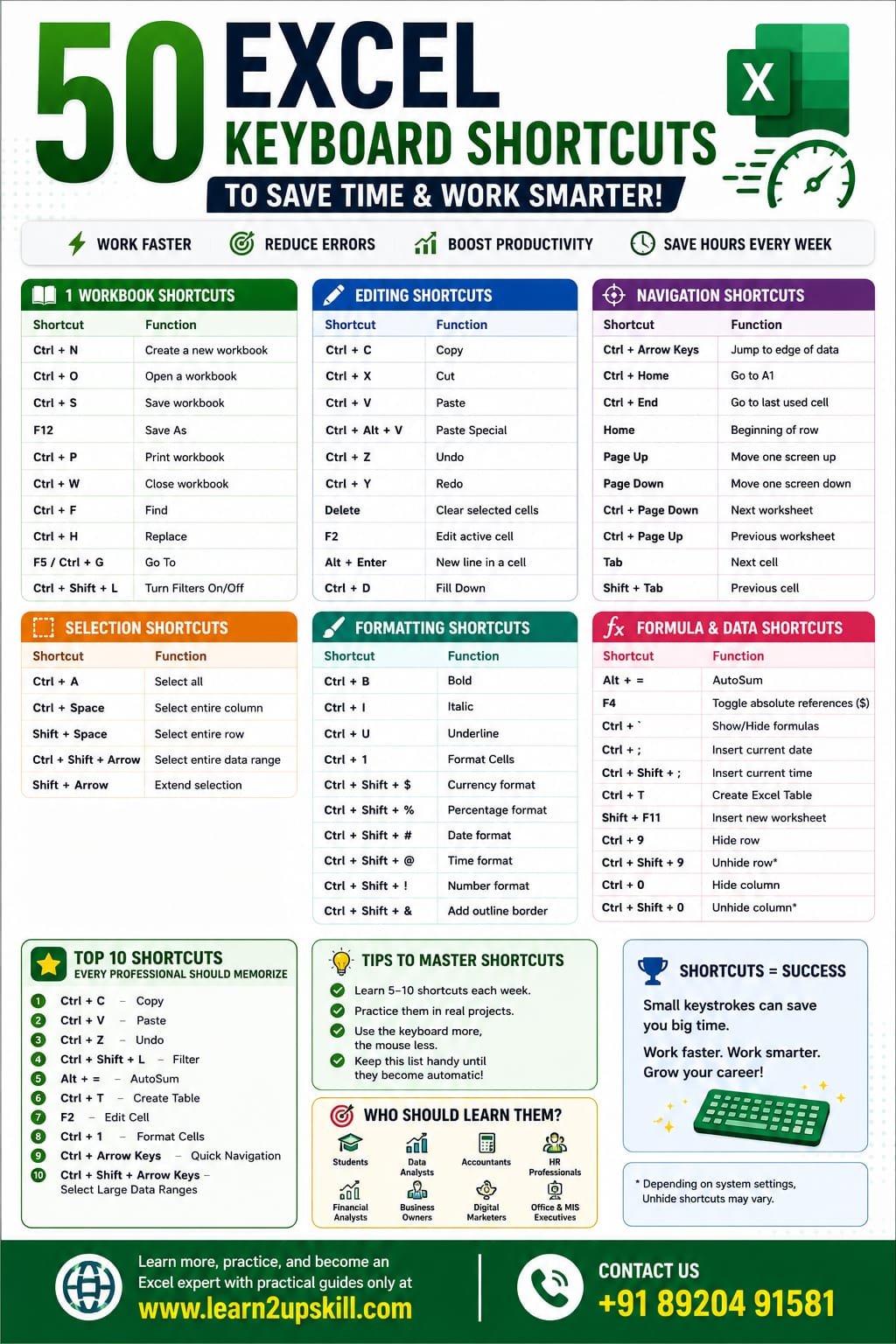
    50 Excel Keyboard Shortcuts to Save Time

    50 Excel Keyboard Shortcuts to Save Time

    Learn the 50 most useful Excel keyboard shortcuts that every student, professional, accountant, and data analyst should know to work faster and smarter in Microsoft Excel.

    50 Excel Keyboard Shortcuts to Save Time

    Microsoft Excel is one of the most powerful tools for managing data, creating reports, and analyzing information. While many users rely on the mouse, professionals know that keyboard shortcuts are the fastest way to work in Excel. Microsoft also recommends keyboard shortcuts as an efficient way to improve productivity and accessibility.


    In this guide, you’ll learn 50 essential Excel keyboard shortcuts that can save you hours every week.

    Why Learn Excel Keyboard Shortcuts?

    Using keyboard shortcuts helps you:

    – Work faster

    – Reduce mouse clicks

    – Improve productivity

    – Analyze data efficiently

    – Impress employers during Excel interviews

    Workbook Shortcuts

    Shortcut| Function

    Ctrl + N| Create a new workbook

    Ctrl + O| Open a workbook

    Ctrl + S| Save workbook

    F12| Save As

    Ctrl + P| Print workbook

    Ctrl + W| Close workbook

    Ctrl + F| Find

    Ctrl + H| Replace

    F5 / Ctrl + G| Go To

    Ctrl + Shift + L| Turn Filters On/Off

    Editing Shortcuts

    Shortcut| Function

    Ctrl + C| Copy

    Ctrl + X| Cut

    Ctrl + V| Paste

    Ctrl + Alt + V| Paste Special

    Ctrl + Z| Undo

    Ctrl + Y| Redo

    Delete| Clear selected cells

    F2| Edit active cell

    Alt + Enter| New line inside a cell

    Ctrl + D| Fill Down

    Navigation Shortcuts

    Shortcut| Function

    Ctrl + Arrow Keys| Jump to edge of data

    Ctrl + Home| Go to A1

    Ctrl + End| Go to last used cell

    Home| Beginning of row

    Page Up| Move one screen up

    Page Down| Move one screen down

    Ctrl + Page Down| Next worksheet

    Ctrl + Page Up| Previous worksheet

    Tab| Next cell

    Shift + Tab| Previous cell

    Selection Shortcuts

    Shortcut| Function

    Ctrl + A| Select all

    Ctrl + Space| Select entire column

    Shift + Space| Select entire row

    Ctrl + Shift + Arrow| Select entire data range

    Shift + Arrow| Extend selection

    Formatting Shortcuts

    Shortcut| Function

    Ctrl + B| Bold

    Ctrl + I| Italic

    Ctrl + U| Underline

    Ctrl + 1| Format Cells

    Ctrl + Shift + $| Currency format

    Ctrl + Shift + %| Percentage format

    Ctrl + Shift + #| Date format

    Ctrl + Shift + @| Time format

    Ctrl + Shift + !| Number format

    Ctrl + Shift + &| Add outline border

    Shortcut| Function

    Alt + =| AutoSum

    F4| Toggle absolute references ($)

    Ctrl + `| Show/Hide formulas

    Ctrl + ;| Insert current date

    Ctrl + Shift + ;| Insert current time

    Ctrl + T| Create Excel Table

    Shift + F11| Insert new worksheet

    Ctrl + 9| Hide row

    Ctrl + 0| Hide column

    Ctrl + Shift + 9| Unhide row*

    *Depending on your Windows settings, Ctrl + Shift + 0 for unhide columns may need to be enabled separately.

    Top 10 Shortcuts Every Professional Should Memorize

    1. Ctrl + C — Copy
    2. Ctrl + V — Paste
    3. Ctrl + Z — Undo
    4. Ctrl + Shift + L — Filter
    5. Alt + = — AutoSum
    6. Ctrl + T — Create Table
    7. F2 — Edit Cell
    8. Ctrl + 1 — Format Cells
    9. Ctrl + Arrow Keys — Quick Navigation
    10. Ctrl + Shift + Arrow Keys — Select Large Data Ranges

    These are among the shortcuts Excel power users frequently recommend because they dramatically reduce repetitive mouse actions.

    Tips to Learn Keyboard Shortcuts Faster

    – Learn 5–10 shortcuts each week.

    – Practice them in real Excel projects.

    – Challenge yourself to use the keyboard instead of the mouse for common tasks.

    – Keep a printable cheat sheet near your workspace until the shortcuts become automatic.

    Who Should Learn These Shortcuts?

    These shortcuts are useful for:

    – Students

    – Data Analysts

    – Accountants

    – HR Professionals

    – Financial Analysts

    – Digital Marketers

    – Business Owners

    – Office Executives

    – MIS Executives

    Frequently Asked Questions (FAQs)

    Which Excel shortcut saves the most time?

    Ctrl + Arrow Keys, Alt + =, Ctrl + Shift + L, and Ctrl + T are among the biggest time savers for everyday work.

    Are these shortcuts available in Microsoft 365?

    Most of these shortcuts work in Microsoft 365 and many also work in older desktop versions of Excel. Some shortcuts can differ slightly in Excel for the web or on macOS.

    How long does it take to memorize Excel shortcuts?

    With daily practice, most people can become comfortable with the most useful shortcuts within a few weeks.

    Final Thoughts

    Learning Excel keyboard shortcuts is one of the easiest ways to boost your productivity. Even mastering just a handful of shortcuts can save minutes every day, which adds up to hours over the course of a month.

    Start with the shortcuts you use most often, practice them consistently, and gradually build your speed. Over time, you’ll spend less time clicking through menus and more time focusing on meaningful work.

    For more Excel tutorials, career-focused learning guides, and practical skill-building resources, visit www.coral-kudu-326218.hostingersite.com.

    Contact Us: +91 89204 91581
  • How Microsoft Copilot Changes Spreadsheet Work

    How Microsoft Copilot Changes Spreadsheet Work

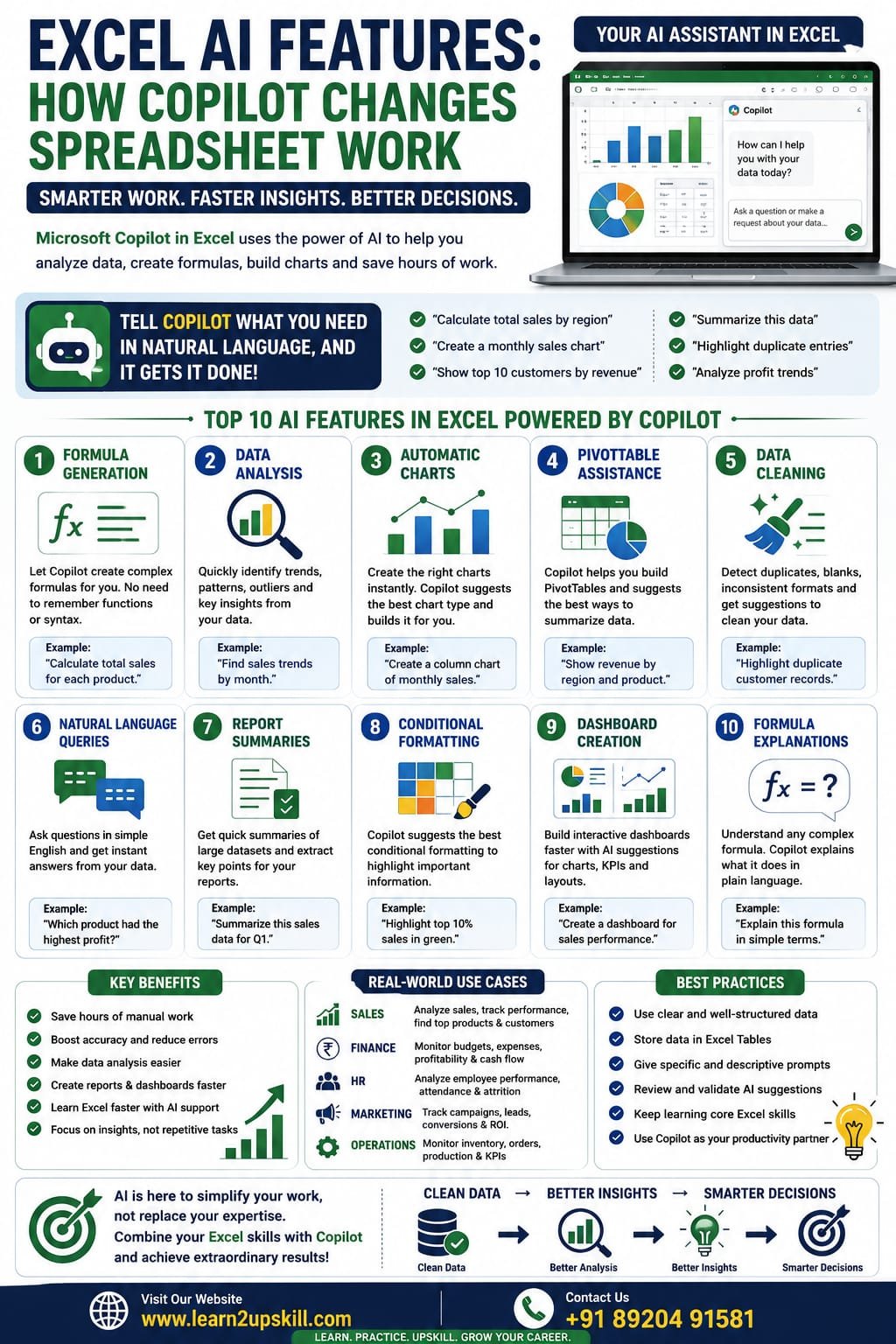
    Excel AI Features: How Microsoft Copilot Changes Spreadsheet Work

    Discover how Microsoft Copilot in Excel uses AI to automate data analysis, create formulas, generate charts, summarize data, and boost productivity with real-world examples.

    Focus Keyword: Excel AI Features

    Excel AI Features: How Microsoft Copilot Changes Spreadsheet Work

    Artificial Intelligence (AI) is transforming the way people work, and Microsoft Excel is no exception. With the introduction of Microsoft Copilot for Excel, users can analyze data, generate formulas, build charts, summarize information, and automate repetitive tasks using natural language.

    Instead of spending hours writing complex formulas or manually creating reports, you can simply describe what you want, and Copilot helps you complete the task faster.

    Whether you’re a student, accountant, HR professional, financial analyst, marketer, business owner, or data analyst, learning Excel’s AI-powered features can significantly improve your productivity.

    In this guide, you’ll learn what Microsoft Copilot is, its key AI features, practical use cases, benefits, limitations, and tips for getting the most from it.

    What Is Microsoft Copilot in Excel?

    Microsoft Copilot is an AI-powered assistant integrated into supported Microsoft 365 applications, including Excel. It uses generative AI to help users interact with spreadsheets using everyday language.

    Instead of memorizing formulas or searching through menus, you can ask questions such as:

    – “Calculate total sales by region.”

    – “Create a monthly sales chart.”

    – “Highlight duplicate entries.”

    – “Summarize this dataset.”

    – “Show the top 10 customers by revenue.”

    Copilot then suggests formulas, charts, PivotTables, summaries, or other actions based on your request.

    Why Is AI Important in Excel?

    Traditional spreadsheet work often involves:

    – Writing complex formulas

    – Cleaning data

    – Creating Pivot Tables

    – Designing charts

    – Building dashboards

    – Analyzing large datasets

    AI helps automate many of these repetitive tasks, allowing you to focus more on interpreting results and making decisions.

    Top AI Features in Excel

    1. Formula Generation

    One of Copilot’s most useful capabilities is generating formulas from plain-language requests.

    Example

    Instead of remembering a complex formula, you can ask:

    «”Calculate the total sales for each region.”»

    Copilot suggests an appropriate formula based on your data.

    This is especially helpful for beginners and users working with advanced functions.

    1. Data Analysis

    Copilot can analyze your dataset and identify:

    – Trends

    – Patterns

    – Outliers

    – Top-performing categories

    – Seasonal changes

    Instead of manually reviewing thousands of rows, AI summarizes key insights in seconds.

    1. Automatic Charts

    Creating charts becomes much easier.

    Ask Copilot:

    «”Create a column chart showing monthly sales.”»

    It recommends a suitable chart and generates it for you, saving time on formatting and setup.

    1. PivotTable Assistance

    Copilot can help build PivotTables by suggesting useful summaries based on your data.

    Examples:

    – Sales by product

    – Revenue by region

    – Employee performance

    – Monthly expenses

    This is particularly useful for users who are new to PivotTables.


    1. Data Cleaning Suggestions

    AI can help identify:

    – Duplicate records

    – Missing values

    – Inconsistent formatting

    – Unexpected data patterns

    While you should always review suggested changes, Copilot can speed up the initial cleanup process.

    1. Natural Language Queries

    Instead of building formulas manually, you can ask questions such as:

    – Which product had the highest sales?

    – What is the average monthly revenue?

    – Which region generated the lowest profit?

    Copilot interprets your request and provides answers based on your spreadsheet.

    1. Report Summaries

    For large datasets, Copilot can generate concise summaries highlighting key metrics and trends, making it easier to prepare reports or presentations.

    1. Conditional Formatting Suggestions

    AI can recommend conditional formatting to highlight:

    – Top performers

    – Duplicate values

    – Low inventory

    – Values above or below targets

    This makes important information stand out visually.

    1. Dashboard Support

    Copilot can assist with dashboard creation by recommending charts, KPIs, and layouts based on your data, helping you build reports more efficiently.

    1. Formula Explanations

    If you inherit a workbook with unfamiliar formulas, Copilot can help explain what a formula is doing in plain language, making it easier to understand and maintain spreadsheets.

    Real-World Use Cases


    Sales

    – Analyze monthly revenue

    – Compare product performance

    – Identify top customers

    Finance

    – Summarize expenses

    – Track budgets

    – Review cash flow

    HR

    – Analyze attendance

    – Monitor employee performance

    – Summarize recruitment data

    Marketing

    – Evaluate campaign results

    – Compare lead sources

    – Analyze conversion rates

    Education

    – Review student performance

    – Analyze attendance

    – Track assignment scores

    Benefits of Microsoft Copilot in Excel

    – Saves time on repetitive tasks

    – Makes advanced features more accessible

    – Helps users learn Excel functions

    – Speeds up report creation

    – Improves productivity

    – Encourages data-driven decision-making

    Limitations to Keep in Mind

    – Copilot is available only with supported Microsoft 365 plans and regions.

    – AI-generated suggestions should always be reviewed for accuracy.

    – Complex business scenarios may still require manual formulas or advanced Excel knowledge.

    – Data quality remains important—AI works best with well-structured datasets.

    Tips for Using Copilot Effectively

    – Organize your data with clear headers.

    – Store data in Excel Tables when possible.

    – Use descriptive prompts.

    – Verify AI-generated formulas and analyses.

    – Continue learning core Excel skills alongside AI tools.

    Frequently Asked Questions (FAQs)

    Does Copilot replace Excel formulas?

    No. Copilot helps generate and explain formulas, but understanding core Excel functions remains valuable for troubleshooting and advanced work.

    Can beginners use Copilot?

    Yes. Copilot is especially helpful for beginners because it reduces the need to memorize formulas and menu locations.

    Does Copilot create charts?

    Yes. It can recommend and generate charts based on your data and your natural-language requests.

    Is Copilot available in every Excel version?

    No. Copilot is available in supported Microsoft 365 environments and requires an eligible subscription and supported version of Excel.

    Best Practices

    – Learn Excel fundamentals before relying entirely on AI.

    – Double-check AI-generated outputs.

    – Protect sensitive data according to your organization’s policies.

    – Keep your data clean and well-structured for the best results.

    – Use AI as a productivity assistant, not a replacement for critical thinking.

    Final Thoughts

    Microsoft Copilot is changing the way people work with spreadsheets by making data analysis, reporting, and formula creation faster and more intuitive. It allows users to interact with Excel using natural language while reducing repetitive work.

    However, the most effective Excel users combine AI tools with a strong understanding of Excel fundamentals. By mastering formulas, PivotTables, charts, dashboards, and data cleaning—and then using Copilot to accelerate those tasks—you’ll be well prepared for modern workplaces.

    At Learn2Upskill, we help students and professionals build practical Excel and AI skills through real-world tutorials and career-focused learning resources.


    Visit: www.coral-kudu-326218.hostingersite.com

    Contact Us: +91 89204 91581

    Learn Excel. Embrace AI. Build Your Future.

  • Data Cleaning in Excel Like a Pro

    Data Cleaning in Excel Like a Pro

    Data Cleaning in Excel Like a Pro

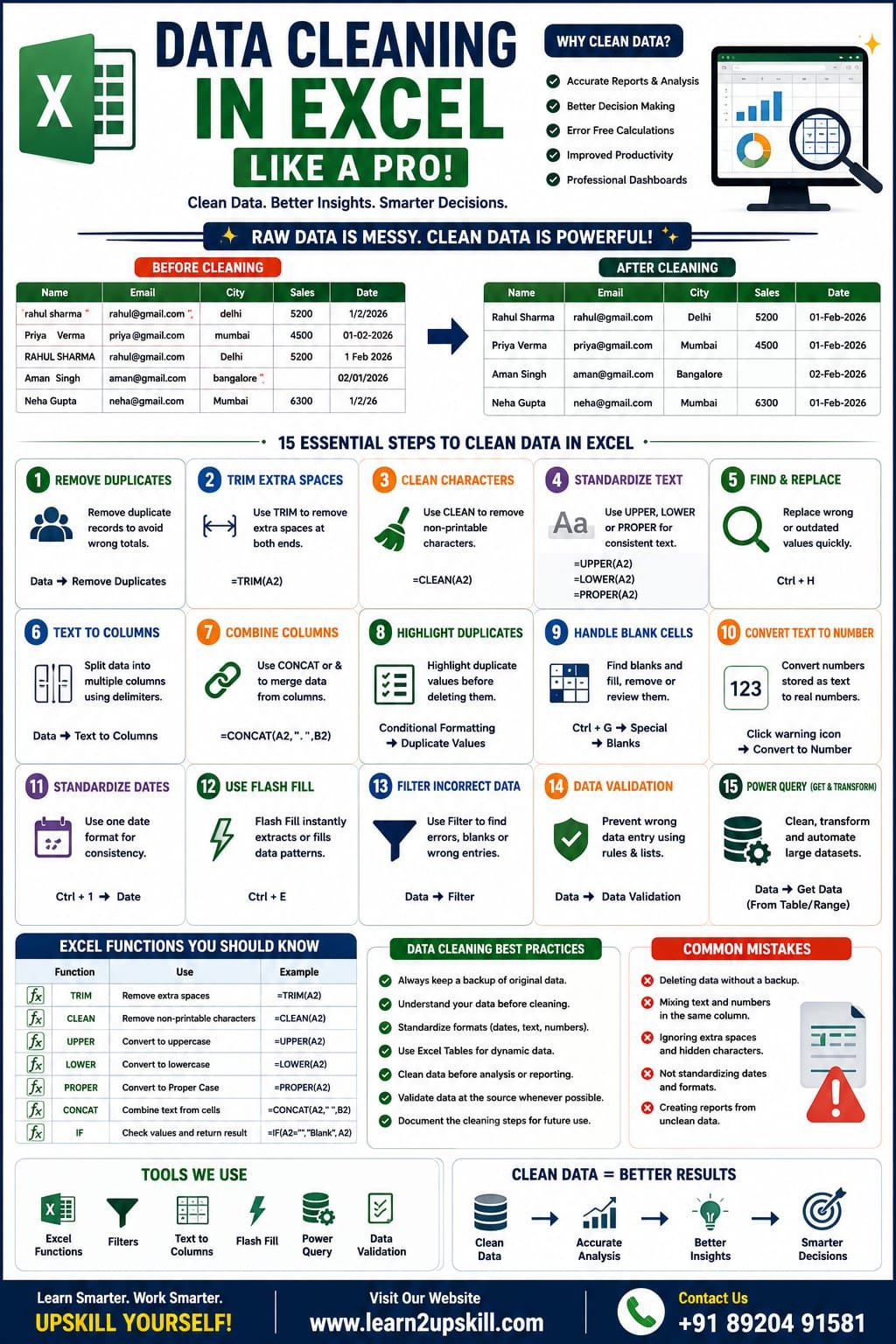
    Learn how to clean data in Excel using TRIM, CLEAN, Find & Replace, Remove Duplicates, Flash Fill, Text to Columns, Power Query, and other professional techniques.

    Focus Keyword: Data Cleaning in Excel

    Data Cleaning in Excel Like a Pro

    Data is one of the most valuable assets for any business, but raw data is often messy. Extra spaces, duplicate records, inconsistent formatting, blank cells, spelling mistakes, and incorrect dates can make reports inaccurate and difficult to analyze.

    That’s why data cleaning is one of the most important Excel skills for students, data analysts, accountants, HR professionals, marketers, and business owners.

    In this complete guide, you’ll learn how to clean Excel data like a professional using built-in Excel features, formulas, and best practices.

    What is Data Cleaning?

    Data cleaning is the process of identifying and correcting inaccurate, incomplete, duplicate, or poorly formatted data so it can be analyzed reliably.

    Clean data helps you:

    – Create accurate reports

    – Improve decision-making

    – Prevent formula errors

    – Save time

    – Build better dashboards

    – Increase productivity

    Why is Data Cleaning Important?

    Imagine a customer list with:

    – Duplicate names

    – Extra spaces

    – Missing phone numbers

    – Different date formats

    – Incorrect capitalization

    Without cleaning this data, reports and analysis may produce misleading results.

    Common Data Problems in Excel

    The most common issues include:

    – Duplicate records

    – Extra spaces

    – Blank cells

    – Incorrect dates

    – Numbers stored as text

    – Mixed capitalization

    – Misspelled entries

    – Inconsistent formatting

    – Hidden characters

    – Missing values

    Step 1: Remove Duplicate Records

    Duplicate data can affect totals, reports, and Pivot Tables.

    Example

    Name| City

    Rahul| Delhi

    Rahul| Delhi

    Priya| Mumbai

    How to Remove Duplicates

    1. Select your data.
    2. Go to Data → Remove Duplicates.
    3. Select the columns to check.
    4. Click OK.

    Excel removes duplicate entries while keeping the first occurrence.

    Step 2: Remove Extra Spaces with TRIM

    Imported data often contains unnecessary spaces.

    Example

    Before:

    Rahul   Sharma

    Formula:

    =TRIM(A2)

    Result:

    Rahul Sharma

    TRIM removes leading, trailing, and extra spaces between words.

    Step 3: Remove Non-Printable Characters with CLEAN

    Sometimes copied data includes hidden characters.

    Formula:

    =CLEAN(A2)

    This removes non-printable characters that may interfere with formulas and comparisons.

    Step 4: Standardize Text with UPPER, LOWER, and PROPER

    Convert to Uppercase

    =UPPER(A2)

    Result:

    RAHUL SHARMA

    Convert to Lowercase

    =LOWER(A2)

    Result:

    rahul sharma

    Proper Case

    =PROPER(A2)

    Result:

    Rahul Sharma

    Use these functions to maintain consistent formatting.

    Step 5: Use Find & Replace

    Quickly replace incorrect values.

    Example

    Replace:

    Bombay

    With:

    Mumbai

    Go to:

    Home → Find & Select → Replace

    This feature is ideal for correcting repeated spelling mistakes or outdated terms.

    Step 6: Split Data with Text to Columns

    Suppose a column contains:

    Rahul Sharma

    To split into First Name and Last Name:

    1. Select the column.
    2. Go to Data → Text to Columns.
    3. Choose Delimited.
    4. Select Space.
    5. Finish the wizard.

    Step 7: Combine Columns with CONCAT

    If first and last names are separate:

    First Name| Last Name

    Rahul| Sharma

    Formula:

    =CONCAT(A2,” “,B2)

    Result:

    Rahul Sharma

    Step 8: Highlight Duplicate Values

    Instead of deleting duplicates immediately, you can highlight them first.

    Go to:

    Home → Conditional Formatting → Highlight Cells Rules → Duplicate Values

    This helps review duplicate entries before removing them.

    Step 9: Handle Blank Cells

    Blank cells can affect formulas and Pivot Tables.

    To find blanks:

    1. Press Ctrl + G.
    2. Click Special.
    3. Choose Blanks.

    Fill missing values where appropriate or remove incomplete records if they aren’t needed.

    Step 10: Convert Numbers Stored as Text

    A green triangle in a cell often indicates a number stored as text.

    To fix it:

    – Click the warning icon.

    – Select Convert to Number.

    This ensures calculations work correctly.

    Step 11: Format Dates Consistently

    Incorrect date formats can lead to sorting and filtering problems.

    Example:

    01/02/2026

    2026-02-01

    1 Feb 2026

    Choose one standard date format for your workbook using Format Cells.

    Step 12: Use Flash Fill

    Flash Fill automatically recognizes patterns.

    Example:

    Email:

    rahul.sharma@gmail.com

    Extract:

    Rahul Sharma

    Type the first result, then press Ctrl + E to let Flash Fill complete the remaining rows.

    Step 13: Filter Incorrect Data

    Use filters to locate:

    – Blank values

    – Errors

    – Duplicate categories

    – Unexpected entries

    Go to:

    Data → Filter

    Step 14: Validate Data Entry

    Prevent incorrect entries by using Data Validation.

    Examples:

    – Restrict age between 18 and 60.

    – Allow only specific departments.

    – Create drop-down lists for consistent data entry.

    Step 15: Clean Large Datasets with Power Query

    Power Query is ideal for handling large datasets and repetitive cleaning tasks.

    With Power Query, you can:

    – Remove duplicates

    – Split columns

    – Merge tables

    – Replace values

    – Remove blank rows

    – Transform data automatically

    It is especially useful for recurring reports.

    Professional Data Cleaning Checklist

    Before analyzing data, check:

    – No duplicate records

    – No unnecessary spaces

    – Consistent date formats

    – Correct capitalization

    – Numbers stored correctly

    – No hidden characters

    – Blank cells reviewed

    – Accurate column headers

    – Standardized categories

    Best Practices

    – Keep a backup of your original data.

    – Clean data before creating Pivot Tables or charts.

    – Use Excel Tables for easier management.

    – Validate new data as it’s entered.

    – Review changes before sharing reports.

    Common Mistakes to Avoid

    – Deleting data without a backup.

    – Mixing text and numbers in the same column.

    – Ignoring hidden spaces.

    – Forgetting to convert text to numbers.

    – Creating reports from unclean data.

    Frequently Asked Questions (FAQs)

    What is the best way to clean data in Excel?

    Start by removing duplicates, trimming extra spaces, correcting formatting, handling blanks, standardizing dates, and using tools like Flash Fill or Power Query for larger datasets.

    Which Excel function removes extra spaces?

    The TRIM function removes leading, trailing, and repeated spaces within text.

    Can Power Query clean data automatically?

    Yes. Once you create a Power Query transformation, you can refresh it when new data is imported, making repetitive cleaning tasks much faster.

    Why should I clean data before creating Pivot Tables?

    Clean data reduces errors, prevents duplicate counts, and ensures your Pivot Tables and charts produce accurate, reliable results.

    Final Thoughts

    Data cleaning is the foundation of every successful Excel project. Whether you’re creating reports, dashboards, financial models, or business analyses, clean data ensures your results are accurate and trustworthy.

    By mastering tools such as TRIM, CLEAN, Find & Replace, Remove Duplicates, Text to Columns, Flash Fill, Data Validation, and Power Query, you’ll work more efficiently and produce higher-quality reports.

    At Learn2Upskill, we help students and professionals build practical Excel skills through real-world examples and hands-on tutorials.

    Visit: www.coral-kudu-326218.hostingersite.com

    Contact Us: +91 89204 91581

    Clean Data. Better Insights. Smarter Decisions.

  • How to Create a Dashboard in Excel

    How to Create a Dashboard in Excel

    How to Create a Dashboard in Excel

    Learn how to create a professional Excel dashboard with charts, Pivot Tables, slicers, KPIs, and interactive reports. Step-by-step tutorial with practical examples.

    How to Create a Dashboard in Excel

    In today’s data-driven world, businesses generate thousands of rows of data every day. Simply storing data isn’t enough—you need a way to analyze, monitor, and present information clearly. That’s where Excel Dashboards come in.

    An Excel dashboard combines charts, Pivot Tables, KPIs (Key Performance Indicators), and interactive filters into a single, easy-to-read report. Instead of scrolling through endless spreadsheets, users can quickly understand business performance and make informed decisions.

    Whether you’re a student, accountant, HR executive, sales manager, business owner, or data analyst, learning how to build Excel dashboards is a valuable career skill.

    In this guide, you’ll learn everything you need to create a professional Excel dashboard from scratch.

    What Is an Excel Dashboard?

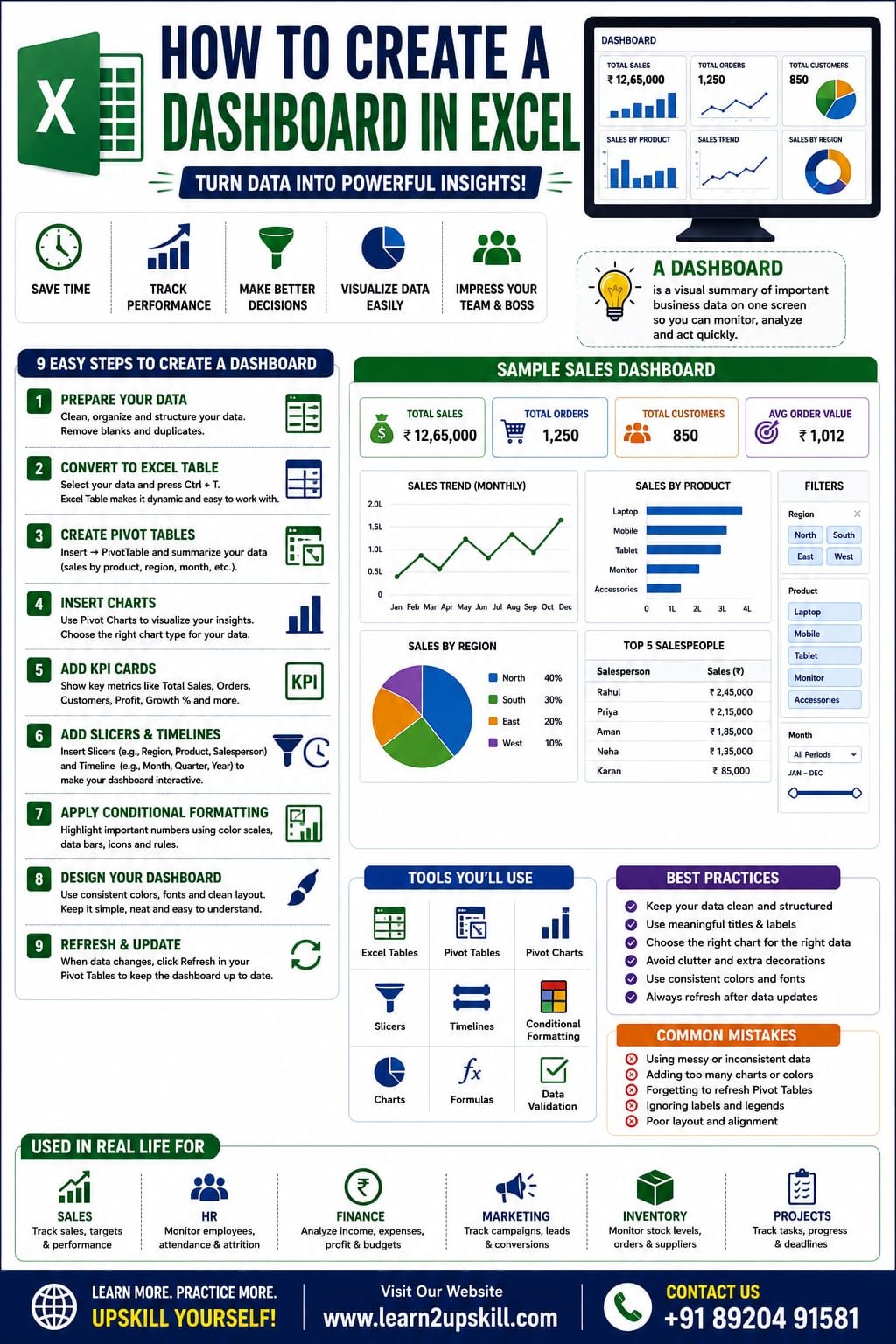
    An Excel Dashboard is a visual summary of important business data displayed on one worksheet. It brings together charts, tables, KPIs, and filters so you can monitor performance at a glance.

    A well-designed dashboard helps answer questions such as:

    – What are our total sales this month?

    – Which region is performing best?

    – Which products generate the highest revenue?

    – Are we meeting our targets?

    – What trends are visible over time?

    Why Use an Excel Dashboard?

    Excel dashboards help you:

    – Visualize large amounts of data

    – Track KPIs in real time (after data refresh)

    – Save reporting time

    – Make better business decisions

    – Present data professionally

    – Share insights with teams and management

    Real-World Uses of Excel Dashboards

    Sales Dashboard

    Track revenue, top-selling products, sales by region, and monthly growth.

    HR Dashboard

    Monitor attendance, employee count, recruitment, and attrition.

    Finance Dashboard

    Analyze income, expenses, profit, cash flow, and budgets.

    Marketing Dashboard

    Measure campaign performance, website traffic, leads, and conversions.

    Inventory Dashboard

    Track stock levels, reorder status, supplier performance, and inventory value.

    Tools You’ll Use

    Most Excel dashboards are built using these features:

    – Excel Tables

    – Pivot Tables

    – Pivot Charts

    – Slicers

    – Timelines

    – Conditional Formatting

    – Charts

    – Data Validation

    – Formulas (SUMIFS, XLOOKUP, INDEX, MATCH, IF, etc.)

    Step 1: Prepare Your Data

    Before building a dashboard, organize your data properly.

    Example:

    Date| Product| Region| Salesperson| Sales (₹)

    01-Jan| Laptop| North| Rahul| 55,000

    02-Jan| Mobile| South| Priya| 30,000

    03-Jan| Tablet| East| Aman| 25,000

    Best practices:

    – One header row

    – No blank rows

    – Consistent formatting

    – Dates stored as dates

    – Numbers stored as numbers

    Step 2: Convert Data into an Excel Table

    1. Select the dataset.
    2. Press Ctrl + T.
    3. Check My table has headers.
    4. Click OK.

    Benefits:

    – Dynamic ranges

    – Easier formulas

    – Automatic expansion

    – Better Pivot Tables

    Step 3: Create Pivot Tables

    Go to:

    Insert → PivotTable

    Create Pivot Tables for:

    – Sales by Product

    – Sales by Region

    – Monthly Sales

    – Salesperson Performance

    These Pivot Tables will become the foundation of your dashboard

    Step 4: Create Charts

    Turn your Pivot Tables into visual reports.

    Recommended chart types:

    – Column Chart for product comparisons

    – Line Chart for monthly trends

    – Bar Chart for regional performance

    – Pie or Doughnut Chart for category shares (use sparingly)

    – Combo Chart for comparing multiple metrics

    Choose chart types that make the data easy to understand.

    Step 5: Add KPI Cards

    Display important metrics such as:

    – Total Sales

    – Total Orders

    – Average Order Value

    – Best-Selling Product

    – Total Customers

    Format KPI cards with bold numbers and clear labels so users can understand the dashboard at a glance.

    Step 6: Add Slicers

    Slicers make dashboards interactive.

    Go to:

    PivotTable Analyze → Insert Slicer

    You can add slicers for:

    – Region

    – Product

    – Salesperson

    – Department

    When users click a slicer, all connected Pivot Tables and Pivot Charts update automatically.

    Step 7: Add a Timeline

    If your data includes dates:

    Go to:

    Insert Timeline

    Users can filter data by:

    – Month

    – Quarter

    – Year

    This makes it easy to analyze performance over different time periods.

    Step 8: Apply Conditional Formatting

    Use conditional formatting to highlight:

    – Top-performing products

    – Sales above target

    – Low inventory

    – Negative profit

    – Overdue tasks

    Examples include color scales, data bars, and icon sets.

    Step 9: Design Your Dashboard

    A professional dashboard should:

    – Use a consistent color palette

    – Include clear titles

    – Align charts neatly

    – Leave enough white space

    – Avoid unnecessary visual clutter

    Keep the design clean and focused on insights rather than decoration.

    Sample Dashboard Layout

    Top Section

    – Company Name

    – Dashboard Title

    – Date Filter

    Middle Section

    – KPI Cards

    – Sales Trend Chart

    – Product Performance Chart

    Bottom Section

    – Regional Sales

    – Top Customers

    – Monthly Comparison

    – Interactive Filters

    Tips for Better Dashboards

    – Keep everything on one screen when possible.

    – Limit the number of colors.

    – Use meaningful chart titles.

    – Avoid 3D charts that can distort data.

    – Test filters to ensure everything updates correctly.


    Common Mistakes to Avoid

    – Using messy source data.

    – Adding too many charts.

    – Ignoring labels and legends.

    – Forgetting to refresh Pivot Tables after data changes.

    – Mixing different date formats or inconsistent values.

    Who Should Learn Excel Dashboards?

    Excel dashboards are useful for:

    – Students

    – Accountants

    – Data Analysts

    – HR Professionals

    – Financial Analysts

    – Sales Managers

    – Business Owners

    – Project Managers

    – MIS Executives

    – Operations Teams

    Final Thoughts

    Creating an Excel dashboard is one of the most valuable skills you can learn for reporting and data analysis. Dashboards help transform raw data into meaningful insights, making it easier to monitor performance, identify trends, and support better decisions.

    By combining Excel Tables, Pivot Tables, charts, slicers, timelines, and conditional formatting, you can build interactive dashboards that impress employers and improve productivity.

    At Learn2Upskill, we believe practical Excel skills open doors to better career opportunities. Keep practicing with real datasets, experiment with different dashboard layouts, and continue building your expertise.

    Visit: www.coral-kudu-326218.hostingersite.com

    Contact Us: +91 89204 91581

    Learn. Analyze. Visualize. Upskill.

  • Best Excel Functions for Data Analysts

    Best Excel Functions for Data Analysts

    Best Excel Functions for Data Analysts

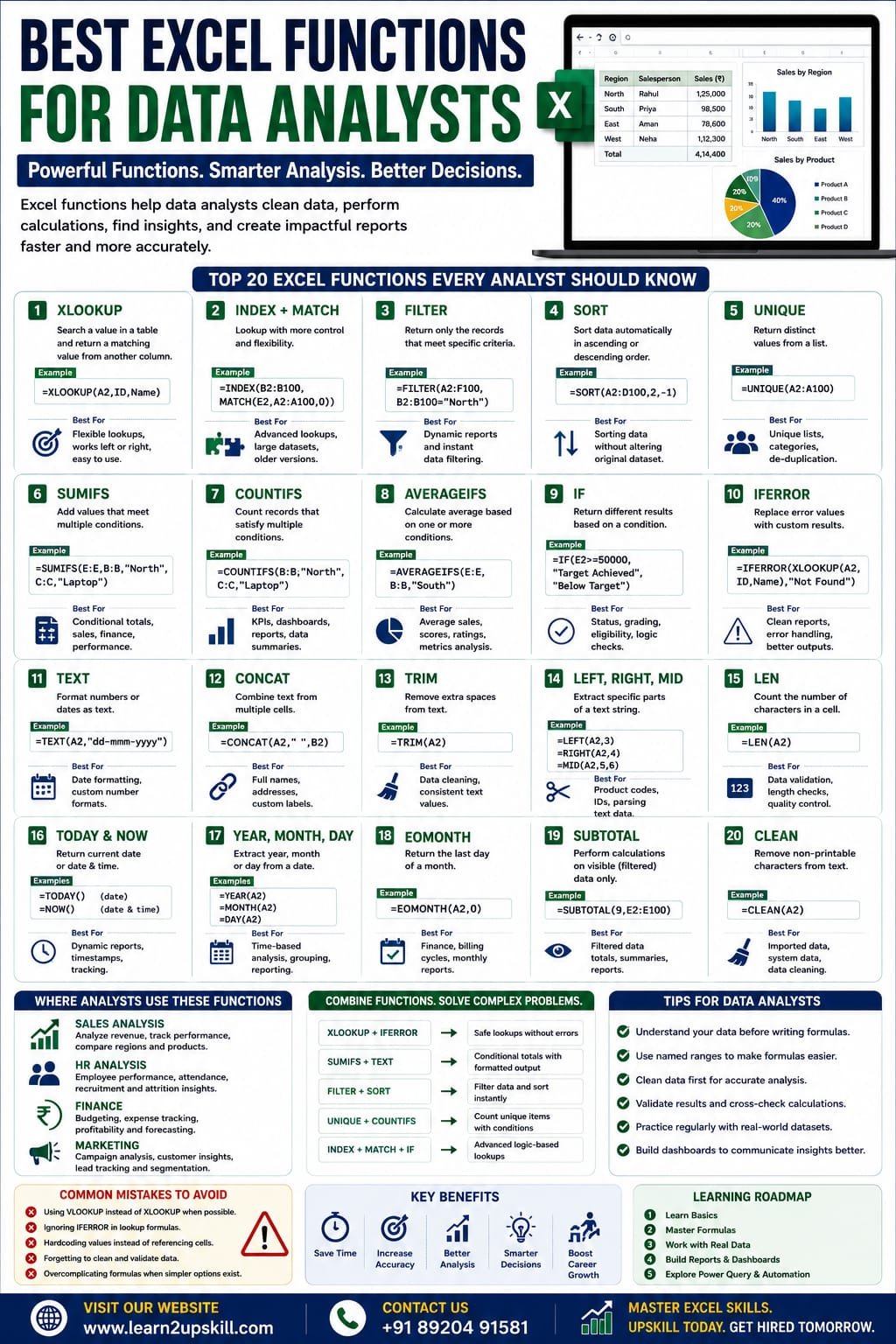
    Learn the best Excel functions for data analysts, including XLOOKUP, INDEX, MATCH, FILTER, SUMIFS, COUNTIFS, IF, TEXT, UNIQUE, SORT, and more with practical examples.

    Focus Keyword: Best Excel Functions for Data Analysts

    Best Excel Functions for Data Analysts

    Data analysts work with large amounts of information every day. Their responsibilities often include cleaning data, finding trends, creating reports, building dashboards, and presenting insights that help businesses make better decisions.

    Microsoft Excel remains one of the most widely used tools for data analysis because of its flexibility and powerful built-in functions.

    If you’re planning a career in data analytics or want to improve your Excel skills, mastering the right functions can dramatically increase your productivity.

    In this guide, we’ll explore the most useful Excel functions for data analysts, explain when to use them, and provide practical examples.

    Why Excel Functions Matter for Data Analysts

    Excel functions help analysts:

    – Automate repetitive calculations

    – Analyze large datasets

    – Clean messy data

    – Create accurate reports

    – Build dashboards

    – Save time

    – Reduce manual errors

    Knowing the right functions allows you to focus more on interpreting data and less on repetitive tasks.

    1. XLOOKUP

    Purpose

    Search for a value in one table and return a matching value from another column.

    Example

    Employee ID → Employee Name

    =XLOOKUP(A2,EmployeeID,EmployeeName)

    Why Analysts Use It

    – Replaces many VLOOKUP use cases

    – Searches left or right

    – Returns exact matches by default

    – Easier to read and maintain

    1. INDEX + MATCH

    Purpose

    Perform flexible lookups when more control is needed.

    =INDEX(B2:B100,MATCH(E2,A2:A100,0))

    Best For

    – Dynamic lookups

    – Large datasets

    – Older Excel versions without XLOOKUP

    1. FILTER

    Purpose

    Return only records that meet specific criteria.

    Example:

    Show all sales from the North region.

    =FILTER(A2:F100,B2:B100=”North”)

    Why It’s Useful

    Eliminates manual filtering and creates dynamic reports.

    1. SORT

    Purpose

    Sort data automatically.

    Example:

    =SORT(A2:D100,2,-1)

    This sorts the data by the second column in descending order.

    1. UNIQUE

    Purpose

    Return distinct values from a list.

    Example:

    =UNIQUE(A2:A100)

    Useful for:

    – Customer lists

    – Product categories

    – Department names

    1. SUMIFS

    Purpose

    Add values that meet multiple conditions.

    Example:

    =SUMIFS(E:E,B:B,”North”,C:C,”Laptop”)

    This calculates sales for laptops sold in the North region.

    1. COUNTIFS

    Purpose

    Count records that satisfy multiple conditions.

    Example:

    =COUNTIFS(B:B,”North”,C:C,”Laptop”)

    Ideal for creating KPIs and summary reports.

    1. AVERAGEIFS

    Purpose

    Calculate averages based on one or more conditions.

    Example:

    =AVERAGEIFS(E:E,B:B,”South”)

    Useful for average sales, attendance, scores, or performance metrics.

    1. IF

    Purpose

    Return different results depending on whether a condition is true or false.

    Example:

    =IF(E2>=50000,”Target Achieved”,”Below Target”)

    Common uses include performance tracking, grading, and status indicators.

    1. IFERROR

    Purpose

    Replace error messages with cleaner results.

    Example:

    =IFERROR(XLOOKUP(A2,ID,Name),”Not Found”)

    This prevents errors such as “#N/A” from appearing in reports.

    1. TEXT

    Purpose

    Format numbers and dates for display.

    Example:

    =TEXT(A2,”dd-mmm-yyyy”)

    Useful when preparing reports for presentation.

    1. CONCAT

    Purpose

    Combine text from multiple cells.

    Example:

    =CONCAT(A2,” “,B2)

    Great for creating full names, addresses, or custom labels.

    1. TRIM

    Purpose

    Remove extra spaces from imported or manually entered text.

    Example:

    =TRIM(A2)

    An essential function for data cleaning.

    1. CLEAN

    Purpose

    Remove non-printable characters.

    Example:

    =CLEAN(A2)

    Useful when importing data from external systems.

    1. LEFT, RIGHT & MID

    These text functions extract parts of a string.

    Examples:

    =LEFT(A2,3)

    =RIGHT(A2,4)

    =MID(A2,5,6)

    Common uses:

    – Product codes

    – Employee IDs

    – Invoice numbers

    1. LEN

    Purpose

    Count the number of characters in a cell.

    Example:

    =LEN(A2)

    Helpful for validating text length and identifying inconsistencies.

    1. TODAY and NOW

    TODAY

    =TODAY()

    Returns the current date.

    NOW

    =NOW()

    Returns the current date and time.

    Useful for dynamic reports and aging calculations.

    1. YEAR, MONTH & DAY

    Extract components from dates.

    Examples:

    =YEAR(A2)

    =MONTH(A2)

    =DAY(A2)

    Useful for grouping and analyzing time-based data.

    1. EOMONTH

    Purpose

    Return the last day of a month.

    Example:

    =EOMONTH(A2,0)

    Widely used in finance and monthly reporting.

    1. SUBTOTAL

    Purpose

    Calculate totals while respecting filtered data.

    Example:

    =SUBTOTAL(9,E2:E100)

    This returns the sum of only the visible rows.

    Real-World Examples

    Sales Analysis

    Functions:

    – SUMIFS

    – XLOOKUP

    – FILTER

    – SORT

    Use them to compare regions, products, and salespeople.

    HR Reports

    Functions:

    – COUNTIFS

    – IF

    – AVERAGEIFS

    – TEXT

    Useful for attendance, recruitment, and performance analysis.

    Finance

    Functions:

    – SUMIFS

    – EOMONTH

    – IFERROR

    – SUBTOTAL

    Ideal for budgeting, expense tracking, and financial reporting.

    Marketing

    Functions:


    – FILTER

    – UNIQUE

    – COUNTIFS

    – SORT

    Analyze campaign performance, customer segments, and lead sources.

    Tips for Data Analysts

    – Organize data using Excel Tables.

    – Keep formulas simple and readable.

    – Use named ranges where appropriate.

    – Clean data before analysis.

    – Validate formula results.

    – Combine functions to solve complex problems.

    Common Mistakes

    – Using VLOOKUP when XLOOKUP is available and more suitable.

    – Ignoring IFERROR in lookup formulas.

    – Forgetting to clean imported data.

    – Hardcoding values instead of referencing cells.

    – Using overly complex nested formulas when simpler options exist.

    Final Thoughts

    Excel remains one of the most powerful and practical tools for data analysis. By mastering functions such as XLOOKUP, INDEX + MATCH, FILTER, SORT, UNIQUE, SUMIFS, COUNTIFS, IF, and TRIM, you can analyze data more efficiently, create insightful reports, and improve your productivity.

    The best way to become proficient is through regular practice with real-world datasets. Build dashboards, solve business problems, and continue learning advanced features as your skills grow.

    At Learn2Upskill, we provide practical Excel training, real-world projects, and career-focused courses to help students and professionals succeed in data analytics and business reporting.

    Visit: www.coral-kudu-326218.hostingersite.com

    Contact Us: +91 89204 91581

    Master Excel. Analyze Data with Confidence. Advance Your Career.

  • INDEX + MATCH vs XLOOKUP Explained: Which Excel Lookup Method Should You Use?

    INDEX + MATCH vs XLOOKUP Explained: Which Excel Lookup Method Should You Use?

    INDEX + MATCH vs XLOOKUP Explained: Which Excel Lookup Method Should You Use?

    Compare INDEX + MATCH and XLOOKUP with examples, syntax, advantages, disadvantages, and real-world use cases. Learn which Excel lookup method is best for beginners and professionals.

    INDEX + MATCH vs XLOOKUP Explained

    When working with large datasets in Microsoft Excel, finding the right information quickly is essential. For years, advanced Excel users relied on the powerful combination of INDEX + MATCH because it was more flexible than VLOOKUP.

    Today, Microsoft offers XLOOKUP, a modern lookup function that simplifies many common lookup tasks while adding new capabilities. Both approaches are valuable, but knowing when to use each one will make you a more efficient Excel user.

    In this guide, you’ll learn how INDEX + MATCH and XLOOKUP work, their key differences, and which one is the better choice for different situations.

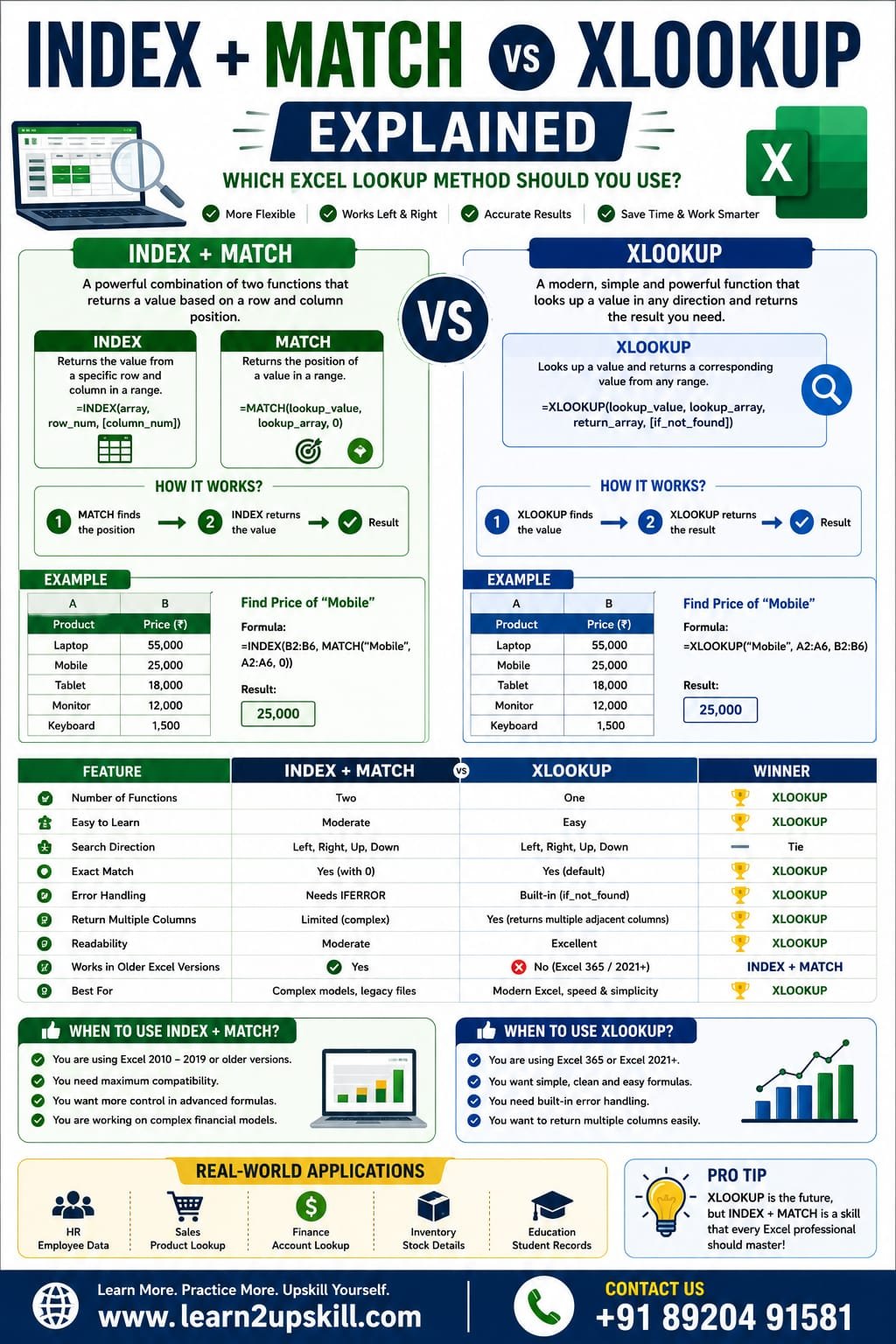
    What is INDEX?

    The INDEX function returns the value from a specified row and column within a range.

    Syntax

    =INDEX(array,row_num,[column_num])

    Example

    Product| Price

    Laptop| 55000

    Mobile| 25000

    Tablet| 18000

    Formula:

    =INDEX(B2:B4,2)

    Result: 25000

    What is MATCH?

    The MATCH function returns the position of a value within a range.

    Syntax

    =MATCH(lookup_value,lookup_array,0)

    Example

    =MATCH(“Mobile”,A2:A4,0)

    Result: 2

    How INDEX + MATCH Works Together

    By combining the two functions, Excel first finds the position of the lookup value and then returns the corresponding result.

    Formula

    =INDEX(B2:B6,MATCH(E2,A2:A6,0))

    If cell E2 contains Laptop, Excel returns its price from column B.

    What is XLOOKUP?

    XLOOKUP is Microsoft’s newer lookup function designed to replace VLOOKUP and simplify many lookup tasks.

    Syntax

    =XLOOKUP(lookup_value,lookup_array,return_array)

    Example

    =XLOOKUP(E2,A2:A6,B2:B6)

    The formula directly returns the matching value without combining multiple functions.

    INDEX + MATCH vs XLOOKUP: Comparison Table

    Feature| INDEX + MATCH| XLOOKUP

    Number of Functions| Two| One

    Easy to Learn| Moderate| Easy

    Search Left or Right| Yes| Yes

    Exact Match| Yes| Yes (default)

    Error Handling| Requires IFERROR| Built-in

    Multiple Return Columns| Limited| Yes

    Readability| Moderate| Excellent

    Performance| Excellent| Excellent

    Excel Version| Works in older versions| Microsoft 365 & Excel 2021+

    Example 1: Find Product Price

    INDEX + MATCH

    =INDEX(B2:B6,MATCH(E2,A2:A6,0))

    XLOOKUP

    =XLOOKUP(E2,A2:A6,B2:B6)

    Both formulas return the same result.

    Example 2: Lookup to the Left

    Suppose the product name is in column B and the product ID is in column A.

    Both INDEX + MATCH and XLOOKUP can return values from the left, something VLOOKUP cannot do.

    Advantages of INDEX + MATCH

    – Works in older Excel versions.

    – Flexible for complex lookups.

    – Excellent for large datasets.

    – Popular in Excel interviews.

    – Can be combined with advanced formulas for dynamic solutions.

    Advantages of XLOOKUP

    – Simple syntax.

    – Exact match by default.

    – Built-in “Not Found” message.

    – Supports vertical and horizontal lookups.

    – Easier to read and maintain.

    – Returns multiple adjacent columns in supported versions.

    Disadvantages of INDEX + MATCH

    – More difficult for beginners.

    – Longer formulas.

    – Requires IFERROR for custom error messages.

    – Can be harder to troubleshoot.

    Disadvantages of XLOOKUP

    – Not available in Excel 2016 and older versions.

    – Requires Microsoft 365 or Excel 2021 and later.

    When Should You Use INDEX + MATCH?

    Choose INDEX + MATCH when:

    – You work with older Excel versions.

    – Your organization still uses legacy spreadsheets.

    – You need compatibility with colleagues using older software.

    – You’re preparing for Excel interviews that test traditional lookup methods.

    When Should You Use XLOOKUP?

    Choose XLOOKUP when:

    – You’re using Microsoft 365 or Excel 2021+.

    – You want shorter, cleaner formulas.

    – You need built-in error handling.

    – You’re creating new dashboards, reports, or business models.

    Real-World Applications

    HR Department

    Find employee names, departments, salaries, or joining dates.

    Sales Team

    Retrieve product prices, discounts, and customer information.

    Finance

    Look up account codes, invoices, and financial records.

    Inventory Management

    Search stock quantities, suppliers, and warehouse locations.

    Education

    Match student IDs with marks, attendance, or grades.

    Common Mistakes to Avoid

    INDEX + MATCH

    – Using different-sized lookup and return ranges.

    – Forgetting to set MATCH to exact match (0).

    – Missing IFERROR when handling unavailable values.

    XLOOKUP

    – Using it in unsupported Excel versions.

    – Selecting the wrong lookup or return array.

    Frequently Asked Questions (FAQs)

    Is XLOOKUP better than INDEX + MATCH?

    For most modern Excel users, XLOOKUP is easier to learn and maintain. However, INDEX + MATCH remains valuable because it works in older Excel versions and is still widely used.

    Which lookup method is faster?

    For everyday business use, both perform very well. The difference in speed is usually small unless you’re working with extremely large datasets.

    Should beginners learn INDEX + MATCH?

    Yes. Learning INDEX + MATCH helps you understand how Excel lookup functions work and prepares you for older workbooks you may encounter in the workplace.


    Can XLOOKUP replace INDEX + MATCH?

    In many scenarios, yes. However, INDEX + MATCH is still important for compatibility with older versions of Excel and for understanding legacy spreadsheets.

    Best Learning Path

    1. Learn VLOOKUP.
    2. Master INDEX + MATCH.
    3. Upgrade to XLOOKUP.
    4. Practice with real business datasets.
    5. Build dashboards and reports using lookup functions.

    Following this progression gives you a strong foundation for interviews and real-world Excel projects.

    Final Thoughts

    Both INDEX + MATCH and XLOOKUP are powerful lookup solutions in Excel.

    If you’re working with modern versions of Excel, XLOOKUP is generally the best choice because it’s simpler, more readable, and includes built-in features that reduce errors. On the other hand, INDEX + MATCH remains an essential skill for working with older workbooks and understanding advanced Excel techniques.

    The best Excel professionals know both methods and choose the one that fits their project and software version.

    At Learn2Upskill, we help students and professionals master Excel through practical tutorials, real-world examples, and career-focused learning resources.

    Visit: www.coral-kudu-326218.hostingersite.com

    Contact Us: +91 89204 91581

    Keep Learning. Keep Growing. Keep Upskilling.

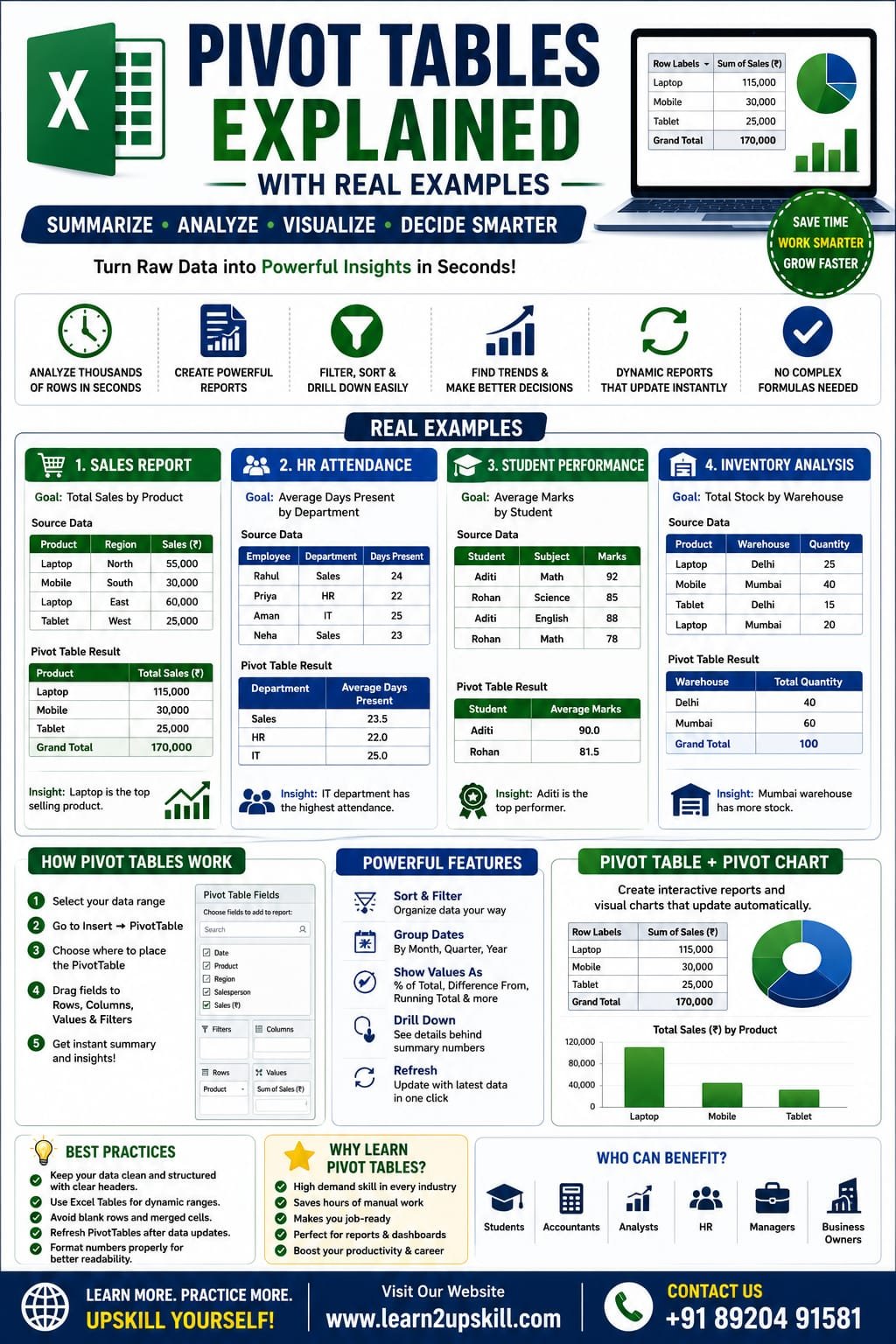
  • Pivot Tables Explained with Real Examples

    Pivot Tables Explained with Real Examples

    Pivot Tables Explained with Real Examples

    Pivot Tables Explained with Real Examples | Excel Pivot Table Tutorial (2026)

    Learn Pivot Tables in Excel with real-world examples. Discover how to summarize, analyze, filter, and visualize data like a professional using Pivot Tables.

    Pivot Tables Explained with Real Examples

    If you work with large amounts of data in Microsoft Excel, Pivot Tables are one of the most powerful tools you can learn. Instead of spending hours creating formulas and manually summarizing information, Pivot Tables allow you to analyze thousands of rows of data in just a few clicks.

    Whether you’re a student, accountant, HR executive, data analyst, marketer, or business owner, Pivot Tables help you uncover trends, compare performance, and make data-driven decisions quickly.

    In this guide, you’ll learn what Pivot Tables are, how to create them, and how to use them with practical business examples.

    What is a Pivot Table?

    A Pivot Table is an Excel feature that summarizes large datasets into meaningful reports without changing the original data.

    With Pivot Tables, you can:

    – Calculate totals, averages, and counts

    – Compare sales by region or product

    – Group data by month, quarter, or year

    – Filter information instantly

    – Create interactive reports

    – Build dashboards for business analysis

    Why Should You Learn Pivot Tables?

    Pivot Tables help you:

    – Analyze thousands of records in seconds

    – Reduce manual calculations

    – Create professional reports

    – Identify trends and patterns

    – Support better business decisions

    – Save time on repetitive reporting tasks

    When Should You Use a Pivot Table?


    Use Pivot Tables when you need to:

    – Summarize sales data

    – Analyze employee performance

    – Track inventory

    – Create monthly reports

    – Compare departments

    – Review customer purchases

    – Analyze marketing campaign performance

    – Prepare business dashboards

    Real Example 1: Sales Report

    Suppose you have this sales data:

    Date| Product| Region| Salesperson| Sales (₹)

    01-Jan| Laptop| North| Rahul| 55,000

    02-Jan| Mobile| South| Priya| 30,000

    03-Jan| Laptop| East| Aman| 60,000

    04-Jan| Tablet| West| Neha| 25,000

    Goal

    Find:

    – Total sales by product

    – Total sales by region

    – Top-performing salesperson

    Pivot Table Setup

    Rows: Product

    Values: Sum of Sales

    Result:

    Product| Total Sales (₹)

    Laptop| 115,000

    Mobile| 30,000

    Tablet| 25,000

    Real Example 2: HR Attendance Report


    Dataset:

    Employee| Department| Days Present

    Rahul| Sales| 24

    Priya| HR| 22

    Aman| IT| 25

    Pivot Table

    Rows:

    Department

    Values:

    Average of Days Present

    This quickly shows the average attendance for each department.

    Real Example 3: Student Performance

    Dataset:

    Student| Subject| Marks

    Aditi| Math| 92

    Rohan| Science| 85

    Aditi| English| 88

    Create a Pivot Table with:

    Rows → Student

    Values → Average Marks

    You’ll instantly see each student’s average score.

    Real Example 4: Inventory Analysis

    Dataset:

    Product| Warehouse| Quantity

    Laptop| Delhi| 25

    Mobile| Mumbai| 40

    Tablet| Delhi| 15

    Pivot Table:

    Rows → Warehouse

    Values → Sum of Quantity


    This shows total stock available at each warehouse.

    How to Create a Pivot Table

    Step 1

    Select your data.

    Step 2

    Go to:

    Insert → PivotTable

    Step 3

    Choose:

    – New Worksheet

    – Existing Worksheet

    Step 4

    Click OK.

    Step 5

    Drag fields into:

    – Rows

    – Columns

    – Values

    – Filters

    Your Pivot Table is ready.

    Understanding the Pivot Table Areas

    Rows

    Displays categories vertically.

    Example:

    – Product

    – Employee

    – Department

    Columns

    Displays categories horizontally.

    Example:

    – Year

    – Quarter

    – Region

    Values

    Performs calculations such as:

    – Sum

    – Count

    – Average

    – Maximum

    – Minimum

    Filters

    Lets users filter reports without changing the source data.

    Useful Pivot Table Features

    Sort Data

    Sort sales from highest to lowest.

    Filter Data

    View only a specific region, department, or product.

    Group Dates

    Group by:

    – Month

    – Quarter

    – Year

    Show Values As

    Display:

    – Percentage of Total

    – Difference From

    – Running Total

    – Rank

    Pivot Charts

    You can create Pivot Charts directly from Pivot Tables.

    Popular chart types include:

    – Column Chart

    – Bar Chart

    – Line Chart

    – Pie Chart

    Pivot Charts update automatically whenever the Pivot Table changes, making reports more interactive.

    Refreshing a Pivot Table

    When your source data changes:

    1. Right-click inside the Pivot Table.
    2. Select Refresh.

    Always refresh before sharing reports to ensure the latest data is included.

    Best Practices

    – Keep source data clean and free of blank rows.

    – Use Excel Tables for dynamic data ranges.

    – Give columns clear, descriptive headings.

    – Avoid merged cells in source data.

    – Refresh Pivot Tables after updating data.

    Common Mistakes

    – Not refreshing after data changes.

    – Selecting incomplete data ranges.

    – Using blank column headers.

    – Mixing numbers and text in the same column.

    – Forgetting to format values as currency, percentages, or dates where appropriate.

    Advantages of Pivot Tables

    – Fast reporting

    – Interactive analysis

    – No complex formulas required

    – Easy filtering and sorting

    – Excellent for dashboards

    – Handles large datasets efficiently

    Limitations

    – Requires clean source data.

    – Must be refreshed after updates.

    – Very large datasets may require additional optimization or Power Pivot for advanced analysis.

    Frequently Asked Questions (FAQs)

    Are Pivot Tables difficult to learn?

    No. Once you understand the Rows, Columns, Values, and Filters areas, creating Pivot Tables becomes straightforward.

    Do Pivot Tables update automatically?

    Not always. You generally need to refresh the Pivot Table after changing the source data.

    Can beginners use Pivot Tables?

    Yes. They’re one of the best Excel features for beginners because they simplify data analysis without requiring complex formulas.

    Are Pivot Tables useful in jobs?

    Absolutely. Pivot Tables are widely used in finance, accounting, HR, sales, operations, marketing, and data analysis, making them a valuable workplace skill.

    Final Thoughts

    Pivot Tables are one of the most powerful features in Microsoft Excel. They allow you to turn large, complex datasets into clear, actionable reports with just a few clicks.

    Whether you’re preparing monthly sales reports, tracking inventory, analyzing employee performance, or building interactive dashboards, Pivot Tables can save time and improve decision-making.

    Learning Pivot Tables is a valuable investment for students, professionals, and business owners who want to work more efficiently with data.

    At Learn2Upskill, we’re committed to helping you build practical Excel skills that support your career growth.

    Visit: www.coral-kudu-326218.hostingersite.com

    Contact Us: +91 89204 91581

    Learn Smarter. Practice More. Upskill Every Day.

  • Which Chart Should You Use?

    Which Chart Should You Use?

    Which Chart Should You Use?

    Learn the best Excel charts for data visualization. Discover when to use column, bar, line, pie, scatter, area, combo, and other charts with real-world examples.

    Focus Keyword: Excel Charts

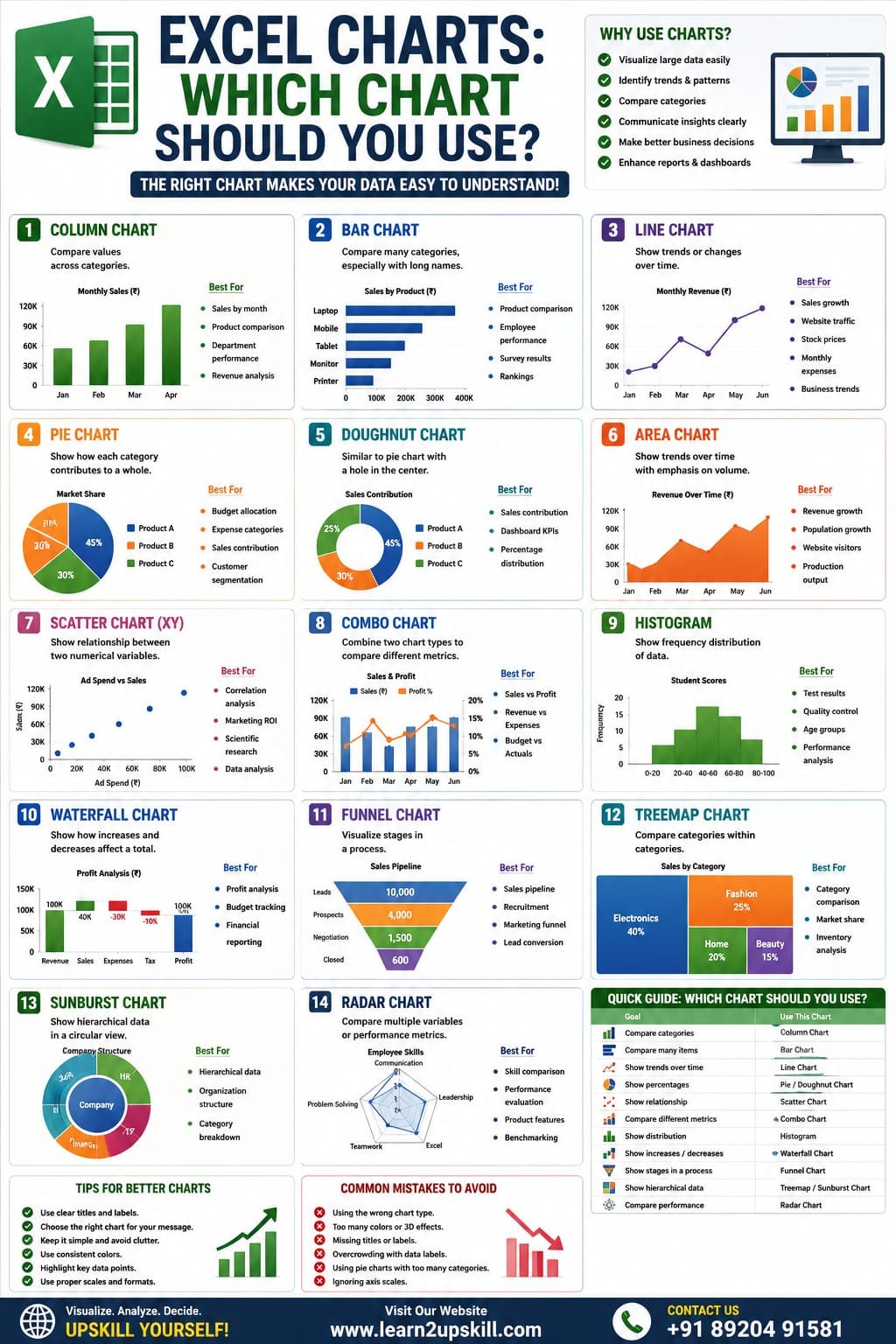
    Excel Charts: Which Chart Should You Use?

    Charts are one of the most powerful features in Microsoft Excel. They transform rows of numbers into easy-to-understand visuals, helping you identify trends, compare data, and communicate insights effectively.

    However, choosing the wrong chart can make your data confusing instead of informative. The key to creating professional reports is selecting the chart type that best fits your data and your message.

    In this guide, you’ll learn the most popular Excel charts, when to use them, and practical examples to help you create better reports and dashboards.

    Why Are Excel Charts Important?

    Excel charts help you:

    – Visualize large datasets

    – Identify trends and patterns

    – Compare categories

    – Present data professionally

    – Support business decisions

    – Improve dashboards and reports

    Whether you’re a student, accountant, HR executive, marketer, business owner, or data analyst, understanding Excel charts is an essential skill.

    Types of Excel Charts

    Microsoft Excel offers many chart types, but these are the ones professionals use most often.

    1. Column Chart

    Best For

    Comparing values across categories.

    Example

    Monthly Sales

    Month| Sales (₹)

    Jan| 80,000

    Feb| 95,000

    Mar| 110,000


    Real-World Uses

    – Monthly sales

    – Department performance

    – Product comparison

    – Revenue analysis

    Why use it?

    Column charts make it easy to compare values side by side.

    1. Bar Chart

    Best For

    Comparing many categories, especially when category names are long.

    Example

    Sales by Product

    – Laptop

    – Mobile

    – Tablet

    – Monitor

    – Printer

    Real-World Uses

    – Product comparisons

    – Employee performance

    – Survey results

    – Customer rankings

    1. Line Chart

    Best For

    Showing trends over time.

    Example

    Monthly Revenue

    January → December

    Real-World Uses

    – Sales growth

    – Website traffic

    – Stock prices

    – Monthly expenses

    – Business performance

    Tip: Use a line chart whenever you want to show change over time.

    1. Pie Chart

    Best For

    Showing how each category contributes to a whole.

    Example

    Market Share

    – Product A – 45%

    – Product B – 30%

    – Product C – 25%

    Real-World Uses

    – Budget allocation

    – Expense categories

    – Sales contribution

    – Customer segmentation

    Best Practice: Limit pie charts to a small number of categories for easier reading.

    1. Doughnut Chart

    A Doughnut Chart is similar to a Pie Chart but has a hole in the center.

    Best For

    – Sales contribution

    – Business dashboards

    – Percentage distribution

    1. Area Chart

    Best For

    Showing trends while emphasizing volume over time.

    Real-World Uses

    – Revenue growth

    – Population growth

    – Website visitors

    – Production output

    1. Scatter Chart (XY)

    Best For

    Showing relationships between two numerical variables.

    Example

    Advertising Spend vs Sales

    Real-World Uses

    – Data analysis

    – Scientific research

    – Marketing ROI

    – Correlation studies

    1. Combo Chart

    A Combo Chart combines two chart types, such as a column chart with a line chart.

    Best For

    Comparing different metrics with different scales.

    Example

    Columns = Monthly Sales

    Line = Profit Margin (%)

    Real-World Uses

    – Sales vs Profit

    – Revenue vs Expenses

    – Budget vs Actual Performance

    1. Histogram

    Best For

    Understanding the distribution of data.

    Example

    Student exam scores

    Real-World Uses

    – Quality control

    – Test results

    – Customer age groups

    – Performance analysis

    1. Waterfall Chart

    Best For

    Showing how increases and decreases affect a final total.

    Real-World Uses

    – Profit analysis

    – Budget tracking

    – Financial reporting

    1. Funnel Chart

    Best For

    Visualizing stages in a process.

    Real-World Uses

    – Sales pipeline

    – Recruitment process

    – Marketing funnel

    – Lead conversion

    1. Treemap Chart

    Best For

    Comparing categories within categories.

    Example

    Company Departments

    → Sales

    → HR

    → IT

    Each department can contain smaller categories.

    1. Sunburst Chart

    Best For

    Showing hierarchical data.

    Examples include:

    – Product Categories

    – Organization Structure

    – Family Trees

    1. Radar Chart

    Best For

    Comparing multiple performance metrics.

    Example

    Employee Skills

    – Communication

    – Leadership

    – Excel

    – Teamwork

    – Problem Solving

    Which Chart Should You Use?

    Goal| Recommended Chart

    Compare categories| Column Chart

    Compare many items| Bar Chart

    Show trends| Line Chart

    Show percentages| Pie Chart

    Show contribution| Doughnut Chart

    Compare two variables| Scatter Chart

    Compare two metrics| Combo Chart

    Analyze distribution| Histogram

    Show increases & decreases| Waterfall Chart

    Sales pipeline| Funnel Chart

    Hierarchical data| Treemap / Sunburst

    Compare performance| Radar Chart

    Tips for Creating Better Excel Charts

    – Give every chart a clear title.

    – Label axes when necessary.

    – Keep colors consistent.

    – Avoid unnecessary 3D effects.

    – Choose the simplest chart that communicates the message clearly.

    – Highlight important data points without cluttering the chart.

    Common Mistakes

    – Choosing the wrong chart type.

    – Using too many colors.

    – Overcrowding charts with labels.

    – Ignoring axis titles.

    – Making charts too small to read.

    – Adding unnecessary decorative effects.

    How Charts Improve Dashboards

    Charts are the heart of Excel dashboards because they:

    – Make reports interactive.

    – Display KPIs visually.

    – Highlight trends.

    – Help management make faster decisions.

    – Simplify complex datasets.

    Popular dashboard charts include:

    – Column Charts

    – Line Charts

    – Bar Charts

    – Doughnut Charts

    – Combo Charts

    Final Thoughts

    Choosing the right chart is just as important as having accurate data. The right visualization helps your audience understand information quickly, while the wrong one can create confusion.

    As you build your Excel skills, practice using different chart types with real datasets. You’ll become more confident in creating reports, dashboards, and presentations that communicate insights effectively.

    At Learn2Upskill, we’re committed to helping students and professionals master Excel through practical tutorials, real-world examples, and career-focused learning.

    Visit: www.coral-kudu-326218.hostingersite.com

    Contact Us: +91 89204 91581

    Learn Better. Visualize Smarter. Grow Faster.