Author: Learn2Up Skill

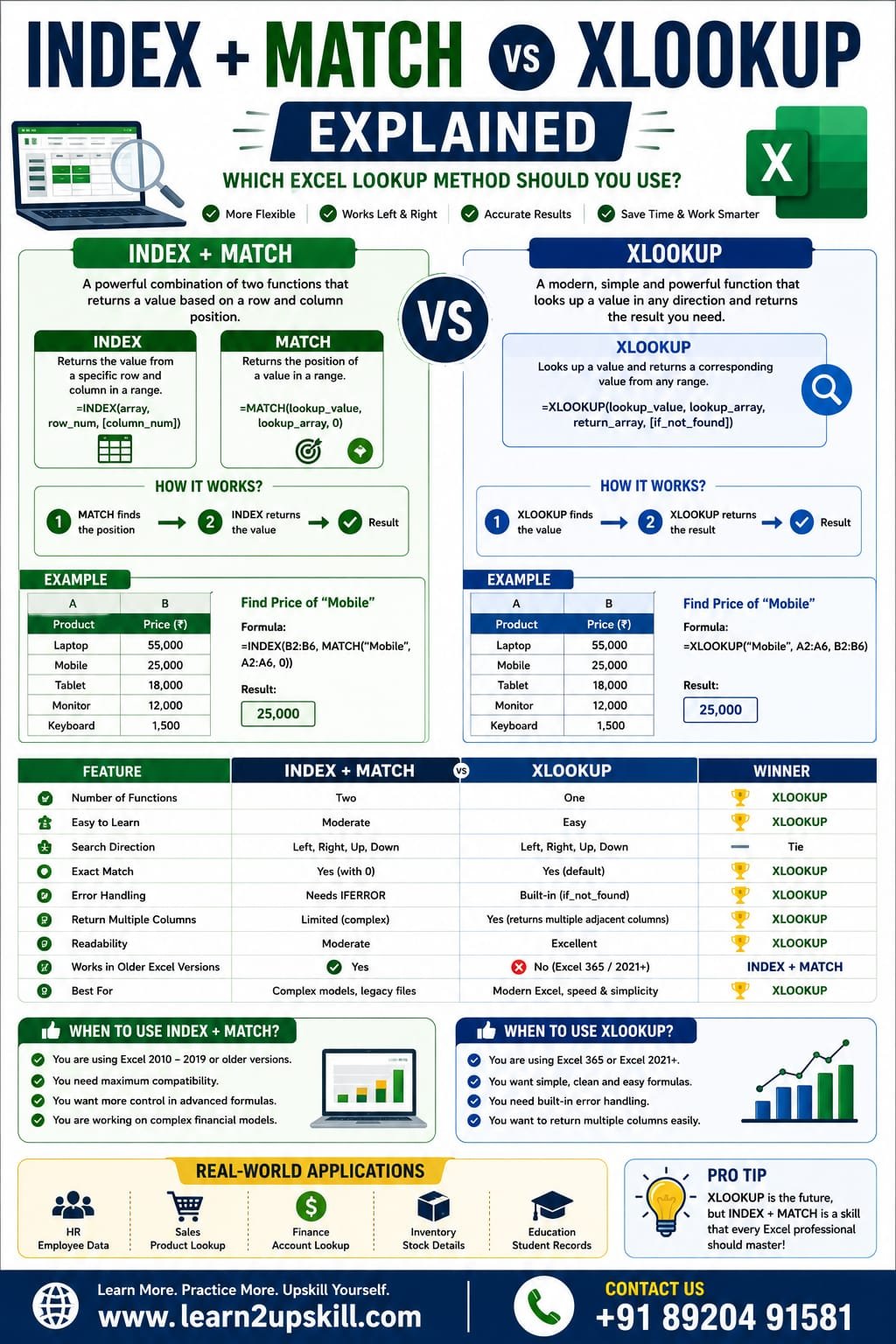
  • INDEX + MATCH vs XLOOKUP Explained: Which Excel Lookup Method Should You Use?

    INDEX + MATCH vs XLOOKUP Explained: Which Excel Lookup Method Should You Use?

    INDEX + MATCH vs XLOOKUP Explained: Which Excel Lookup Method Should You Use?

    Compare INDEX + MATCH and XLOOKUP with examples, syntax, advantages, disadvantages, and real-world use cases. Learn which Excel lookup method is best for beginners and professionals.

    INDEX + MATCH vs XLOOKUP Explained

    When working with large datasets in Microsoft Excel, finding the right information quickly is essential. For years, advanced Excel users relied on the powerful combination of INDEX + MATCH because it was more flexible than VLOOKUP.

    Today, Microsoft offers XLOOKUP, a modern lookup function that simplifies many common lookup tasks while adding new capabilities. Both approaches are valuable, but knowing when to use each one will make you a more efficient Excel user.

    In this guide, you’ll learn how INDEX + MATCH and XLOOKUP work, their key differences, and which one is the better choice for different situations.

    What is INDEX?

    The INDEX function returns the value from a specified row and column within a range.

    Syntax

    =INDEX(array,row_num,[column_num])

    Example

    Product| Price

    Laptop| 55000

    Mobile| 25000

    Tablet| 18000

    Formula:

    =INDEX(B2:B4,2)

    Result: 25000

    What is MATCH?

    The MATCH function returns the position of a value within a range.

    Syntax

    =MATCH(lookup_value,lookup_array,0)

    Example

    =MATCH(“Mobile”,A2:A4,0)

    Result: 2

    How INDEX + MATCH Works Together

    By combining the two functions, Excel first finds the position of the lookup value and then returns the corresponding result.

    Formula

    =INDEX(B2:B6,MATCH(E2,A2:A6,0))

    If cell E2 contains Laptop, Excel returns its price from column B.

    What is XLOOKUP?

    XLOOKUP is Microsoft’s newer lookup function designed to replace VLOOKUP and simplify many lookup tasks.

    Syntax

    =XLOOKUP(lookup_value,lookup_array,return_array)

    Example

    =XLOOKUP(E2,A2:A6,B2:B6)

    The formula directly returns the matching value without combining multiple functions.

    INDEX + MATCH vs XLOOKUP: Comparison Table

    Feature| INDEX + MATCH| XLOOKUP

    Number of Functions| Two| One

    Easy to Learn| Moderate| Easy

    Search Left or Right| Yes| Yes

    Exact Match| Yes| Yes (default)

    Error Handling| Requires IFERROR| Built-in

    Multiple Return Columns| Limited| Yes

    Readability| Moderate| Excellent

    Performance| Excellent| Excellent

    Excel Version| Works in older versions| Microsoft 365 & Excel 2021+

    Example 1: Find Product Price

    INDEX + MATCH

    =INDEX(B2:B6,MATCH(E2,A2:A6,0))

    XLOOKUP

    =XLOOKUP(E2,A2:A6,B2:B6)

    Both formulas return the same result.

    Example 2: Lookup to the Left

    Suppose the product name is in column B and the product ID is in column A.

    Both INDEX + MATCH and XLOOKUP can return values from the left, something VLOOKUP cannot do.

    Advantages of INDEX + MATCH

    – Works in older Excel versions.

    – Flexible for complex lookups.

    – Excellent for large datasets.

    – Popular in Excel interviews.

    – Can be combined with advanced formulas for dynamic solutions.

    Advantages of XLOOKUP

    – Simple syntax.

    – Exact match by default.

    – Built-in “Not Found” message.

    – Supports vertical and horizontal lookups.

    – Easier to read and maintain.

    – Returns multiple adjacent columns in supported versions.

    Disadvantages of INDEX + MATCH

    – More difficult for beginners.

    – Longer formulas.

    – Requires IFERROR for custom error messages.

    – Can be harder to troubleshoot.

    Disadvantages of XLOOKUP

    – Not available in Excel 2016 and older versions.

    – Requires Microsoft 365 or Excel 2021 and later.

    When Should You Use INDEX + MATCH?

    Choose INDEX + MATCH when:

    – You work with older Excel versions.

    – Your organization still uses legacy spreadsheets.

    – You need compatibility with colleagues using older software.

    – You’re preparing for Excel interviews that test traditional lookup methods.

    When Should You Use XLOOKUP?

    Choose XLOOKUP when:

    – You’re using Microsoft 365 or Excel 2021+.

    – You want shorter, cleaner formulas.

    – You need built-in error handling.

    – You’re creating new dashboards, reports, or business models.

    Real-World Applications

    HR Department

    Find employee names, departments, salaries, or joining dates.

    Sales Team

    Retrieve product prices, discounts, and customer information.

    Finance

    Look up account codes, invoices, and financial records.

    Inventory Management

    Search stock quantities, suppliers, and warehouse locations.

    Education

    Match student IDs with marks, attendance, or grades.

    Common Mistakes to Avoid

    INDEX + MATCH

    – Using different-sized lookup and return ranges.

    – Forgetting to set MATCH to exact match (0).

    – Missing IFERROR when handling unavailable values.

    XLOOKUP

    – Using it in unsupported Excel versions.

    – Selecting the wrong lookup or return array.

    Frequently Asked Questions (FAQs)

    Is XLOOKUP better than INDEX + MATCH?

    For most modern Excel users, XLOOKUP is easier to learn and maintain. However, INDEX + MATCH remains valuable because it works in older Excel versions and is still widely used.

    Which lookup method is faster?

    For everyday business use, both perform very well. The difference in speed is usually small unless you’re working with extremely large datasets.

    Should beginners learn INDEX + MATCH?

    Yes. Learning INDEX + MATCH helps you understand how Excel lookup functions work and prepares you for older workbooks you may encounter in the workplace.


    Can XLOOKUP replace INDEX + MATCH?

    In many scenarios, yes. However, INDEX + MATCH is still important for compatibility with older versions of Excel and for understanding legacy spreadsheets.

    Best Learning Path

    1. Learn VLOOKUP.
    2. Master INDEX + MATCH.
    3. Upgrade to XLOOKUP.
    4. Practice with real business datasets.
    5. Build dashboards and reports using lookup functions.

    Following this progression gives you a strong foundation for interviews and real-world Excel projects.

    Final Thoughts

    Both INDEX + MATCH and XLOOKUP are powerful lookup solutions in Excel.

    If you’re working with modern versions of Excel, XLOOKUP is generally the best choice because it’s simpler, more readable, and includes built-in features that reduce errors. On the other hand, INDEX + MATCH remains an essential skill for working with older workbooks and understanding advanced Excel techniques.

    The best Excel professionals know both methods and choose the one that fits their project and software version.

    At Learn2Upskill, we help students and professionals master Excel through practical tutorials, real-world examples, and career-focused learning resources.

    Visit: www.coral-kudu-326218.hostingersite.com

    Contact Us: +91 89204 91581

    Keep Learning. Keep Growing. Keep Upskilling.
  • Pivot Tables Explained with Real Examples

    Pivot Tables Explained with Real Examples

    Pivot Tables Explained with Real Examples

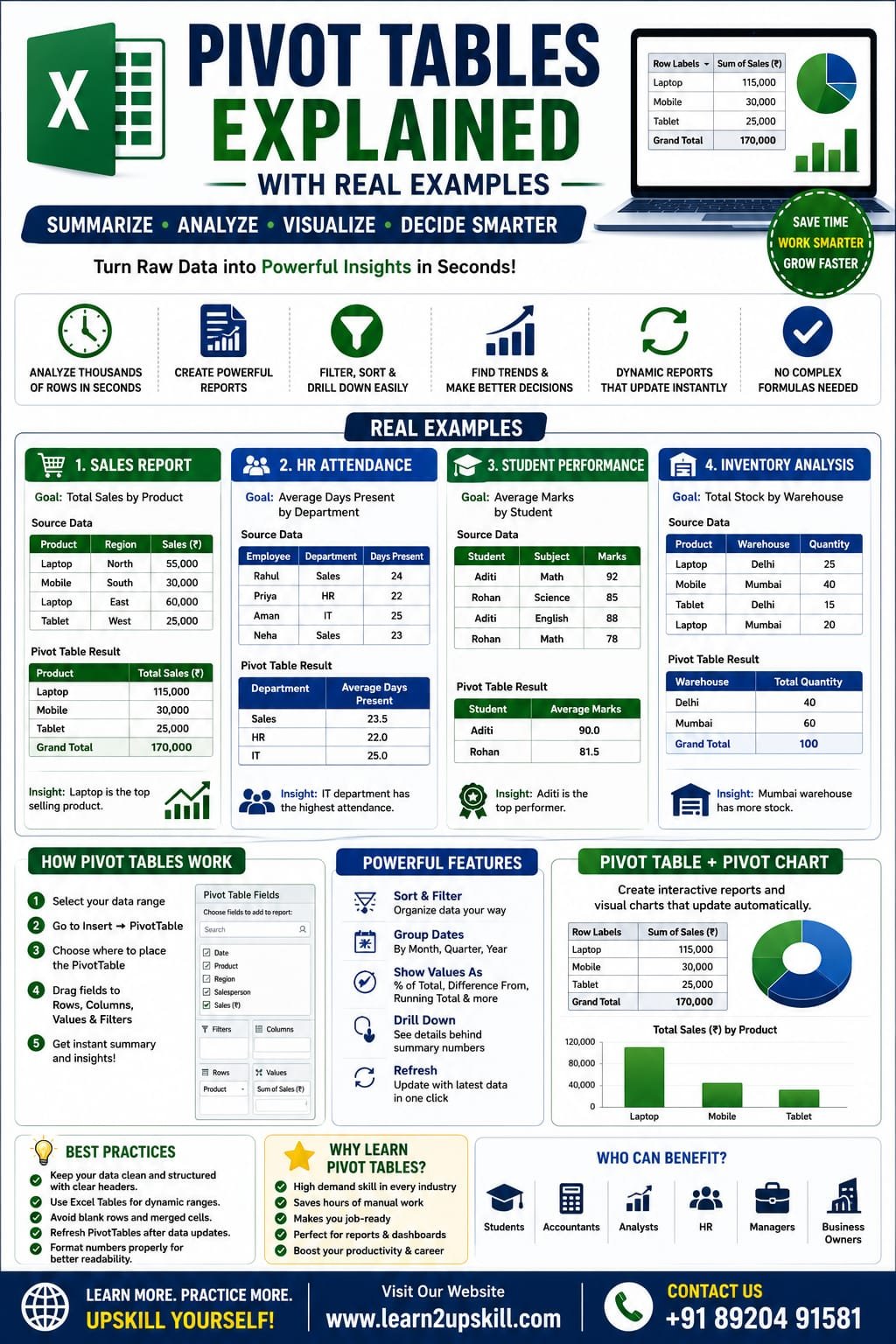
    Pivot Tables Explained with Real Examples | Excel Pivot Table Tutorial (2026)

    Learn Pivot Tables in Excel with real-world examples. Discover how to summarize, analyze, filter, and visualize data like a professional using Pivot Tables.

    Pivot Tables Explained with Real Examples

    If you work with large amounts of data in Microsoft Excel, Pivot Tables are one of the most powerful tools you can learn. Instead of spending hours creating formulas and manually summarizing information, Pivot Tables allow you to analyze thousands of rows of data in just a few clicks.

    Whether you’re a student, accountant, HR executive, data analyst, marketer, or business owner, Pivot Tables help you uncover trends, compare performance, and make data-driven decisions quickly.

    In this guide, you’ll learn what Pivot Tables are, how to create them, and how to use them with practical business examples.

    What is a Pivot Table?

    A Pivot Table is an Excel feature that summarizes large datasets into meaningful reports without changing the original data.

    With Pivot Tables, you can:

    – Calculate totals, averages, and counts

    – Compare sales by region or product

    – Group data by month, quarter, or year

    – Filter information instantly

    – Create interactive reports

    – Build dashboards for business analysis

    Why Should You Learn Pivot Tables?

    Pivot Tables help you:

    – Analyze thousands of records in seconds

    – Reduce manual calculations

    – Create professional reports

    – Identify trends and patterns

    – Support better business decisions

    – Save time on repetitive reporting tasks

    When Should You Use a Pivot Table?


    Use Pivot Tables when you need to:

    – Summarize sales data

    – Analyze employee performance

    – Track inventory

    – Create monthly reports

    – Compare departments

    – Review customer purchases

    – Analyze marketing campaign performance

    – Prepare business dashboards

    Real Example 1: Sales Report

    Suppose you have this sales data:

    Date| Product| Region| Salesperson| Sales (₹)

    01-Jan| Laptop| North| Rahul| 55,000

    02-Jan| Mobile| South| Priya| 30,000

    03-Jan| Laptop| East| Aman| 60,000

    04-Jan| Tablet| West| Neha| 25,000

    Goal

    Find:

    – Total sales by product

    – Total sales by region

    – Top-performing salesperson

    Pivot Table Setup

    Rows: Product

    Values: Sum of Sales

    Result:

    Product| Total Sales (₹)

    Laptop| 115,000

    Mobile| 30,000

    Tablet| 25,000

    Real Example 2: HR Attendance Report


    Dataset:

    Employee| Department| Days Present

    Rahul| Sales| 24

    Priya| HR| 22

    Aman| IT| 25

    Pivot Table

    Rows:

    Department

    Values:

    Average of Days Present

    This quickly shows the average attendance for each department.

    Real Example 3: Student Performance

    Dataset:

    Student| Subject| Marks

    Aditi| Math| 92

    Rohan| Science| 85

    Aditi| English| 88

    Create a Pivot Table with:

    Rows → Student

    Values → Average Marks

    You’ll instantly see each student’s average score.

    Real Example 4: Inventory Analysis

    Dataset:

    Product| Warehouse| Quantity

    Laptop| Delhi| 25

    Mobile| Mumbai| 40

    Tablet| Delhi| 15

    Pivot Table:

    Rows → Warehouse

    Values → Sum of Quantity


    This shows total stock available at each warehouse.

    How to Create a Pivot Table

    Step 1

    Select your data.

    Step 2

    Go to:

    Insert → PivotTable

    Step 3

    Choose:

    – New Worksheet

    – Existing Worksheet

    Step 4

    Click OK.

    Step 5

    Drag fields into:

    – Rows

    – Columns

    – Values

    – Filters

    Your Pivot Table is ready.

    Understanding the Pivot Table Areas

    Rows

    Displays categories vertically.

    Example:

    – Product

    – Employee

    – Department

    Columns

    Displays categories horizontally.

    Example:

    – Year

    – Quarter

    – Region

    Values

    Performs calculations such as:

    – Sum

    – Count

    – Average

    – Maximum

    – Minimum

    Filters

    Lets users filter reports without changing the source data.

    Useful Pivot Table Features

    Sort Data

    Sort sales from highest to lowest.

    Filter Data

    View only a specific region, department, or product.

    Group Dates

    Group by:

    – Month

    – Quarter

    – Year

    Show Values As

    Display:

    – Percentage of Total

    – Difference From

    – Running Total

    – Rank

    Pivot Charts

    You can create Pivot Charts directly from Pivot Tables.

    Popular chart types include:

    – Column Chart

    – Bar Chart

    – Line Chart

    – Pie Chart

    Pivot Charts update automatically whenever the Pivot Table changes, making reports more interactive.

    Refreshing a Pivot Table

    When your source data changes:

    1. Right-click inside the Pivot Table.
    2. Select Refresh.

    Always refresh before sharing reports to ensure the latest data is included.

    Best Practices

    – Keep source data clean and free of blank rows.

    – Use Excel Tables for dynamic data ranges.

    – Give columns clear, descriptive headings.

    – Avoid merged cells in source data.

    – Refresh Pivot Tables after updating data.

    Common Mistakes

    – Not refreshing after data changes.

    – Selecting incomplete data ranges.

    – Using blank column headers.

    – Mixing numbers and text in the same column.

    – Forgetting to format values as currency, percentages, or dates where appropriate.

    Advantages of Pivot Tables

    – Fast reporting

    – Interactive analysis

    – No complex formulas required

    – Easy filtering and sorting

    – Excellent for dashboards

    – Handles large datasets efficiently

    Limitations

    – Requires clean source data.

    – Must be refreshed after updates.

    – Very large datasets may require additional optimization or Power Pivot for advanced analysis.

    Frequently Asked Questions (FAQs)

    Are Pivot Tables difficult to learn?

    No. Once you understand the Rows, Columns, Values, and Filters areas, creating Pivot Tables becomes straightforward.

    Do Pivot Tables update automatically?

    Not always. You generally need to refresh the Pivot Table after changing the source data.

    Can beginners use Pivot Tables?

    Yes. They’re one of the best Excel features for beginners because they simplify data analysis without requiring complex formulas.

    Are Pivot Tables useful in jobs?

    Absolutely. Pivot Tables are widely used in finance, accounting, HR, sales, operations, marketing, and data analysis, making them a valuable workplace skill.

    Final Thoughts

    Pivot Tables are one of the most powerful features in Microsoft Excel. They allow you to turn large, complex datasets into clear, actionable reports with just a few clicks.

    Whether you’re preparing monthly sales reports, tracking inventory, analyzing employee performance, or building interactive dashboards, Pivot Tables can save time and improve decision-making.

    Learning Pivot Tables is a valuable investment for students, professionals, and business owners who want to work more efficiently with data.

    At Learn2Upskill, we’re committed to helping you build practical Excel skills that support your career growth.

    Visit: www.coral-kudu-326218.hostingersite.com

    Contact Us: +91 89204 91581

    Learn Smarter. Practice More. Upskill Every Day.

  • Which Chart Should You Use?

    Which Chart Should You Use?

    Which Chart Should You Use?

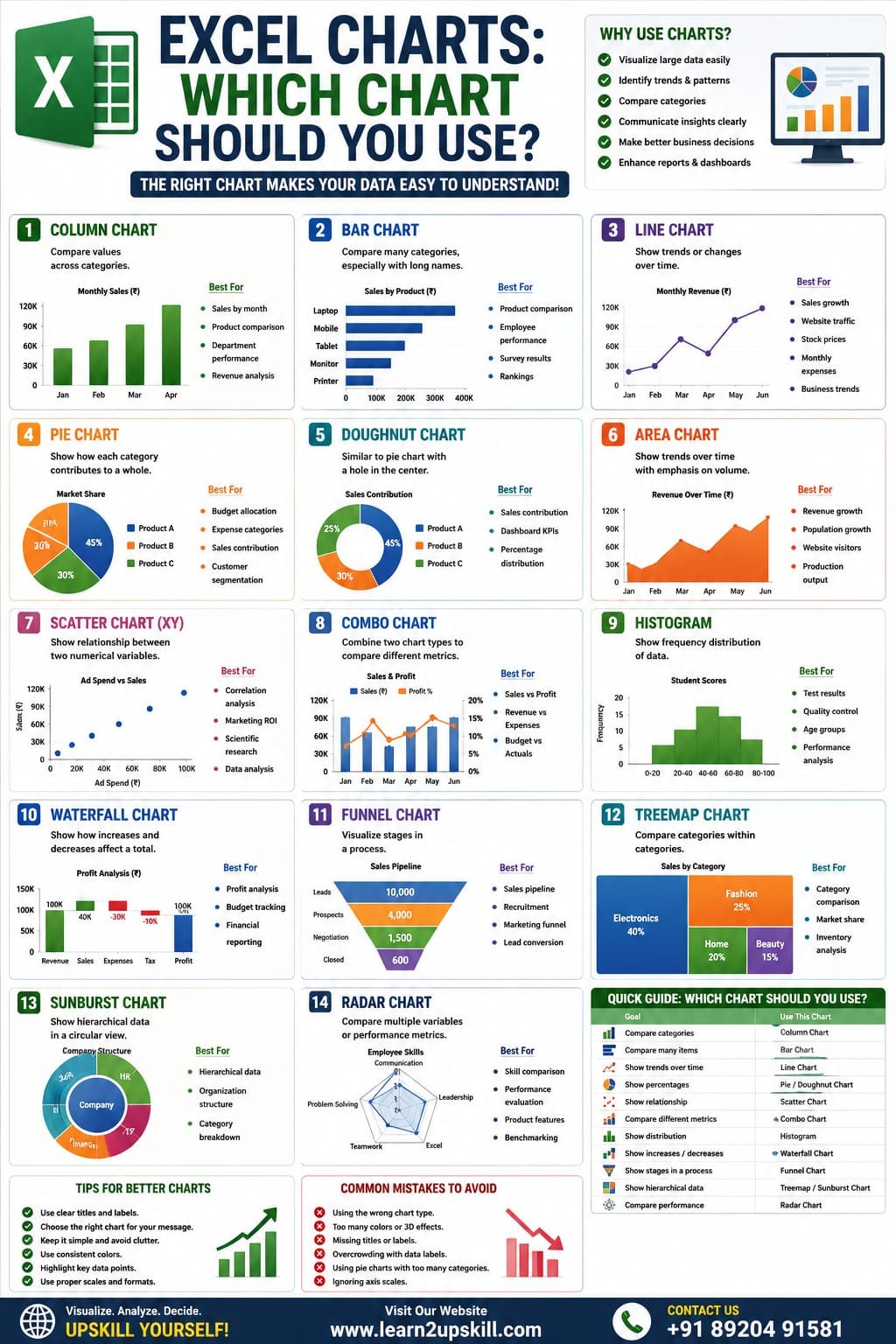
    Learn the best Excel charts for data visualization. Discover when to use column, bar, line, pie, scatter, area, combo, and other charts with real-world examples.

    Focus Keyword: Excel Charts

    Excel Charts: Which Chart Should You Use?

    Charts are one of the most powerful features in Microsoft Excel. They transform rows of numbers into easy-to-understand visuals, helping you identify trends, compare data, and communicate insights effectively.

    However, choosing the wrong chart can make your data confusing instead of informative. The key to creating professional reports is selecting the chart type that best fits your data and your message.

    In this guide, you’ll learn the most popular Excel charts, when to use them, and practical examples to help you create better reports and dashboards.

    Why Are Excel Charts Important?

    Excel charts help you:

    – Visualize large datasets

    – Identify trends and patterns

    – Compare categories

    – Present data professionally

    – Support business decisions

    – Improve dashboards and reports

    Whether you’re a student, accountant, HR executive, marketer, business owner, or data analyst, understanding Excel charts is an essential skill.

    Types of Excel Charts

    Microsoft Excel offers many chart types, but these are the ones professionals use most often.

    1. Column Chart

    Best For

    Comparing values across categories.

    Example

    Monthly Sales

    Month| Sales (₹)

    Jan| 80,000

    Feb| 95,000

    Mar| 110,000


    Real-World Uses

    – Monthly sales

    – Department performance

    – Product comparison

    – Revenue analysis

    Why use it?

    Column charts make it easy to compare values side by side.

    1. Bar Chart

    Best For

    Comparing many categories, especially when category names are long.

    Example

    Sales by Product

    – Laptop

    – Mobile

    – Tablet

    – Monitor

    – Printer

    Real-World Uses

    – Product comparisons

    – Employee performance

    – Survey results

    – Customer rankings

    1. Line Chart

    Best For

    Showing trends over time.

    Example

    Monthly Revenue

    January → December

    Real-World Uses

    – Sales growth

    – Website traffic

    – Stock prices

    – Monthly expenses

    – Business performance

    Tip: Use a line chart whenever you want to show change over time.

    1. Pie Chart

    Best For

    Showing how each category contributes to a whole.

    Example

    Market Share

    – Product A – 45%

    – Product B – 30%

    – Product C – 25%

    Real-World Uses

    – Budget allocation

    – Expense categories

    – Sales contribution

    – Customer segmentation

    Best Practice: Limit pie charts to a small number of categories for easier reading.

    1. Doughnut Chart

    A Doughnut Chart is similar to a Pie Chart but has a hole in the center.

    Best For

    – Sales contribution

    – Business dashboards

    – Percentage distribution

    1. Area Chart

    Best For

    Showing trends while emphasizing volume over time.

    Real-World Uses

    – Revenue growth

    – Population growth

    – Website visitors

    – Production output

    1. Scatter Chart (XY)

    Best For

    Showing relationships between two numerical variables.

    Example

    Advertising Spend vs Sales

    Real-World Uses

    – Data analysis

    – Scientific research

    – Marketing ROI

    – Correlation studies

    1. Combo Chart

    A Combo Chart combines two chart types, such as a column chart with a line chart.

    Best For

    Comparing different metrics with different scales.

    Example

    Columns = Monthly Sales

    Line = Profit Margin (%)

    Real-World Uses

    – Sales vs Profit

    – Revenue vs Expenses

    – Budget vs Actual Performance

    1. Histogram

    Best For

    Understanding the distribution of data.

    Example

    Student exam scores

    Real-World Uses

    – Quality control

    – Test results

    – Customer age groups

    – Performance analysis

    1. Waterfall Chart

    Best For

    Showing how increases and decreases affect a final total.

    Real-World Uses

    – Profit analysis

    – Budget tracking

    – Financial reporting

    1. Funnel Chart

    Best For

    Visualizing stages in a process.

    Real-World Uses

    – Sales pipeline

    – Recruitment process

    – Marketing funnel

    – Lead conversion

    1. Treemap Chart

    Best For

    Comparing categories within categories.

    Example

    Company Departments

    → Sales

    → HR

    → IT

    Each department can contain smaller categories.

    1. Sunburst Chart

    Best For

    Showing hierarchical data.

    Examples include:

    – Product Categories

    – Organization Structure

    – Family Trees

    1. Radar Chart

    Best For

    Comparing multiple performance metrics.

    Example

    Employee Skills

    – Communication

    – Leadership

    – Excel

    – Teamwork

    – Problem Solving

    Which Chart Should You Use?

    Goal| Recommended Chart

    Compare categories| Column Chart

    Compare many items| Bar Chart

    Show trends| Line Chart

    Show percentages| Pie Chart

    Show contribution| Doughnut Chart

    Compare two variables| Scatter Chart

    Compare two metrics| Combo Chart

    Analyze distribution| Histogram

    Show increases & decreases| Waterfall Chart

    Sales pipeline| Funnel Chart

    Hierarchical data| Treemap / Sunburst

    Compare performance| Radar Chart

    Tips for Creating Better Excel Charts

    – Give every chart a clear title.

    – Label axes when necessary.

    – Keep colors consistent.

    – Avoid unnecessary 3D effects.

    – Choose the simplest chart that communicates the message clearly.

    – Highlight important data points without cluttering the chart.

    Common Mistakes

    – Choosing the wrong chart type.

    – Using too many colors.

    – Overcrowding charts with labels.

    – Ignoring axis titles.

    – Making charts too small to read.

    – Adding unnecessary decorative effects.

    How Charts Improve Dashboards

    Charts are the heart of Excel dashboards because they:

    – Make reports interactive.

    – Display KPIs visually.

    – Highlight trends.

    – Help management make faster decisions.

    – Simplify complex datasets.

    Popular dashboard charts include:

    – Column Charts

    – Line Charts

    – Bar Charts

    – Doughnut Charts

    – Combo Charts

    Final Thoughts

    Choosing the right chart is just as important as having accurate data. The right visualization helps your audience understand information quickly, while the wrong one can create confusion.

    As you build your Excel skills, practice using different chart types with real datasets. You’ll become more confident in creating reports, dashboards, and presentations that communicate insights effectively.

    At Learn2Upskill, we’re committed to helping students and professionals master Excel through practical tutorials, real-world examples, and career-focused learning.

    Visit: www.coral-kudu-326218.hostingersite.com

    Contact Us: +91 89204 91581

    Learn Better. Visualize Smarter. Grow Faster.

  • Future-Proof Your Career: The Top 10 In-Demand Skills to Learn This Year

    Future-Proof Your Career: The Top 10 In-Demand Skills to Learn This Year

    The job market is not just changing; it’s accelerating. With technologies like AI, cloud computing, and advanced data analytics becoming mainstream, the skills that guaranteed a stable career yesterday are quickly becoming baseline expectations today.

    The key to future-proofing your career isn’t competing against the machine, but learning how to effectively collaborate with it.

    We’ve compiled the top 10 most in-demand skills for the modern professional, blending crucial technical expertise with indispensable human-centric abilities.

    The Technical Powerhouses (Hard Skills)

    These are the digital skills that drive business transformation and innovation.

    1. 🧠 Artificial Intelligence (AI) Literacy & Prompt Engineering

    AI is no longer a niche field; it is a foundational skill. Every professional needs to understand how to integrate AI tools (like Generative AI) into their workflow to boost productivity.

    • Actionable Tip: Learn Prompt Engineering—the skill of crafting effective inputs to get the best results from AI models. This is becoming the new form of advanced search and communication.
    1. 📊 Data Analysis and Visualization

    Businesses run on data, but they need people to turn raw numbers into strategic decisions. This skill is critical across finance, marketing, logistics, and healthcare.

    • Key Tools: Proficiency in tools like Python (Pandas, NumPy), SQL, and BI platforms (Tableau, Power BI) is highly sought after. Data storytelling is key.
    1. 🛡️ Cybersecurity Expertise

    As more operations move to the cloud and remote work expands, the need to protect digital assets is paramount. The demand for cybersecurity professionals continues to outpace the supply.

    • Focus Areas: Understanding Risk Management, Incident Response, and basic Cloud Security principles will make you highly marketable.
    1. ☁️ Cloud Computing Proficiency (AWS, Azure, GCP)

    The vast majority of companies now use cloud infrastructure. Expertise in deploying, managing, and securing systems on major platforms (Amazon Web Services, Microsoft Azure, Google Cloud Platform) is a non-negotiable requirement for many tech roles.

    • Actionable Tip: Even non-tech professionals benefit from basic Cloud Foundational Certifications.
    1. 💻 Software Development and Low-Code/No-Code

    While software engineering remains vital, the ability to rapidly prototype and automate tasks using Low-Code/No-Code platforms (like Zapier, Bubble, or AppGyver) is increasingly valuable for business-side roles.

    • For Coders: Focus on languages like Python, JavaScript, and TypeScript.

    The Human Collaborators (Soft Skills)

    As AI handles execution, uniquely human skills become the ultimate competitive advantage.

    1. 🧐 Analytical and Critical Thinking

    Machines can process data, but humans must interpret the meaning and apply the judgment. This is the ability to break down complex problems, evaluate information critically, and form logical conclusions.

    • The Difference: This skill goes beyond reporting data; it is about challenging assumptions and identifying the “why” behind the numbers.
    1. 💡 Creative Thinking and Innovation

    When AI can automate execution, human creativity—the ability to conceive entirely new ideas, ask novel questions, and create unconventional solutions—becomes irreplaceable. Jeff Bezos calls this the skill of “invention.”

    • Actionable Tip: Cultivate the habit of approaching everyday challenges from three totally different angles.
    1. 🤝 Emotional Intelligence (EQ) and Empathy

    In a hybrid, distributed, and high-stress workplace, the ability to understand, manage, and influence emotions—both your own and others’—is crucial for effective leadership, negotiation, and conflict resolution.

    • The Result: High EQ builds stronger teams, reduces burnout, and improves client relationships.
    1. 🔄 Adaptability, Flexibility, and Continuous Learning

    The only constant is change. The skill of learning agility—the ability to quickly pick up new technologies and pivot your approach—is the new job security.

    • Mantra: “I don’t know this yet,” should replace “I can’t do this.”
    1. 🗣️ Communication and Storytelling

    Whether you are presenting a data analysis, writing a project proposal, or explaining a complex technical concept, the ability to communicate clearly, concisely, and persuasively is vital.

    Focus: Master the art of storytelling with data to influence stakeholders and drive action

  • Why Upskilling Is Essential in 2025: The Key to Staying Future-Ready

    Why Upskilling Is Essential in 2025: The Key to Staying Future-Ready

    The world is moving faster than ever. From artificial intelligence and automation to remote work and global job competition, the skills that were valuable yesterday are no longer enough today. In 2025, upskilling isn’t just an option — it has become a career survival strategy.

    Whether you’re a student, a working professional, or someone planning a career switch, learning new skills is the smartest investment you can make right now. Here’s why.

    🚀 1. Technology Is Evolving at Lightning Speed

    AI, machine learning, automation, and digital tools are transforming almost every industry.
    Jobs that once relied on manual tasks are increasingly supported by smart technologies.

    What this means for you:
    To stay relevant, you need to understand and work alongside new technologies. Skills like AI literacy, Excel mastery, data analysis, digital marketing, and prompt engineering are becoming must-haves in 2025.

    🌍 2. Companies Now Hire for Skills, Not Degrees

    A major shift has happened in recent years: employers care more about what you can do than what degree you hold.

    Hiring managers now look for:

    • Practical skills
    • Certifications
    • Hands-on project experience
    • Adaptability

    Upskilling allows you to demonstrate capability — even if you don’t have a traditional academic background.

    💼 3. Upskilling Boosts Your Career Growth & Salary

    Learning new skills directly increases your earning potential.
    Professionals who consistently upskill are more likely to:

    • Get promotions
    • Move into leadership roles
    • Secure remote or international job opportunities
    • Negotiate higher salaries

    In 2025, the highest-paid professionals are those who understand data, technology, and problem-solving.

    🔄 4. Job Roles Are Constantly Changing

    In today’s job market, roles evolve every 6–12 months.
    For example:

    • Marketing professionals now need AI content skills
    • HR teams use data analytics
    • Sales teams rely on CRM automation
    • Administrative roles require Excel, Power BI, and automation tools
    • Upskilling helps you stay ahead — instead of being left behind.

    🧠 5. Upskilling Builds Confidence & Career Security

    The more skills you gain, the more valuable you become.
    You feel confident because:

    • You know you can handle modern tools
    • You stay competitive
    • You are prepared for industry changes
    • You can switch roles if needed
    • Learning keeps you secure in an unpredictable job market.

    💡 6. Remote Work Favors Skilled Professionals

    Remote work continues to grow in 2025.
    But here’s the truth: remote jobs are competitive, and only the most skilled candidates get selected.

    Upskilling helps you stand out by building:

    • Strong digital skills
    • Independence & productivity
    • Communication skills
    • Technical abilities needed for remote setups

    📊 7. Short, Affordable Courses Make Upskilling Easier

    The best part?
    Upskilling no longer requires months of classroom training.

    Online courses allow you to learn:

    • At your own pace
    • Anytime, anywhere
    • With practical, hands-on lessons
    • At an affordable cost

    This means anyone — students, homemakers, working professionals, or job seekers — can upgrade their skills quickly.

    🎯 Conclusion: Upskilling Is No Longer Optional — It’s Your Competitive Edge

    2025 is the year of rapid changes.
    Those who keep learning will rise. Those who don’t will fall behind.

    Upskilling helps you:

    • Stay employable
    • Unlock growth opportunities
    • Earn more
    • Build future-proof careers
    • Stand out in a crowded job market

    The world rewards those who grow.
    The question is — are you ready to upskill?

  • How to Reduce Exam Stress and Anxiety

    How to Reduce Exam Stress and Anxiety

    How to Reduce Exam Stress and Anxiety

    Meta Title: How to Reduce Exam Stress and Anxiety | A Complete Guide for Students & Parents

    Meta Description: Learn practical ways to reduce exam stress and anxiety. Discover proven tips for students and parents to improve focus, confidence, mental well-being, and exam performance.

    Focus Keyword: How to Reduce Exam Stress and Anxiety

    —

    How to Reduce Exam Stress and Anxiety: A Complete Guide for Students & Parents

    Examinations are an important part of every student’s academic journey. While a little nervousness before an exam is normal, excessive stress and anxiety can affect concentration, memory, confidence, and overall performance.

    Parents also experience stress during exam season as they want their children to succeed. The good news is that exam stress can be managed with the right habits, emotional support, and a balanced approach to preparation.

    This guide offers practical strategies for both students and parents to reduce exam anxiety, improve focus, and build confidence.

    —

    What Is Exam Stress?

    Exam stress is the physical and emotional pressure students feel before or during examinations.

    It can result from:

    – Fear of failure

    – High expectations

    – Poor preparation

    – Time pressure

    – Lack of confidence

    – Comparison with others

    – Uncertainty about results

    A manageable level of stress can improve alertness, but excessive anxiety can make studying and performing in exams more difficult.

    —

    Common Signs of Exam Stress

    Students may experience:

    Emotional Signs

    – Constant worry

    – Fear of failure

    – Irritability

    – Mood swings

    – Low confidence

    – Feeling overwhelmed

    Physical Signs

    – Headaches

    – Trouble sleeping

    – Fatigue

    – Loss of appetite

    – Rapid heartbeat

    – Stomach discomfort

    Academic Signs

    – Difficulty concentrating

    – Forgetting studied topics

    – Procrastination

    – Lack of motivation

    – Avoiding study sessions

    Recognizing these signs early allows students and parents to take supportive action.

    —

    Why Do Students Feel Exam Anxiety?

    Some common reasons include:

    – Pressure to score high marks

    – Competition with classmates

    – Unrealistic expectations

    – Poor time management

    – Last-minute preparation

    – Fear of disappointing parents or teachers

    – Negative self-talk

    Understanding the cause is the first step toward managing it.

    —

    Tips for Students to Reduce Exam Stress

    1. Create a Realistic Study Plan

    Break your syllabus into manageable sections.

    Instead of studying everything in one day:

    – Divide subjects into daily goals.

    – Set achievable targets.

    – Include revision time.

    – Leave time for breaks.

    Consistency is more effective than cramming.

    —

    1. Start Preparing Early

    Last-minute studying increases anxiety.

    Beginning your preparation weeks in advance gives you more time to understand concepts, revise regularly, and identify areas that need improvement.

    —

    1. Practice Active Learning

    Instead of only reading textbooks:

    – Solve previous years’ papers.

    – Practice mock tests.

    – Create summary notes.

    – Teach concepts to a friend.

    – Use flashcards for quick revision.

    Active learning improves memory and confidence.

    —

    1. Take Regular Breaks

    Studying continuously for long hours can reduce concentration.

    Try studying for focused sessions followed by short breaks to refresh your mind.

    Use breaks to stretch, hydrate, or take a short walk.

    —

    1. Get Enough Sleep


    Sleep is essential for memory and concentration.

    Aim for 7–9 hours of quality sleep each night, especially before an exam.

    Avoid sacrificing sleep for last-minute revision whenever possible.

    —

    1. Eat Healthy

    A balanced diet supports brain function.


    Choose foods such as:


    – Fruits

    – Vegetables

    – Whole grains

    – Nuts

    – Dairy products

    – Protein-rich meals


    Drink enough water throughout the day.


    Limit excessive caffeine and sugary drinks if they make you feel jittery.


    —


    1. Avoid Comparing Yourself


    Every student learns at a different pace.


    Comparing marks, preparation, or study hours with others often increases unnecessary stress.


    Focus on improving your own progress.


    —


    1. Practice Relaxation Techniques


    Simple relaxation methods can help calm your mind.


    Examples include:


    – Deep breathing

    – Gentle stretching

    – Mindfulness

    – Short meditation sessions

    – Listening to calming music during breaks


    —


    1. Stay Physically Active


    Regular physical activity helps reduce stress.


    Even 20–30 minutes of walking, cycling, yoga, or another enjoyable activity can improve mood and concentration.


    —


    1. Maintain a Positive Mindset


    Replace thoughts like:


    “I’ll definitely fail.”


    With:


    “I’ve prepared well, and I’ll do my best.”


    Positive self-talk can help build confidence.


    —


    Tips for Parents to Support Their Child


    1. Avoid Excessive Pressure


    Encourage your child to do their best rather than expecting perfection.


    Celebrate effort as well as achievement.


    —


    1. Listen and Communicate


    Ask open-ended questions such as:


    – How are you feeling about your exams?

    – Is there anything you’re finding difficult?

    – How can I support you?


    Listening without judgment helps children feel understood.


    —


    1. Provide a Positive Study Environment


    Help create a space that is:


    – Quiet

    – Comfortable

    – Well-lit

    – Free from distractions


    A good study environment improves focus.


    —


    1. Encourage Healthy Habits


    Support your child by encouraging:


    – Regular meals

    – Adequate sleep

    – Physical activity

    – Scheduled breaks


    Healthy routines improve both well-being and academic performance.


    —


    1. Avoid Comparisons


    Avoid comparing your child with siblings, relatives, or classmates.


    Every child has different strengths and learning styles.


    —


    1. Recognize Their Effort


    Praise consistency, discipline, and improvement—not just marks.


    Positive encouragement builds confidence.


    —


    1. Stay Calm During Exam Season


    Children often notice their parents’ emotions.


    A calm and supportive attitude can help reduce a student’s anxiety.


    —


    What to Do One Day Before the Exam


    Students should:


    – Revise key concepts.

    – Review summary notes.

    – Prepare exam materials.

    – Sleep on time.

    – Avoid learning completely new topics.

    – Stay hydrated.


    Parents should:


    – Encourage relaxation.

    – Avoid discussing marks or expectations.

    – Ensure the child gets proper rest.


    —


    What to Do on Exam Day


    Students


    – Wake up early.

    – Eat a healthy breakfast.

    – Reach the exam center on time.

    – Read questions carefully.

    – Manage time wisely.

    – Stay calm if you don’t know every answer.


    Parents


    – Offer encouragement.

    – Avoid increasing pressure.

    – Remind your child to do their best.

    – Stay positive regardless of the outcome.


    —


    Common Mistakes to Avoid


    Students


    – Last-minute cramming

    – Skipping meals

    – Staying awake all night

    – Comparing preparation with friends

    – Ignoring breaks


    Parents


    – Unrealistic expectations

    – Frequent criticism

    – Comparing children

    – Focusing only on marks

    – Discussing negative outcomes before exams


    —


    Building Long-Term Confidence


    Confidence grows through:


    – Consistent preparation

    – Regular practice

    – Healthy routines

    – Positive thinking

    – Learning from mistakes

    – Seeking help when needed


    Exams measure knowledge at a point in time—they do not define a student’s worth or future.


    —

    —

    Final Thoughts


    Exam stress is a common part of academic life, but it doesn’t have to take over. With thoughtful preparation, healthy routines, emotional support, and realistic expectations, students can approach exams with greater confidence and resilience.


    Parents play a vital role by encouraging effort, creating a supportive environment, and reminding children that learning is a journey—not just a score on a report card.


    Success isn’t measured only by marks. It is built through consistent learning, personal growth, and the confidence to keep moving forward.


    At Learn2Upskill, we are committed to helping students build not only academic skills but also confidence, career readiness, and lifelong learning habits through practical courses, career guidance, and professional skill development.


    Why Choose Learn2Upskill?


    – Student-focused learning

    – Career guidance and mentoring

    – Practical skill development

    – Microsoft Excel, AI, Power BI & Python training

    – Job-ready programs

    – Expert instructors


    Visit: www.coral-kudu-326218.hostingersite.com


    Contact Us: +91 89204 91581


    Learn with Confidence. Grow with Knowledge. Succeed with Learn2Upskill.